
REMIX PRACTICE: Creating First Smart Contract With Solidity And Remix

Learn more from the full course
Solidity Smart Contracts: Build DApps In Ethereum Blockchain
Solidity, Smart Contracts, Truffle, Ganache, Ethereum Blockchain Programming, Cryptocurrency, DApp, IPFS & RemixIDE
05:01:35 of on-demand video • Updated June 2019
How To Develop Your Own DApp
Basic And Advanced Concepts Of The Solidity Programming Language
How To Use Truffle Framework & Ganache
How To Perform Unit Testing On Your Smart Contracts
Using Remix As Online IDE
The Essentials Of The Ethereum Blockchain
How To Keep Your Crypto Assets Secure
How To Use Metamask As Your Ethereum Wallet
How To Create And Deploy Your Own Token
English [Auto]
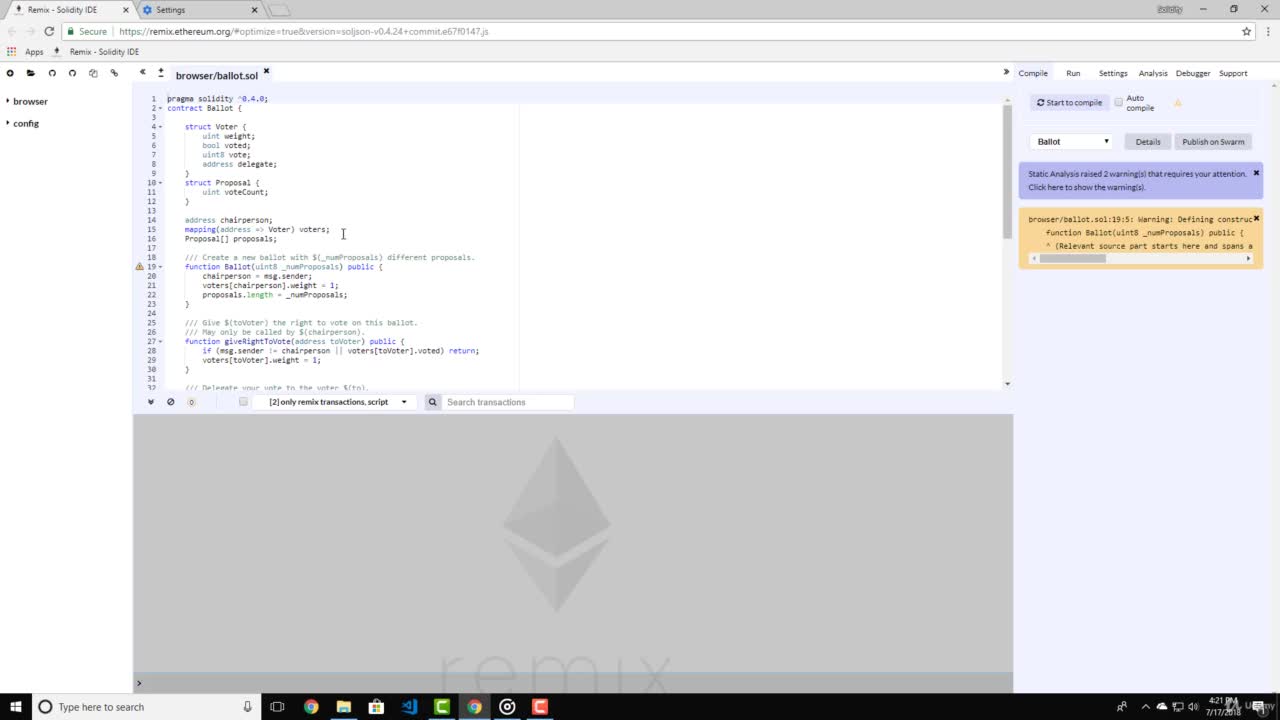
In this lecture we're going to take a look at the online idea that we can use to make our slaty contracts and test them fast. So you need to open remix that yttrium that our work here we can see a sample contract that is already written out for us. However we're going to write down our own contract to start out now I want you to click on the blue sign here on the top left hand side of the website give whatever name you like for a lawsuit filed. I will name mine messenger. As we discussed in the previous lecture on top of every solut file we need to specify the so-called version pragma. So type pragma solidity up arrow zero point four point twenty four. And just below that we're going to define our contract type contract messenger. Curly brackets on the first line we're going to define a variable address code owner in the next lecture. We're going to talk more about variables. So just bear with me here. On the next line we're going to define an array of strings called messages just below our declared variables. We're going to define a constructor type constructor opened in closed brackets public and open and closed curly brackets inside the curly brackets. We're going to type up. Owner equals MSDE dot sender. This line will define the owner as the person who has deployed the contract on the new line. We're going to define a function at which input variables of a string code new message. The visibility of the function is public and to open and close curly brackets inside the brackets we're going to type the following. Require open bracket MSJ dot Sander equals equals owner. Close the brackets. This line will prevent anyone who is not the owner of the contract to add messages to the array of messages just below this. We're going to type of messages that push open bracket new message close bracket. This line will add a new message to the array of messages below that we are going to define a function called count which is a view public function. And it returns a unsigned integer inside the curly brackets. We're going to return messages not linked which will return the number of messages inside Ray belowdecks we're going to define one last function code get messages. This is going to take a variable. You end quote index the function will be a public function and need to return a string. Inside of the function we're going to return the message with the index would give to the function. Ok so now we're ready to compile our contract and apply it to the virtual network. We need to click here on the compile tab and then on start to compile if we have any errors or warnings we'll see here some notifications in yellow and red. They're very explicit. Any to help you find your errors and correct them we get a messenger in green which means that we don't have any errors in our code. OK. Now we can go on the run up over here here under TARP top we have a dropdown menu called environment. We get three choices. Javascript VM injected twip three web and to web tree provider we're going to choose the javascript virtual machine bloodies. We have five virtual two room wallet's after that. The gas limit for the transactions and below that the term in ways which we want to send to the function below this we have a drop down of the contracts that we caffein the slate file. For now we have only one contract called messenger. So we survived this and we could deploy. Now here we can see that we have deployed our contract successfully and we have access to the following functions at Count and get message in the debugger console. Over here you can see some more details about the deployment. You can see that status of the transaction is success. You can also see the contract address who deployed the contract and other details about the gas and the inputs. OK so now let's try to add a message to our messenger that's typed here first message in quotes. Just don't forget to type the quotes because otherwise you get an error. This is just our strength inputs work on remakes. Now let's click on the Add button and see what happens. As you can see away with half hour transaction success will give the input to the function messenger that at. And we have our address here. Now we can also check the counts that we have already. Let's click on the town button here. We have one message in our messenger. Now let's try to return this message from the other function type zero in the GET message function and hit on the button. Here you can see that we have a code function which gives the output of the new message. However if we try to return an index that does not exist we are going to get an error. Let's try to type in one and press the get message button again. Here you can see that we have an error of invalid opcodes. I want to show you one more thing. Remember that we restricted at function to be usable only by the contract on or here right now. Let's change the count to another one and try to add a message. Let's take this message in quotes and hit the pad button. As you can see we get an error of reports these transaction stopped here and did not let us push any messages to the messenger because we were not owners. And this prevents certain functions to be executed from someone else. That's not the owner of the contract. OK so now if you've created your first contract with slaty and you got familiar with the remix ID a little bit. Now let's continue with our lectures and get more in with isolating.