Je winkelwagentje is leeg.
Verder winkelen

Lesgeven op Udemy
Bereik wereldwijd miljoenen mensen door optimaal gebruik te maken van je kennis.
Meer informatieThe Complete MySQL Bootcamp: Go from Zero to Hero in 2026
Score 4,4 van de 54,4(2,485 scores)
14.230 studenten
Wat je leert
- Write SQL queries from scratch to extract, filter, and sort data from databases.
- Use aggregate functions, joins, and subqueries to analyze business datasets.
- Apply SQL window functions and advanced techniques to solve real-world problems.
- Build project-based solutions that simulate real business use cases.
Verwante onderwerpen verkennen
Codeeroefeningen
Deze cursus bevat onze bijgewerkte codeeroefeningen, zodat je je vaardigheden kunt oefenen terwijl je leert.
Bekijk een demo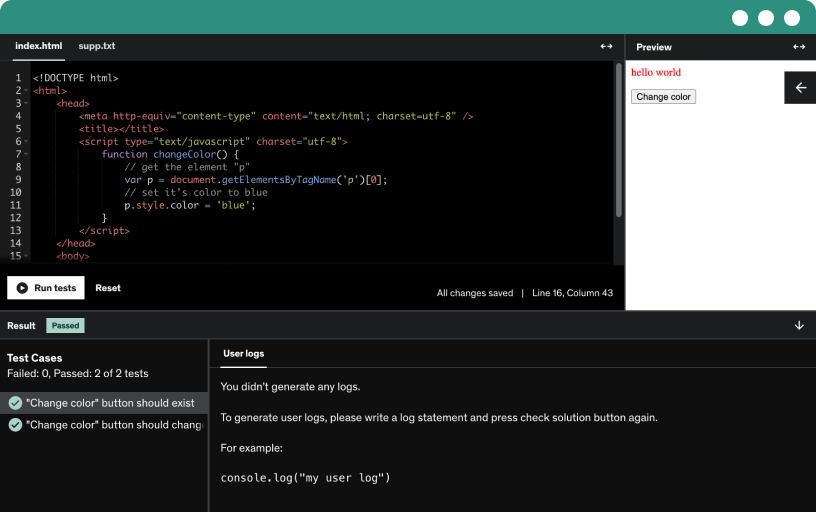
Cursusinhoud
18 secties • 154 colleges • Totale lengte van 8u 36m
- Introduction to SQL3:06
You open Excel.
There’s a table full of data.
Sales numbers. Customer names. Orders. Dates.
You just want to see everything quickly.
But instead of getting answers, you feel stuck.
Where do you even start? Do you need to learn coding? Is SQL complicated?
Here’s the truth.
Most people think SQL is scary because it looks technical. But it’s not. It’s just a language for asking questions from data.
Think about it like this.
There’s a pizza inside a box across the room.
You ask someone to bring it to you.
If that person has no common sense, you need to be very clear:
“Pick the entire pizza from the box and bring it to me.”
That’s exactly how SQL works.
You give clear instructions.
The database follows them.
That’s it.
In this Udemy course lesson, you’ll learn:
What SQL actually means, in simple words
Why “Structured Query Language” is less complicated than it sounds
How SQL is just about asking logical questions
Why databases behave like robots and need clear instructions
What a simple command like SELECT * FROM table_name really means
No heavy theory.
No intimidating programming talk.
Just practical understanding.
By the end of this video, you’ll:
Stop feeling afraid of SQL
Understand how SQL “talks” to data
See how SQL works with tables, spreadsheets, and databases
Build the right mindset before writing your first query
If you’re searching for:
“What is SQL in simple words?”
“Is SQL hard for beginners?”
“How to start learning SQL from scratch?”
“What does SELECT * FROM mean?”
“Do I need coding experience to learn SQL?”
This lesson answers all of that.
SQL is not about complex programming.
It’s about asking the right question in the right way.
And once you get that, everything else becomes easier.
This is just the beginning.
In the next lesson, we move from understanding SQL… to actually using it.
- Understanding the SQL Language3:34
Ever opened SQL for the first time and thought…
Why does this sound so robotic?
Why can’t I just say “pick the data from the table”?
You’re not alone.
When people start learning SQL, the biggest confusion is not the database. It’s the language. Words like SELECT and FROM feel technical, even intimidating.
But here’s the truth.
SQL is just a standardized way of saying something very simple.
The Real Problem
Imagine you have a pizza inside a box.
You want the pizza.
In normal life, you’d say:
“Pick the pizza from the box.”
But in SQL, you say:
SELECT * FROM table
That’s it.
The box is the table.
The pizza is the data.
The action of picking is SELECT.
The direction is FROM.SQL is simply standardizing the way we ask for data.
Because if everyone used their own words like:
pick
collect
take
bring
choose
It would be chaos.
So SQL says, “Let’s all use one word. SELECT.”
Clean. Clear. Universal.
What You’ll Learn in This Video
In this lesson, you’ll understand:
What a table really means in SQL
Why data is compared to objects like pizza in a box
What SELECT actually does
Why FROM is important
How SQL standardizes communication across the world
You’ll also understand the logic behind:
Command → What you want → Where to get it from
Selecting everything vs selecting specific columns
How SQL reads like a structured sentence
No jargon. No overcomplicated theory.
Just a simple breakdown of how SQL language works.
Practical Outcomes
After watching this video, you will:
Stop feeling confused by basic SQL syntax
Understand how a SELECT query is structured
Be ready to write your first SQL query
Build a strong foundation for learning filtering, conditions, and advanced queries
If you’re learning SQL for data analysis, data science, MIS roles, or backend development, this is where it starts.
Questions This Video Answers
What does SELECT mean in SQL?
Why do we use SELECT instead of pick or choose?
What is a table in SQL?
What does FROM do in SQL?
How does a basic SQL query work?
How do I start writing my first SQL query?
If you’ve ever Googled:
“SQL explained simply”
“SQL for beginners easy explanation”
“What is SELECT FROM in SQL?”This lesson is exactly for you.
SQL is not scary.
It’s just structured English.
And in the next lesson, you’ll write your very first SQL query and see this in action.
- Writing our First SQL Query2:49
You just learned that SQL is basically giving clear instructions to a database.
Cool.
But now the real question is…
Is SQL only about “selecting” data?
Not even close.
Think back to the pizza example.
You’re not just picking pizza from a box.
You can:
Create a new pizza
Add a slice
Update toppings
Remove something you don’t want
That’s exactly what SQL does with data.
In this Udemy lesson, we go beyond just SELECT and look at the five core SQL operations every beginner must know.
Here’s what SQL can actually do:
? SELECT – Get data from a table
Like picking all slices from the white box.? CREATE – Create a new table
Like magically placing a fresh pizza on the table.? INSERT – Add new data
Like adding a new slice to your pizza.? UPDATE – Modify existing data
Like adding extra toppings to a pizza you already have.? DELETE – Remove data
Like taking out gluten from the crust.These five commands are the foundation of SQL.
Every real-world database operation in business, analytics, or backend systems builds on these basics.
Then we write our first real SQL query.
Imagine two boxes:
White Box
Yellow Box
If you want everything from the white box, you write:
SELECT * FROM WhiteBox
If you want everything from the yellow box:
SELECT * FROM YellowBox
That little star symbol, called an asterisk, means “give me everything.”
Now apply this to real data.
If your table is called PinkTable, the query becomes:
SELECT * FROM PinkTable
That’s it.
You’ve just written your first SQL query.
By the end of this video, you’ll:
Understand the 5 basic SQL commands
Know what SELECT * really does
Learn how SQL pulls data from tables
Feel confident writing your first query
Stop overthinking case sensitivity and small syntax worries
If you’re searching for:
“What are the basic SQL commands?”
“How to write your first SQL query?”
“What does SELECT * mean in SQL?”
“How to fetch all data from a table in SQL?”
“Is SQL case sensitive?”
This lesson clears it up in plain English.
Next up, we go deeper.
Because to truly understand SQL, you need to understand databases.
And once that clicks, everything starts making real sense.
- Instructions on Coding Exercise1:07
Before you jump into the next lesson, pause for a second.
You’re about to enter your first SQL coding exercise.
And this is where things get real.
Quick Heads-Up Before You Start
When you click on the coding exercise, you’ll see an interactive SQL editor.
It looks simple. But here’s the important part:
Do not try this on your mobile.
Udemy’s coding environment is still in beta, and it does not work smoothly on phones.
Use a desktop or laptop for the best experience.Trust me, it saves frustration.
What You’ll See Inside the Coding Exercise
Once you open it on desktop, here’s how it works:
You’ll see the question clearly mentioned.
There will be a space to write your SQL query.
You click Run.
Udemy runs your query in the backend.
You instantly see:
A success message (if correct)
The output table with results
Every query you write may return different outputs depending on the question.
That’s the fun part.
What If You Mess Up?
No stress.
You’ll also see a Reset option.
If you click reset and confirm:
Your current query gets cleared.
You can start fresh.
Try again immediately.
This is hands-on SQL practice. Trial and error is part of learning.
What This Exercise Helps You Do
By using this SQL practice environment, you will:
Write real SQL queries, not just watch theory
Understand how SELECT queries actually behave
See live query output instantly
Build confidence before moving to advanced SQL concepts
If you’ve ever searched:
“How to practice SQL on Udemy?”
“Why is Udemy SQL editor not working on mobile?”
“How to run SQL queries inside Udemy course?”
This lesson answers exactly that.
Now that you know how the coding exercise works, go try it.
In the next lesson, we start writing real queries.
- Your First SQL Query
- Important Notes to New Students0:28
- Introduction to Database3:22
You save money in a piggy bank.
Coins. Notes. Maybe even foreign currency.
You don’t throw it in there for fun.
You store it so you can use it later.
Now imagine cracking open that piggy bank.
Everything is mixed up.
Coins, notes, foreign currency. Total chaos.
Before you can use it, you have to sort it.
That’s the difference between random storage… and a database.
In this Udemy lesson, we break down one of the most important beginner questions:
What is a database?
In simple words, a database is a place where information is stored in an organized way so you can use it later.
Not just numbers.
Not just text.
A database can store:
Numbers
Names and text
Images
Symbols
Almost any kind of information
But here’s the key difference.
Unlike a messy piggy bank, a database doesn’t store data randomly.
It organizes it.
So when you open it, you don’t waste time sorting. You start using.
That’s where the idea of a relational database comes in. It arranges data in tables so you can:
Retrieve data quickly
Insert new data easily
Update existing information
Delete what you don’t need
Manage everything efficiently
If you’ve ever wondered:
“What is a database in simple terms?”
“What is the difference between database and SQL?”
“What is a relational database?”
“How does a database store data?”
“Why do businesses use databases?”
This lesson gives you a clear foundation.
We also introduce terms like:
Tables
Views
Stored procedures
Database objects
Don’t worry if they sound technical right now. You’ll learn each one step by step.
The goal here is simple.
Start seeing stored information differently.
Your phone contacts? That’s a database.
Your Excel sheet? That’s a database.
Customer records in a company? Definitely a database.Once you understand what a database really is, SQL starts making real sense.
Next, we explore the different types of databases that exist… and why that actually matters in the real world.
- Types of Database5:09
- SQL vs MYSQL - Understanding RDBMS5:01
Ever typed “SQL vs MySQL difference” and got more confused than before?
You’re not alone.
A lot of beginners think SQL and MySQL are the same thing.
They’re not.
And once you understand this properly, everything else in databases becomes much easier.
The Core Confusion
We know SQL stands for Structured Query Language.
It’s a language.
But then what is MySQL?
Here’s where people get stuck.
Let’s simplify it.
Think of It Like a Bank
Imagine a bank.
The bank stores your money. It keeps everything organized. It allows transactions.
Now think of SQL like money itself.
It’s the standard system used everywhere.But how do you actually access your money?
You don’t walk into a vault every time.
You use a debit card, credit card, or UPI.
That system that helps you access your money easily is like an RDBMS, a Relational Database Management System.
And MySQL is one of those systems.
So What Is SQL?
SQL is:
A standard language
Used to query, update, delete, and manage data
The same basic language across different database systems
Not something you “install” by itself
It’s just the language.
Like English.
What Is MySQL?
MySQL is:
A database management system
Software you install
A tool that understands and runs SQL queries
An intermediary between you and the database
It helps you talk to the database using SQL.
Without a system like MySQL, talking directly to raw databases would be messy and impractical.
Other Database Systems You Might Hear About
MySQL is not alone.
There are many other database systems that use SQL, such as:
PostgreSQL
Oracle Database
Microsoft SQL Server
SQLite
They all use SQL as the language.
Just like different banks all deal with money.
Money does not change because the bank changes.
SQL does not change because the system changes.
What You’ll Learn in This Video
In this lesson, you’ll clearly understand:
What SQL actually is
Why SQL is called a language
What MySQL does
What an RDBMS really means in simple terms
Why we need database systems instead of just “SQL alone”
How SQL works across multiple platforms
No heavy jargon. No unnecessary complexity.
Just clean logic.
Practical Outcomes
After watching this video, you will:
Stop confusing SQL and MySQL
Understand what to install when practicing SQL
Feel more confident starting database tools
Be ready to explore queries inside MySQL
If you’re learning databases for data analytics, backend development, or interview preparation, this clarity is important.
Questions This Video Answers
What is the difference between SQL and MySQL?
Is SQL a software or a language?
Do I need to install SQL?
What is RDBMS in simple words?
Is MySQL the same as SQL?
Which database system should I learn first?
If you’ve searched things like:
“SQL vs MySQL explained simply”
“Difference between SQL and MySQL for beginners”
“Is MySQL a programming language?”This lesson clears it up.
Now that you understand the difference, we’ll go deeper into how SQL and MySQL actually work together in real-world scenarios.
Let’s move to the next lesson.
- Difference between a Database and Spreadsheets5:08
You’ve probably asked this already.
If Excel and Google Sheets can store data, calculate totals, create charts, and even handle thousands of rows…
Why do we even need databases?
Fair question.
At first glance, spreadsheets and databases look similar. Both can:
Store large amounts of data
Perform calculations
Be shared with teams
Help with analysis
So what’s the big difference?
It comes down to structure, control, and scale.
Let’s break it down.
Spreadsheets: Easy but risky
Tools like Microsoft Excel and Google Sheets are usually the first choice for teams.
Why?
Because they’re flexible.
You can type anything, anywhere.
Numbers in one cell. Text in the next. Dates, symbols, comments, random notes. No one stops you.
That flexibility feels great.
Until it creates problems.
Someone types a date as text.
Someone enters numbers with extra spaces.
Someone deletes a formula accidentally.Now your analysis is wrong. And you don’t even know it.
Databases: Structured and strict
Databases don’t allow that kind of chaos.
If a column is meant for numbers, it accepts numbers only.
If it’s a date field, only dates go in.
If a field is mandatory, you must fill it.This structure protects data quality.
It prevents:
Wrong data types
Missing required information
Random formatting issues
Misplaced values
You don’t need to train every user perfectly. The system enforces rules for you.
That’s a big deal in real businesses.
The size and performance difference
Here’s where it gets serious.
With small data, spreadsheets work fine.
But as data grows, spreadsheets become heavy and slow.
In the example from this lesson:
With 20 rows, spreadsheet and database sizes look similar.
With 4,000 rows, the spreadsheet file becomes significantly larger.
As rows grow into hundreds of thousands or millions, the storage and performance gap increases massively.
For businesses handling:
Customer data
Sales transactions
Product inventories
Financial records
That size difference translates into real cost, performance, and scalability impact.
Databases are optimized to handle millions of rows efficiently.
Spreadsheets are not built for that level of scale.
So when should you use what?
Use spreadsheets when:
Data is small
Analysis is quick
Team size is limited
Flexibility matters more than structure
Use databases when:
Data is large
Accuracy is critical
Multiple users access data
Long-term storage and performance matter
If you’ve searched:
“Database vs Excel difference”
“Why use database instead of spreadsheet?”
“Is Excel a database?”
“When should a business use a database?”
“Database advantages over Excel”
This lesson clears it up in practical terms.
Now that you understand why databases exist, the next logical step is learning how they enforce structure.
And that starts with understanding data types.
Because structure is what makes a database powerful in the first place.
- What is a Relational Database6:15
Why do databases exist when we already have spreadsheets?
If Excel can store rows and columns, why do we even need something called a “relational database”?
Fair question.
And this is exactly where most beginners get confused.
The Real Problem with Spreadsheets
Imagine you’re storing student data in a spreadsheet.
Each row has:
Name
Date of birth
Height
Gender
Nationality
Major
GPA
Fees
Year of study
Now imagine three students.
Everything looks fine… until you notice this:
Two students chose the same major
All three studied the same language
Every year, you must add more rows for updated GPA and fees
So for 2020, you copy the same personal details again.
Name. Height. Nationality. Everything.
Over and over.
That’s duplication.
And duplication means:
More storage
More chances of mistakes
More messy data
Spreadsheets work. But they don’t scale well.
This Is Where Relational Databases Come In
Instead of stuffing everything into one big table, relational databases split data smartly.
Let’s break it down.
You separate:
Table 1: Student Basic Information
Student ID
Name
Date of birth
Height
Nationality
Table 2: Academic Information
Student ID
Year
GPA
Fees
Now notice something important.
The connection between both tables is Student ID.
That’s the relationship.
Instead of repeating personal details every year, you just:
Add a new row in the academic table
Keep the base information untouched
Cleaner. Faster. Smarter.
What Is a Relational Database?
A relational database:
Stores data in tables
Uses rows and columns like a spreadsheet
Connects tables using unique IDs
Reduces duplication
Makes querying specific data easier
This is the foundation of SQL.
And this course focuses on relational databases, not non-relational databases.
Why This Matters for SQL
SQL is designed to work beautifully with relational databases.
When you write queries, you can:
Fetch student names from one table
Fetch fees from another table
Combine them using relationships
Retrieve only the exact data you need
No unnecessary data processing.
No duplication.
Just precise results.
If you’ve searched things like:
“What is a relational database in simple words?”
“Difference between spreadsheet and database”
“Why use relational database instead of Excel?”
“What is relationship in SQL?”
This lesson clears that up.
Practical Outcomes
After this video, you will:
Understand why relational databases are powerful
Know what a relationship between tables means
Recognize why unique IDs matter
Be ready to use SQL to connect multiple tables
This is the foundation for:
JOIN operations
Data analytics queries
Real-world SQL projects
We’ve covered the basics.
Now it’s time to stop talking theory.
Let’s move to your first SQL project and start doing real data analytics.
- Introduction to our Project1:34
You can learn SQL by memorizing commands.
Or…
You can learn it by building something real.
In this Udemy course, we take the second route.
You’re not just watching syntax.
You’re running a pizza store.
You’re the owner.
And before selling a single slice, you need something powerful behind the scenes:
A database.
Because every real business needs a system to store, manage, and analyze information.
Orders. Customers. Menu items. Payments. Inventory.
So here’s the plan.
We’ll build your pizza store database step by step.
First, you’ll design it.
Then, you’ll create tables.
Insert and update data.
Clean and standardize it.
And finally, analyze it to extract real business insights.This is a complete, project-based SQL learning approach using MySQL or any SQL database.
Think of it like building your dream home.
You don’t start by randomly placing furniture.
You plan it.
Here’s how that connects to databases:
Data Types
These are like your furniture.
Before building, you need to know what will go inside. Numbers? Text? Dates?Schema
This is the layout of your house.
How your database is structured. How tables are arranged.Relationships
This decides which room connects to which.
How tables connect to each other.Keys
These are your doors and locks.
They help you uniquely identify records and navigate data properly.If you’ve searched for:
“How to learn MySQL with a project?”
“SQL project for beginners”
“How to design a database from scratch?”
“What is schema in SQL?”
“What are primary keys and relationships?”
This is where it all starts making sense.
Instead of random theory, you’ll build something practical.
And it begins with the foundation.
Next up, we start with one of the most important concepts in SQL:
Data Types.
Because if you don’t know what kind of data you’re storing, you can’t build a strong database.
- INT (Integer) - Numerical data type4:41
Ever wondered why SQL asks you to choose a “data type” before storing data?
Why can’t it just store everything as a number and move on?
Because when you’re dealing with large datasets, small decisions matter.
And choosing the right data type can save space, prevent errors, and improve performance.
In this lesson, we start with one of the most important SQL data types: INTEGER (INT).
What Are Data Types in SQL?
Data types decide:
How information is stored
How much space it consumes
What kind of values it accepts
How efficiently SQL can process it
If you’re working with thousands or millions of rows, this becomes serious business.
Understanding INTEGER (INT) in SQL
INT is used to store whole numbers.
No decimals.
No fractions.
Just clean integers.Examples:
Employee ID → 1001
Quantity in stock → 250
Lifespan of a species → 150
These are all whole numbers.
Perfect use case for INTEGER.
But Why Not Use It Everywhere?
Because SQL is built for scale.
An INTEGER in most systems:
Can store values from around -2 billion to +2 billion
Uses 4 bytes of storage per row
Now imagine this.
If you store 2 billion rows in one column using INT:
Each row takes 4 bytes
That’s 8 billion bytes
Around 7.45 GB for just one column
And that’s only one variable.
So yes, data type selection affects storage and performance.
Real Business Examples
Let’s make this practical.
1. Employee ID Table
You know your company won’t hire 2 billion employees.
Even 1 million employees is realistic at scale.
So using INTEGER for:
Employee ID
Makes total sense.
2. Product Inventory Table
You have:
Product ID
Quantity available
Both are whole numbers.
Again, INTEGER fits perfectly.
3. Transaction Table
You might store:
Transaction ID → INTEGER
Quantity purchased → INTEGER
But for purchase amount?
That’s different. It may include decimals.
So INTEGER is not always the right choice.
We’ll cover that in the next lesson.
What You’ll Learn in This Video
What SQL data types are
Why data types matter in large databases
What INTEGER means in SQL
Storage size of INT
When to use INT in real-world scenarios
Why business logic matters before choosing a data type
Questions This Video Answers
What is INT in SQL?
What is the range of integer in SQL?
How much space does INT use?
When should I use integer data type?
Why can’t I use integer for everything?
If you’ve searched:
“SQL integer explained simply”
“INT data type in SQL with example”
“SQL data types for beginners”This lesson is exactly what you need.
Data types are not just theory.
They affect performance, storage, and scalability.
In the next lesson, we’ll explore another important SQL data type and understand when INTEGER is not enough.
- BIGINT (Big Integer) - Numerical data type2:36
Imagine you’re building your pizza store database.
You need a Customer ID.
At first, you think, “I’ll just use a normal number.”
But what happens when your business grows?
10 customers becomes 10,000.
Then 1 million.
Then 50 million.Now your ID column needs to handle very large numbers safely.
That’s where BIGINT comes in.
In SQL databases like MySQL, BIGINT stands for “big integer.” It’s used when regular integers just aren’t enough.
What is BIGINT in SQL?
BIGINT is a numerical data type designed to store very large whole numbers.
It can store values:
From large negative numbers
To very large positive numbers
Up to around 9 quintillion (that’s huge)
Each BIGINT value takes 8 bytes of storage, which is double the size of a normal INT.
That means:
More capacity
More range
More storage usage
So you should use it only when you actually need it.
When should you use BIGINT?
Here are practical business scenarios:
? User IDs or Customer IDs
If your platform could have millions or billions of users.? Transaction IDs
Banking systems or payment platforms storing massive volumes.? Timestamps stored as numbers
Especially in high-scale systems.? Server or system identifiers
In large enterprise environments.Think about platforms like Google processing billions of searches daily. If they generate unique IDs for every search query, they need something with a very large range. BIGINT makes that possible.
But here’s the catch
Because BIGINT uses more storage:
It increases database size
It consumes more memory
It can affect performance if overused
So don’t use BIGINT just because it “sounds powerful.”
Use it when:
You expect extremely large values
You are building scalable systems
Regular INT might overflow in the future
If you’ve searched:
“What is BIGINT in MySQL?”
“Difference between INT and BIGINT?”
“When should I use BIGINT in SQL?”
“How much data can BIGINT store?”
This lesson gives you the practical answer.
In the next video, we move in the opposite direction.
From very large numbers…
To very small ones.
Let’s talk about TINYINT.
- TINYINT (Tiny Integer) Data type and when to use it2:35
Ever wondered why SQL has something called TINYINT when we already have INTEGER?
Why create a smaller version of something that already works?
Because in large databases, size matters.
A lot.
What Is TINYINT in SQL?
TINYINT is just a smaller version of INTEGER.
It stores whole numbers.
No decimals.
But here’s the key difference:
INTEGER range → roughly -2 billion to +2 billion
TINYINT range → -128 to +127
Storage → only 1 byte per row
That’s one-fourth the size of an INT.
When you’re storing millions or billions of rows, that difference becomes huge.
Where Is TINYINT Actually Used?
TINYINT is used when you know the value will stay within a small limit.
Let’s look at practical cases.
1. Status Codes
Instead of storing:
“Working”
“Not Working”
“Missing”
You store:
1 → Working
2 → Not Working
3 → Missing
Later, during analysis, you decode the numbers.
Result?
Less storage. Faster processing. Cleaner structure.
2. Boolean Flags (0 and 1)
Imagine tracking:
Is user active today?
Has user logged in?
Has payment been completed?
Instead of storing “Yes” or “No”, you store:
1 → Yes
0 → No
If you have 1 million or even 1 billion users, this saves serious space.
3. Rating Scales
If your survey rating is:
1 to 10
You don’t need an INTEGER that can store billions.
TINYINT handles it perfectly.
Why Database Designers Love TINYINT
Because:
It consumes only 1 byte per row
It improves performance in large-scale systems
It reduces storage cost
It forces clean, structured design
If you have 2 billion rows:
INTEGER → 8 billion bytes
TINYINT → 2 billion bytes
That’s a massive difference.
What You’ll Learn in This Video
What TINYINT means in SQL
TINYINT range explained simply
Difference between INT and TINYINT
When to use status codes
Why boolean flags matter in large systems
Real-world business use cases
Questions This Video Answers
What is TINYINT in SQL?
What is the range of tinyint?
Difference between int and tinyint?
When should I use tinyint?
Why use 0 and 1 instead of Yes and No?
If you’ve searched:
“SQL tinyint explained”
“Tinyint vs int difference”
“How to store boolean in SQL?”This lesson gives you clear answers.
Choosing the right data type is not just technical.
It’s strategic.
In the next lesson, we’ll explore another numeric data type and understand when TINYINT is not enough.
- DECIMALS - Numerical data type3:20
So far, we’ve used INT, TINYINT, and BIGINT.
All of them store whole numbers.
But real business data is rarely that clean.
Prices. Salaries. Taxes. Exchange rates.
They all have decimal values.
That’s where the DECIMAL data type comes in.
What is DECIMAL in SQL?
In databases like MySQL, DECIMAL is used to store numbers with digits before and after the decimal point.
It has two important parts:
Precision → Total number of digits (before and after the decimal)
Scale → Number of digits after the decimal
Example:
If you store:
100.99
Total digits = 5 → Precision = 5
Digits after decimal = 2 → Scale = 2
So you define it like:
DECIMAL(5,2)
Simple.
Why not use FLOAT or DOUBLE?
Because DECIMAL is precise.
For financial data, rounding errors are not acceptable.
If you're building:
A payroll system
An e-commerce platform
A banking application
You need exact numbers.
That’s why DECIMAL is commonly used for money.
Storage size depends on precision
The bigger the number, the more storage it uses:
Precision 1 to 9 → 4 bytes
Precision 10 to 18 → 8 bytes
Precision 19 to 38 → 16 bytes
So the size adjusts based on how large your numbers are.
Real business examples
1. Product prices in an e-commerce store
Imagine:
Headphones → 99.99
Smartphone → 499.99
Laptop → 1299999.99
Different products, different number sizes.
You might define:
DECIMAL(10,2)
Why?
Because:
You want flexibility as prices grow
You always need 2 digits after decimal
You don’t want to redesign your database later
2. Employee salaries
Salaries increase over time.
50,000 becomes 100,000.
Maybe even 1,000,000.You plan ahead.
So you define something like:
DECIMAL(12,2)
Enough room for growth.
3. Exchange rates in financial systems
Exchange rates need high precision.
Example:
1.234567
Here you may use:
DECIMAL(8,6)
High scale. High accuracy.
No rounding surprises.
If you’ve searched:
“What is DECIMAL in MySQL?”
“Difference between DECIMAL and FLOAT?”
“What is precision and scale in SQL?”
“How to store currency values in SQL?”
This lesson answers it clearly.
The key takeaway?
Always understand the type of data you’re storing.
Money? Use DECIMAL.
Counts? Use INT.
Massive IDs? Use BIGINT.Next up, we explore another numerical data type and when you should use it.
- FLOAT and DOUBLE - Numerical data type2:28
Ever tried storing decimal numbers in SQL and wondered…
Should I use FLOAT?
Or DOUBLE?
Or something else?If you’re dealing with temperatures, money, or scientific values, this decision actually matters.
Let’s break it down in plain English.
Why FLOAT Exists
FLOAT is used when you need to store numbers with decimals.
Simple.
For example:
Temperature → 32.75
Height → 5.82
Scientific measurement → 0.0034
FLOAT:
Stores decimal values
Uses 4 bytes of storage
Can handle very large ranges, roughly ±3.4 × 10³⁸
It’s lightweight and efficient.
If you’re storing city temperatures and you know values won’t exceed something like 100.00, FLOAT works perfectly.
Where FLOAT Is Commonly Used
Temperature readings
Scientific measurements
Sensor data
Small decimal values in research
If the decimal precision isn’t extremely critical, FLOAT is usually fine.
But here’s the catch.
FLOAT can sometimes introduce small rounding differences because of how computers store decimal numbers internally.
For many cases, that’s acceptable.
For money? Not always.
Enter DOUBLE
DOUBLE is like the bigger sibling of FLOAT.
It:
Stores decimal values
Uses 8 bytes of storage
Handles a much larger range, roughly ±1.7 × 10³⁰⁸
Offers higher precision than FLOAT
Because it uses more space, it can store more detailed decimal values.
Where DOUBLE Makes More Sense
1. Financial Transactions
If you’re storing:
Transaction amounts
Account balances
Large currency values
DOUBLE gives you higher precision than FLOAT.
2. Advanced Scientific Calculations
When you’re working with:
Very large numbers
High-precision decimal calculations
Complex computations
DOUBLE becomes the safer choice.
FLOAT vs DOUBLE in Simple Terms
FLOAT → smaller, lighter, good for moderate decimals
DOUBLE → larger, more precise, good for bigger or more detailed numbers
FLOAT uses 4 bytes
DOUBLE uses 8 bytes
Choosing between them depends on:
How big the number can get
How precise the decimals need to be
How much storage you want to use
What You’ll Learn in This Video
What FLOAT means in SQL
What DOUBLE means in SQL
Storage size differences
When to use FLOAT
When to use DOUBLE
Business and real-world examples
Questions This Video Answers
What is float in SQL?
What is double in SQL?
Difference between float and double?
Which is better for money?
How much storage does float use?
How much storage does double use?
If you’ve searched:
“SQL float vs double difference”
“Best data type for decimal values in SQL”
“How to store currency in SQL?”This lesson gives you clarity.
Understanding numeric data types is a big step toward designing efficient databases.
In the next lesson, we’ll continue exploring more data types and when to use them smartly.
- BIT and BOOLEAN - Numerical data type2:25
Sometimes your database doesn’t need big numbers.
It doesn’t need prices.
It doesn’t need salaries.
It just needs a simple answer.
Yes or No.
On or Off.
Active or Inactive.That’s where BIT and BOOLEAN come in.
BIT data type in SQL
A BIT stores only two values:
0 or 1
That’s it.
It’s the most basic form of data storage. A single bit represents one binary value.
In SQL systems like MySQL, BIT is used when you strictly want to store binary flags.
Example use cases:
Is product in stock?
1 = Yes
0 = NoIs machine operational in a factory?
1 = Running
0 = Not runningIs a book issued from the library?
1 = Borrowed
0 = Available
Why use BIT?
Because it’s extremely storage efficient. It uses just one bit for storage.
When you are working with millions of records, even small storage savings matter.
Use BIT when:
You only need 0 and 1
You are building high-scale systems
You want maximum storage efficiency
BOOLEAN data type in SQL
BOOLEAN is similar.
But instead of 0 and 1, it represents:
TRUE or FALSE
Behind the scenes, it still behaves like binary logic. But it’s more readable.
Example use cases:
Is user active? → TRUE or FALSE
Is subscription active? → TRUE or FALSE
Is email verified? → TRUE or FALSE
BOOLEAN usually uses 1 byte per value, which is slightly larger than BIT.
So when should you choose BOOLEAN?
Use BOOLEAN when:
Your logic depends on true/false conditions
You want better readability in queries
You are writing conditional logic in applications
BIT vs BOOLEAN – What’s the difference?
BIT → strictly 0 or 1, more storage efficient
BOOLEAN → TRUE or FALSE, easier to read in logic
If you’re searching:
“What is BIT in MySQL?”
“Difference between BIT and BOOLEAN in SQL?”
“How to store true or false in SQL?”
“When to use BIT data type?”
This lesson clears it up.
Keep it simple:
Need strict binary flags? Use BIT.
Need readable logical conditions? Use BOOLEAN.Next, we move away from numbers and binary values.
Let’s talk about string data types and how to store text properly in SQL.
- CHAR - String data type2:37
Ever stored text in SQL and thought…
Why do I need to choose between CHAR and something else?
Isn’t text just… text?
Not exactly.
When databases get large, even text storage needs planning. And that’s where CHAR comes in.
What Is CHAR in SQL?
CHAR is a string data type.
It stores text.
But here’s the key thing:
CHAR stores fixed-length values.
If you define:
CHAR(4)
SQL will always reserve space for exactly 4 characters, no matter what you store.
Even if you use only 2 characters.
Why Would Anyone Want Fixed Length?
Because sometimes your data is always the same size.
For example:
Branch codes → always 4 characters
Library branch ID → always 5 characters
ISBN number → always 13 characters
In these cases, CHAR makes perfect sense.
You already know the length. It never changes.
How CHAR Works Behind the Scenes
If you define:
CHAR(3)
And store “ZIP” → uses 3 bytes
And store “AI” → still uses 3 bytes
Even if you enter fewer characters, SQL fills the remaining space.
That’s both:
✔ Predictable
✘ Potentially wastefulSo you must use it carefully.
Real Business Examples
1. ISBN Numbers
Every book has a 13-digit ISBN.
That never changes in length.
So:
CHAR(13) is perfect.
2. Fixed Branch Codes
If every branch code is exactly 4 characters:
CHAR(4) works beautifully.
3. Fixed-Length Identifiers
Any time the format is standardized and never varies in size, CHAR is a strong choice.
When CHAR Is Not Ideal
If:
Some values are short
Some values are long
The length varies often
Then CHAR can waste storage.
That’s where another data type, VARCHAR, becomes more efficient. We’ll cover that next.
What You’ll Learn in This Video
What CHAR means in SQL
What fixed-length storage means
How CHAR uses storage space
When to use CHAR
When not to use CHAR
Real-world database examples
Questions This Video Answers
What is CHAR in SQL?
What does CHAR(10) mean?
Difference between CHAR and VARCHAR?
Does CHAR waste space?
When should I use CHAR data type?
If you’ve searched:
“SQL char explained”
“Char vs varchar difference”
“Fixed length string in SQL”This lesson gives you clarity.
Choosing the right string data type affects performance and storage just like numeric types do.
Next, we’ll learn about VARCHAR and understand why it’s one of the most commonly used string data types in SQL.
- VARCHAR - String data type2:12
Imagine you’re designing your pizza store database.
You need a column for customer names.
Now think about this:
Li → 2 characters
John → 4 characters
Alexander → 9 charactersCan you fix one exact length for every name?
Not really.
That’s where VARCHAR comes in.
What is VARCHAR in SQL?
VARCHAR stands for Variable Character.
It’s used to store text where the length can vary from row to row.
In databases like MySQL, you define it like this:
VARCHAR(50)
This means:
You can store text up to 50 characters
It can be 2 characters
Or 10
Or 49
But not more than 50
You’re setting the maximum limit.
Why not use CHAR instead?
CHAR stores a fixed length.
If you define CHAR(50), every entry will take space for 50 characters, even if the name is just “Li”.
That wastes storage.
VARCHAR, on the other hand, stores only what’s needed.
If you store:
Apple
It has 5 characters.
VARCHAR will store:
5 bytes for “Apple”
1 extra byte to store the length
So total 6 bytes.
That extra byte helps the database know how long the text is.
This makes VARCHAR more storage-efficient for variable-length data.
Business examples of VARCHAR
You should use VARCHAR for:
First name
Last name
Email address
Product name
City name
Phone numbers stored as text
Address fields
Basically, anything where:
Length is unpredictable
Format varies
You want flexibility
Key things to remember
Maximum limit in many systems is 255 characters
Storage depends on actual text length
More efficient than CHAR for variable data
You must define a maximum size
If you’ve searched:
“What is VARCHAR in MySQL?”
“Difference between CHAR and VARCHAR?”
“How to store names in SQL?”
“How many characters can VARCHAR store?”
This lesson answers it clearly.
Rule of thumb:
If text length changes from person to person, use VARCHAR.
Next, we’ll look at another text data type and understand when VARCHAR is not enough.
- TEXT - String data type1:28
Ever tried storing a long paragraph in SQL and hit a limit?
You define a column… start inserting data… and suddenly it says the value is too long.
That’s when you realize not all text data types are built the same.
Let’s talk about TEXT.
Why Do We Even Need TEXT?
You already learned about:
CHAR → fixed length
VARCHAR → variable length
So why introduce TEXT?
Because sometimes your content is not 20 characters.
Not 200.
But thousands.
Think about:
Blog articles
Email messages
Customer complaints
Legal notes
Product descriptions
These can easily go beyond typical VARCHAR limits.
That’s where TEXT comes in.
What Is TEXT in SQL?
TEXT is a string data type designed for large amounts of text.
In MySQL specifically:
MySQL allows a TEXT column to store up to 65,535 characters (about 64 KB).
That’s a lot of content compared to smaller string types.
Unlike CHAR:
It does not reserve fixed space.
It grows based on how much text you store.
If you store “Laptop”, it uses only what’s needed.
If you store a 2,000-character blog post, it expands accordingly.Real Business Use Cases
1. Blogging Platform
You need to store:
Title
Article content
The article content can easily cross 255 characters.
TEXT is ideal.
2. Customer Support Notes
Imagine storing:
Email conversations
Complaint descriptions
Internal resolution notes
These are unpredictable in length.
TEXT handles that smoothly.
3. Legal or Policy Documents
If you’re storing:
Terms and conditions
Contracts
Policy updates
You need flexibility and larger capacity.
TEXT works well here.
When NOT to Use TEXT
Don’t use TEXT for:
Short codes
Fixed identifiers
Small labels
That’s overkill.
Use TEXT only when you genuinely expect large content.
What You’ll Learn in This Video
What TEXT data type is
How TEXT differs from CHAR and VARCHAR
Maximum storage size in MySQL
Real-world examples
When TEXT is the right choice
Questions This Video Answers
What is TEXT in SQL?
Difference between VARCHAR and TEXT?
How many characters can TEXT store?
When should I use TEXT data type?
Is TEXT better for storing long content?
If you’ve searched:
“SQL text data type explained”
“VARCHAR vs TEXT difference”
“How to store long text in MySQL?”This lesson clears it up.
Choosing the right string type is about balance.
Too small, and you hit limits.
Too large, and you waste resources.In the next lesson, we’ll explore another text-related data type and see how it fits into database design.
- ENUM - String data type1:44
Imagine you’re designing your employee table.
There’s a column called Job Title.
Now think about it.
In your company, the only valid roles are:
Manager
Engineer
Technician
That’s it.
No “Senior Super Ultra Engineer.”
No random spelling mistakes.
No “Managers” with an extra “s.”This is where ENUM becomes powerful.
What is ENUM in SQL?
ENUM is a text data type used when a column should accept only specific, predefined values.
In databases like MySQL, you define it like this:
ENUM('Manager', 'Engineer', 'Technician')
Now the database will:
Accept only these three values
Reject anything else
Prevent spelling variations
Maintain clean, consistent data
If someone tries to enter:
Managers
manager
TechThe database will reject it.
That’s data control.
Why not use VARCHAR instead?
If you use VARCHAR, the database will accept anything:
Manager
managers
Manger
Engg
Over time, your data becomes messy.
ENUM protects you from that.
It enforces rules automatically.
Storage advantage
ENUM is also storage efficient.
Internally, it stores values as numeric indexes.
So instead of storing the full text every time, it stores a small internal reference.
That means:
Less storage
Faster comparisons
Cleaner data
Business examples of ENUM
You should use ENUM when values are limited and controlled.
Examples:
? Job Title
Manager, Engineer, Technician? Employment Status
Full-time, Part-time, Contract? Order Status
Pending, Shipped, Delivered, Cancelled? Payment Status
Paid, Unpaid, RefundedWhenever a column has a fixed set of allowed values, ENUM is a smart choice.
When should you avoid ENUM?
Avoid it when:
Values change frequently
New categories are added often
The list is very long
In those cases, a separate table with relationships is better.
If you’ve searched:
“What is ENUM in MySQL?”
“When to use ENUM in SQL?”
“ENUM vs VARCHAR difference?”
“How to restrict values in a SQL column?”
This lesson gives you the practical answer.
Bottom line:
If the choices are limited and controlled, use ENUM.
Next, we explore another data type and see where ENUM might not be enough.
- DATE and TIME - Date and Time data type2:07
Ever tried storing a date in SQL and it just… didn’t work?
You typed 12/03/2024.
SQL threw an error.Why?
Because date and time in SQL follow strict formats. No flexibility. No guessing.
Let’s break it down properly.
DATE Data Type in SQL
The DATE data type stores only the date.
Not time. Just the date.
The standard SQL format is:
YYYY-MM-DD
Example:
2024-01-15
1998-07-22
If you try:
DD-MM-YYYY
MM/DD/YYYY
It will not work the way you expect.
SQL expects Year-Month-Day. Always.
That’s a common interview question, by the way.
Storage Size
DATE typically uses 3 bytes of storage.
It doesn’t matter if the year is 1990 or 2050.
The storage remains the same.
Business Use Cases for DATE
Employee joining date
Employee date of birth
Order date
Invoice date
Subscription start date
Any situation where only the calendar date matters.
TIME Data Type in SQL
Now let’s talk about TIME.
TIME stores only time.
The format is:
HH:MM:SS
Example:
09:30:00
18:45:10
It always follows:
Hour → Minute → Second
You can’t rearrange it.
Storage Size
TIME also generally uses 3 bytes.
Again, fixed storage.
Business Use Cases for TIME
Employee shift start time
Shift end time
Customer call time
System log time
Event start time
If you need to track exact hours and minutes, TIME is perfect.
Why This Matters
If you store dates or times as plain text instead of proper DATE or TIME data types:
Sorting becomes messy
Filtering becomes harder
Comparisons become inaccurate
Performance can suffer
Using the right date and time data types makes querying clean and efficient.
What You’ll Learn in This Video
What DATE means in SQL
Correct date format in SQL
What TIME means in SQL
Correct time format
Storage size of DATE and TIME
Real business examples
Questions This Video Answers
What is DATE data type in SQL?
What is the correct date format in SQL?
What is TIME data type?
How to store employee joining date in SQL?
How to store shift timing in SQL?
If you’ve searched:
“SQL date format example”
“How to store date in MySQL?”
“SQL time format explained”This lesson clears it up.
Dates and time are everywhere in business data.
In the next lesson, we’ll look at more advanced date and time types and understand when DATE and TIME alone are not enough.
- DATETIME - Date and Time data type1:16
You place an order on an e-commerce website.
Within seconds, you get:
Order confirmed at 2026-02-25 14:32:18
That exact moment is not random.
It’s stored in the database.
Not just the date.
Not just the time.
Both together.
That’s where the DATETIME data type comes in.
What is DATETIME in SQL?
DATETIME is used to store both:
Date
Time
In databases like MySQL, it stores values in this format:
YYYY-MM-DD HH:MM:SS
Example:
2026-02-25 14:32:18
That includes:
Year
Month
Day
Hour
Minute
Second
All in one field.
How is it different from DATE and TIME?
DATE stores only the date
TIME stores only the time
DATETIME stores both together
If your system needs the full timestamp of an event, DATETIME is the right choice.
Storage and efficiency
DATETIME uses fixed storage, regardless of the actual value stored.
It’s designed for accuracy and consistency.
You don’t have to worry about different formats or manual adjustments.
Real business use cases
Here’s where DATETIME becomes essential:
? Order placed timestamp
When exactly did the customer place the order?? Shipment time
When did the product leave the warehouse?? Login activity
When did the user last log in?? Payment confirmation
Exact time of transaction.? System logs
When did an error occur?Every automated system depends heavily on date and time tracking.
Without timestamps, analysis becomes incomplete.
You cannot measure:
Delivery delays
Customer behavior patterns
Peak traffic hours
Conversion time
Operational efficiency
If you’ve searched:
“What is DATETIME in MySQL?”
“Difference between DATE and DATETIME?”
“How to store timestamp in SQL?”
“How to record order time in database?”
This lesson connects it to real business logic.
Because in data systems, timing is everything.
Next, we explore another date-time related data type and see how it behaves differently.
- TIMESTAMP - Date and Time data type1:22
Ever wondered how websites know exactly when something happened?
When an order was placed.
When a user signed up.
When a blog post was updated.Nobody is manually typing that time.
That’s where TIMESTAMP comes in.
What Is TIMESTAMP in SQL?
TIMESTAMP is a date and time data type.
Its format looks like this:
YYYY-MM-DD HH:MM:SS
Example:
2025-01-10 14:32:08
So yes, it looks very similar to DATETIME.
But here’s the key difference.
The Real Difference Between DATETIME and TIMESTAMP
With DATETIME:
You usually insert the value manually
Or you write logic to pass the date and time
With TIMESTAMP:
It can automatically capture the current date and time
It updates automatically when a row changes, if configured
That’s the beauty of it.
You don’t have to think about it.
It just records the moment.
Why Developers Love TIMESTAMP
Because most systems need event tracking.
For example:
When was this order created?
When was this record last updated?
When did the user log in?
When was this product modified?
Instead of manually updating time fields, TIMESTAMP can handle it automatically.
Storage Size
TIMESTAMP typically uses 4 bytes of storage.
It stores both date and time efficiently.
Real Business Use Cases
1. E-commerce Orders
When a customer places an order:
Order created time → automatically stored
Order updated time → automatically updated
Perfect use case.
2. Blog or CMS Systems
If someone:
Creates an article
Edits an article
You can track:
Created_at
Updated_at
Without manual effort.
3. IoT or Event-Based Systems
In systems where events happen continuously:
Sensor triggers
Device updates
Activity logs
TIMESTAMP helps track every moment precisely.
What You’ll Learn in This Video
What TIMESTAMP means in SQL
Difference between DATETIME and TIMESTAMP
Automatic time capture explained
Storage size of TIMESTAMP
Real-world examples
Questions This Video Answers
What is TIMESTAMP in SQL?
Difference between datetime and timestamp?
Does timestamp update automatically?
How to track created and updated time in SQL?
Which is better, datetime or timestamp?
If you’ve searched:
“SQL timestamp vs datetime”
“How to auto capture current time in MySQL?”
“Track created_at and updated_at in SQL”This lesson gives you clarity.
Time tracking is critical in modern applications.
In the next lesson, we’ll explore another date and time type and understand when TIMESTAMP is not the right choice.
- YEAR - Date and Time data type1:10
Ever seen a column that only stores something like:
2018
2021
2024And nothing else?
No month.
No day.
No time.Just the year.
You might think, “Why not just use DATE and ignore the rest?”
Good question.
Let’s talk about the YEAR data type.
What Is YEAR in SQL?
YEAR is a date-related data type that stores only the year.
Format:
YYYY
Example:
2019
2022
2025
That’s it. No month. No day.
Why Not Just Use DATE?
You could.
But here’s the difference.
YEAR:
Stores only the year
Uses just 1 byte of storage
Is optimized for cases where only the year matters
DATE:
Stores year, month, and day
Uses more storage
Contains more detail than you may need
If your business logic only cares about the year, storing extra data is unnecessary.
Real Business Examples
1. Car Manufacturing Year
Cars are often identified like:
2022 Model
2024 Edition
You don’t usually care about the exact manufacturing day.
Just the year.
Perfect use case for YEAR.
2. Product Model Year
Electronics, appliances, gadgets:
2023 Series
2021 Model
Again, only the year matters.
3. Academic or Financial Year Tags
If you're tagging records by:
Admission year
Batch year
Fiscal year
YEAR works efficiently.
When to Use YEAR
Use it when:
Only the year is relevant
You need lightweight storage
You’ll run year-based analysis
You want cleaner schema design
Don’t use it when:
You need exact dates
You’ll filter by month or day
You need time tracking
What You’ll Learn in This Video
What YEAR data type is
Why it exists
Storage size of YEAR
Difference between YEAR and DATE
Business use cases
Questions This Video Answers
What is YEAR in SQL?
How much space does YEAR use?
Difference between YEAR and DATE in SQL?
When should I use YEAR data type?
How to store manufacturing year in SQL?
If you’ve searched:
“SQL year data type explained”
“Store only year in MySQL”
“Difference between date and year in SQL”This lesson gives you clarity.
Now you’ve covered all major date and time data types.
Next, we’ll move beyond dates and explore more SQL data types that help you design smarter databases.
- BLOB - Other data types2:34
Not all data looks like text or numbers.
Sometimes it’s a photo.
Sometimes it’s a video.
Sometimes it’s a PDF or an audio file.Where does that go in a database?
That’s where BLOB comes in.
What is BLOB in SQL?
BLOB stands for Binary Large Object.
In systems like MySQL, BLOB is used to store binary data.
Binary means the data is stored in 0s and 1s. Not readable text. Not formatted numbers. Just encoded data.
Think about platforms like Instagram or TikTok.
Every image uploaded.
Every short video.
Every profile picture.All of that has to be stored somewhere.
That’s object data.
How does BLOB work?
When you store a file:
The file gets converted into binary format
The database stores that binary data
When needed, it retrieves and decodes it
You don’t “read” a BLOB like text.
You retrieve it and let the application display it properly.
Types of BLOB in MySQL
There are different sizes depending on how big your file is:
TINYBLOB
BLOB
MEDIUMBLOB
LONGBLOB
The difference?
Storage capacity.
Each type adds a small overhead to store metadata about the file size.
The larger the type, the more it can store.
Business use cases
Use BLOB when storing:
Profile pictures
Product images
Documents
PDFs
Audio files
Small video files
For example:
Storing product images in an e-commerce system
Saving scanned ID proofs
Keeping digital signatures
Important limitation
Even LONGBLOB has limits.
In MySQL, the maximum size is around 4GB.
For very large video platforms or heavy media storage, businesses often:
Store files in cloud storage
Save only the file path in the database
In large-scale systems, this is often more efficient.
If you’ve searched:
“What is BLOB in MySQL?”
“How to store images in SQL database?”
“Difference between BLOB types?”
“Should I store files in database or file system?”
This lesson gives you the practical idea.
Key takeaway:
Use BLOB for binary objects.
But think carefully about size and performance before storing large media directly inside your database.
Next, we’ll explore another data type and see how it fits into real-world database design.
- JSON - Other data types1:56
Ever seen a weird-looking block of data like this?
Curly brackets.
Key-value pairs.
Lots of structured text.And someone says, “That’s JSON.”
If you’re building modern databases, you’ll see JSON everywhere.
Let’s understand why SQL supports it.
What Is JSON in SQL?
JSON stands for JavaScript Object Notation.
In simple terms:
It’s a structured way to store multiple pieces of related information inside a single field.
Instead of splitting everything into many columns, you can store structured data in one place.
Many systems generate reports and exports in JSON format before converting them to Excel or other formats.
And modern databases support storing JSON directly.
What Does JSON Look Like?
It usually looks something like this:
{
"brand": "Dell",
"model": "XPS 15",
"processor": "Intel i7"
}
So instead of:
Brand column
Model column
Processor column
You can store all of it in one JSON column.
Storage Details
The storage size of JSON depends on:
How much data you’re storing
The length of keys and values
There’s also a small overhead, typically a few bytes, added by the system.
In systems like MySQL, JSON is stored efficiently and can even be queried using special JSON functions.
When Should You Use JSON?
JSON is useful when:
Data structure varies from record to record
You need flexible schema design
You’re storing semi-structured data
You frequently exchange data between systems
You’re dealing with APIs or exports
Real Business Example
Imagine an e-commerce platform.
You sell laptops.
Each laptop may have:
Brand
Model
Processor
RAM
Graphics card
Special features
Some models have extra features. Some don’t.
Instead of constantly altering your table structure, you can store product specifications in a JSON column.
Clean. Flexible. Scalable.
Why JSON Matters in Modern Databases
Today’s applications:
Integrate with APIs
Export reports
Handle dynamic product details
Support flexible configurations
JSON makes this possible without rigid table redesign every time.
What You’ll Learn in This Video
What JSON data type is
Why SQL supports JSON
When to use JSON in database design
Business use cases
Storage behavior of JSON
Questions This Video Answers
What is JSON in SQL?
Why use JSON data type?
When should I store data in JSON?
Is JSON better than columns?
How does MySQL store JSON?
If you’ve searched:
“SQL JSON data type explained”
“How to store JSON in MySQL?”
“Structured vs semi structured data in SQL”This lesson gives you clarity.
You’ve now covered the major SQL data types.
Think of data types as the building blocks of your database.
Next, we move from understanding materials… to actually designing the structure properly.
- Why we need Database Schema5:27
You’ve learned data types.
Great.
But knowing data types alone doesn’t mean you can design a database.
That’s like buying furniture before building the house.
Now we move to something bigger.
Schema.
And this is where database design actually begins.
What is a Schema in SQL?
Think of schema as the blueprint of your database.
Before building your pizza shop, you don’t just start placing ovens randomly.
You think:
Where will customers enter?
Where will orders be taken?
Where will food be prepared?
Where will inventory be stored?
Where will customers sit?
That thinking process is your logical schema.
In databases like MySQL, a schema defines:
What tables exist
What data they store
How they relate to each other
How information flows
Logical Schema vs Physical Schema
Let’s break this down simply.
Logical Schema
This is your thinking stage.
You ask:
What information do I need?
What are the processes in my business?
How does data move?
For your pizza store, that might include:
Customer Information
Customer ID
Name
Email
Phone
Location
Order Information
Order ID
Order Date
Items
Amount
Processing Information
Agent ID
Start Time
Delivery Status
Inventory Information
Stock ID
Item Quantity
Availability
Dining Area
Table ID
Customer ID
Cleaning Status
At this stage, you’re not writing SQL.
You’re mapping logic.
Physical Schema
Now you finalize:
What exact columns will exist?
What data types will they use?
Which fields are mandatory?
What are the relationships?
What are the keys?
This becomes the real, implemented database structure.
Why Schema Design Matters
If you design poorly:
Data becomes duplicated
Relationships break
Queries become slow
Business logic becomes messy
If you design properly:
Data stays clean
Relationships are clear
Analysis becomes easy
System scales smoothly
Understanding Data Flow
In your pizza shop:
Customer → Places Order
Order → Linked to Customer ID
Order → Sent to Processing
Processing → Linked to Agent
Processing → Updates Inventory
Order → Delivered to Dining AreaEvery step creates relationships.
This flow becomes the backbone of your schema.
If you’ve searched:
“What is schema in SQL?”
“Logical vs physical schema difference?”
“How to design a database from scratch?”
“How to create tables in MySQL?”
“What is database schema design?”
This lesson sets the foundation.
Schema design is not about writing commands.
It’s about thinking like a business owner first.
Next, we’ll explore the different types of schema frameworks used in real-world database design.
And then we start building yours.
- Levels of Schema1:20
Ever opened a database and felt lost?
Tables everywhere.
Columns everywhere.
No clear structure.That’s what happens when there’s no proper database schema.
A schema is basically the blueprint of your database.
Before building anything serious, you need a plan.
Let’s break this down simply.
What Is a Database Schema?
A database schema defines:
What kind of data you’re storing
How that data is grouped
How tables relate to each other
How everything fits together
Think of it like planning rooms before building a house.
You don’t randomly start placing walls.
You design first.
The Three Core Schema Levels
These are the foundational layers.
1. Database Schema (Overall Structure)
This is the big-picture view.
You decide:
What major categories of information you need
Customer data
Orders
Products
Employees
It answers:
“What data does my system need?”2. Logical Schema
This is about columns, also called attributes.
Here you decide:
What fields should exist in each table
Customer Name
Order Date
Product Price
Employee ID
It answers:
“What exactly am I storing inside each table?”No storage details yet. Just structure.
3. Physical Schema
Now things get technical.
This includes:
Data types
Indexes
Constraints
Relationships
Storage details
It answers:
“How is this data actually stored and connected?”This is where performance and optimization decisions happen.
Framework-Level Schemas
Once structure is clear, we move into modeling styles.
These are common in analytics and data warehousing.
Star Schema
Snowflake Schema
Flat Schema
Hierarchical Schema
These define how tables are arranged and connected.
We’ll go deeper into Star and Snowflake in the next lessons.
Why Schema Design Matters
Bad schema design leads to:
Data duplication
Slow queries
Confusing relationships
Difficult analytics
Good schema design leads to:
Clean joins
Faster performance
Scalable systems
Easier reporting
What You’ll Learn in This Video
What database schema means
Difference between database, logical, and physical schema
High-level overview of star and snowflake schema
Why structure matters before writing SQL
Questions This Video Answers
What is database schema in SQL?
What is logical schema?
What is physical schema?
Difference between logical and physical schema?
What are types of database schemas?
If you’ve searched:
“Database schema explained simply”
“Logical vs physical schema difference”
“Types of schema in SQL”This lesson builds the foundation.
- Introduction to Star Schema3:56
You’re running your pizza store.
Orders are coming in.
Hundreds. Maybe thousands per day.
Now here’s the big question:
Do you store everything in one giant table?
Customer name.
Product name.
Year.
Delivery agent.
Category.
Email.
Phone.
Every single time?It might work for small data.
But at scale?
It becomes a mess.
That’s where Star Schema comes in.
What is Star Schema?
As the name suggests, the database is designed like a star.
At the center is one main table.
Around it are supporting tables.
In databases like MySQL, this design is commonly used in analytics and data warehousing.
Let’s break it down with your pizza store
Step 1: The Transaction Happens
You place an order.
That transaction goes into one central table.
This is called the Fact Table.
The fact table stores measurable events like:
Order ID
Customer ID
Product ID
Time ID
Delivery ID
Amount
Quantity
Notice something?
It doesn’t store full details like customer name or product category.
It stores IDs.
Step 2: Details Go Into Separate Tables
Each ID connects to a separate table.
These are called Dimension Tables.
For example:
? Time Table
Contains: Date, Month, Quarter, Year? Product Table
Contains: Product Name, Category, Brand? Customer Table
Contains: Name, Email, Location? Delivery Table
Contains: Agent Name, Delivery Status, Delivery TimeNow instead of repeating “2024” in 1,000 rows…
You store it once in the Time table.
And just reference it using Time ID.
Why not store everything in one row?
Because repetition kills performance.
Imagine:
1,000 orders per day
Same product ordered 200 times
Same year repeated in every row
Same customer details repeated
That’s redundant data.
Star schema removes repetition by separating:
Transaction data (Fact table)
Descriptive data (Dimension tables)
What connects everything?
IDs.
These IDs create relationships between tables.
For example:
Fact Table → Customer ID → Customer Table
Fact Table → Product ID → Product TableThose connections are called relationships.
And they are the backbone of database design.
Why businesses use Star Schema
Star schema is popular because:
It reduces redundancy
It improves query performance
It makes analytics faster
It simplifies reporting
It scales well for large datasets
That’s why it’s widely used in data warehouses and BI systems.
If you’ve searched:
“What is star schema in SQL?”
“Fact table vs dimension table difference?”
“Why use star schema in data warehouse?”
“How to design star schema?”
“Star schema example with explanation”
This is the core idea.
Fact table in the center.
Dimension tables around it.
Connected through IDs.It forms a star.
Next, we move from theory to action.
We’ll install MySQL Server and Workbench.
And then start building your pizza store database using star schema.
- Installing MYSQL Server and Workbench on Mac3:42
You’ve learned SQL theory.
Now comes the real step.
Installing MySQL.
And yes, this is where many beginners get stuck.
Wrong version.
Wrong file.
Version mismatch errors.Let’s make this simple and smooth.
What Are We Installing?
You need two things:
MySQL Server → This is where your database actually runs.
MySQL Workbench → This is the interface where you write SQL queries.
Think of it like this:
Server = The engine
Workbench = The dashboard
We’ll understand the technical difference later. For now, just install both correctly.
Step 1: Go to Official Website
Visit:
mysql.com → Downloads → MySQL Community (GPL)
You’ll see multiple options.
Choose:
MySQL Workbench
MySQL Community Server
Always download from the official site.
Step 2: Check the Versions Carefully
This is critical.
Your:
MySQL Workbench version
MySQL Server version
Should match.
If Workbench is 8.0.36, then install Server 8.0.36.
If the latest versions don’t match, go to Archives and download the matching version.
Version mismatch = connection errors later.
Step 3: Choose the Right System Architecture
If you're using Mac:
M1 / M2 chip → ARM version
Intel Mac → Intel version
Downloading the wrong one will cause installation issues.
Step 4: Install MySQL Server
Double-click the downloaded package
Follow installation steps
Set your root password
Important:
Do not forget your root password.
You will need it every time you connect.
After installation:
Go to System Settings
Confirm MySQL Server is running
Step 5: Install MySQL Workbench
Open the downloaded Workbench file
Move it to Applications
Launch it
Once opened:
Click on the local root connection
Enter the password you set earlier
If everything is correct, you’ll be connected to the server.
Done.
Common Mistakes Beginners Make
Installing mismatched versions
Forgetting root password
Downloading wrong chip version
Skipping server installation and installing only Workbench
Workbench alone will not work without the server.
What You’ll Learn in This Video
How to download MySQL correctly
Difference between server and workbench
Why version matching matters
How to connect to MySQL server
How to avoid common installation errors
Questions This Video Answers
How to install MySQL on Mac?
How to install MySQL Workbench?
Why is MySQL Workbench not connecting?
What is MySQL server?
How to fix version mismatch in MySQL?
If you’ve searched:
“How to install MySQL 8 on Mac M1”
“MySQL Workbench not connecting to server”
“Difference between MySQL server and workbench”This lesson walks you through it clearly.
- Creating our First Database3:35
You’ve installed MySQL.
Now it’s time to build something real.
Your first database.
And yes, you’re going to execute code before fully understanding every keyword. That’s fine. Right now, focus on doing. We’ll break it down properly later.
Step 1: Create the Database in MySQL Workbench
Open MySQL Workbench.
You’ll see a blank query window.
Now:
Copy the full SQL script provided in the lesson
Paste it into the editor
Click anywhere inside the script
Click the lightning icon to execute
That’s it.
At the bottom panel, you’ll see activity logs:
Database created
Tables created
Data inserted
You won’t see tables visually yet. Just execution logs.
Don’t worry. The interesting part comes next.
Step 2: Generate the ER Diagram (Visual Schema)
Now we turn that code into a visual structure.
Go to:
Database → Reverse Engineer
Follow the prompts:
Continue
Enter your root password
Select the database you created, likely named star_schema
Continue with default settings
Execute
Once done, MySQL Workbench will open an ER Diagram.
ER stands for Entity Relationship.
Now you’ll see something powerful.
What You’ll See
Several tables like:
Orders (Fact Table)
Customer Dimension
Product Dimension
Time Dimension
Delivery Dimension
The Orders table sits at the center.
Each surrounding table connects to it using IDs:
Customer ID
Product ID
Time ID
Delivery ID
Visually, it forms a star.
This is called a Star Schema.
What Is Happening Behind the Scenes?
You just:
Created a database
Created multiple tables
Inserted data
Built relationships between tables
Generated a schema diagram
All in a few clicks.
That central Orders table is your fact table.
The surrounding tables are dimension tables.
Each connection represents a foreign key relationship.
This is how analytics databases are commonly structured.
Why This Matters
Star schema is widely used in:
Data warehouses
Business intelligence systems
Reporting systems
Analytics dashboards
It simplifies complex data relationships.
Instead of one giant messy table, you structure data cleanly.
Questions This Video Answers
How to create a database in MySQL?
How to run SQL script in MySQL Workbench?
What is reverse engineering in MySQL?
What is an ER diagram?
What is star schema in SQL?
If you’ve searched:
“How to generate ER diagram in MySQL Workbench”
“Create star schema in MySQL”
“Beginner SQL database project example”This lesson gives you your first real hands-on experience.
- Introduction to SnowFlake Schema2:10
You just understood star schema.
One fact table in the center.
Dimension tables around it.
Clean. Simple. Fast.Now what happens when your business grows?
More categories.
More product layers.
More customer details.
More time breakdowns.Suddenly, your dimension tables start becoming heavy.
That’s where Snowflake Schema comes in.
What is Snowflake Schema?
Snowflake schema is an extension of star schema.
The difference?
Dimension tables are further split into smaller dimension tables.
Instead of one big product table, you break it into:
Product
Product Category
Brand
Instead of one time table, you break it into:
Time
Month
Quarter
Instead of one customer table, you split:
Customer Basic Info
Customer Contact Info
This creates multiple layers of relationships.
In systems like MySQL, this structure is often used when data is complex and highly structured.
How it looks conceptually
In your pizza store:
Fact Table (Orders)
Connected to:
Time Dimension
Connected to Month Table
Connected to Quarter Table
Product Dimension
Connected to Category Table
Connected to Brand Table
Customer Dimension
Connected to Contact Table
Now instead of a simple star shape, the structure spreads out.
It starts to look like a snowflake.
That’s where the name comes from.
Why use Snowflake Schema?
Because sometimes:
Data has deeper hierarchy
Categories need their own structure
Normalization reduces redundancy
You want better data integrity
It reduces duplication even more than star schema.
For example:
Instead of repeating “Beverages” category 1,000 times in the product table, you store it once in a category table and reference it.
Cleaner design.
More control.
Star vs Snowflake – Simple comparison
Star Schema:
Fewer tables
Simpler joins
Easier queries
Slightly more redundancy
Snowflake Schema:
More tables
More relationships
Less redundancy
Slightly more complex queries
If you’ve searched:
“What is snowflake schema?”
“Star schema vs snowflake schema difference?”
“When to use snowflake schema?”
“Snowflake schema example in SQL?”
Here’s the takeaway:
Star schema is simple and fast.
Snowflake schema is more structured and normalized.
As businesses grow, relationships increase.
And when relationships grow, snowflake schema becomes useful.
Next, we move from theory to implementation.
We’ll start building your database using the snowflake schema approach.
- Creating our Database in Snowflake Schema3:55
You’ve seen a star schema.
Now let’s level up.
Time to build something slightly more complex.
The snowflake schema.
And yes, it looks more complicated. That’s the point.
Step 1: Open the Snowflake SQL File
Instead of copying long code manually, use the resource provided in the lesson.
Inside Udemy:
Go to the Resources section
Download the Snowflake Schema SQL file
Now open MySQL Workbench.
At the top-left, click:
Open SQL Script
Select the Snowflake schema file you downloaded.
It will open the full query script in the editor.
Important:
Do not rearrange the queries.
Snowflake schemas have dependencies. Some tables depend on others. The script is already structured correctly.
Step 2: Execute the Script
Click the lightning icon to execute all queries.
You’ll see multiple queries running, likely 20+.
Behind the scenes, MySQL is:
Creating the database
Creating fact tables
Creating multiple dimension tables
Setting up relationships
Done.
Now let’s visualize it.
Step 3: Reverse Engineer the Database
Go to:
Database → Reverse Engineer
Enter your password
Select the snowflake_schema database
Continue with default settings
Execute
You’ll now see the ER Diagram.
And this is where the difference becomes obvious.
What Makes Snowflake Different?
In a star schema:
One central fact table
Direct connections to dimension tables
In a snowflake schema:
The fact table connects to dimension tables
Some dimension tables connect to other dimension tables
It branches out.
Example:
Orders table connects to Customers
Customers connects to Contact
Orders does NOT directly connect to Contact
So if you want the customer’s contact number:
Start from Orders
Go to Customer
Then go to Contact
More steps. More joins.
More structure.
Why Is It Called Snowflake?
Because visually, the schema branches outward.
Instead of a clean star shape, it spreads like snow crystals.
More normalization.
Less data redundancy.
More relationships.Real-World Impact
Snowflake schemas are used when:
Data needs to be more structured
Repeated information must be minimized
Complex systems require multiple layers
They are common in large enterprise systems and structured data warehouses.
Star vs Snowflake Quick Comparison
Star Schema:
Simpler structure
Fewer joins
Easier queries
Snowflake Schema:
More normalized
More joins required
More complex design
Both are valid. It depends on the system needs.
What You’ll Learn in This Video
How to execute snowflake schema SQL script
How to reverse engineer it
Visual difference between star and snowflake
Why snowflake is more complex
How relationships cascade across tables
Questions This Video Answers
What is snowflake schema in SQL?
Difference between star and snowflake schema?
How to create snowflake schema in MySQL?
Why is snowflake schema more complex?
How do joins work in snowflake schema?
If you’ve searched:
“Star schema vs snowflake schema difference”
“Snowflake schema example with ER diagram”
“How to create snowflake schema in MySQL Workbench”This lesson gives you a hands-on understanding.
- Code for Creating Database and Time Fact Table1:14
- Code for creating database in Snowflake Schema1:39
- Understanding Primary Key3:01
You’re running your pizza store.
Customers are placing orders.
Some order once.
Some order twice.
Some order the same pizza again and again.Now here’s the problem.
How do you uniquely identify each transaction?
If John orders two pizzas today and two more tomorrow, can you just rely on:
Customer name?
Pizza name?
Amount?
No.
Because those values can repeat.
That’s where Keys come in.
And keys are one of the most important concepts in database design.
What are Keys in SQL?
Keys are special columns used to:
Uniquely identify records
Connect tables together
Prevent duplicate data
Maintain data integrity
In databases like MySQL, keys are fundamental to building relationships.
There are several types:
Primary Key
Foreign Key
Unique Key
Composite Key
Candidate Key
Let’s start with the most important one.
What is a Primary Key?
A Primary Key is a column that uniquely identifies each row in a table.
Think about your pizza orders.
Your table might look like this:
Order ID
Pizza Name
Customer Name
Quantity
Amount
Now notice something.
Pizza Name can repeat.
Customer Name can repeat.
Quantity can repeat.
Amount can repeat.But Order ID?
That should never repeat.
That’s your Primary Key.
Why do we need a Primary Key?
Because without it:
You cannot uniquely identify a transaction
You cannot track one specific order
You cannot connect this table to others
Data becomes confusing
If John orders twice in one day, those are two separate transactions.
Each one needs its own unique Order ID.
That unique identifier is the Primary Key.
Key characteristics of a Primary Key
Must be unique
Cannot be NULL
Only one primary key per table
Used to identify records clearly
In real-world systems:
Order ID is a primary key
Customer ID is a primary key
Product ID is a primary key
Every properly designed table should have one.
If you’ve searched:
“What is primary key in SQL?”
“Why primary key is important?”
“Can primary key have duplicate values?”
“What happens if there is no primary key?”
This is the foundation.
Primary Key = Unique identity of each row.
Next, we’ll look at Foreign Keys.
Because once you understand primary keys, the next big step is learning how tables connect to each other.
- Understanding Foreign Key2:02
Ever wondered how databases “connect” information across tables?
Like how an order knows which customer placed it?
That connection doesn’t happen magically.
It happens because of something called a Foreign Key.
The Real Problem
Imagine you have two tables:
1. Customer Table
Stores:
Customer ID
Name
Email
Gender
Height
Weight
Each customer has a unique Customer ID.
That Customer ID is the Primary Key of this table.
2. Orders Table
Stores:
Order ID
Customer ID
Quantity
Amount
Now here’s the question:
How does the Orders table know which customer placed the order?
Through Customer ID.
What Is a Foreign Key?
A Foreign Key is:
A column in one table
That refers to the Primary Key of another table
In our example:
Customer ID is Primary Key in Customer table
Customer ID becomes a Foreign Key in Orders table
That’s how the relationship is created.
Why Is This Important?
Let’s say you want to answer:
“Which customer placed the highest value order?”
Here’s what happens:
You look at the Orders table
Find the highest order amount
Get the Customer ID from that row
Go to the Customer table
Fetch the name using that Customer ID
That navigation is possible because of the foreign key relationship.
Primary Key vs Foreign Key
Customer Table:
Customer ID → Primary Key
Orders Table:
Order ID → Primary Key
Customer ID → Foreign Key
Important:
A Foreign Key can repeat.
Many orders can belong to the same customer.
That’s normal.
What Foreign Keys Actually Do
Create relationships between tables
Maintain data integrity
Prevent invalid data entries
Enable JOIN operations
Allow navigation across tables
Without foreign keys, relational databases wouldn’t exist in their current form.
What You’ll Learn in This Video
What a foreign key is
How it connects two tables
Difference between primary key and foreign key
Why foreign keys can repeat
How relationships enable data retrieval
Questions This Video Answers
What is foreign key in SQL?
Difference between primary key and foreign key?
Can foreign key have duplicate values?
Why do we need foreign keys?
How to connect two tables in SQL?
If you’ve searched:
“Foreign key explained simply”
“How foreign key works in SQL”
“Primary key vs foreign key example”This lesson builds your understanding.
- Understanding Unique Key, Composite Key and Candidate Key4:58
You already learned about Primary Key.
It uniquely identifies each row.
Good.
But here’s the real-world twist.
Primary key alone is not enough.
Because sometimes you don’t just want identity.
You want control.
That’s where Unique Key, Composite Key, and Candidate Key come in.
Let’s break them down simply.
1. What is a Unique Key?
Imagine your pizza shop has customer accounts.
Each customer has:
Customer ID (Primary Key)
Name
Email
Now think.
Customer ID is unique.
But what about email?
Should two different customers be allowed to use the same email address?
No.
If someone tries to register again using the same email, the system should reject it.
That’s exactly what a Unique Key does.
What Unique Key ensures:
No duplicate values in that column
Data validation at the database level
Better data integrity
Primary Key is about identity.
Unique Key is about validation.
Important difference.
If you’ve searched:
“Difference between primary key and unique key?”
“Can unique key have null values?”
“How to prevent duplicate emails in SQL?”
This is your answer.
2. What is a Composite Key?
Now imagine this situation.
Order ID = 101
You order 2 products under that same order.In the order items table, you might have:
Order ID | Product ID | Quantity
Now, Order ID alone is not unique here.
Product ID alone is not unique either.
But together?
(Order ID + Product ID) becomes unique.
That combination is called a Composite Key.
It combines two or more columns to create uniqueness.
Real-world example:
Student ID 1001 exists in:
NYC University
Yale University
Individually, 1001 is not unique.
But:
NYC + 1001
Yale + 1001Now it becomes unique.
That’s composite key in action.
If you’ve searched:
“What is composite key in SQL?”
“When to use composite primary key?”
“Can primary key have multiple columns?”
Yes. That’s composite key.
3. What is a Candidate Key?
This one confuses people.
A Candidate Key is any column that could become a primary key.
It’s a potential unique identifier.
For example:
In a customer table:
Customer ID
Email
Phone number
If all three are unique, each one is a candidate key.
But you choose only one to be the primary key.
The rest remain candidates.
Sometimes businesses also create special system-generated codes for internal tracking.
Those can act as candidate keys too.
Think of candidate keys as:
“Possible options for being the primary key.”
Quick recap
Primary Key
→ Main unique identifier. Only one per table.Unique Key
→ Ensures no duplicates in a specific column.Composite Key
→ Combination of multiple columns to create uniqueness.Candidate Key
→ Any column that is eligible to become a primary key.If you’ve searched:
“Types of keys in SQL explained simply?”
“Primary vs unique vs composite key?”
“What is candidate key with example?”
Now you’ve got clarity.
Next, we connect all of this to something bigger.
Relationships.
Because keys are not powerful on their own.
They become powerful when tables start talking to each other.
- One to One Relationship2:56
Ever looked at database diagrams and thought…
Why are there lines connecting tables everywhere?
Those lines represent relationships.
And understanding relationships is what turns random tables into a real database.
Let’s start simple.
1 to 1 Relationship Explained Simply
Imagine two people:
John and Emily.
John is married to Emily.
Emily is married to John.That’s it.
One person connects to exactly one other person.
No duplicates. No branching.
That’s a one-to-one relationship.
Now Let’s See It in Database Terms
Imagine two tables.
Husband Table
Husband_ID
Name
Marriage_Date
Likes
Dislikes
Wife Table
Wife_ID
Name
Husband_ID
Now here’s the important part:
Each Husband_ID appears only once in the Wife table.
So:
Husband 1 → Wife 1
Husband 2 → Wife 2
There is no scenario where:
One husband connects to multiple wives
One wife connects to multiple husbands
That’s strict 1 to 1.
How the Relationship Works
If you want to know:
“Who is John’s wife?”
You:
Look at John’s Husband_ID
Go to the Wife table
Find the row with the matching Husband_ID
Retrieve the wife’s name
That matching column creates the relationship.
Real Business Example of 1 to 1
You’ll rarely see husband-wife tables in real databases.
But here’s where 1 to 1 is common:
User table and User Profile table
Employee table and Employee Detail table
Passport table and Person table
Example:
One employee → One employee ID card
One user → One profileThat’s 1 to 1.
Key Characteristics of 1 to 1 Relationship
One record connects to exactly one record
No duplication on either side
Often used to split large tables
Improves organization and security
What You’ll Learn in This Video
What 1 to 1 relationship means
How it works in tables
How foreign keys establish it
Real-world database examples
Why it’s less common than 1 to many
Questions This Video Answers
What is 1 to 1 relationship in SQL?
Example of one-to-one relationship in database?
How to implement 1 to 1 relationship?
When should we use 1 to 1 relationship?
If you’ve searched:
“Database relationships explained simply”
“One to one relationship example SQL”
“Types of relationships in DBMS”This is your starting point.
- One to Many relationship2:10
Let’s understand one-to-many relationships without making it complicated.
Imagine a family.
The Smith family has two kids:
James and Emma.The Johnson family also has two kids:
Liam and Olivia.Now look at the structure carefully.
One family → many children.
But each child → belongs to only one family.That’s the core idea.
What is a One-to-Many Relationship in SQL?
In database terms:
One record in Table A
can be connected to
Many records in Table B.But each record in Table B
connects back to only one record in Table A.Simple.
Translating this to database language
Let’s say we have two tables:
Family Table
Family_ID (Primary Key)
Family_Name
Children Table
Child_ID (Primary Key)
Child_Name
Family_ID (Foreign Key)
Now here’s what happens:
Family_ID in the Children table connects back to the Family table.
So:
Smith (Family_ID = 1)
→ James
→ EmmaJohnson (Family_ID = 2)
→ Liam
→ OliviaOne family. Many children.
That’s one-to-many.
Real Business Example
Let’s bring this back to your pizza store.
One customer
can place many orders.But each order
belongs to only one customer.So:
Customer Table
Customer_ID (Primary Key)
Order Table
Order_ID (Primary Key)
Customer_ID (Foreign Key)
One customer → many orders.
This is one of the most common relationships in databases like MySQL.
Why is One-to-Many Important?
Because most real-world data works like this:
One customer → many orders
One product → many sales
One teacher → many students
One category → many products
If you design this wrong:
Data gets duplicated
Relationships break
Queries become confusing
If you design it right:
Data stays clean
Relationships are clear
Scaling becomes easy
If you’ve searched:
“What is one to many relationship in SQL?”
“One to many example in database?”
“How to implement one to many in MySQL?”
“Primary key and foreign key example?”
This is it.
One parent.
Many children.
But each child has only one parent.Next, we’ll explore something more complex:
Many-to-many relationships.
And that’s where database design gets really interesting.
- Many to Many Relationship3:27
Ever tried modeling something simple like students and subjects… and suddenly your database becomes confusing?
That’s because you’ve just entered the world of many-to-many relationships.
And this is where real systems start getting interesting.
The Real-World Example
Imagine three students:
Alice
Bob
Claire
And three subjects:
Math
Science
History
Now look closely.
Alice studies Math and Science
Bob studies Science
Claire studies Math
Flip it around.
Math has Alice and Claire
Science has Alice and Bob
History may have someone else
See what’s happening?
One student can study many subjects.
One subject can have many students.That’s a many-to-many relationship.
Why This Is Different
In 1 to 1:
One record connects to one record.In 1 to many:
One connects to many.But here:
Many connect to many.
That creates complexity.
How Databases Handle This
You cannot directly connect Student table and Subject table in a clean many-to-many way.
Instead, you introduce a third table.
Example:
Student Table
Student_ID
Name
Subject Table
Subject_ID
Subject_Name
Enrollment Table (Bridge Table)
Student_ID
Subject_ID
Marks
Status
Progress
This middle table breaks the many-to-many relationship into two one-to-many relationships.
Now:
One student → many enrollment records
One subject → many enrollment records
Problem solved.
Why Many-to-Many Is Common
Most real systems use this pattern.
Examples:
Students and Courses
Customers and Products
Actors and Movies
Users and Roles
Orders and Products
Real databases rarely stay simple.
They mix:
1 to 1
1 to many
Many to many
All in one system.
Why This Matters
When you start writing queries later, especially JOINs, this structure becomes critical.
To answer:
“What subjects did Alice take?”
Or
“Which students scored above 80 in Math?”You’ll need to navigate multiple tables.
This is how relational databases actually work in production systems.
What You’ve Learned So Far
You now understand:
Data types
Schemas
Star schema
Snowflake schema
Primary keys
Foreign keys
1 to 1 relationships
1 to many relationships
Many to many relationships
That’s a strong foundation.
Questions This Video Answers
What is many-to-many relationship in SQL?
How to implement many-to-many in database?
Why do we need a bridge table?
Example of many-to-many relationship?
How are students and subjects connected in SQL?
If you’ve searched:
“Many to many relationship explained simply”
“Bridge table example SQL”
“How to design many to many database”You now have clarity.
- Creating our Database4:52
You’ve learned data types.
You’ve learned schema.
You’ve learned keys and relationships.Now the big question:
What do we actually do with SQL?
At the basic level, SQL does only four things.
That’s it.
No magic. No mystery.
Just four core operations.
The 4 Core SQL Operations (CRUD)
Think about your pizza shop.
What are the real actions happening every day?
You:
Create new orders
Check existing orders
Update order status
Delete wrong entries
That’s exactly what SQL does.
These four operations are called CRUD:
Create
Read
Update
Delete
Every database system, including MySQL, is built around these four actions.
Let’s connect them to real business logic.
1. CREATE
You create:
A database
A table
A new record
In your pizza store:
Create a database.
Create a customer table.
Create a new order entry.Example:
CREATE DATABASE us_sample_pizza;
A few things to notice:
No spaces in the database name
Use underscore instead
End with a semicolon
Keywords like CREATE and DATABASE are recognized automatically
When executed in MySQL Workbench, you’ll see:
Query executed successfully
One row affected
Execution time
And if you refresh your schema panel, the database appears.
That confirms it’s created.
2. READ
This means retrieving data.
Checking:
What orders were placed
Which customers exist
What inventory is left
This is done using SELECT.
3. UPDATE
Sometimes mistakes happen.
Wrong quantity.
Wrong delivery status.
Wrong email.Instead of deleting everything, you correct it.
That’s UPDATE.
4. DELETE
Sometimes data shouldn’t exist at all.
Wrong entry.
Duplicate record.
Cancelled order.You remove it.
That’s DELETE.
Why CRUD is Important
If you’ve searched:
“What are CRUD operations in SQL?”
“What does SQL actually do?”
“Basic SQL operations explained simply?”
“Create Read Update Delete in MySQL?”
This is the foundation.
Every advanced database system still runs on these four actions.
Master these, and you understand the core of SQL.
Next step?
We move beyond creating just the database.
We start creating tables.
And that’s where your pizza store truly begins to take shape.
- Creating our first table5:40
You’ve created a database.
Now it’s time to actually use it.
Because a database without tables is just an empty container.
Let’s build your first real table step by step.
Step 1: Select the Database
Before creating a table, you must tell MySQL which database you’re working in.
Use:
USE sample_pizza;
Run it using:
Ctrl + Enter
orThe lightning icon
Now you’re inside the sample_pizza database.
Everything you create next will live here.
Step 2: Plan the Table Structure
Before typing CREATE TABLE, think.
What fields do we need?
For a pizza table:
Pizza ID
Pizza Name
Toppings
Price
Now decide data types carefully.
This is where your earlier data type knowledge matters.
Step 3: Choose the Right Data Types
Pizza ID
Whole number. Unique.
Use:
INT
Make it PRIMARY KEY
Pizza Name
Text.
Not extremely long.Use:
VARCHAR(50)
This means max 50 characters.
Toppings
Text.
Could be longer.
Multiple ingredients listed.Use:
VARCHAR(150)
Price
Contains decimal values.
Use:
DECIMAL(5,2)
This means:
Up to 5 digits total
2 digits after decimal
Perfect for money.
Step 4: Create the Table
Now combine everything.
CREATE TABLE transaction_pizza (
pizza_id INT PRIMARY KEY,
pizza_name VARCHAR(50),
toppings VARCHAR(150),
price DECIMAL(5,2)
);
Run it.
If successful, you’ll see confirmation like:
0 rows affected
That’s normal. You created structure, not data.
Step 5: Confirm It Exists
To check:
SHOW TABLES;
Run it.
You should see:
transaction_pizza
You can also refresh the schema panel on the left.
Now your table is officially created.
What Just Happened?
You:
Selected a database
Designed a table structure
Chose data types properly
Created a primary key
Executed your first CREATE TABLE query
That’s real SQL work.
Why This Matters
Before inserting data, you must:
Understand the structure
Choose correct data types
Define keys
Create the table
This is how real systems are built.
Questions This Video Answers
How to use a database in MySQL?
How to create table in SQL?
What is CREATE TABLE syntax?
How to define primary key?
How to check if table exists in MySQL?
If you’ve searched:
“Create table in MySQL example”
“How to define varchar in SQL”
“Show tables in MySQL”You just did it yourself.
- Code for Creating Database and Creating Table0:07
- Inserting Data to our Table6:56
You’ve created the database.
You’ve created the table.
Now it’s time to actually put data inside it.
Because a database without data is just an empty shell.
INSERT – Adding Data to a Table
In SQL, adding data is done using the INSERT command.
But INSERT alone doesn’t work.
You must tell it:
Which table
Which columns
What values
Basic structure looks like this:
INSERT INTO table_name (column1, column2, column3)
VALUES (value1, value2, value3);
Simple. But order matters.
Important Rule: Column Order Must Match Value Order
If you write:
INSERT INTO pizza_table (pizza_id, pizza_name, toppings, price)
VALUES (1, 'Margherita', 'Cheese, Tomato', 12.99);
Everything aligns correctly.
But if you change the column order and forget to change the values accordingly?
SQL gets confused.
If pizza_name is expected first but you give it 1, you’ll get an error like:
Incorrect integer value
Data type mismatch
That’s why defining column order carefully is critical.
Why Did 12.99 Become 13?
You noticed something interesting.
When inserting 12.99, the value became 13.
That happened because the column’s data type was not defined properly to handle decimal precision.
If the column was defined incorrectly, SQL may:
Round values
Truncate values
Throw warnings
This is why choosing the correct data type, like DECIMAL(5,2), is important in systems like MySQL.
Wrong definition → Wrong results.
Inserting Multiple Rows at Once
You can also insert multiple rows in one query:
INSERT INTO pizza_table (pizza_id, pizza_name, toppings, price)
VALUES
(2, 'Pepperoni', 'Pepperoni, Cheese', 21),
(3, 'Veggie', 'Capsicum, Onion', 18),
(4, 'BBQ', 'Chicken, BBQ Sauce', 25);
This is faster and cleaner than writing separate INSERT statements.
When executed, you’ll see:
5 rows affected
Execution time
Any warnings
Always check for warnings.
- Code for Inserting data to our Table0:09
- Reading Data from our Table1:23
You’ve created the table.
You’ve inserted data.
Now comes the most important skill in SQL.
Reading data.
Because as a data analyst or SQL developer, you’ll spend most of your time retrieving information, not creating tables.
And in SQL, reading always starts with one word:
SELECT
The Simplest Way to Read Data
If you want to see everything inside your table:
USE sample_pizza;
SELECT * FROM transaction_pizza;
That’s it.
SELECT → what you want
* → everything
FROM → which table
Run it, and you’ll see all rows and columns.
This is the most basic read operation.
What If You Want Specific Data?
Let’s say you only want pepperoni orders.
Now you introduce a condition:
SELECT *
FROM transaction_pizza
WHERE pizza_name = 'Pepperoni';
Now SQL filters the results.
You’re no longer reading everything.
You’re reading specific data.
Why SELECT Is So Important
Reading data helps you:
Verify if inserts worked
Analyze trends
Filter specific records
Debug issues
Build dashboards
Prepare reports
In real jobs, SELECT queries are used daily.
Basic Structure of a SELECT Query
SELECT column_name
FROM table_name
WHERE condition;
You can:
Select specific columns
Apply filters
Add multiple conditions
Sort results
Limit output
We’ll go deeper into all of that soon.
What You Just Learned
You now understand:
How to read data from a table
What SELECT does
How to filter using WHERE
Why reading data is the core of SQL
Questions This Video Answers
How to read data in SQL?
What is SELECT in SQL?
How to filter rows in SQL?
How to view table data in MySQL?
How to get specific records using WHERE?
If you’ve searched:
“How to select data from table in MySQL”
“SQL select where example”
“Basic SQL query example”You’re now doing it yourself.
- Updating our Table4:49
You created the table.
You inserted data.
Now reality hits.
Something is wrong.
Maybe the price column was defined incorrectly.
Maybe toppings need to be changed.
Maybe business rules changed.That’s where UPDATE and ALTER come in.
And they are not the same.
ALTER vs UPDATE in SQL
Think of it like this:
ALTER changes the structure of the table
UPDATE changes the data inside the table
Both are powerful. Both can break things if used carelessly.
Let’s break it down.
1. ALTER – Changing Table Structure
Earlier, the price column was not defined properly for decimals.
So when you inserted 12.99, it became 13.
Why?
Because the column didn’t support decimal precision correctly.
To fix that, you use:
ALTER TABLE transactions
MODIFY price DECIMAL(5,2);
What this does:
Changes the data type of price
Allows two digits after decimal
Prevents future truncation
Applies formatting properly
After running it:
12.99 stays 12.99
No rounding warnings
Cleaner data
This is structural correction.
And in systems like MySQL, altering tables is common during development.
But in production systems?
You must be very careful.
2. UPDATE – Changing Existing Data
Now suppose pizza ID 4 needs new toppings.
You’re not changing the table structure.
You’re changing the value in one row.
That’s where UPDATE comes in.
UPDATE transactions
SET toppings = 'Cheese, Tomato, Corn, Mushroom'
WHERE pizza_id = 4;
Two very important parts here:
SET → what you want to change
WHERE → which row you want to change
Never forget the WHERE clause.
If you run:
UPDATE transactions
SET toppings = 'Cheese';
Without WHERE…
Every row gets updated.
Every single one.
That’s how disasters happen.
What You Just Achieved
You now understand:
How to modify column definitions
How to fix data type mistakes
How to update specific rows
Why precision matters in financial data
Why WHERE clause is critical
That means you've covered:
CREATE
READ
UPDATE
Only one left in CRUD.
DELETE.
And that’s powerful too.
Because once data is deleted, there’s usually no undo.
Next, we move to deleting data safely and correctly.
- Code for Altering the table and Updating info0:07
- Deleting data from our table3:54
You’ve created data.
You’ve read data.
You’ve updated data.
Now comes the final step in CRUD.
Deleting.
And this is where you need to be careful.
Because deletion is powerful.
And sometimes… dangerous.
Three Ways to Delete Data in SQL
Not all deletions are the same.
Depending on your goal, SQL gives you three options:
Delete specific rows
Delete all rows
Delete the entire table
Let’s break them down.
1️⃣ Delete Specific Data
Let’s say you want to remove one pizza transaction.
Maybe the Hawaiian pizza entry is wrong.
You can delete just that row.
DELETE FROM transaction_pizza
WHERE pizza_id = 7;
What happens here?
DELETE FROM → tells SQL you want to remove data
WHERE → specifies which row
If you skip WHERE, things get scary.
Always use conditions unless you truly want everything gone.
After running it, check:
SELECT * FROM transaction_pizza;
That specific row will be gone.
2️⃣ Delete Everything But Keep the Table
Now imagine:
All the data is wrong.
You want to start fresh.
Instead of deleting row by row, use:
TRUNCATE TABLE transaction_pizza;
What this does:
Removes all rows
Keeps the table structure
Keeps columns
Keeps data types
Keeps constraints
Your table becomes empty.
But it still exists.
This is much faster than deleting rows one by one.
3️⃣ Remove the Entire Table
Now imagine something bigger.
You designed the table incorrectly.
Wrong structure. Wrong columns.
You don’t want it at all.
Use:
DROP TABLE transaction_pizza;
This:
Deletes all rows
Deletes the table
Deletes structure
Deletes constraints
It’s gone completely.
If you try:
SELECT * FROM transaction_pizza;
You’ll get an error.
Because the table no longer exists.
Quick Comparison
DELETE
Removes specific rows
Uses WHERE
Table stays
TRUNCATE
Removes all rows
Table stays
Faster
DROP
Removes entire table
Structure gone
Important Real-World Note
In many companies:
Data analysts do not get TRUNCATE or DROP permissions
Only database administrators have those rights
Because one accidental query can wipe production data.
And that’s not a fun conversation to have.
What You’ve Learned
You now understand all CRUD operations:
Create
Read
Update
Delete
You can:
Build tables
Insert data
Retrieve data
Modify data
Remove data
That’s foundational SQL.
- Importing Data and Schema to MYSQL Workbench3:59
You’ve learned the foundations.
Data types.
Keys.
Schema.
Relationships.
CRUD.Now we stop playing with sample tables.
It’s time for the real project.
Your pizza shop.
From Excel Sheets to a Real SQL Database
You were looking at multiple sheets in Excel.
Customers.
Orders.
Deliveries.
Employees.
Finance.In Excel, they’re just separate tabs.
In SQL, they become a structured, connected database.
Instead of manually creating 12 tables from scratch, we use something smarter.
A dump file.
A dump file contains:
Database structure
Table definitions
Relationships
Actual data
Everything pre-built.
Importing the Dump File into MySQL
Inside MySQL Workbench, you:
Go to Server
Click Data Import
Choose Import from Self-Contained File
Select the downloaded dump file
Choose Dump Structure and Data
Start Import
If the file is large, like 90MB, it may take a few minutes.
Once done:
Refresh Schemas
The new pizza shop database appears
All tables are created automatically
No manual effort.
That’s how real-world databases are migrated.
Understanding the Database Structure
Now comes the interesting part.
Reverse engineering.
In MySQL Workbench, you can:
Reverse engineer the schema
Generate a visual diagram
See how tables are connected
And suddenly…
You see 12 interconnected tables.
Orders connected to:
Customers
Employees
Deliveries
Finance transactions
Branch information
This is no longer a simple table.
This is a real business database.
And honestly?
This is still small.
In real companies, you might see:
40 tables
80 tables
100+ tables
All connected through primary and foreign keys.
Why This Matters
Now you’re not just writing random SQL queries.
You’re working with:
Structured schema
Real relationships
Business-grade data
Interconnected tables
This is where SQL becomes powerful.
Because now you can:
Track customer behavior
Analyze delivery performance
Calculate revenue trends
Study employee efficiency
Identify high-performing products
If you’ve searched:
“How to import SQL dump file in MySQL Workbench?”
“How to reverse engineer database in MySQL?”
“How to visualize database schema?”
“How to load large dataset into MySQL?”
You just did exactly that.
Now the exciting part begins.
No more setup.
No more structure talk.
Next, we start writing real queries.
And answering real business questions with data.
- Download Data Dump file0:01
- Selecting ALL the fields or columns3:07
You’ve built tables. You’ve inserted data.
Now comes the part you’ll use every single day.
Selecting data.
Before filters. Before aggregation. Before fancy analytics.
Just pulling information out of a table.
The Simplest Query in SQL
Think of it like this.
There’s a pizza inside a pizza box.
You want everything inside.
So you say:
SELECT * FROM orders_info;
That asterisk * means:
Give me all columns.
Give me all rows.
Give me everything.Simple.
What Actually Happens?
SQL:
Goes to the table
Fetches every column
Fetches every row
Displays the result
If your table has:
12 columns
400,000 rows
SQL tries to retrieve all of it.
That’s heavy.
And not always smart.
Why SELECT * Is Not Always Recommended
Let’s say a table has millions of rows.
Using:
SELECT * FROM large_table;
Will:
Consume memory
Slow down performance
Load unnecessary data
Waste computing resources
In real companies, blindly using SELECT * on production tables is a bad habit.
Use it for exploration.
Avoid it in optimized queries.Real Practice Example
If you want to view employee data:
SELECT * FROM employee_data;
If you make a typo:
SELECT * FROM employee_dat;
You’ll get an error.
Even one missing letter breaks the query.
SQL is strict.
Precision matters.
What You Observed
When you selected from orders_info, you noticed:
Large row count
Many columns
Null values in some fields
Only first 1000 rows displayed
Workbench limits what it shows visually, even if the table is much larger.
That’s normal.
Key Takeaways
SELECT * retrieves everything
It’s useful for exploration
It’s not efficient for large datasets
SQL syntax must be exact
Even small typos cause errors
Questions This Video Answers
What does SELECT * mean in SQL?
Is SELECT * bad practice?
How to view all rows in MySQL?
Why does SQL show only 1000 rows?
Why am I getting syntax error in SQL?
If you’ve searched:
“SQL select all rows example”
“What does asterisk mean in SQL?”
“Why SELECT * is not recommended?”You now understand the basics.
- Selecting a column
- Selecting Specific columns from our Table4:49
You don’t always need the whole pizza.
Sometimes you just want one slice.
That’s exactly how SELECT works in SQL.
Until now, you were using:
SELECT * FROM table_name;
That means:
Give me everything.
All columns. All data.
But in real business scenarios, you rarely need everything.
Selecting Specific Columns in SQL
Let’s say you only want:
Employee Name
Employee Gender
Date of Joining
Not salary.
Not ID.
Not branch.Then your query becomes:
SELECT employee_name,
employee_gender,
employee_doj
FROM employee_data;
That’s it.
SQL will return only those three columns.
Even if the table has 10 or 20 columns.
Why This Matters
Because:
It improves performance
It reduces unnecessary data transfer
It makes analysis cleaner
It keeps reports focused
In large databases inside MySQL, selecting only required columns can make a big difference.
Especially when tables have millions of rows.
Important Rules When Selecting Columns
1. Separate columns with commas
Correct:
SELECT col1, col2, col3 FROM table;
Wrong:
SELECT col1 col2 col3 FROM table;
2. No comma after the last column
If you write:
SELECT col1, col2, FROM table;
SQL expects another column.
And throws an error.
3. Capitalization doesn’t matter
These are all valid:
select employee_name from employee_data;
SELECT employee_name FROM employee_data;
Select employee_name From employee_data;
SQL is not case sensitive for keywords in most systems.
Writing Cleaner, Readable SQL
Instead of writing everything in one line:
SELECT employee_name, employee_gender, employee_doj FROM employee_data;
Write it like this:
-- Selecting specific employee details
SELECT employee_name,
employee_gender,
employee_doj
FROM employee_data;
-- End of query
Why?
Because:
Easier to read
Easier to debug
Easier for teammates
Looks professional
That’s called indentation and commenting.
If you’re building real-world systems, this habit matters.
Real Business Example
Instead of pulling entire order data, you might need only:
Order ID
Order Date
Total Amount
Instead of fetching everything, you ask for exactly what you need.
That’s smart querying.
- Selecting only the Unique or Distinct values of filed from our table4:30
Ever looked at a table and thought…
How many different products do we actually sell?
Not total rows.
Not total transactions.
Just unique items.That’s where DISTINCT comes in.
Why DISTINCT Matters
In real business scenarios, you often need to know:
How many unique customers?
How many unique product types?
What different sizes do we offer?
What unique combinations exist?
You don’t care about repetition.
You care about uniqueness.
Selecting Unique Values from One Column
Let’s say you want to see all unique ingredients from the products table.
SELECT DISTINCT ingredients
FROM products;
What happens?
SQL:
Scans the ingredients column
Removes duplicates
Returns only unique values
Even if your table has 50 rows, if only 12 ingredients are different, you’ll see just 12 rows.
Clean. Simple. Efficient.
Selecting Unique Values from Multiple Columns
Now it gets more interesting.
Let’s say you want unique combinations of:
product_type
ingredients
SELECT DISTINCT product_type, ingredients
FROM products;
This time SQL does something different.
It doesn’t check each column independently.
It checks the combination.
So even if:
“Mozzarella” appears multiple times
“Specialty” appears multiple times
If the combination:
Specialty + Mozzarella
appears only once, it stays unique.
If it repeats, duplicates are removed.
This is extremely useful when analyzing patterns.
What You Observed in Practice
From your example:
50 total products
12 unique ingredients
29 unique combinations of product_type and ingredients
That’s real data insight.
Without aggregation. Without complex queries.
Just DISTINCT.
Important Performance Note
DISTINCT:
Works well for moderate datasets
Can slow down large tables
Should be used thoughtfully in production systems
If a table has millions of rows, DISTINCT forces SQL to scan and compare all values.
Be aware of scale.
When You’ll Use DISTINCT in Real Life
Finding unique categories
Getting unique users
Identifying product variety
Checking available sizes
Cleaning duplicate datasets
It’s one of the most commonly used SQL keywords in analytics.
Questions This Video Answers
What does DISTINCT do in SQL?
How to get unique values in SQL?
How to use DISTINCT with multiple columns?
Why am I getting fewer rows with DISTINCT?
Is DISTINCT slow in large databases?
If you’ve searched:
“SQL distinct example”
“Select unique values from table”
“SQL distinct multiple columns”You now understand exactly how it works.
- Retrieving distinct values from a column
- Selecting Distinct of Multiple Columns
- Selecting data with WHERE clause and Equals to operator3:48
Now we’re stepping into real business logic.
Because in real life, you almost never want everything.
You want specific data.
Filtered data.
Targeted data.
That’s where the WHERE clause comes in.
What is the WHERE Clause in SQL?
Think of it like this.
You walk into your pizza shop and say:
“I don’t want to see all pizzas.
Show me only the large ones.”That condition is your WHERE clause.
Basic structure:
SELECT column_name
FROM table_name
WHERE condition;
Simple. But powerful.
Example 1: Filtering Text Values
Let’s say you want all inactive employees.
SELECT *
FROM employee_data
WHERE employee_employment_status = 'Inactive';
Important:
Text values must be in single quotes
SQL checks the column row by row
Only matching rows are returned
In your case:
72 employees were inactive
78 were active
So filtering worked perfectly.
Example 2: Filtering Numerical Values
If the column is numeric, no quotes are needed.
SELECT *
FROM orders_info
WHERE total_amount > 500;
No single quotes around numbers.
Because SQL understands numeric data types.
Why WHERE Clause Matters in Business
Without WHERE:
You scan everything
You overload reports
You waste time
With WHERE:
You isolate trends
You target analysis
You answer specific business questions
For example:
Show only large pizzas sold
Show only orders above ₹1000
Show only employees joined after 2023
Show only cancelled orders
That’s real-world SQL.
And in systems like MySQL, filtering efficiently is critical when tables have millions of rows.
Common Beginner Mistakes
Forgetting single quotes for text
Misspelling column names
Using wrong capitalization in values
Forgetting WHERE and accidentally updating all rows
That last one can be painful.
- Limitations of WHERE and its Operators2:09
Before we jump into advanced filters, let’s pause and clean up something important about the WHERE clause.
Because WHERE is powerful.
But it’s not magical.
And if you misunderstand it, your results will confuse you fast.
Limitation #1: WHERE Alone Handles One Logical Check at a Time
If you write something like:
SELECT *
FROM pizzas
WHERE pizza_type = 'Veg';
That’s one condition.
But what if you want:
Veg pizza
AND size = Large
WHERE alone is not enough.
You’ll need logical operators like:
AND
OR
Example:
SELECT *
FROM pizzas
WHERE pizza_type = 'Veg'
AND size = 'Large';
Now SQL checks multiple conditions.
WHERE doesn’t fail. It just needs help.
Common Mistake #1: Filtering on a Column You Didn’t Select
Let’s say you write:
SELECT pizza_name
FROM pizzas
WHERE size = 'Large';
This works.
But when beginners don’t include the filtered column in the SELECT list, they sometimes forget what condition they applied.
Then they look at the output and think:
“Why am I only seeing these rows?”
Best practice:
When learning, include your filter column in the result to stay clear.
Example:
SELECT pizza_name, size
FROM pizzas
WHERE size = 'Large';
Now your logic is visible in the output.
Order of Execution Matters
This is critical.
SQL does not read queries top to bottom the way we read English.
The correct structure must always be:
SELECT column_names
FROM table_name
WHERE condition;
You cannot write:
WHERE size = 'Large'
SELECT *
FROM pizzas;
That’s invalid.
The correct order is:
SELECT
FROM
WHERE
Always.
Basic Comparison Operators You Must Know
These work just like Excel or math.
= equal to
> greater than
< less than
>= greater than or equal to
<= less than or equal to
!= or <> not equal to
Example:
SELECT *
FROM pizzas
WHERE price > 12;
SQL filters rows where price is greater than 12.
Nothing complicated.
Just logic.
Why This Matters
Filtering is the heart of data analysis.
You will use WHERE:
To find top orders
To filter by date
To segment customers
To isolate errors
To analyze performance
If your filtering logic is wrong, your analysis is wrong.
Simple as that.
- Selecting 3 different columns
- Filtering entire table with WHERE and =
- Filtering data with WHERE and LESSER THAN and EQUALS4:36
Now we’re moving from basic filtering…
to smarter filtering.Until now, you used:
WHERE column = value;
That works when you want exact matches.
But business questions are rarely that simple.
Sometimes you want:
Greater than
Less than
Not equal to
Greater than or equal to
Less than or equal to
That’s where operators come in.
Common SQL Operators in WHERE Clause
Here are the ones you’ll use most often:
= → Equal to
> → Greater than
< → Less than
>= → Greater than or equal to
<= → Less than or equal to
!= → Not equal to
These work inside the WHERE clause.
Example 1: Health-Conscious Pizza Buyer ?
Let’s say you want pizzas with calories less than 500.
SELECT color, calories
FROM pizza_table
WHERE calories < 500;
SQL will:
Scan the calories column
Find rows where value < 500
Return only those rows
Display selected columns
It filters first.
Displays second.That order matters.
Example 2: Employee Salary Analysis
Now let’s use your real business example.
You want employees earning less than or equal to 40,000.
-- Selecting employees whose salaries are less than 40K
SELECT *
FROM employee_data
WHERE current_annual_salary <= 40000;
Notice:
No single quotes around 40000
Because it’s numeric
If it were text, you’d use single quotes
Result?
You found 20 employees earning below 40K.
That’s not just SQL practice.
That’s HR insight.
Real Business Use Cases
Operators help answer questions like:
Who joined after 2022?
Which orders are above ₹1000?
Which employees earn more than average?
Which products cost less than ₹500?
Which orders are not cancelled?
And in large systems like MySQL, efficient filtering saves time and computing power.
Especially when working with millions of records.
Important Reminder
Text values → use single quotes
Numeric values → no quotesWrong:
WHERE salary = '40000';
Correct:
WHERE salary = 40000;
Quick Mental Model
Think of WHERE like a security guard.
Rows line up.
The guard checks each row:
“Do you match the condition?”
If yes → enter.
If no → rejected.That’s it.
- Using LESSER THAN along with WHERE
- Using LESSER THAN and EQUALS along with WHERE
- Filtering data with WHERE and GREATER THAN and EQUALS2:37
You’re hungry.
Not for pizza this time.
For data.
And you don’t want just anything.
You want something above a certain threshold.
That’s where greater than and greater than or equal to operators come in.
Filtering with Greater Than ( > ) and Greater Than or Equal To ( >= )
Let’s say:
You only want pizzas with 800 calories or more.
That logic in SQL looks like this:
SELECT product_name, color, size, calories
FROM pizzas
WHERE calories >= 800;
What happens?
SQL goes to the table
Scans the calories column
Keeps only rows where calories are 800 or higher
Displays the selected columns
Simple filtering.
Powerful result.
Real Practice: Salary Example
Now let’s apply this in a business setting.
Suppose HR policy says:
“We don’t normally hire above 80,000.”
You want to check who currently earns 80,000 or more.
SELECT *
FROM employee_data
WHERE current_annual_salary >= 80000;
What this does:
Looks at every employee
Filters salary column
Returns only those earning 80K or above
In your example, you found 88 employees matching that condition.
That’s insight.
Why This Operator Is Important
You’ll use > and >= constantly for:
High-value customers
Premium products
Salary bands
Performance thresholds
Revenue analysis
Sales above target
It’s basic math logic applied to data.
Common Comparison Operators Recap
> greater than
>= greater than or equal to
< less than
<= less than or equal to
= equal to
!= not equal to
Nothing new. Just structured filtering.
What Happens Behind the Scenes
When you run:
WHERE current_annual_salary >= 80000
SQL:
Evaluates each row
Checks the condition
Includes matching rows
Excludes the rest
That’s it.
No magic.
Just logic.
- Using GREATER THAN along with WHERE
- Using GREATER THAN and EQUALS along with WHERE
- Using WHERE with AND6:30
Now we’re thinking like real analysts.
Because business questions rarely have one condition.
They usually sound like this:
Show me high-paid employees who are not managers
Show me highly rated pizzas that are low in calories
Show me premium customers who are inactive
That’s where combining conditions with AND becomes powerful.
Using AND in the WHERE Clause
The AND operator means:
Both conditions must be true.
Not one.
Not either.
Both.Basic structure:
SELECT columns
FROM table
WHERE condition1
AND condition2;
SQL evaluates it row by row.
If a row fails even one condition, it gets excluded.
Example 1: Filtering a Range (Same Column)
Let’s say you want calories between 400 and 600.
SELECT product_name, calories
FROM pizza_table
WHERE calories > 400
AND calories < 600;
What happens?
Calories must be greater than 400
AND less than 600
Only rows satisfying both remain
Anything below 400? Rejected.
Anything above 600? Rejected.Only the middle range survives.
Example 2: Multiple Columns, Multiple Conditions
Now your employee case.
You want:
Salary ≥ 80,000
AND not a manager
SELECT *
FROM employee_data
WHERE current_annual_salary >= 80000
AND employment_role != 'Manager';
Important:
Numeric → no quotes
Text → single quotes
!= means not equal to
SQL keeps only rows meeting both criteria.
Adding More Conditions
Now you added:
AND employment_type = 'Contract'
AND employment_level != 'Senior'
Your query becomes:
SELECT employee_name,
employment_type,
employment_level,
current_annual_salary
FROM employee_data
WHERE current_annual_salary >= 80000
AND employment_role != 'Manager'
AND employment_type = 'Contract'
AND employment_level != 'Senior';
Now the filtering is tight.
From 150 employees →
55 employees →
20 employees →
12 employees.That’s how powerful layered filtering is.
How SQL Evaluates AND
Think of AND like multiple security checkpoints.
Row walks in.
Checkpoint 1: Salary ≥ 80K?
Checkpoint 2: Not manager?
Checkpoint 3: Contract?
Checkpoint 4: Not senior?If it fails any checkpoint, it’s out.
Only perfect matches remain.
Why This Matters in Business
This is how real analytics works.
You can answer questions like:
Which high-cost employees are exceptions to policy?
Which products meet premium standards?
Which customers qualify for loyalty benefits?
Which branches are underperforming but high expense?
And in systems like MySQL, combining filters efficiently is crucial when working with large datasets.
Quick Reminder
AND → all conditions must be true
!= → not equal
Text → single quotes
Numeric → no quotes
You now know how to filter precisely.
- Using WHERE & AND : Example 1
- Using WHERE with AND : Example 2
- Using WHERE with OR4:32
Now things start getting interesting.
Filtering with one condition is easy.
But real business questions almost always require multiple conditions.
That’s where AND and OR come in.
And if you don’t understand them properly, your results can get messy fast.
OR: Either Condition Is Fine
Think of OR like this:
“I’ll eat the pizza if it’s red
OR if it has more than 400 calories.”If either condition is true, you’re happy.
SQL logic:
SELECT *
FROM pizzas
WHERE color = 'Red'
OR calories > 400;
What happens?
Pizza 1 passes because it’s red
Pizza 2 passes because calories > 400
Even if only one condition matches, the row is returned
OR is flexible.
AND: All Conditions Must Be True
AND is stricter.
It says:
“Give me only rows where every condition is satisfied.”
Example:
SELECT *
FROM employee_data
WHERE employment_type = 'Part-Time'
AND current_annual_ctc > 60000;
Now SQL checks:
Is the employee part-time?
Is salary above 60K?
Both must be true.
If one fails, the row is excluded.
Combining OR and AND (Real Example)
Question 1
Employees who are Part-Time OR Contract:
SELECT *
FROM employee_data
WHERE employment_type = 'Part-Time'
OR employment_type = 'Contract';
You got 98 rows.
Question 2
Part-Time OR Contract
AND salary > 60K:SELECT *
FROM employee_data
WHERE (employment_type = 'Part-Time'
OR employment_type = 'Contract')
AND current_annual_ctc > 60000;
Now results dropped to 89.
Notice the brackets.
They matter.
Question 3
Part-Time OR Contract
AND salary > 60K
AND not Senior:SELECT *
FROM employee_data
WHERE (employment_type = 'Part-Time'
OR employment_type = 'Contract')
AND current_annual_ctc > 60000
AND employment_level != 'Senior';
Now only 76 rows remain.
Each new condition reduces the dataset.
That’s filtering logic at work.
Important: Use Parentheses Carefully
SQL evaluates AND before OR.
If you don’t use parentheses, your logic may behave differently than expected.
Always group OR conditions when combining with AND.
Otherwise, you’ll debug for hours.
Why This Matters in Real Jobs
You’ll constantly build queries like:
High-paying customers OR premium members
Active users AND subscription paid
Orders above 10K AND delivered status
Employees in Sales OR Marketing AND salary above threshold
This is everyday SQL logic.
Quick Mental Model
OR → More rows
AND → Fewer rowsEach AND narrows your data.
Each OR broadens your data.Questions This Video Answers
What is AND operator in SQL?
What is OR operator in SQL?
Difference between AND and OR?
How to combine multiple conditions in SQL?
Why do parentheses matter in SQL?
If you’ve searched:
“SQL where and or example”
“SQL multiple conditions query”
“How to use AND OR together in SQL”You now understand the logic clearly.
- Using WHERE with OR
- Using WHERE with IN6:37
Let’s be honest.
When you have multiple values to filter, writing this feels ugly:
WHERE color = 'Red'
OR color = 'Green'
OR color = 'Blue'
It works.
But it’s messy.
That’s exactly why IN exists.
Why Use IN Instead of Multiple OR Conditions?
IN is cleaner.
It says:
“Give me rows where this column matches any value in this list.”
Instead of writing OR again and again, you just list values inside brackets.
Basic Syntax
SELECT column_name
FROM table_name
WHERE column_name IN (value1, value2, value3);
That’s it.
Clean and readable.
Example 1: Delivery Ratings 1, 2, or 3
Instead of:
WHERE delivery_rating = 1
OR delivery_rating = 2
OR delivery_rating = 3
You write:
SELECT *
FROM deliveries
WHERE delivery_rating IN (1, 2, 3);
SQL checks:
Is delivery_rating equal to 1, 2, or 3?
If yes → include row.
You got 1314 rows.
Done.
Example 2: Employees in IT, HR, or Sales
For text values, remember:
Use single quotes.
SELECT *
FROM employee_data
WHERE department IN ('IT', 'HR', 'Sales');
That’s much cleaner than three OR statements.
Result: 91 employees.
Readable. Efficient. Professional.
Example 3: Delivered Orders from Specific Branches
Now combining conditions.
You want:
Delivered orders only
Branch ID 7, 9, or 18
SELECT *
FROM orders_info
WHERE delivery = 'Y'
AND branch_id IN (7, 9, 18);
Notice what’s happening:
First condition filters delivered orders
Second condition filters branch IDs
IN handles multiple numeric values
AND combines logic
You got 1102 rows.
That’s layered filtering.
IN vs OR – Quick Comparison
OR:
Good for 1–2 conditions
Gets messy with many values
IN:
Clean list format
Better readability
Easier to maintain
Scales well
If you have 10 values, use IN. Don’t write 10 OR statements.
Important Notes
Text values → single quotes
Numbers → no quotes
IN works perfectly with AND
SQL checks values inside parentheses one by one
Display Row Limits
If you see only 1000 rows:
That’s a Workbench display setting.
You can change it to:
2000
10000
Or even 10 for quick preview
It doesn’t change your query. It only changes what you see.
When You’ll Use IN in Real Jobs
Filtering multiple product categories
Selecting specific branch IDs
Choosing selected customer segments
Targeting multiple regions
Pulling multiple status types
IN is extremely common in reporting.
Questions This Video Answers
What is IN operator in SQL?
Difference between IN and OR?
How to filter multiple values in SQL?
Does IN work with numbers and text?
How to combine IN with AND?
If you’ve searched:
“SQL where in example”
“SQL multiple values filter”
“IN vs OR performance SQL”You now understand why IN exists.
- Using WHERE with IN
- Understanding MYSQL WildCards6:50
Now we’re at the final piece of basic filtering.
And this one is powerful.
Because real-world text data is messy.
Names are long.
Descriptions are unpredictable.
Emails have patterns.
Blog posts contain keywords in random positions.You can’t solve that with =.
You need LIKE and wildcards.
What is LIKE in SQL?
LIKE is used to search for patterns in text columns.
Instead of saying:
Give me exactly this value
You’re saying:
Give me anything that matches this pattern
Basic structure:
SELECT column_name
FROM table_name
WHERE column_name LIKE 'pattern';
The magic is inside the 'pattern'.
Wildcard 1: % (Percent Sign)
% means:
Any number of characters
Zero or more
Letters, numbers, symbols
It’s flexible.
1. Contains a word anywhere
If you want rows that contain the word like anywhere in the sentence:
SELECT *
FROM blog_table
WHERE content LIKE '%like%';
This matches:
I don't like pizza
I really like coding
Unlike others
Because % before and after means:
Anything before.
Anything after.SQL doesn’t care where the word appears.
2. Ends with something
If you want emails ending with .com:
SELECT *
FROM customers
WHERE email LIKE '%.com';
Meaning:
Anything before
But must end with .com3. Starts with something
If employee IDs start with HR:
SELECT *
FROM employee_data
WHERE employee_id LIKE 'HR%';
Meaning:
Must start with HR
Anything can followWildcard 2: _ (Underscore)
_ means:
Exactly one character.
One underscore = one character.
Example:
SELECT *
FROM products
WHERE product_code LIKE 'A_1';
This matches:
AB1
AC1
But not:
AXY1
A1
Because _ represents only one character.
Combining % and _
You can mix them.
For example:
SELECT *
FROM table_name
WHERE column_name LIKE '__like%';
Meaning:
Exactly two characters
Then "like"
Then anything afterVery precise filtering.
Real Pizza Shop Example
Let’s say you want only vegetarian pizzas.
And product names contain the word “veg”.
SELECT product_name, calories
FROM pizza_table
WHERE product_name LIKE '%veg%';
This returns:
Veggie Delight
Spicy Veg Supreme
But careful.
If your database has “Non-Veg Special”,
it will also match.Because SQL doesn’t understand meaning.
It matches patterns.
Important Rules
LIKE works with text columns
Wildcards must be inside single quotes
% matches any length
_ matches exactly one character
SQL does not validate logic, only patterns
Wrong:
WHERE name LIKE %veg%;
Correct:
WHERE name LIKE '%veg%';
The % must be inside the quotes.
When Should You Use LIKE?
Use LIKE when:
Searching keywords
Filtering by domain names
Matching prefixes like EMP%, HR%
Filtering partial names
Searching blog content
In systems like MySQL, pattern matching is extremely common in analytics and reporting.
- Using WHERE and LIKE7:28
Now we’re entering one of the most practical tools in SQL.
Wildcards with LIKE.
This is what you use when:
You don’t know the full value
You want partial matches
You’re searching text patterns
And this is extremely common in real business scenarios.
The Two Wildcards You Must Know
In SQL, the % symbol is your best friend.
It means:
“Anything can go here.”
So:
%text% → text appears anywhere
text% → starts with text
%text → ends with text
That’s the core idea.
Example 1: Suppliers with “foods” in Their Name
Instead of exact match, we search for pattern:
SELECT DISTINCT supplier_name
FROM inventory
WHERE supplier_name LIKE '%foods%';
What this does:
%foods% means “foods” can appear anywhere
SQL scans the column
Returns matching supplier names
DISTINCT removes duplicates
You found only 2 unique suppliers, even though 82 rows matched.
That’s smart filtering.
Example 2: Campaigns During Autumn
SELECT *
FROM marketing_campaigns
WHERE campaign_name LIKE '%autumn%';
This finds campaign names that contain “autumn” anywhere.
Result: 55 rows.
Example 3: Customer Support Mentions “poor”
SELECT *
FROM customer_support
WHERE voice_of_customer LIKE '%poor%';
This is powerful.
You’re searching inside long text conversations.
Result: 264 customers used the word “poor.”
That’s real business insight.
Example 4: Names Starting With Michael
Here’s the difference.
We don’t want “Michael” anywhere.
We want it at the beginning.
SELECT *
FROM customer_info
WHERE customer_name LIKE 'Michael%';
No % before Michael.
So it must start with Michael.
Result: 527 customers.
Example 5: Emails Ending with .org
Now we reverse it.
We care about how it ends.
SELECT *
FROM customer_info
WHERE email_address LIKE '%.org';
No % at the end.
So it must end with .org.
Result: 7365 customers.
Example 6: Products Ending with Chicken
SELECT *
FROM products
WHERE product_name LIKE '%chicken';
Now “chicken” must appear at the end.
Result: 17 products.
Why LIKE + Wildcards Are So Powerful
You’ll use this for:
Searching customer feedback
Filtering domain names
Finding naming patterns
Data cleaning
Keyword analysis
Product categorization
It’s simple, but incredibly useful.
Quick Mental Model
%text% → contains
text% → starts with
%text → ends withMemorize that.
Questions This Video Answers
What is LIKE in SQL?
How to use wildcard in SQL?
How to search text in SQL?
How to find values starting with something?
How to filter domain names in SQL?
If you’ve searched:
“SQL like wildcard example”
“How to search partial string in SQL”
“SQL find text pattern”You now understand how it works in real scenarios.
- Using WHERE and LIKE : Example 1
- Using WHERE and LIKE : Example 2
- Section Introduction0:40
Perfect.
Now we’re finally moving from “pulling data” to “understanding data.”
Selecting rows is just visibility.
Aggregation is insight.When you aggregate, you stop looking at individual transactions and start asking bigger questions:
What is the total revenue?
What is the average salary?
How many orders happened?
What is the highest priced pizza?
What is the lowest performing branch?
That’s analytics.
What is Aggregation?
Aggregation means combining multiple rows into a single summarized result.
Instead of:
100 rows of salary data
You get:
One number → Total salary expense
One number → Average salary
One number → Maximum salaryThat’s business intelligence starting to happen.
Core Aggregate Functions in SQL
You’ll use these constantly:
SUM() → Add values
AVG() → Average
COUNT() → Count rows
MIN() → Smallest value
MAX() → Largest value
These functions work on columns.
1️⃣ SUM – Addition
Let’s say you want total salary expense:
SELECT SUM(current_annual_ctc)
FROM employee_data;
This gives one number.
Total payroll.
Now you’re thinking like a CFO.
2️⃣ COUNT – How Many?
How many employees do we have?
SELECT COUNT(*)
FROM employee_data;
Simple.
But powerful.
Now imagine:
How many active employees?
SELECT COUNT(*)
FROM employee_data
WHERE employee_employment_status = 'Active';
Now you’re mixing filtering with aggregation.
That’s real analysis.
3️⃣ AVG – Average
Average salary:
SELECT AVG(current_annual_ctc)
FROM employee_data;
Now you can compare:
Who is above average?
Who is below average?
This is how compensation analysis starts.
4️⃣ MIN and MAX
Highest salary:
SELECT MAX(current_annual_ctc)
FROM employee_data;
Lowest salary:
SELECT MIN(current_annual_ctc)
FROM employee_data;
Now you can measure salary spread.
Why Aggregation Matters in Business
In your pizza shop:
Total revenue = SUM(order_amount)
Total orders = COUNT(order_id)
Average order value = AVG(order_amount)
Most expensive pizza = MAX(price)
In HR:
Total payroll
Average salary per branch
Highest paid department
Attrition count
This is no longer data viewing.
This is decision making.
- Using SUM on a Single field6:52
Now we’re officially entering the “real work” part of SQL.
Aggregation is where SQL stops showing data… and starts summarizing it.
This is what business teams actually care about.
Total revenue
Total cost
Total budget
Total spend
Not 400,000 rows.
Just one clear number.What Is Aggregation?
Aggregation means:
Taking many rows → converting them into one summarized value.
In SQL, there are 5 basic aggregation functions:
SUM()
COUNT()
AVG()
MIN()
MAX()
Today we started with the most obvious one: SUM()
Core Pattern of SUM()
Instead of:
SELECT column_name FROM table_name;
You write:
SELECT SUM(column_name)
FROM table_name;
That’s it.
SQL automatically:
Reads all rows
Adds values
Returns one single result
Example 1: Total Sales (Finance Table)
You identified the correct field: bill_amount.
Correct query:
SELECT SUM(bill_amount)
FROM finance_transactions;
Output:
One single row → Total revenue.That’s exactly how finance dashboards are built.
Example 2: Total Cost of Goods (Products Table)
Using the cogs field:
SELECT SUM(cogs)
FROM products;
Again:
Many rows
One summarized output
Simple. Clean. Powerful.
Example 3: Two Aggregations at Once (Marketing Table)
Now this is important.
You can aggregate multiple columns in one query.
SELECT
SUM(campaign_budget),
SUM(campaign_spend)
FROM marketing_campaigns;
SQL returns:
| SUM(campaign_budget) | SUM(campaign_spend) |
One row. Two aggregated values.
Exactly how performance reporting works.
Important Concept
Aggregation reduces rows.
If your table has 100,000 rows:
After SUM → 1 row.
That’s the whole point.
Small But Important Improvement
Right now your column headers look like:
SUM(campaign_budget)
Not very clean.
In real reporting, you would use aliases:
SELECT
SUM(campaign_budget) AS total_budget,
SUM(campaign_spend) AS total_spend
FROM marketing_campaigns;
Now your output looks professional.
This matters when building dashboards.
When Businesses Use SUM()
Every single day for:
Revenue tracking
Cost calculation
Budget utilization
Payroll totals
Inventory valuation
Sales performance
SUM() is one of the most used SQL functions in the world.
- SUM with the Marketing Campaign Table.
- SUM with the country table
- Performing SUM aggregation along with WHERE4:41
Now we’re thinking properly.
Not just “what is the data?”
But:
How much did we earn?
How much did we lose?
Where is the money coming from?
Where is it leaking?
That’s business thinking.
Let’s structure what you just did clearly and cleanly.
1️⃣ Total Sales Through Cash
We want:
Sum of bill amount
But only where payment method = CashThat means:
Aggregation + WHERE filter.
SELECT SUM(bill_amount) AS total_cash_sales
FROM finance_transactions
WHERE payment_method = 'Cash';
What’s happening here?
SUM(bill_amount) adds all rows
WHERE filters only cash payments
Result → One number
That number tells you:
How dependent the shop is on cash payments.
If it’s too high, maybe digital adoption is low.
2️⃣ Sales Made Through Bundles
Now we change the filter.
Same SUM.
Different condition.SELECT SUM(bill_amount) AS bundle_sales
FROM finance_transactions
WHERE bundle_purchase = 'Yes';
If result = NULL
That means:
There are zero matching rows.
Not an error.
Just no data satisfying that condition.
In business terms:
We created bundle offers.
Nobody bought them.That’s a product or marketing problem.
3️⃣ Sales Lost Due to Bounced Transactions
Now this one is interesting.
Because this is not revenue.
It’s lost revenue.
SELECT SUM(bill_amount) AS bounced_amount
FROM finance_transactions
WHERE payment_status = 'Bounced';
If this returns 17,000:
That’s not just a number.
That’s a leakage.
Questions to ask:
Is it mostly online payments?
Is it one payment gateway?
Is it one branch?
Is it high-value orders?
This is how analytics evolves.
Important Pattern You Just Used
Every one of these follows this structure:
SELECT AGGREGATE_FUNCTION(column)
FROM table
WHERE condition;
You are now combining:
Aggregation
Filtering
Business logic
That’s real SQL.
One More Upgrade
You can even calculate cleared vs bounced side by side:
SELECT
payment_status,
SUM(bill_amount) AS total_amount
FROM finance_transactions
GROUP BY payment_status;
Now instead of writing two separate queries,
you get a comparison in one shot.We’ll properly learn GROUP BY next.
That’s where analytics becomes serious.
- Understanding Alias4:17
Good. Now we’re getting into writing SQL like a professional.
Alias is simple… but extremely important.
Because SQL is not just about getting the right answer.
It’s about presenting it clearly.What Is an Alias?
An alias is just a temporary name you give to:
A column
An aggregation result
Even a table
It makes your output readable.
Without alias, SQL gives you ugly headers like:
SUM(bill_amount)
That’s technically correct.
But not presentation-friendly.
Basic Alias Syntax
After your column or function, use:
AS new_name
Example:
SELECT SUM(bill_amount) AS total_sales
FROM finance_transactions;
Now your output header becomes:
total_sales
Clean. Clear. Business-ready.
Using Spaces in Alias
If you want something more readable:
SELECT SUM(bill_amount) AS "Total Sales"
FROM finance_transactions;
Now the column header becomes:
Total Sales
The quotes allow spaces.
Without quotes, spaces break the query.
Real Business Example
Instead of:
SELECT SUM(campaign_budget),
SUM(campaign_spend)
FROM marketing_campaigns;
You should write:
SELECT
SUM(campaign_budget) AS "Total Budget",
SUM(campaign_spend) AS "Total Spend"
FROM marketing_campaigns;
Now your result is immediately understandable.
If this goes into a dashboard, it looks polished.
Alias Without AS
Technically, you can skip AS:
SELECT SUM(bill_amount) total_sales
FROM finance_transactions;
This works.
But best practice?
Use AS.
It’s clearer when reading complex queries.
Alias for Normal Columns
You can also rename regular columns:
SELECT customer_name AS "Customer",
email_address AS "Email"
FROM customer_info;
Now the output looks like a proper report.
Alias for Tables (Very Important Later)
You can even rename tables temporarily:
SELECT *
FROM finance_transactions ft;
Now instead of writing:
finance_transactions.bill_amount
You can write:
ft.bill_amount
This becomes critical in JOINs.
We’ll use this heavily later.
- Creating ALIAS with SUM
- Applying COUNT aggregation6:59
Good. Now we’re getting into clean SQL.
Because writing queries is one thing.
Writing readable queries is another.That’s where alias comes in.
What Is an Alias?
Alias simply means:
Give a temporary name to a column or table in your output.
In SQL, we use:
AS
It makes your result readable.
Without alias:
SELECT SUM(bill_amount)
FROM finance_transactions;
Output column name becomes:
SUM(bill_amount)
Not pretty.
With alias:
SELECT SUM(bill_amount) AS total_sales
FROM finance_transactions;
Now your output column says:
total_sales
Much cleaner.
Important Rule
If your alias contains spaces:
Use quotes.
SELECT SUM(bill_amount) AS 'Total Sales'
FROM finance_transactions;
If it has no spaces:
No quotes needed.
SELECT SUM(bill_amount) AS total_sales
Now Let’s Talk About COUNT()
COUNT() tells you how many rows exist.
It does not add.
It does not average.
It just counts.Very useful in business.
1️⃣ Total Number of Sales
You correctly chose a strong field: order_id.
Primary keys are ideal for counting because:
No duplicates
No null values
Clean query:
SELECT COUNT(order_id) AS number_of_sales
FROM finance_transactions;
If result = 400,000+
That means 400K transactions happened.
That’s scale.
2️⃣ Total Customer Support Interactions
Best field: ticket_id.
SELECT COUNT(ticket_id) AS total_customer_interactions
FROM customer_support;
If result = 26,611
That means 26K customer touchpoints.
Now you can calculate:
Support load
Tickets per day
Tickets per order
Analytics building up.
3️⃣ Total Marketing Campaigns
Primary key again: campaign_id.
SELECT COUNT(campaign_id) AS number_of_campaigns
FROM marketing_campaigns;
If result = 296
Now you can ask:
How many campaigns converted?
What’s revenue per campaign?
Are we over-spending?
Cleaner Alternative: COUNT(*)
There’s something even simpler.
If you just want total rows:
SELECT COUNT(*) AS number_of_sales
FROM finance_transactions;
COUNT(*) counts all rows regardless of column.
When should you use it?
When you don’t care about nulls
When you just need total row count
When should you avoid it?
When counting only non-null values in a specific column
- COUNT the pizza
- Counting values in complex situations4:20
Now this is where SQL starts becoming analytical.
You’re not just aggregating.
You’re aggregating with conditions.
That’s how real reporting works.
Case 1: Total Sales via Cash
You want:
Total number of transactions
Only where payment method = cash
Correct structure:
SELECT
COUNT(bill_amount) AS "Number of Sales"
FROM finance_transactions
WHERE payment_method = 'Cash';
What happens internally:
SQL filters rows first (WHERE runs before aggregation).
Only cash transactions remain.
COUNT() runs on filtered data.
Result: ~100K transactions.
That’s conditional aggregation.
Important: Order of Execution
Even though we write:
SELECT ...
FROM ...
WHERE ...
SQL actually executes in this order:
FROM
WHERE
SELECT
Aggregation
So filtering always happens before SUM or COUNT.
Case 2: Bundle Transactions
SELECT
COUNT(bill_amount) AS "Bundle Sales"
FROM finance_transactions
WHERE bundle = 'Y';
Result: 0
Why?
Because no rows matched the condition.
COUNT returns 0.
But SUM would return NULL.
Why COUNT = 0 but SUM = NULL?
If no rows match:
COUNT → counts nothing → 0
SUM → nothing to add → NULL
That difference matters in reporting.
Case 3: Sales Lost Due to Bounced Payments
SELECT
COUNT(bill_amount) AS "Bounced Transactions",
SUM(bill_amount) AS "Lost Revenue"
FROM finance_transactions
WHERE payment_status = 'Bounced';
Now this is good analysis.
You’re answering two business questions at once:
How many transactions failed?
How much revenue did we lose?
That’s professional-level SQL thinking.
Why This Is Powerful
Instead of running:
One query for count
Another query for sum
You combine both.
One filtered dataset.
Multiple insights.That’s efficient SQL.
Business-Level Thinking
This query directly answers:
Payment failure rate
Revenue leakage
Risk exposure
And this is exactly how finance teams operate.
Clean Version of Your Final Query
Here’s the polished structure:
SELECT
COUNT(*) AS "Bounced Transactions",
SUM(bill_amount) AS "Total Lost Revenue"
FROM finance_transactions
WHERE payment_status = 'Bounced';
Using COUNT(*) is slightly cleaner when you just want row count.
Key Takeaway
Aggregation becomes powerful only when combined with:
WHERE
Multiple metrics in one query
Clear aliasing
That’s where SQL becomes decision-making material.
- Averaging the values with AVG7:00
Perfect. Now we’re entering the zone where dashboards are born.
Because average changes the conversation.
Total tells scale.
Count tells volume.
Average tells behavior.Let’s structure this cleanly.
What AVG() Does
AVG() calculates the mean of a numeric column.
Basic structure:
SELECT AVG(column_name)
FROM table_name;
Important:
It ignores NULL values
It returns decimals
It does not round automatically
1️⃣ Average Sales from Finance Table
You already combined everything smartly:
SELECT
COUNT(order_id) AS number_of_sales,
SUM(bill_amount) AS total_sales,
AVG(bill_amount) AS average_sales
FROM finance_transactions;
Now you see:
Total transactions
Total revenue
Average ticket size
If:
Total revenue = 5,000,000
Total transactions = 400,000Average ≈ 12.6
That number is powerful.
It tells you:
Are customers buying one pizza?
Are they adding sides?
Are bundles working?Average order value is a key KPI.
2️⃣ Average Customer Satisfaction
From customer_support:
SELECT
COUNT(ticket_id) AS total_interactions,
AVG(support_rating) AS average_customer_satisfaction
FROM customer_support;
If average = 3.88
That’s not amazing.
It’s not terrible.
But it tells you:
There’s room to improve service.
You can later break it by:
Branch
Agent
Issue type
Now you’re thinking operational analytics.
3️⃣ Average Campaign Spend
From marketing_campaigns:
SELECT
COUNT(campaign_id) AS number_of_campaigns,
SUM(campaign_budget) AS total_budget,
SUM(campaign_spend) AS total_spend,
AVG(campaign_spend) AS average_spend
FROM marketing_campaigns;
Now you can plan future budgets based on:
Expected number of campaigns × average spend.
That’s forecasting logic.
4️⃣ Average Sales via Card
Using wildcard:
SELECT
AVG(bill_amount) AS average_card_sales
FROM finance_transactions
WHERE payment_method LIKE '%card%';
This captures:
Debit Card
Credit Card
Smart use of LIKE.
Result ≈ 12.3
Interesting.
Lower than overall average.
Data just challenged your assumption.
That’s analytics doing its job.
5️⃣ Average Online Sales
SELECT
AVG(bill_amount) AS average_online_sales
FROM finance_transactions
WHERE payment_method = 'Online';
Result ≈ 12.66
Slightly below overall average.
Now business questions emerge:
Are online buyers ordering smaller items?
Are delivery fees structured differently?
Are online customers discount-sensitive?
This is how SQL turns into strategy.
Important Observation
When you combine:
COUNT
SUM
AVG
You don’t just get numbers.
You get perspective.
Example:
If average is low but total revenue is high
→ Volume driven businessIf average is high but count is low
→ Premium positioningThat’s insight.
One Small Technical Upgrade
If you want cleaner decimals:
SELECT ROUND(AVG(bill_amount), 2) AS average_sales
FROM finance_transactions;
This rounds to 2 decimal places.
Much cleaner for reporting.
- Average Pizza Price
- Average Rating
- MAX and MIN7:47
Ever tried answering a simple question like:
“What was our highest sale last month?”
Or
“What’s the lowest we’ve ever spent on a campaign?”And then you realize… you have thousands of rows of data staring back at you.
That’s where most beginners get stuck.
You know the data is there.
You just don’t know how to pull out the one number that actually matters.In this lesson, we break that confusion.
What Goes Wrong for Most Beginners
When you’re learning SQL, you can select rows. You can filter data.
But when someone asks:
What is the highest transaction?
What is the lowest campaign spend?
Who contributed the least income?
What’s the biggest expense in the table?
Things suddenly feel complicated.
Especially when filters are involved.
Like when the payment method is online or card… and using the wrong operator gives you NULL.Frustrating, right?
What You’ll Learn in This Video
This Udemy lesson walks you through the MAX and MIN functions in SQL in a practical, hands-on way using MySQL Workbench.
You’ll learn:
How to use MAX() to find the highest value in a dataset
How to use MIN() to find the lowest value
How to apply these functions to real tables like finance and marketing
How to combine aggregations with WHERE conditions
Why using AND vs OR can completely change your results
How to fix common SQL errors when working with conditions
We don’t just show the syntax.
We apply it to business-style questions.Real Examples Covered
Inside the video, you’ll solve problems like:
Finding the highest sale value from a finance table
Identifying the most expensive and least expensive marketing campaigns
Filtering transactions by payment method using LIKE and wildcards
Understanding why certain queries return NULL
Fixing logical mistakes in filtering conditions
This is beginner-friendly SQL explained in simple terms.
Practical Outcomes
After watching this lesson, you’ll be able to:
Quickly find maximum and minimum values in any SQL table
Answer business questions using SQL aggregation functions
Avoid logical filtering mistakes in real-world queries
Write cleaner SQL queries in MySQL Workbench
Feel more confident using basic SQL aggregate functions
If you’re learning SQL for data analysis, business intelligence, MIS roles, or interviews, this is foundational knowledge.
Common Questions This Video Answers
How do I find the highest value in SQL?
How do I use MAX function in MySQL?
How do I find the minimum value in a table?
Why does my SQL query return NULL when using AND?
How do I filter data using OR in SQL?
How do I use LIKE with wildcard in SQL?
If you’ve typed any of these into Google or ChatGPT, this lesson is for you.
- Identify MAX Price of Pizza
- Most Calorie Pizza
- Identify MIN price of the Pizza
- What to accomplish in this Assignment1:18
You’ve learned SQL functions.
You’ve written queries.
You understand SUM, AVG, COUNT, MAX, MIN.
But here’s the real question…
Can you use them together to answer real business questions?
Because in real life, no one asks, “Can you write a SUM function?”
They ask:
“What’s our total spending?”
“How many transactions did we make?”
“Who’s spending the most?”
“Where is the money going?”And that’s exactly what this assignment is about.
The Problem
You’re given a family expense table.
Now imagine this is real financial data.
If you cannot structure your queries properly, your answers will feel random, incomplete, or out of order.
For example:
Finding total expense without knowing the number of transactions
Calculating averages without filtering correctly
Mixing daily expenses with other categories
That’s how messy analysis happens.
This assignment forces you to think like an analyst, not just a coder.
What You’ll Learn in This Video
In this hands-on SQL assignment, you will:
Find the total expense of the family
Calculate the average expense
Count the number of expense records
Identify the most expensive and least expensive spend
Apply filters correctly for specific individuals like John Doe and Emily Brown
Work exclusively with daily expenses
Reorder business questions logically for better insights
You’ll see how multiple SQL functions work together in one real scenario.
This is where SQL starts feeling practical.
Practical Outcomes
By the end of this assignment, you will be able to:
Combine COUNT, SUM, AVG, MAX, and MIN in a single context
Apply WHERE filters confidently
Think in logical business order
Answer real-world financial analysis questions
Improve your SQL problem-solving skills
If you’re searching for:
“SQL practice assignment with solution”
“SQL expense table example”
“How to calculate total and average in SQL”
“SQL MAX and MIN with filters”
“Real world SQL query practice”
This lesson is built exactly for that.
Common Questions This Video Answers
How do I calculate total expenses in SQL?
How do I find average spending in SQL?
How do I filter data for specific people in SQL?
How do I get the highest and lowest value in SQL?
How do I apply multiple SQL functions together?
- Assignment L1
- Assignment Solution3:45
Ever looked at your data and thought:
“Okay… but what’s the actual story here?”
You’ve learned COUNT.
You’ve learned SUM.
You’ve learned AVG, MAX, and MIN.But now the real question is…
Can you combine all of them in one clean SQL query and filter the results properly?
That’s exactly what this solution walkthrough is about.
The Real Challenge
It’s easy to calculate one thing.
But what if the question is:
How many daily expenses did John Doe and Emily Brown make?
What’s their total spend?
What’s the average expense?
What’s the highest and lowest amount spent?
And you must calculate all of this in one query.
Plus, you only want:
Expense type = Daily
Person name = John Doe and Emily Brown
This is where most beginners get confused.
Multiple aggregations.
Multiple filters.
AND vs IN.
Alias usage.It can quickly turn messy.
What You’ll Learn in This Walkthrough
In this Udemy lesson, we break down the full SQL solution step by step.
You’ll see how to:
Use COUNT() to calculate number of expenses
Use SUM() to calculate total expense
Use AVG() to calculate average spend
Use MAX() to find the most expensive spend
Use MIN() to find the least expensive spend
Add aliases to make your output readable
Apply WHERE conditions correctly
Combine multiple filters using AND
Use IN to filter multiple names properly
This isn’t just about syntax.
It’s about writing a clean, structured SQL query that answers a real business question.
Why This Matters
In real-world data roles like:
Data Analyst
MIS Executive
Business Analyst
SQL Developer
You won’t be asked to calculate just one metric.
You’ll be asked for a summary like:
“Give me the full expense breakdown for specific people under specific conditions.”
And you’ll need to deliver it in one efficient query.
That’s what this lesson trains you to do.
Practical Outcomes
After watching this video, you’ll be able to:
Combine multiple SQL aggregate functions in one query
Filter data using multiple conditions correctly
Understand when to use AND vs IN
Write structured, readable SQL queries
Solve assignment-style SQL problems confidently
You’ll stop writing scattered queries and start writing smart ones.
Questions This Video Answers
How do I use multiple aggregate functions in one SQL query?
How do I filter data for two specific names in SQL?
What is the difference between AND and IN in SQL?
How do I calculate count, sum, average, max, and min together?
How do I apply multiple conditions in WHERE clause?
If you’ve searched for any of these, this lesson connects all the dots.
Vereisten
- You don’t need coding experience.
- If you’ve used Excel before, you’ll have a small head start, but it’s not mandatory.
Beschrijving
SQL is not “just another programming language.”
It’s how companies actually work with data.
Every dashboard, report, KPI, and decision in a modern company is built on SQL running on a database like MySQL.
This course teaches you how to use SQL the way real teams do — not academically, not theoretically, but practically.
What this course focuses on
Most SQL courses overload you with syntax.
That doesn’t help you in real work.
This one focuses on:
Understanding how databases store data
How tables relate to each other
How queries pull meaningful information
How analysts and teams actually use SQL
You learn by seeing, writing, and solving — not by memorizing.
What you will be able to do
By the end of this course, you will be able to:
Write SQL queries to pull data from MySQL
Filter, sort, and group information
Combine data across multiple tables using joins
Use aggregate functions to summarize results
Structure databases in a clean, logical way
Use SQL to answer real business questions
These are the same tasks done daily in data, BI, and product teams.
Who this course is for
This course is built for:
Beginners who want to learn SQL from scratch
People preparing for data or analytics roles
Professionals who want to work more effectively with data
Anyone who wants to understand how databases really work
No prior experience is needed.
Why SQL is still worth learning
Tools change.
SQL doesn’t.
Every company that works with data uses SQL in some form — whether it’s for analytics, reporting, or powering applications.
If you can work with SQL, you can move across:
Data analysis
Business intelligence
Product and operations
Reporting and decision-making
It remains one of the most stable, transferable skills in tech.
What you need to start
Just a computer and the willingness to learn.
Everything else — from basics to advanced usage — is covered inside the course.
Voor wie is deze cursus bedoeld:
- New to SQL and want a solid start
- An aspiring Data Analyst
- An aspiring Business Analyst
- Looking to become a Database Developer
- Planning a career as a Database Administrator