
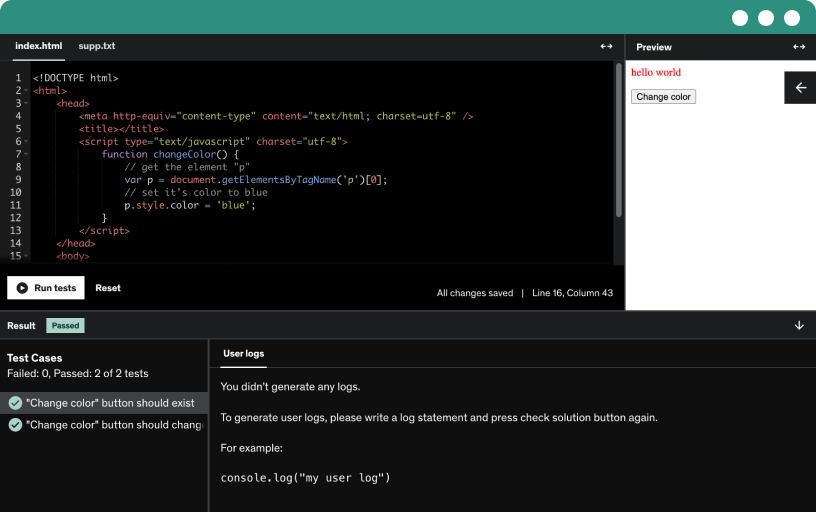
Dieser Kurs enthält unsere neuen Programmierübungen, damit du deine frisch erworbenen Skills direkt praktisch anwenden kannst.
Demo ansehen
In this lecture, you will gain a fundamental understanding of how computers work. We'll start with the basics, discussing the core components that make up a computer, including the CPU, memory, storage, and input/output devices.
Key concepts covered in this lecture include:
The Central Processing Unit (CPU): The brain of the computer, responsible for executing instructions and processing data.
Memory: Understanding RAM (Random Access Memory) and its role in temporary data storage for active tasks.
Storage: Differentiating between hard drives, SSDs (Solid State Drives), and cloud storage.
Input/Output Devices: Devices like keyboards, mice, monitors, and printers that allow us to interact with the computer.
We’ll also discuss how these components communicate with each other and how the operating system plays a vital role in managing resources and running programs.
By the end of this lecture, you'll have a clear picture of how a computer functions, and you’ll be able to relate these components to the overall computing experience. This knowledge is essential for building a strong foundation in web development and understanding how web applications interact with the underlying hardware.
In this lecture, we will explore how the CPU (Central Processing Unit) functions to execute instructions and process data. You’ll learn how the CPU interacts with memory and carries out tasks in stages: fetching, decoding, and executing instructions.
Key Topics:
Binary System: Understand how everything in a computer is represented in binary (0s and 1s), including numbers and text.
Byte and Bit: A byte is made up of 8 bits, the fundamental unit of data.
ASCII: Learn how text is encoded into binary through the American Standard Code for Information Interchange (ASCII), assigning numeric values to characters.
By the end of this lecture, you will have a solid understanding of how the CPU works, how binary data is processed, and how ASCII enables text representation in computers.
In this lecture, we’ll explore what the Internet is, how it works, and how it connects the world.
Key Topics:
Definition: The Internet is a global network of computers that communicate with each other to share information and resources.
How It Works: Learn about the underlying technologies, such as IP addresses and DNS, which help route data across networks.
Internet Infrastructure: Understand the role of servers, routers, and cables in maintaining the vast network of connections.
We will also touch on how different services, like websites, email, and file sharing, function over the Internet. By the end of this lecture, you’ll have a clear understanding of how the Internet connects devices and enables communication worldwide. This knowledge is fundamental for navigating web development and understanding online systems.
In this lecture, we’ll explore servers and DNS (Domain Name System).
Servers: Devices that store data and respond to requests from clients (like your browser), serving websites, emails, and more.
DNS: A system that translates user-friendly domain names (e.g., www.example.com) into IP addresses, allowing browsers to locate servers on the Internet.
By the end of this lecture, you’ll understand how servers host content and how DNS helps users access websites by resolving domain names into IP addresses.
In this lecture, we’ll cover port numbers and the request-response lifecycle.
Port Numbers: Identifiers that allow network services to differentiate between different types of traffic on a server (e.g., HTTP on port 80).
Request-Response Lifecycle: The process where a client sends a request to a server, which processes it and sends back a response, such as loading a web page.
By the end of this lecture, you’ll understand how port numbers help route traffic and how the request-response cycle works in client-server communication.
In this lecture, we’ll explore the basic concept of a website as a collection of files served by a web server.
Website Files: These include HTML, CSS, JavaScript, and media files that make up the content and functionality of a website.
Web Server: A software running on a remote server that handles requests for these files and delivers them to users' browsers.
By the end of this lecture, you’ll understand that a website is simply a set of files hosted on a server, which are accessed through a browser.
In this lecture, we’ll introduce HTML (HyperText Markup Language), the foundation of web development.
What is HTML?: HTML is a markup language used to structure content on the web by defining elements like headings, paragraphs, links, images, and more.
Basic Structure: Learn about the basic HTML document structure, including <!DOCTYPE>, <html>, <head>, and <body> tags.
By the end of this lecture, you’ll understand how HTML defines the structure of a webpage and serves as the building block for web content.
In this lecture, we’ll dive into the basic structure of an HTML document.
HTML Document Structure: Learn about the essential components of an HTML page, including:
<!DOCTYPE>: Declares the document type.
<html>: The root element that contains all HTML content.
<head>: Contains meta-information, links to styles, and scripts.
<body>: The section where the visible content of the page goes.
By the end of this lecture, you’ll be able to create a basic HTML document and understand its structure for building web pages.
In this lecture, we’ll explore the difference between elements and tags in HTML.
Tags: The building blocks of HTML, such as <p>, <h1>, and <img>, used to define elements.
Elements: A complete unit in HTML that includes the opening tag, content, and closing tag (e.g., <p>Hello</p>).
By the end of this lecture, you’ll understand how tags define HTML elements, which structure and display content on a webpage.
In this lecture, we’ll focus on the heading and paragraph elements in HTML.
Heading Elements (<h1> to <h6>): Used to define headings of varying levels, where <h1> is the most important and <h6> is the least.
Paragraph Element (<p>): Defines a block of text, typically used for regular content like paragraphs.
By the end of this lecture, you’ll be able to structure content effectively using headings for organization and paragraphs for text content.
In this lecture, we’ll cover HTML comments and their use.
HTML Comments: Written between <!-- and -->, comments are not displayed in the browser but are used to add notes or explanations within the code.
Example:
<!-- This is a comment -->
By the end of this lecture, you’ll understand how to add comments in your HTML code for better readability and documentation without affecting the rendered content.
In this lecture, we’ll learn how to format text using HTML.
Text Elements: Use tags like <b> for bold, <i> for italic, <u> for underline, and <strong> or <em> for emphasizing text semantically.
Line Breaks and Paragraphs: Use <br> for line breaks and <p> for paragraphs to structure your content.
By the end of this lecture, you’ll be able to apply basic text formatting to enhance the presentation of your web content.
In this lecture, we’ll explore how to handle quotations in HTML.
Blockquote (<blockquote>): Used for quoting large sections of text, typically from an external source.
Quotation Marks (<q>): Used for inline quotes, displaying text within quotation marks.
Cite (<cite>): Provides reference to the source of the quote.
Example:
<blockquote>“To be or not to be, that is the question.”</blockquote>
By the end of this lecture, you'll know how to mark up quotations properly to improve readability and attribution in your web pages.
In this lecture, we’ll explore tags and attributes in HTML.
Tags: The fundamental building blocks of HTML, such as <p>, <div>, and <a>, used to define elements and their content.
Attributes: Provide additional information about an element, defined within the opening tag. Common attributes include href, src, and class.
By the end of this lecture, you'll understand how to use tags and attributes to create more dynamic and functional HTML elements.
In this lecture, we’ll learn how to link pages using the anchor (<a>) tag.
Anchor Tags: Used to create hyperlinks that navigate users from one page to another, either within the same website or to external websites.
Hyperlink Attributes: The href attribute is used to define the target URL, allowing users to click the link and be directed to the specified page.
By the end of this lecture, you’ll be able to effectively use anchor tags to create navigable links between pages in your website.
In this lecture, we’ll explore the <img> tag used to embed images in HTML.
<img> Tag: Used to display images on a webpage.
Attributes: The src attribute defines the image source, and the alt attribute provides alternative text for accessibility.
By the end of this lecture, you’ll understand how to use the <img> tag to effectively add images to your web pages while ensuring accessibility and proper display.
In this lecture, we’ll explore the widely used image formats in web development.
JPEG: Common for photographs due to its efficient compression, balancing quality and file size.
PNG: Ideal for images requiring transparency or high-quality graphics, though it tends to have larger file sizes.
SVG: A scalable vector format perfect for graphics, logos, and icons, as it retains quality at any resolution and is lightweight.
WebP: A modern format offering better compression and quality than JPEG and PNG, especially for web use.
By the end of this lecture, you’ll understand the strengths and use cases of different image formats, helping you choose the best option for your website’s needs.
In this lecture, we’ll focus on the head element, specifically the favicon and page title.
Page Title (<title>): Defines the title of your webpage, displayed in the browser tab and important for SEO.
Favicon: A small icon associated with your website, shown in browser tabs, bookmarks, and history.
By the end of this lecture, you’ll know how to set a meaningful page title and add a favicon to enhance the user experience and branding of your website.
In this lecture, we’ll explore Google Chrome Developer Tools, a powerful suite for debugging and optimizing web pages.
Elements Panel: Inspect and modify HTML and CSS in real time to understand and troubleshoot page layouts.
By the end of this lecture, you’ll be familiar with Chrome DevTools and how to use them for debugging, performance analysis, and optimizing your web pages.
In this lecture, we’ll explore the difference between block and inline elements in HTML.
Block Elements: These elements take up the full width of their container and start on a new line, such as <div>, <p>, and <h1>.
Inline Elements: These elements only take up as much width as necessary and do not start on a new line, such as <span>, <a>, and <img>.
By the end of this lecture, you’ll understand how these elements behave differently in terms of layout and how to use them effectively when building web pages.
In this lecture, we’ll explore container elements: <div> and <span>.
<div>: A block-level element used to group larger sections of content, such as paragraphs or images, typically for layout purposes. It takes up the full width of its container and starts on a new line.
<span>: An inline element used to group smaller portions of text or other inline elements. It does not start a new line and only takes up as much width as its content.
By the end of this lecture, you’ll understand how to use <div> for structural purposes and <span> for styling or grouping inline content within web pages.
In this lecture, we’ll explore HTML entities and symbols.
HTML Entities: Special characters that have a specific meaning in HTML, such as < for less-than (<), > for greater-than (>), and & for ampersand (&).
Symbols: These are characters that cannot be typed directly in HTML, such as copyright (©) or registered trademark (®).
By the end of this lecture, you’ll know how to use HTML entities to display special characters and symbols safely in your web pages.
In this lecture, we’ll introduce list items in HTML.
Unordered Lists (<ul>): Used to create lists with bullet points. Each item is defined using the <li> tag.
Ordered Lists (<ol>): Used for numbered lists, where the order of items matters. Items are also defined with the <li> tag.
Definition Lists (<dl>): Used to create a list of terms and definitions, with <dt> for the term and <dd> for the definition.
By the end of this lecture, you’ll understand how to create and format different types of lists to organize content effectively on web pages.
In this lecture, we’ll focus on unordered lists in HTML.
Unordered Lists (<ul>): Used to display items in a list with bullet points. The list items are defined using the <li> tag.
Customizing Bullets: You can customize the bullet style using CSS, such as changing the bullet shape or replacing it with an image.
By the end of this lecture, you’ll know how to create unordered lists for displaying items where the order doesn't matter, and how to style them for better visual appeal.
In this lecture, we’ll focus on ordered lists in HTML.
Ordered Lists (<ol>): Used to display items in a numbered sequence, where the order matters. Each item in the list is defined using the <li> tag.
Customizing Numbering: You can control the starting number and number type (e.g., Roman numerals or letters) using the start and type attributes in HTML.
By the end of this lecture, you’ll be able to create ordered lists for content where sequence is important, and customize the list’s appearance.
In this lecture, we’ll explore description lists in HTML.
Description Lists (<dl>): Used to display a list of terms and their corresponding descriptions. Each term is wrapped in a <dt> tag, and each description is wrapped in a <dd> tag.
By the end of this lecture, you’ll understand how to create and structure description lists to present terms and definitions clearly on web pages.
In this lecture, we’ll explore the concept of semantics in HTML.
Semantic Elements: These are HTML tags that convey meaning about the content they enclose, making the structure of a webpage clearer. Examples include <header>, <footer>, <article>, and <section>.
Importance of Semantics: Using semantic tags helps improve accessibility, SEO, and code readability by making it easier to understand the purpose of elements.
By the end of this lecture, you’ll know how to use semantic elements to create meaningful and accessible web pages that are well-structured and easier to maintain.
In this lecture, we’ll dive into practical semantic elements in HTML.
<header>: Defines a header section, typically used for navigation or introductory content.
<footer>: Represents the footer of a page or section, often containing contact information, links, or copyright details.
<article>: Used to represent independent, self-contained content like a blog post or news article.
<section>: Defines sections within a document, grouping related content.
<nav>: Represents a block of navigation links, making it easier for both users and search engines to find navigation areas.
By the end of this lecture, you’ll understand how to implement these semantic elements to structure your webpages in a more meaningful and accessible way.
In this lecture, we’ll introduce version control, a system that tracks changes to files over time.
Version Control Definition: It allows multiple users to collaborate on projects by recording changes made to files, enabling the ability to revert to previous versions and compare different file versions.
Benefits: Keeps track of changes, prevents data loss, and facilitates collaboration between developers working on the same codebase.
By the end of this lecture, you'll understand the importance of version control in software development and how it helps manage project files efficiently.
In this lecture, we’ll explore Git and GitHub, two powerful tools for version control and collaboration.
Git: A distributed version control system that allows developers to track and manage changes to their codebase. It enables branching, merging, and version history, making collaboration easier.
GitHub: A web-based platform that hosts Git repositories, enabling developers to share code, collaborate on projects, and manage version control remotely.
By the end of this lecture, you’ll understand how Git helps manage code versions and how GitHub enhances collaboration by hosting Git repositories in the cloud.
In this lecture, we’ll guide you through installing Git and GitHub Desktop to get started with version control.
Installing Git: Learn how to download and install Git on your system to use it from the command line for managing your repositories.
GitHub Desktop: Discover how to install GitHub Desktop, a graphical interface for Git, which simplifies interacting with Git repositories and GitHub without using the command line.
By the end of this lecture, you’ll be set up with both Git and GitHub Desktop, ready to start managing your projects with version control.
In this lecture, we’ll compare Graphical User Interface (GUI) and Command Line Interface (CLI).
GUI: A user-friendly interface that allows interaction with software through graphical elements like buttons and icons. It’s intuitive and easier for beginners, such as GitHub Desktop for Git.
CLI: A text-based interface where users interact with software by typing commands. It’s powerful and preferred by experienced developers for fine control, like using Git commands in the terminal.
By the end of this lecture, you’ll understand the differences between GUI and CLI, and when to use each for managing version control tasks effectively.
In this lecture, we’ll cover how to create your first Git repository and make your first commits.
Creating a Git Repository: Learn how to initialize a new Git repository using the git init command and start tracking your project files.
Making Commits: Understand how to stage changes with git add, and then commit those changes using git commit. A commit records a snapshot of your project at a given time.
By the end of this lecture, you'll be able to create your own Git repository and make commits to track changes in your codebase.
In this lecture, we’ll explore Git branches and their role in version control.
Branches: Branches allow you to work on different versions of a project simultaneously without affecting the main codebase. The default branch is usually called main or master.
Creating and Switching Branches: Learn how to create new branches using git branch and switch between them using git checkout.
By the end of this lecture, you’ll be able to create and manage branches in Git, enabling parallel development and safer code experimentation.
In this lecture, we’ll dive deeper into working with branches in Git.
Creating Branches: Learn how to create a new branch to isolate features or fixes without affecting the main branch.
Switching Between Branches: Understand how to use git checkout or git switch to move between branches and work on different tasks simultaneously.
By the end of this lecture, you’ll be able to manage multiple branches in Git, allowing for efficient collaboration and feature development.
In this lecture, we’ll explore how merging works in Git.
Merging: Merging combines changes from one branch into another, typically from a feature branch into the main branch.
By the end of this lecture, you’ll understand how to merge branches and manage any conflicts, ensuring smooth integration of changes in your project.
In this lecture, we’ll walk through a practical example of using Git merge.
Creating Two Branches: Start by creating two branches and making different changes on each branch.
Merging: Use the git merge command to combine changes from one branch into another.
By the end of this lecture, you’ll have hands-on experience with merging branches and resolving conflicts, a critical skill for collaborating on projects with Git.
In this lecture, we’ll explore merge conflicts in Git and how to resolve them.
What is a Conflict?: A conflict occurs when changes in two branches cannot be automatically merged because Git is unsure which version to keep.
Conflict Indicators: Learn how Git marks conflicting areas in files, showing the differences between branches.
By the end of this lecture, you’ll know how to identify, understand, and resolve merge conflicts in your Git workflow.
In this lecture, we’ll cover how to resolve merge conflicts in Git.
Identifying Conflicts: Learn how to spot conflicts in your code after merging, where Git marks conflicting sections with special markers.
Manual Resolution: Open the conflicted file, review the changes from both branches, and decide which changes to keep or modify.
Using Git to Mark as Resolved: After resolving the conflicts, use git add to stage the changes and then git commit to finalize the resolution.
By the end of this lecture, you’ll know how to resolve merge conflicts efficiently and ensure your codebase stays in sync.
In this lecture, we’ll explore GitHub and why it’s essential for modern development.
What is GitHub?: GitHub is a cloud-based platform that hosts Git repositories, allowing developers to store, share, and collaborate on code.
Why Use GitHub?:
Collaboration: GitHub enables multiple developers to work on the same project, using features like pull requests, branches, and issues.
Version Control: GitHub helps you manage code versions, track changes, and revert to previous versions if needed.
Remote Repositories: Store your code online for easy access and backup.
Community: GitHub connects you with a large community of developers, contributing to open-source projects and sharing knowledge.
By the end of this lecture, you’ll understand why GitHub is an essential tool for version control and collaboration in software development.
In this lecture, we’ll guide you through setting up a Git repository on GitHub.
Create a GitHub Repository: Learn how to create a new repository on GitHub, where your code will be stored remotely.
Link Local Repository to GitHub: Use the git remote add command to link your local repository to the remote repository on GitHub.
Push Changes: Push your local commits to GitHub using git push, making your project available online for collaboration and backup.
By the end of this lecture, you’ll be able to create and set up a GitHub repository, push your local code, and manage your project remotely.
In this lecture, we’ll cover the essential Git commands: push, pull, and fetch.
Git Push: Push your local commits to the remote repository on GitHub, making your changes available to collaborators.
Git Pull: Fetch and merge changes from the remote repository into your local repository, ensuring you’re up-to-date with the latest code.
Git Fetch: Fetch updates from the remote repository without merging them into your local code, allowing you to review changes before integrating them.
By the end of this lecture, you’ll understand how to use these commands to keep your local and remote repositories synchronized.
In this lecture, we’ll explore CSS (Cascading Style Sheets) and its theory.
What is CSS?: CSS is a stylesheet language used to define the presentation of a webpage, including layout, colors, fonts, and spacing. It separates the structure of the HTML content from its design.
Cascading: The term "cascading" refers to the priority order in which styles are applied. If multiple styles are applied to the same element, CSS determines which one takes precedence based on specificity and source order.
Style Rules: CSS is composed of selectors (to target HTML elements) and declarations (to define how elements should be styled, such as color or font size).
By the end of this lecture, you’ll understand the basics of CSS and how it styles HTML content, providing structure and visual appeal to web pages.
In this lecture, we’ll explore how to use colors in CSS.
Color Property: Learn how to apply colors to elements using the color property for text and the background-color property for backgrounds.
Color Formats: CSS supports various color formats, including:
Named Colors: Predefined names like red, blue, and green.
Hexadecimal: Six-character color codes (e.g., #ff5733).
RGB: Red, Green, Blue values (e.g., rgb(255, 87, 51)).
RGBA: RGB with alpha transparency (e.g., rgba(255, 87, 51, 0.5)).
HSL: Hue, Saturation, Lightness (e.g., hsl(9, 100%, 60%)).
By the end of this lecture, you’ll know how to use different color formats in CSS to enhance the visual design of your web pages.
In this lecture, we’ll cover how to style color, background, and borders in CSS.
Color: Use the color property to set text color and background-color to set the background color of elements.
Background: You can apply background images, gradients, and set background positioning using the background property.
Borders: Style borders with the border color.
By the end of this lecture, you'll understand how to apply color, background styles, and borders to enhance the design of your web pages.
In this lecture, we’ll explore text formatting in CSS, focusing on alignment and decoration.
Text Alignment: Use the text-align property to align text horizontally within its container (e.g., left, right, center, or justify).
Text Decoration: The text-decoration property allows you to add styles like underline, line-through, or none to text, helping emphasize or de-emphasize content.
By the end of this lecture, you’ll be able to control text alignment and apply decorations to improve readability and visual appeal on your webpages.
In this lecture, we’ll focus on text transformation and spacing in CSS.
Text Transformation: Use the text-transform property to change the case of text, such as uppercase, lowercase, or capitalize.
Spacing:
Letter Spacing: The letter-spacing property adjusts the space between characters.
Word Spacing: The word-spacing property controls the space between words.
Line Height: The line-height property defines the vertical spacing between lines of text.
By the end of this lecture, you'll be able to manipulate text case and control spacing to improve the legibility and visual design of your web pages.
In this lecture, we’ll explore the common units of measurement in CSS and their uses.
Pixels (px): A fixed unit used to define the size of elements, ideal for precise, fixed-width designs.
Percentage (%): A relative unit used to define size as a percentage of the parent element’s size, ideal for responsive designs.
Em (em): A relative unit based on the font size of the parent element, allowing for scalable text and layouts.
Rem (rem): Similar to em, but relative to the root element’s font size, providing consistent sizing across elements.
Viewport Units (vw, vh): Units based on the size of the viewport. vw refers to width, and vh refers to height.
Points (pt): A unit mostly used for print, where 1 point is equal to 1/72 of an inch.
By the end of this lecture, you'll understand how to use different units in CSS to create flexible and responsive web designs.
In this lecture, we’ll explore how to use different units of measurement in CSS for responsive and flexible designs.
Pixels (px): Use for fixed sizes, like font sizes or element dimensions, when you need precise control.
Percentages (%): Useful for responsive layouts, where the size is relative to the parent element, making elements adjust dynamically.
Em (em) and Rem (rem): Both are relative units for sizing, where em depends on the parent’s font size, and rem is based on the root element’s font size, enabling scalable designs.
Viewport Units (vw, vh): Use these for creating layouts that are proportional to the browser window. For example, 100vw is 100% of the viewport width.
By the end of this lecture, you’ll be able to effectively choose and apply units to create flexible, responsive, and visually consistent web pages.
In this lecture, we’ll provide an overview of CSS selectors, helping you understand their importance and different types.
What Are Selectors?: Selectors are patterns used in CSS to target specific HTML elements on a webpage. They allow you to apply styles to those elements.
Why We Need Selectors: Selectors give you control over the layout and design of individual elements on the page, enabling you to apply styles selectively.
Types of Selectors: Apart from the element selector (which targets all instances of an element), we’ll explore other selectors like class, ID, and attribute selectors, which provide more precise styling options.
In upcoming videos, we’ll dive deeper into various selector types, expanding your ability to style web pages with precision.
In this lecture, we’ll explore internal styles and external stylesheets in CSS.
Internal Styles: CSS rules written directly within an HTML document, inside the <style> tag in the <head> section. Useful for quick, small-scale styling within a single page.
External Stylesheets: CSS rules placed in a separate .css file, linked to HTML using the <link> tag. Ideal for larger projects, allowing you to apply consistent styles across multiple pages.
By the end of this lecture, you'll understand when to use internal styles for small projects and external stylesheets for larger, multi-page websites to maintain cleaner, reusable code.
In this lecture, we’ll dive into ID, Class, and Universal selectors in CSS.
ID Selector: Targets a unique element on the page by using the # symbol followed by the ID name. IDs are meant to be unique, so only one element should have a specific ID on a page.
Class Selector: Targets elements with a specific class, defined by a dot (.) followed by the class name. Classes can be applied to multiple elements on the page.
Universal Selector: The * selector targets all elements on the page, applying the same styles universally, which can be useful for broad styling but should be used sparingly for performance reasons.
By the end of this lecture, you’ll understand how to use these selectors to apply styles selectively across your HTML elements.
In this lecture, we’ll explore combinator selectors in CSS, which allow you to target elements based on their relationship with other elements.
Descendant Selector (space): Targets elements that are nested within a specific parent. For example, div p will select all <p> elements inside a <div>.
Child Selector (>): Selects elements that are direct children of a specific element. For example, div > p will only target <p> elements that are immediate children of a <div>.
Adjacent Sibling Selector (+): Targets an element that is immediately preceded by a specific element. For example, h1 + p will select the first <p> element that follows an <h1>.
General Sibling Selector (~): Selects all elements that are siblings of a specified element. For example, h1 ~ p will select all <p> elements that are siblings of an <h1>.
By the end of this lecture, you’ll understand how to use combinator selectors to apply styles based on the hierarchy and relationships between elements.
In this lecture, we’ll introduce pseudo-classes in CSS, which allow you to style elements based on their state or position.
What are Pseudo-Classes?: Pseudo-classes are keywords added to selectors that specify special states of an element, like when a user interacts with it.
Common Pseudo-Classes:
:hover: Targets an element when the mouse pointer hovers over it.
:focus: Applies styles to an element when it gains focus, such as when a user clicks on an input field.
:first-child: Selects the first child of a parent element.
:last-child: Selects the last child of a parent element.
By the end of this lecture, you’ll understand how pseudo-classes enable dynamic styling based on user interactions and element positions.
In this lecture, we’ll explore more pseudo-classes in CSS, which offer powerful ways to style elements based on different conditions.
:nth-child(): Targets elements based on their position in a parent’s child list, allowing you to select specific items, like every other element.
:nth-of-type(): Similar to :nth-child(), but targets elements of a specific type, such as the second <p> element in a list of paragraphs.
By the end of this lecture, you’ll understand how to use these advanced pseudo-classes to apply styles based on more specific conditions and element states.
In this lecture, we’ll explore CSS pseudo-elements, which allow you to style specific parts of an element.
What are Pseudo-Elements?: Pseudo-elements target specific portions of an element, such as the content before or after an element or even parts of text, without modifying the HTML structure.
Common Pseudo-Elements:
::before: Adds content before the actual content of an element, often used for decorative purposes.
::after: Adds content after the element’s content, often used for styling or adding additional visuals like icons.
::first-letter: Targets the first letter of a text block, useful for creating drop caps or special text effects.
::first-line: Styles the first line of a block of text, often used for emphasis or unique typographic effects.
By the end of this lecture, you’ll understand how to use pseudo-elements to enhance your designs without altering the HTML structure.
In this lecture, we’ll explore CSS attribute selectors, which allow you to target elements based on their attributes.
What are Attribute Selectors?: These selectors target HTML elements that have specific attributes or attribute values, providing more control over styling without needing to rely on classes or IDs.
Types of Attribute Selectors:
[attribute]: Selects elements with a specific attribute, regardless of its value.
[attribute="value"]: Selects elements where the attribute has a specific value.
[attribute^="value"]: Selects elements where the attribute value starts with a specified string.
[attribute*="value"]: Selects elements where the attribute value contains a specified string.
By the end of this lecture, you'll be able to target elements based on their attributes, allowing for more precise and dynamic styling.
In this lecture, we’ll provide a theoretical overview of fonts in CSS and explore different types of fonts.
Font Types: Fonts in CSS are broadly categorized into:
Serif: Fonts with small lines or extensions at the end of characters, offering a more formal or traditional look.
Sans-serif: Fonts without the extra lines, creating a cleaner and modern appearance, commonly used for web content.
Monospace: Fonts where each character takes up the same amount of space, often used for code display.
Cursive: Fonts that mimic handwriting or calligraphy.
Fantasy: Decorative fonts typically used for special effects or headings.
By the end of this lecture, you'll understand the different font types and their use cases for web design.
In this lecture, we’ll explore how to assign fonts in CSS.
Font Family: Use font-family to assign a specific font or a generic font family like serif or sans-serif.
Font Size: The font-size property controls text size, and can be specified in units like pixels, ems, percentages, or rems.
By the end of this lecture, you’ll understand how to assign fonts and control text styling effectively using CSS.
In this lecture, we’ll take a deep dive into font properties in CSS to understand how to control text styling in detail.
font-family: Defines the font used for text. You can specify a custom font or fall back to generic font families like serif or sans-serif.
font-size: Controls the size of the text, which can be set in units like pixels, ems, or rems.
font-weight: Adjusts the thickness of the text, with options like normal, bold, or numeric values ranging from 100 to 900.
font-style: Specifies the style of the font, such as normal, italic, or oblique.
line-height: Controls the vertical spacing between lines of text, improving readability.
letter-spacing: Adjusts the space between individual characters, enhancing text legibility.
By the end of this lecture, you’ll be able to use these font properties to fine-tune the typography of your web pages.
In this lecture, we’ll explore how to use Google Fonts (Webfonts) in CSS.
What Are Webfonts?: Webfonts are fonts that are hosted online, allowing you to use custom fonts without needing them installed on the user's device.
Using Google Fonts: Google Fonts provides a library of free, open-source fonts that can be easily integrated into your website. You can link to the font in your HTML or import it into your CSS.
Embedding Fonts: Once added, you can apply the font to your elements using the font-family property, just like any other font.
By the end of this lecture, you'll be able to easily incorporate Google Fonts into your projects to enhance typography.
In this lecture, we’ll learn how to use Google Material Icons in your web projects.
What Are Google Material Icons?: A collection of scalable vector icons designed by Google, available for free use in web projects to enhance user interface design.
How to Use: You can integrate Material Icons by adding a link to the Google Fonts library in your HTML, then applying the icons using their class names.
Customization: You can style the icons with CSS, adjusting properties like size, color, and alignment to match your design.
By the end of this lecture, you’ll know how to easily add and customize Google Material Icons for a more dynamic and user-friendly interface.
In this lecture, we’ll explore how to style list items in CSS.
Changing List Style: Use the list-style-type property to modify the bullet style for unordered lists or number style for ordered lists (e.g., circles, squares, decimals).
Customizing Bullets: With the list-style-image property, you can replace the default bullet with a custom image.
By the end of this lecture, you’ll understand how to modify the appearance of lists, from bullets to layout, to fit your design.
In this lecture, we’ll learn how to work with CSS transitions to create smooth visual effects.
What Are Transitions?: Transitions allow you to gradually change property values over a specified duration, creating smooth animations.
Transition Properties: Use the transition shorthand property to define which CSS properties will change, the duration of the change, and the timing function (e.g., ease, linear).
Key Transition Properties:
transition-property: Specifies the property to transition (e.g., color, background-color).
transition-duration: Defines how long the transition lasts.
transition-timing-function: Controls the speed curve of the transition.
transition-delay: Adds a delay before the transition begins.
By the end of this lecture, you’ll be able to apply transitions to elements, making interactions smoother and more engaging.
In this lecture, we’ll discuss vendor prefixes and how autoprefixer can help manage them.
What Are Vendor Prefixes?: Vendor prefixes are browser-specific prefixes added to CSS properties to ensure compatibility with different browsers. For example, -webkit-, -moz-, and -ms- are prefixes for WebKit-based, Mozilla Firefox, and Microsoft browsers, respectively.
Why Are They Needed?: Some CSS properties and features are experimental or not universally supported across all browsers, so prefixes ensure these properties work correctly in different environments.
Autoprefixer: Autoprefixer is a tool that automatically adds the necessary vendor prefixes to your CSS, based on current browser support, saving you time and reducing the need to manually write prefixes.
By the end of this lecture, you’ll understand the importance of vendor prefixes and how Autoprefixer can streamline your CSS development process.
In this lecture, we’ll explore variables in CSS, which allow you to store and reuse values throughout your stylesheet.
What Are CSS Variables?: Also known as custom properties, CSS variables are used to store values (like colors, font sizes, or margins) that can be reused across your CSS code.
Syntax: CSS variables are defined using the -- prefix, and can be accessed with the var() function.
Benefits: Variables make your code more maintainable by centralizing values, so you can easily update them in one place, improving consistency and flexibility.
By the end of this lecture, you'll know how to create and use CSS variables to streamline your styling process.
In this lecture, we’ll provide a theoretical overview of the CSS Box Model.
What is the Box Model?: The CSS Box Model defines the rectangular structure that elements on a webpage follow, consisting of multiple layers that control how content is displayed and spaced.
Elements of the Box Model:
Content: The actual content of the element, such as text or images.
Padding: The space between the content and the border, providing internal spacing.
Border: A line surrounding the padding and content, giving the element a visible boundary.
Margin: The outermost space around the element, providing separation from other elements.
By the end of this lecture, you’ll have an understanding of the Box Model and the different layers that make up the layout of elements in CSS.
In this lecture, we’ll cover the basics of padding, border, and margin in CSS, which are essential for controlling spacing and layout.
Padding: The space between the content and the border of an element. Padding increases the area inside the element without affecting its outer dimensions.
Border: A line that surrounds the padding (if any) and content of an element. You can define its width, style, and color.
Margin: The space outside the border, separating the element from other elements. It creates distance between elements on the page.
By the end of this lecture, you’ll understand how to use padding, borders, and margins to control spacing and layout in your designs.
In this lecture, we’ll explore the difference between block, inline, and inline-block elements in CSS.
Block Elements: These elements take up the full width available, starting on a new line, such as <div> and <p>. They stack vertically and push other elements to the next line.
Inline Elements: These elements only take up as much width as necessary and don’t start on a new line, such as <span> and <a>. They flow within the content horizontally.
Inline-Block Elements: These elements behave like inline elements but allow you to set width, height, padding, and margins, behaving like block elements in terms of box model properties.
By the end of this lecture, you'll be able to choose the right display type for elements based on your layout needs.
In this lecture, we’ll explore the display: none and display: inherit properties in CSS.
display: none: This property completely removes an element from the document flow. The element will not be visible, and it will not occupy any space on the page, essentially hiding it from the layout.
display: inherit: This property causes an element to inherit the display value of its parent. It’s useful for maintaining consistent layout behavior across nested elements.
By the end of this lecture, you’ll understand how to hide elements and manage layout inheritance effectively using these CSS properties.
In this lecture, we’ll explore the concept of collapsing margins in CSS.
What is Margin Collapsing?: When two vertical margins meet (e.g., between adjacent block elements), they collapse into one single margin. The larger of the two margins will be used, and the smaller one is discarded.
When Does It Happen?: Margin collapsing usually occurs between block-level elements, such as paragraphs or divs, that are directly adjacent to each other. It can also happen with parent and child elements when the parent has no border, padding, or content.
By the end of this lecture, you’ll understand how collapsing margins affect the layout and how to manage them effectively.
In this lecture, we’ll learn how to create rounded corners using the border-radius property in CSS.
What is border-radius?: The border-radius property allows you to round the corners of elements, creating smooth, curved edges instead of sharp corners.
Applying border-radius: You can apply a uniform radius to all four corners or specify different values for each corner to create custom shapes.
Values: The value for border-radius is typically defined in pixels (px), ems (em), or percentages (%), with percentages creating elliptical curves.
By the end of this lecture, you’ll be able to apply border-radius to give your elements a more modern and visually appealing design with rounded corners.
In this lecture, we’ll explore the box-sizing property in CSS.
What is box-sizing?: The box-sizing property defines how the total width and height of an element are calculated, including padding and borders.
Content-box (default): With this value, width and height only apply to the content area, and padding and borders are added outside the box, increasing the overall size.
Border-box: With this value, width and height include padding and borders, meaning the element’s total size remains the same, even with added padding or borders.
By the end of this lecture, you’ll understand how the box-sizing property impacts element dimensions and how to control it for more predictable layouts.
In this lecture, we’ll explore the overflow property in CSS.
What is overflow?: The overflow property controls what happens when content overflows its container’s box. It determines whether the content is clipped, scrollable, or visible beyond the element's boundaries.
Values of overflow:
visible: The default value, where content that overflows is visible outside the container.
hidden: Clips the content, hiding any overflow without providing a way to access it.
scroll: Adds scrollbars to the container, allowing users to scroll and view the overflowed content.
auto: Adds scrollbars only when content overflows, making the container scrollable as needed.
By the end of this lecture, you’ll understand how to use the overflow property to manage content that exceeds its container’s boundaries.
In this lecture, we’ll explore the max and min properties in CSS.
max-width and min-width: These properties control the maximum and minimum width of an element. For example, max-width ensures an element doesn’t exceed a specified width, while min-width ensures it doesn’t shrink below a certain size.
max-height and min-height: Similarly, these properties control the maximum and minimum height of an element, helping to maintain consistent sizing, even with dynamic content.
By the end of this lecture, you’ll understand how to use the max and min properties to set flexible yet constrained sizes for elements, improving layout control and responsiveness.
In this lecture, we’ll explore how to work with floats in CSS.
What is Float?: The float property allows elements to be positioned to the left or right of their container, allowing content (like text or images) to wrap around them.
Common Use Cases: Floats are often used for creating layouts with multiple columns or aligning images within text.
Clearing Floats: After floating elements, the container may collapse. Use the clear property on elements to prevent this, ensuring the layout behaves as expected.
By the end of this lecture, you'll understand how to use floats to position and organize content effectively, as well as how to clear them for proper layout behavior.
In this lecture, we’ll explore the different positioning methods in CSS.
Static Positioning: The default positioning for all elements. Elements are positioned according to the normal document flow, and top, right, bottom, and left have no effect.
Relative Positioning: Elements are positioned relative to their normal position. You can use top, right, bottom, and left to move the element from its original position.
Absolute Positioning: Elements are positioned relative to the nearest positioned ancestor (non-static). If no positioned ancestor exists, it’s positioned relative to the <html> element.
Fixed Positioning: Elements are positioned relative to the viewport (browser window) and stay fixed in place as the user scrolls the page.
Sticky Positioning: A hybrid of relative and fixed positioning. The element behaves like relative until a certain scroll point is reached, after which it becomes fixed.
By the end of this lecture, you’ll understand how to use different position types to control the layout and behavior of elements on a page.
In this lecture, we’ll explore layers and the z-index property in CSS.
What are Layers?: In CSS, elements are stacked in layers on the page. The stacking order is determined by their position in the document and CSS properties like z-index.
z-index: The z-index property controls the stacking order of positioned elements (those with position: relative, absolute, fixed, or sticky). Elements with a higher z-index appear in front of elements with a lower z-index.
Usage: You can use z-index to layer elements on top of each other, such as modals, tooltips, or images.
By the end of this lecture, you'll understand how to control the stacking order of elements and effectively manage layers using the z-index property.
In this lecture, we’ll explore inheritance in CSS, which allows properties to be passed down from parent elements to child elements.
What is Inheritance?: Inheritance refers to the process where certain properties applied to a parent element are automatically passed down to its child elements.
Inherited Properties: Properties like color, font-family, and line-height are inherited by default, meaning if you set them on a parent element, they will apply to all child elements unless overridden.
Non-Inherited Properties: Most layout properties (such as margin, padding, and width) are not inherited, meaning you must define them explicitly for each element.
By the end of this lecture, you’ll understand how inheritance works in CSS and how to leverage it to reduce redundancy and streamline styling.
In this lecture, we’ll dive into basic inheritance in CSS.
What is Basic Inheritance?: Basic inheritance occurs when certain CSS properties, like color, font-family, and line-height, are automatically inherited from a parent element to its child elements.
Inherited Properties: These properties apply to the child elements without needing to be explicitly defined. For example, if you set a font on a parent element, all child elements will inherit that font by default.
Overriding Inherited Styles: You can override inherited styles by explicitly setting properties on the child elements.
By the end of this lecture, you'll understand how to utilize inheritance to simplify your styles and maintain consistency across elements in your web designs.
In this lecture, we’ll explore the CSS cascade, which determines how styles are applied to elements when multiple rules conflict.
What is the Cascade?: The cascade is the process by which CSS rules are applied in a hierarchy of importance, based on three main factors: specificity, importance, and source order.
Specificity: The more specific a selector, the higher its priority. For example, an ID selector (#id) has higher specificity than a class selector (.class).
Importance: The !important declaration overrides other rules, regardless of specificity or source order.
Source Order: When two rules have the same specificity, the last rule defined in the stylesheet will take precedence.
By the end of this lecture, you’ll understand how the cascade works and how to manage conflicting styles effectively.
In this lecture, we’ll explore the source order of styles in CSS, which determines how conflicting styles are applied when multiple rules affect the same element.
What is Source Order?: Source order refers to the order in which CSS rules are written in the stylesheet. When two rules have equal specificity, the one that appears last in the CSS file takes precedence.
Application of Rules: If multiple styles target the same element with the same specificity and no !important declarations, the last defined style rule in the stylesheet will be applied.
By the end of this lecture, you’ll understand how the source order of CSS rules affects which styles are applied, and how to manage conflicts when writing your stylesheets.
In this lecture, we’ll explore specificity in detail, a key concept in CSS that determines which style rules are applied when multiple rules target the same element.
What is Specificity?: Specificity is a measure of how specific a selector is. The more specific a selector, the higher its priority when conflicting styles are applied.
Specificity Hierarchy:
Inline styles (e.g., style="color: red;") have the highest specificity.
ID selectors (e.g., #id) come next in specificity.
Class, pseudo-class, and attribute selectors (e.g., .class, :hover) are less specific.
Element selectors (e.g., div, p) have the lowest specificity.
Calculating Specificity: Specificity is often calculated using a four-part system (inline, ID, class, element), with each type contributing to the overall value.
By the end of this lecture, you'll understand how to calculate specificity and how it influences the application of CSS rules in case of conflicts.
In this lecture, we’ll discuss the use of the !important flag in CSS.
What is !important?: The !important flag is used to give a CSS property the highest priority, overriding any other conflicting styles, regardless of specificity or source order.
How It Works: When !important is added to a property, it forces that property’s value to be applied even if other rules have higher specificity. For example, color: red !important; will override other color declarations, even if they are more specific.
Caution with !important: While !important is useful for enforcing styles, overusing it can lead to difficulties in debugging and maintaining CSS, as it breaks the normal cascading behavior.
By the end of this lecture, you’ll understand how to use !important effectively and when to avoid it in your stylesheets.
In this lecture, we’ll dive into the cascade algorithm in CSS, which determines how conflicting style rules are applied.
What is the Cascade Algorithm?: The cascade algorithm follows a set of rules to apply styles when multiple rules target the same element, based on specificity, importance, and source order.
Cascade Order:
Importance: If a rule has the !important flag, it overrides other conflicting rules.
Specificity: The more specific the selector (e.g., ID > class > element), the higher the priority.
Source Order: If two rules have the same specificity, the one that appears last in the stylesheet will take precedence.
By the end of this lecture, you’ll understand how the cascade algorithm works and how it resolves conflicting CSS rules in a predictable manner.
Dive into our Complete Web Development Bootcamp: a modern, in-depth course integrating AI tools to teach you cutting-edge development techniques for a comprehensive learning experience. Even if you are an absolute beginner you can learn complete web development in this course.
Some Of The Important Topics Covered (Not A Complete List):
Computing Basics
HTML
CSS
JavasScript
Git
Github
Node.js
React
Linux CLI
Express
MongoDB
Shandcn/ui
Mongoose
JWT Tokens
Virtual Servers With Nginx
And Lots More ...
Comprehensive Learning: From Basics to Practical Application
This course is crafted from the ground up to offer a coherent, well-articulated learning experience. It covers everything from underlying technologies to practical application, ensuring that even those new to programming can confidently progress while also catering to more experienced developers looking to solidify their skills.
Hands-On Coding: Exercises and Projects Tailored for Every Skill Level
Throughout this course, you'll engage in numerous coding exercises and build complete projects, enhancing your understanding and ability to apply what you've learned in real-world scenarios. Whether you're starting with no knowledge of programming, looking to round out your front-end skills with back-end knowledge, or aiming to transition from back-end to full-stack development, this bootcamp is tailored to your needs.
Unlocking Career Paths in Technology
Explore how this comprehensive web development course can pave the way for diverse career opportunities in technology.
Job Readiness: Gain the practical skills needed to secure a position in the tech industry.
Freelancing: Build a robust portfolio to attract and manage freelance projects.
Entrepreneurship: Acquire the knowledge to start and grow your own tech startup.
Who Am I?
I'm Manik, your instructor with over 15 years of programming experience and a dedication to teaching on Udemy for the past two years. My approach breaks down complex concepts into digestible, easy-to-understand segments, focusing on detailed and in-depth discussion in each lecture.
Embracing AI in Web Development (Spoiler: This is NOT an AI Course but teaches you how to embrace it and use it as a tool)
Additionally, this course uniquely integrates Artificial Intelligence (AI) into the curriculum, teaching you how to use AI as a tool in development. While AI is just a small component of the course, it's pivotal, equipping you with forward-looking skills that align with current industry trends.
Topics That You Will Learn In This Course (Not an Extensive List)
Basics Of Computing: Learn the fundamental concepts of computing, including how computers work and basic programming principles.
HTML Basics: Master the basics of HTML, the backbone of the web. Create structured documents by understanding tags, elements, and attributes.
HTML Structure: Dive deeper into HTML to structure complex web pages. Learn about semantic HTML and best practices for a clean, organized web layout.
Git and GitHub: Master version control with Git, and use GitHub to collaborate on projects. Learn to commit, push, and merge with confidence.
CSS Basics: Understand the foundations of CSS to style web pages. Learn about selectors, properties, and setting up stylesheets for a professional look.
CSS Selectors: Gain detailed knowledge of CSS selectors to efficiently target and style specific elements within your HTML documents.
Styling Elements Using CSS: Enhance your web pages by learning to style elements using CSS. Discover techniques for colors, fonts, and layout designs.
The Box Model: Understand the CSS Box Model, the key concept behind layout on the Web. Learn how padding, border, and margins affect your designs.
Inheritance and The Cascade: Explore how CSS rules cascade and are inherited in web documents, and learn to use this behavior to write effective CSS.
Responsive Web Design And Flexbox: Master responsive design techniques with CSS Flexbox to ensure your websites look great on all devices.
Layout Project: Apply your skills in a practical layout project, designing a complete web page from scratch using HTML and CSS techniques.
Forms: HTML and CSS: Learn to create interactive forms for user input, focusing on form structure, validation, and styling with HTML and CSS.
Tables: HTML and CSS: Master the creation and styling of HTML tables to display data clearly and effectively, with advanced CSS styling options.
Getting Started With JavaScript: Dive into JavaScript basics, learning how to add interactive and dynamic elements to your web pages.
Objects and Arrays: Understand JavaScript objects and arrays to manage data efficiently and perform complex data operations.
Control Flow: Conditionals and Loops in JavaScript: Learn to control the flow of your JavaScript code using conditionals and loops for effective decision-making and repetition.
Functions and Methods: Deepen your JavaScript knowledge by mastering functions and methods for reusable code and modular programming.
JavaScript Advanced Techniques: Explore advanced JavaScript techniques, including closures, async/await, and advanced data manipulation for sophisticated web applications.
Working With The Document Object Model (DOM): Learn to manipulate and interact with webpage content dynamically using the DOM API.
DOM Traversal: Master navigating through the DOM tree, accessing and manipulating elements effectively.
DOM Events: Understand how to handle events in JavaScript to create interactive user experiences.
Browser Object Model (BOM): Explore the BOM to interact with the browser, managing windows, location, and more.
JavaScript Calculator Project: Build a fully functional calculator to apply your JavaScript skills in a practical project.
JavaScript Modules: Learn to organize and maintain your JavaScript code efficiently using modules for better scalability and manageability.
The Linux Command Line: Gain proficiency in using the Linux command line for powerful scripting and system management.
Async JavaScript: Master asynchronous programming concepts in JavaScript using callbacks, promises, and async/await.
Introduction To Node.js: Dive into Node.js for server-side programming, understanding its asynchronous, event-driven architecture.
Getting Started With Express: Learn to build web applications with Express, a fast, unopinionated framework for Node.js.
Express Middleware: Understand middleware functions in Express to handle requests, modify request and response objects, and end response cycles.
The Controller: Learn about the controller part of MVC architecture in web apps, focusing on routing and logic implementation.
Getting Started With MongoDB: Get introduced to MongoDB, a NoSQL database, and learn how to integrate it with your applications.
Schema, Model and Mongoose: Explore how to define schemas, create models, and use Mongoose for MongoDB data modeling and validation.
Validation and Error Handling: Learn how to validate user input and manage errors effectively in your applications to ensure robustness.
Node Environment and Configuration: Understand how to configure the Node.js environment and manage settings using environment variables for scalable apps.
Pagination and Filtering: Master techniques to paginate and filter data in your applications, improving performance and user experience.
User Authentication And Relationships: Dive into implementing user authentication and managing relationships between users and data in your applications.
Documenting API: Learn the best practices for documenting your APIs to ensure they are understandable and usable by other developers.
Introduction To React: Get started with React, a popular JavaScript library for building dynamic and efficient user interfaces.
React Basics: Understand the fundamental concepts of React including JSX, components, and state management.
Tailwind CSS: Learn how to style your applications efficiently using Tailwind CSS, a utility-first CSS framework for rapid UI development.
React Router: Master navigating and routing in your React applications, creating seamless single-page applications with dynamic routing.
Layout and shadcn/ui: Explore advanced UI layout and shadow techniques to design compelling, visually appealing user interfaces.
Validation + ZOD + React Hook Form: Learn to implement robust form validation using Zod for schema definition and React Hook Form for efficient, scalable forms.
Client Server Synchronization: Understand the principles of synchronizing data between client and server, ensuring consistency and reliability in your applications.
Context API and Global State: Master using React's Context API to manage and share global state across components, simplifying state management.
Deploying Application: Gain the skills to deploy your applications effectively, covering deployment strategies, servers, and continuous deployment workflows.
Embark on your journey to becoming industry-ready with this all-encompassing bootcamp, where you'll not only learn to develop across the full stack but also discover how to leverage AI effectively in your projects. Whether you aim to secure a job, take on freelance projects, or launch an application for your startup, this course prepares you for success.