
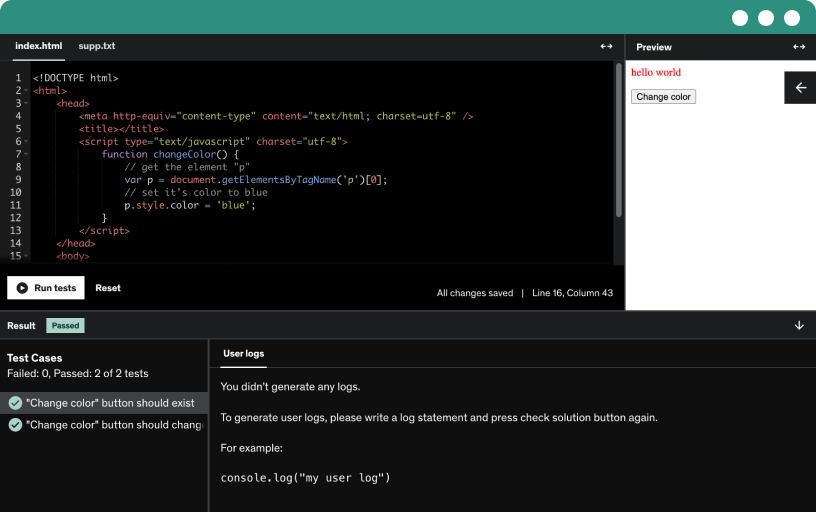
This course includes our updated coding exercises so you can practice your skills as you learn.
See a demo
In this section I will be introducing the topics, pre-Knowledge and need Tools
Learn the basics of HTML5, including essential tags and elements, and how the head and the body define the page, with examples and MDN references to guide you.
In this video I explain what HTML is and what it dose.
In dis lecture we will learn about the HTML 5 Boilerplate.
In dis lecture we will learn about the HTML Elements/Tag.
In dis lecture we will learn about the Heading Tag.
In dis lecture we will learn about the Paragraph Tag.
In dis lecture we will learn about the Anchor Tag.
In dis lecture we will learn about Lists.
Introduce tag attributes and advance toward CSS3, explain why HTML and CSS basics go hand in hand, and guide you through building your first website.
Learn to set up Visual Studio Code as a code editor, explore its editor, explorer, and terminal, and install essential extensions for live server and automatic formatting.
Explore html attributes like id and class, their unique and global roles, and apply styling via style tags and a linked css file in the head for images using src.
Explore how to create and style HTML tables with captions, thead, tbody, tfoot, tr, th, and td, plus grouping and borders using CSS.
Learn the div and span as generic containers; div is block-level, span is inline, and both are styled via class or id attributes with css and general resets.
Learn how the form element groups interactive controls to submit data to a web server, using label, input, fieldset, and legend, with action, method, and basic validation.
Discover how the HTML5 input tag creates form controls, explore input types like text, email, password, date, and color, and learn how placeholders and action connect data to submission.
Explore how the label tag enhances accessibility in forms, connect labels to inputs using the id and for attributes, and practice with username and password examples.
Explore simple form validation using HTML5 attributes like required and type=email to ensure users submit correctly formatted login data. Understand how JavaScript and back-end validation add advanced checks.
learn to build forms with radio buttons, checkboxes, selects, and text areas, using labels, names, and values, and understand drop down menus and their options.
Review form basics by examining the form tag and input types like text, email, password, date, and radio. Explore labels, name and id attributes, and br tag for inline breaks.
In this lecture we will create the to Forms from the privies Assignment.
Html5 css3 list and text solution guides building a terms page with boilerplate, button and anchor elements, paragraph text, and roman numerals for privacy policy and end user license agreement.
Link the terms and conditions page with login and registration forms, opening pages in a new tab with target _blank, and enable in-page navigation via ids and anchors.
Learn how CSS links to HTML by targeting elements with tags, classes, and IDs, and by using inline, internal, and external styles, with examples of linking external CSS files.
Explore CSS selectors, from type selectors (div, p, li) and ID selectors (#custom) to class selectors, universal selectors, and attribute selectors like [type="radio"], understanding ID over class over element specificity.
Master text formatting in html and css by controlling font family, size, weight, line height, alignment, and decoration, with em-based sizing and font fallbacks.
Explore the four color methods in CSS: direct color, hex, rgb, and rgba. Use them to style text, borders, and backgrounds with transparency.
Discover how each block-level element is a rectangular box described by the CSS box model, with margins, borders, padding, and content, learned through hands-on browser inspection and shorthand declarations.
Master the CSS box model by applying border radius to create curved borders with pixel and percentage values, including multi-value and corner-specific radii for top-left, top-right, bottom-right, and bottom-left.
Explore how box-shadow creates layered effects around elements using x and y offsets, blur, and color, with multiple shadows and optional inset to push shadows inward.
Hi all, this are just a few useful tips and tricks for using Box shadow, enjoy! :)
Explore advanced CSS selectors and pseudo elements and classes, such as first-line and hover, and master the !important rule to override styles in complex layouts.
Explore css pseudo-classes like root, hover, focus, enabled and disabled, checked, and first and last child, and build a root color system with css variables for a login form.
Demonstrate the css hover pseudo-class by showing how interactions add box shadows and change background and text colors on headings, inputs, buttons, and register form elements.
Explore the focus pseudo-class for form inputs, and learn how to change background and text color when an element receives focus to improve visibility.
Explore the CSS :enabled and :disabled pseudo-classes, showing how enabled and disabled form elements respond to focus and activation, with green for success and gray for disabled.
Explore the :checked pseudo-class in css for checkbox and radio inputs, showing how to apply box shadows and a green success color to the adjacent label and option list.
Explore CSS child selectors such as :first-child and :last-child, learn how to target specific siblings by position, and see practical color changes in select options to control styling.
Explore how CSS before and after pseudo elements use the content property to insert cosmetic content, style inline by default, and transform into blocks or text around elements.
Explore advanced css3 flexbox fundamentals, declare display flex to create flexible, responsive layouts without floats, and use flex-direction, flex-wrap, justify-content, align-items, and align-content to control containers and items.
Explore how to display content with flex using flex box and flex direction, creating a flex container and arranging six images in row, row-reverse, column, and column-reverse layouts.
Explore applying flex wrap with display flex to control how items wrap onto multiple lines. Use a container class of flex wrap to toggle no wrap, wrap, and wrap reverse.
Explore how justify-content in flexbox controls the main axis alignment and distributes space, illustrating flex-start, flex-end, center, space-between, space-around, and space-evenly.
Master flexbox line items by applying align-items, justify-content, and align-content to control image layout, spacing, and cross axis alignment in a flex container.
Create a responsive landing page with a flex layout and a header menu that smoothly scrolls to portfolio, about, and content sections, adapting six portfolio images to the screen width.
Plan and build a flexbox-based landing page with a four-button navigation, using HTML and CSS, including Google fonts (Lato) and a reset of margins and padding.
Build a responsive navigation bar with flexbox by creating a main menu, an unordered list of links (home, portfolio, about, contact), and styling for background, padding, shadow, and uppercase text.
Build a responsive flexbox header for a landing page with a column layout, centered content, a background color, and an inset shadow, plus a fixed top menu at full width.
Create a responsive portfolio section with flexbox, a header, a portfolio content area, centered h2, evenly spaced images, and viewport-based image heights.
Design an about section with flexbox using containers to arrange history content and disclaimer content in a two-column layout, with padding and 50 percent width for balance.
Construct a responsive contact section using flexbox by building a write-us form with name, email, and message fields, paired with a contact info pane displaying address and phone.
Finish a flexbox landing page by styling the footer, tidying CSS with shared IDs and color tokens, and enabling smooth scroll between sections.
Here is the complete HTML and CSS for the Project Flex Box Landing Page
Explore the differences between grid layout and flex layout, emphasizing grid's two-dimensional capabilities, grid template columns and rows, and gaps, along with justify items and align content basics.
Explore how a CSS grid sits in a container with items as children and grid lines defining tracks, cells, and the grid area.
Define a grid container and use grid-template-columns and grid-template-rows to lay out content with percent, px, or auto widths, including repeat and fraction values.
Explore grid template areas to create complex layouts by naming areas with grid-area and arranging them via grid-template-columns and grid-template-rows, such as navigation, header, sidebar, main, content, and footer.
Configure a grid template to set rows, columns, and areas in one declaration, display the container as a grid, and explore header and footer layouts.
Explore how CSS grid gaps work, replacing grid-gap with column-gap and row-gap, and use the gap property to set distinct gaps for rows and columns.
Explore how justify-items aligns grid items along the inline axis, using a three-column grid with specified row heights and gaps, and learn to inspect changes in alignment with developer tools.
Assess grid align-items in a line items container by aligning items along block column axis. Practice start, end, center, and stretch, and compare with justify-items along inline row axis.
Explore how to use justify-content in CSS grid to align grid items within a container, including space between, space around, and space evenly, with practical demos.
Explore grid auto columns and rows, master auto placement with grid order flow, and build responsive layouts using grid template areas, gaps, and repeat patterns in CSS grid.
Learn to build a landing page using CSX grid layout, with a navigation bar, sections (services, portfolio, about, contact), hover effects, two-column about, and sticky header and footer.
Lay plans to build a csx grid landing page using a boilerplate, linked css, and font awesome, outlining menu, services, portfolio, about, context, output, and footer sections.
Create a functional boilerplate and navigation for a multi-section landing page by adding a menu with Font Awesome icons, defining sections (services, portfolio, about, contact) with IDs, and anchor links.
Continue building grid layout landing page by implementing a fixed top navigation menu with a five-column grid and hover effects, and import a font while setting light and dark themes.
build a grid layout landing page header with a navigable menu, logo, welcome text, and a featured quote, using hover effects and a centered background header image.
Create a three-item services grid in CSS using grid layout, each item featuring a Font Awesome icon and a short description with centered text and hover styling.
Develop the portfolio section of the landing page with a container and portfolio-content, add image tags, and implement a grid layout with spacing and shadows. Prepare for the upcoming about section.
Build a two-column grid for the about page with a left Font Awesome icon and a hover read-more overlay.
Build a responsive contact section using a grid layout, icons, and labeled contact items (address, phone, email, site). Integrate Font Awesome icons and social links for a complete landing page.
Create a fixed bottom footer with full-width black background, white centered text, and padding; enable smooth navigation links and responsive layout, detailing a services section with icons and paragraphs.
Explore CSS at-rules import, media, and keyframes to modularize styles, create responsive layouts with grid and flex, and animate elements across display sizes.
Build a CSS landing page from scratch with a header, navigation, portfolio grid, and a contact form. Apply gradients, flex and grid layouts, hover effects, and responsive media queries.
This is a beginner friendly course. This course will tech you the Foundations of Web Development. This a more practical orientate Course. Aldo we will start up slow with some basic definitions, the main focus here is to have as much as possible hands on experience. Learning by doing is the key word. That means Examples, Assignments and Exercises!
At this point I would like to invite you to join me on this journey and enrich yourself with the foundations of web development. In this Course You will learn Modern HTML 5, CSS 3, and JavaScript, and through applying them you will be able to building from Easy to progressively more complex responsive Responsive Web Pages.
Throughout the course we cover tons of tools and technologies including:
HTML5
CSS3
CSS FelxBox
CSS Grid Layout
Projects
SASS
JavaScript
DOM Manipulation
JSON
Projects , Projects and more Projects :)
Two Important Notes about this Course:
1. This is a hands-on Learning by doing Course. This means that we are going to start up Slowly with basic definitions in HTML and CSS and then we will combine them together by building the structure and applying design to our sites. After that we will apply JS in order to make the Site do Thinks.
2. Is that I will be constantly Updating the Content with New Documentation, Examples and Exercises in order to bring you as much value as possible. So you can always lean beck on this Course if you want to refresh your memory about something.
Bonus!
3. The most important thing the you need to know in life is where to find the information you need!