Your cart is empty.
Keep shopping

Teach on Udemy
Turn what you know into an opportunity and reach millions around the world.
Learn MoreReact - The Complete Guide (incl. Next.js, Redux)
What you'll learn
- Learn React from the ground up and finish the course as an advanced React developer
- Build multiple high-quality demo apps, including a fullstack app built with NextJS
- Join more than 900,000 students in this course & more than 3,000,000 students I taught across all my courses
- Build fullstack React apps with NextJS 14+
- Follow along locally or in a cloud development environment
- Learn all about React Hooks and React Components
- Manage complex state efficiently with React's Context API & React Redux
- Build standalone React apps & applications connected to a backend via HTTP
- Learn about routing & route-related data fetching with React Router
- Implement user authentication in React apps
- Get started with React Unit Testing
Explore related topics
Coding Exercises
This course includes our updated coding exercises so you can practice your skills as you learn.
See a demo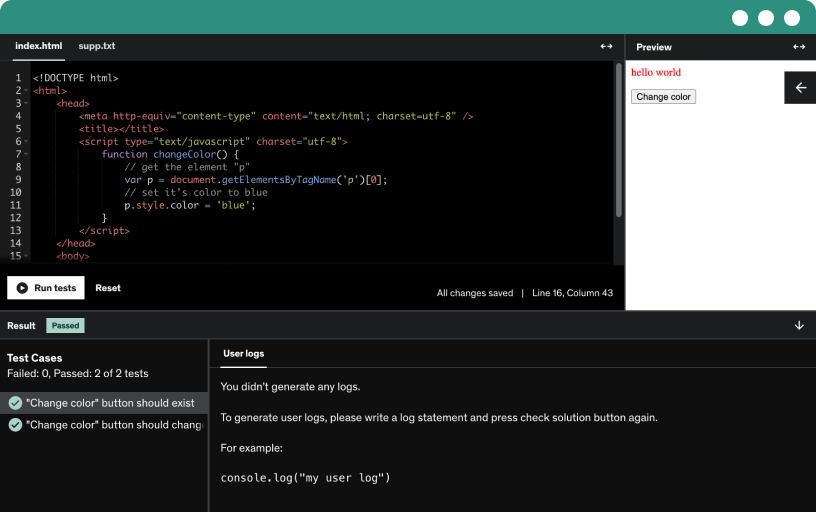
Course content
40 sections • 727 lectures • 71h 21m total length
- Welcome To The Course!1:07
Maximilian Schwarzmuller guides you from the ground up through React, with step-by-step demo projects to learn by doing, covering fundamentals and advanced concepts.
- What is React.js? And Why Would You Use It?2:58
Discover how React.js, a JavaScript library for building web and native user interfaces, enables smooth, app-like transitions by updating content without page reloads, as seen on Netflix.
- ReactJS vs "Vanilla JavaScript": Why Use React?10:57
Explore why React offers a simpler mental model and declarative, state-driven UI compared with vanilla JavaScript, as you build two side-by-side demos and learn when to use useState.
- Editing Our First React App4:22
Extend your first React app by adding a fourth button that loads the corresponding content from an updated array, and learn to manage active content with an index.
- About This Course & Course Outline2:55
Explore a modular React course with a JavaScript refresher, base essentials, deep dive, and practice sections. Go through the curriculum step by step, or jump to preferred sections.
- The Two Ways (Paths) Of Taking This Course3:08
Explore a modular React course with two paths: standard and a concise summary. New to React? Follow the standard path, or jump to the summary for a quick overview.
- Getting The Most Out Of This Course5:24
Confirm your basic web development and JavaScript knowledge, then pace your learning, complete coding exercises and demo projects, and use GitHub snapshots and Discord to practice with others.
- Join our Online Learning Community0:29
Learning alone is absolutely fine but finding learning partners might be a nice thing, too. Our learning community is a great place to learn and grow together - of course it's 100% free and optional!
- Creating React Projects7:10
Create React projects using in-browser CodeSandbox or a local setup with NodeJS, Vite, and npm commands. Start a development server with npm run dev to preview live updates.
- Why Do You Need A Special Project Setup?2:51
Understand why CodeSandbox or Vite-powered setups are essential for React. JSX must be transformed for the browser, and starting projects help focus on learning.
- Module Introduction1:49
Let me introduce you to this module and to what you're going to learn in it.
- Starting Project1:00
Explore a CodeSandbox starter project with an html file and assets, where you output content in the console to refresh your JavaScript knowledge for building React apps.
- Adding JavaScript To A Page & How React Projects Differ6:57
Explore how JavaScript runs in the browser and beyond, and how to add code to web pages using external scripts, defer, and modules with import/export, within React projects.
- React Projects Use a Build Process8:04
Understand how React projects rely on a build process to transform JSX into browser-ready code, inject script tags, and optimize output for production using tools like React Scripts and NodeJS.
- "import" & "export"12:04
Explore import and export syntax in JavaScript and React, including named and default exports, and how to import from util.js into app.js using relative paths and aliases.
- Revisiting Variables & Values7:01
Revisit core JavaScript concepts like variables, values, and operators, and learn to create and store strings, numbers, booleans, null, undefined, and objects using let and const.
- Revisiting Operators2:33
Explore how plus, minus, times, and division perform math and concatenate strings, and use the triple equals operator and other comparison operators for conditional logic with if statements.
- Revisiting Functions & Parameters8:14
Define and call functions in JavaScript using the function keyword or arrow syntax, explore parameters, defaults, and returns, and learn to reuse code across React projects.
- Exercise: Working with Functions
- Arrow Functions2:11
Learn how arrow functions define anonymous functions in React, compare them with traditional function syntax, and use them for on-click handlers while recognizing both approaches.
- More on the Arrow Function Syntax1:14
- Revisiting Objects & Classes6:07
Explore how JavaScript objects group values into key-value pairs, access data with dot notation, and implement methods with this and class blueprints using constructors and new.
- Arrays & Array Methods like map()11:10
Learn how arrays work in JavaScript—created with square brackets, indexed from zero, and transformed by map to new arrays, with push and findIndex for updates and lookups.
- Exercise: Array Methods
- Destructuring5:16
Master destructuring of arrays and objects to pull values by position or name, using array brackets and object curly braces, and aliasing with colon.
- Destructuring in Function Parameter Lists0:48
- The Spread Operator3:13
Explore the JavaScript spread operator, using three dots to merge arrays without nesting and to combine objects by spreading properties, enabling seamless addition of values and keys.
- Revisiting Control Structures5:28
Explore control structures such as if statements with else and else if, and for loops like for of to iterate over arrays.
- Manipulating the DOM - Not With React!0:52
Explore why this course avoids manual DOM manipulation and shows how React handles DOM updates declaratively, so you read and change the UI through React rather than querySelector.
- Using Functions as Values7:21
Learn to pass functions as values to other functions using setTimeout. Explore anonymous and named functions, arrow functions, and why you omit parentheses to delay execution.
- Defining Functions Inside Of Functions1:55
Define functions inside other functions and observe scoping; call a nested greet inside init, while greet remains inaccessible outside, a pattern you'll use in React code.
- Reference vs Primitive Values4:44
distinguish primitive values from reference values in JavaScript, showing how strings and numbers create new values on manipulation while objects and arrays mutate via their memory address.
- Next-Gen JavaScript - Summary3:51
Have a look at this lecture to get a good overview over the various next-gen JS features you'll encounter in this course.
- JS Array Functions0:20
Here's something we'll also use quite a bit in this course: Some JavaScript array functions.
- Module Resources0:15
- Module Introduction1:48
Explore essential React concepts like components, JSX, props, and state while building a demo web app with static and dynamic content.
- It's All About Components! [Core Concept]6:07
Learn how components act as reusable building blocks that wrap HTML, CSS, and JavaScript to define parts of the user interface, enabling code reuse and simpler maintenance.
- Setting Up The Starting Project3:06
Set up the starting React project by running npm install and npm run dev to launch the development server for live previews, using CodeSandbox or a local setup.
- JSX & React Components [Core Concept]4:42
Create your first React component as a JavaScript function with an uppercase name that returns JSX. Learn how JSX describes UI and how the dev server transforms it for browsers.
- Creating & Using a First Custom Component5:52
Create and reuse your own React components by turning header markup into a separate function component named with an uppercase letter, then render it in the app with JSX.
- A Closer Look: Components & File Extensions1:14
- Building & Using a Component
- How React Handles Components & How It Builds A "Component Tree" [Core Concept]8:21
Explore how React renders a component tree from the index.html root by booting with index.jsx, rendering App through createRoot and render, and distinguishing custom components (uppercase) from built-in elements (lowercase).
- Components & JSX
- Using & Outputting Dynamic Values [Core Concept]6:00
Learn to output dynamic content in a header component with curly braces in JSX, randomly selecting between fundamental, crucial, and core concepts using a helper to generate a random index.
- Setting HTML Attributes Dynamically & Loading Image Files4:41
Learn to load images in React with dynamic values using curly braces, via import statements and relative paths for robust deployment and bundling optimization.
- Outputting Dynamic Content
- Making Components Reusable with Props [Core Concept]9:06
Learn how to build reusable components with props in React by passing data like title, description, and image to a core concept component and render multiple instances.
- Alternative Props Syntaxes6:44
Explore alternative props syntaxes in React by importing core concepts from data.js, then dynamically render core concepts with props or the spread operator, and use object destructuring to reduce code.
- More Prop Syntaxes1:34
- Working with Props
- Dynamic Values & Props
- Best Practice: Storing Components in Files & Using a Good Project Structure6:31
Structure your React project by moving components into separate files under a src/components folder. Export and import Header and CoreConcept, adjust paths for maintainability.
- Storing Component Style Files Next To Components6:15
Split styles into component-specific css files and import them in each component, noting the rules are not scoped and may affect headers; organize with a header subfolder and update imports.
- Component Composition: The special "children" Prop [Core Concept]8:06
Explore component composition in React by using the special children prop to wrap content inside a tab button component, and compare using children with passing a label prop.
- Component Composition
- Reacting to Events [Core Concept]6:45
Learn to handle click events in React with the onClick prop, passing a function as a value and avoiding imperative DOM manipulation.
- Passing Functions as Values to Props6:43
Pass a function as a prop to a custom TapButton, forward it to the onClick handler, and update dynamic content in the app based on the selected button.
- Reacting to Events
- Passing Custom Arguments to Event Functions5:36
Master how to pass custom arguments to React event handlers by using arrow functions, enabling selection-based content updates with identifiers like components, JSX, props, or state.
- Configuring Event Handlers
- Best Practices & Event Handling
- How NOT to Update the UI - A Look Behind The Scenes of React [Core Concept]5:29
Learn why updating a plain variable won't re-render in React, and discover how state drives component re-renders to update the UI when tabs are selected.
- Managing State & Using Hooks [Core Concept]10:28
Learn how to manage component state in React using the useState hook to update the user interface and cause the component to re-execute, enabling interactive, dynamic interfaces.
- Working with State
- Deriving & Outputting Data Based on State4:50
Leverage the state feature to render dynamic content from the examples constant, outputting a title, description, and code for the selected topic.
- State & Computed Values
- Rendering Content Conditionally8:03
Master conditional rendering in React by showing a fallback message until a topic is selected, and render content with ternary expressions, the logical and operator, or a tabContent variable.
- Conditional Content
- CSS Styling & Dynamic Styling5:12
Apply dynamic styling to tabs by passing an isSelected boolean and using a dynamic className, giving the active tab visual feedback in the App and TabButton components.
- Dynamic Styling
- Outputting List Data Dynamically7:40
Learn how to render lists dynamically in react by transforming an array of data with map into jsx, and assign unique keys to each item to avoid warnings.
- Dynamic List Content
- Conditional Content & Dynamic Lists
- Essentials Summary Slides0:09
- Module Summary6:05
Build an interactive React demo to master components, props, jsx, and the children prop; manage state with useState, handle events, render conditional content, and map data to jsx with keys.
- Module Introduction1:26
Explore essential React concepts in depth, including JSX alternatives, components and state, patterns for structuring projects, and best practices, then explore a tic-tac-toe project to study advanced state usage.
- You Don't Have To Use JSX!4:37
Explore how JSX relates to HTML in JavaScript, learn that React can work without JSX using createElement, and compare JSX with the non-JSX approach that avoids a build process.
- Working with Fragments5:40
Learn how to manage JSX return values by using a single parent wrapper, explore the role of fragments and empty tags, and avoid unnecessary divs in React components.
- Using Fragments
- When Should You Split Components?3:14
Split the app component into smaller sub components to separate responsibilities and improve state management, illustrated by how topic selection updates the header and core concept data.
- Splitting Components By Feature & State6:54
Split the big app into feature-based components, create core concepts and examples components, and centralize state management using useState to keep the app lean.
- Problem: Props Are Not Forwarded To Inner Elements6:44
Build a reusable section component that renders a title and content via props and children, and use forwarded or proxy props to inner elements to preserve styling.
- Forwarding Props To Wrapped Elements3:46
Learn how to forward props to wrapped elements using the rest and spread operators, creating flexible wrapper components like Section and TabButton by forwarding remaining props to built-in elements.
- Forwarding Props
- Working with Multiple JSX Slots8:42
Explore building a reusable tabs component in React that forwards props and introduces multiple slots, using children for content and a custom buttons prop for tab controls.
- Setting Component Types Dynamically8:44
Make the tabs component flexible by using a buttonsContainer prop to wrap buttons with a dynamic container, and distinguish built-ins from custom components using strings or capitalized identifiers.
- Setting Default Prop Values2:09
Learn how to set default prop values in a Tabs component by using destructuring with defaults, so the Tabs wrapper uses a built-in menu element when ButtonsContainer is unset.
- Creating Flexible Components
- Onwards To The Next Project & Advanced Concepts2:16
Advance your React skills by building a tic-tac-toe game, deepening understanding of components, props, JSX, state management, list rendering, deriving state, and patterns, with local or CodeSandbox setup.
- Not All Content Must Go Into Components5:10
Place static header markup in index.html above the React app and reference public assets by name, illustrating that not all content must go into components when building tic-tac-toe.
- Closer Look: public/ vs assets/ for Image Storage1:12
- New Project: First Steps Towards Our Tic-Tac-Toe Game3:58
Set up the tic-tac-toe UI in React by adding a players area with names and symbols, a game container, game board and log, and enable dynamic editing of player names.
- Concept Repetition: Splitting Components & Building Reusable Components4:13
Learn to avoid repeating markup by creating a reusable Player component, pass data via props, and refactor App.jsx to import and render the component.
- Concept Repetition: Working with State7:57
Learn to build in‑place name editing by toggling an input field with React useState, an edit button, and conditional rendering that updates the user interface when changes occur.
- Component Instances Work In Isolation!2:03
Explore how React creates isolated instances for each use of the same player component, so edits in one instance don’t affect others and enable safe, reusable components.
- Conditional Content & A Suboptimal Way Of Updating State4:54
Toggle isEditing to switch between edit and save, render a dynamic button caption, and pre-populate the input with the current name from props.
- Best Practice: Updating State Based On Old State Correctly7:04
Update state based on the previous value in React by passing a function to the updater, such as setIsEditing. This practice ensures the latest state is used for reliable toggling.
- User Input & Two-Way-Binding7:42
Learn how to implement two-way binding in React by switching from value to editable state, handling onChange events, and saving updated player names with useState.
- Two-Way-Binding
- Rendering Multi-Dimensional Lists7:40
Render a dynamic tic-tac-toe board with a GameBoard component that outputs a three-by-three grid of clickable buttons, populated with X or O from initialGameBoard using map.
- Best Practice: Updating Object State Immutably8:44
Update a game board state immutably with useState, handling button clicks via handleSelectSquare, and copy nested arrays with spread and map to render Xs and Os.
- Lifting State Up [Core Concept]9:39
Lift the state up in the app component to manage the active player, pass it to the Player and GameBoard components, and highlight the active player while handling square selections.
- Avoid Intersecting States!5:22
Lift state up to the app component by managing an array of game turns with useState, creating a log component, and derive log and board state from one source.
- Prefer Computed Values & Avoid Unnecessary State Management6:17
Lift the game state to the App component and update turns immutably using onSelectSquare; store turns as objects with row, col, and player, deriving currentPlayer from the latest turn.
- Deriving State From Props7:22
Derive the gameboard from the turns state by passing a turns prop to the Gameboard and computing a multi-dimensional board through destructuring and mapping, illustrating derived state in React.
- Sharing State Across Components4:12
Share state across components by passing gameTurns from App to the Log component, mapping turns to log items showing the player and row and col coordinates.
- Reducing State Management & Identifying Unnecessary State5:52
Learn to reduce state in a React app by deriving active player from gameTurns instead of storing it as separate state, use a helper deriveActivePlayer, and eliminate code duplication.
- Disabling Buttons Conditionally2:37
Learn to disable game buttons after selection in React by using the disabled prop and a dynamic check of the player symbol (X or O) to prevent multiple clicks.
- Outsourcing Data Into A Separate File4:28
Outsource the winning data by creating a separate winning combinations file and importing it from winningcombinations.js to check all possible winning lines on every turn.
- Lifting Computed Values Up5:19
Derive the winner from gameTurns and lift the computing logic from the gameBoard into the app component, checking all winning combinations after each turn.
- Deriving Computed Values From Other Computed Values5:29
Deriving computed values from other computed values, this lecture demonstrates traversing a game board to extract symbols from winning combinations. It determines a winner and displays a 'you won' message.
- Tic-Tac-Toe Game: The "Game Over" Screen & Checking for a Draw5:40
Create a GameOver component that shows the winner or a draw and a restart button, shown when there is a winner or when hasDraw detects nine turns and no winner.
- Why Immutability Matters - Always!5:28
Explore immutability in practice by using a single source of truth for gameTurns, implementing rematch logic, and applying a deep copy of the game board for reliable restarts.
- When NOT To Lift State Up5:19
Learn how to manage player names in a tic-tac-toe app without lifting state up, using useState to store an X–O map in app state and updating on save.
- An Alternative To Lifting State Up3:16
Learn how to pass a name change handler through components, trigger updates when editing, and derive the winner’s name from dynamic property access in React.
- Final Polishing & Improving Components5:15
Refactor the app by extracting winner and board logic into separate helper functions. Use a players constant for X and O and rename the initial board to uppercase underscores.
- Summary Slides0:08
- Module Introduction & A Challenge For You!5:09
Practice React essentials by building an investment calculator web app, focusing on components, state, list and conditional rendering, using a starter project with calculateInvestmentResults and a currency formatter.
- Adding a Header Component4:48
Build a header component in React by exporting header.jsx, importing the investment-calculator.png from assets, and rendering an image and title in the app component, styled via the header id.
- Getting Started with a User Input Component5:07
Add a dedicated React user input component in the investment calculator app to collect four numeric fields—initial investment, annual investment, expected return, and duration—with two-way binding.
- Handling Events & Using Two-Way-Binding10:28
Use useState to manage a single state object for initialInvestment, annualInvestment, expectedReturn, and duration. Implement a handleChange with onChange to enable two-way binding and update values via the value prop.
- Lifting State Up8:59
Lift the user input state up to the app component and share it with a dedicated results component, then calculate investment results with the provided function for display.
- Computing Values & Properly Handling Number Values5:41
Derive investment results from user input by importing a calculate investment results function and coercing input values to numbers to prevent string concatenation, then output a yearly results table.
- Outputting Results in a List & Deriving More Values9:02
Output a dynamic React table with five columns (year, investment value, interest earned, total interest earned, invested capital), rendering rows from a results array and formatting numbers.
- Outputting Content Conditionally4:23
Validate user input to prevent crashes by enforcing duration greater than zero, render results conditionally, and show a fallback message like please enter a duration greater than 0.
- Module Introduction & Starting Project3:57
Explore styling React components with vanilla CSS, CSS modules, styled components, and Tailwind, including static, dynamic, and conditional styles. Initialize the project with npm install and npm run dev.
- Splitting CSS Code Across Multiple Files3:22
Explore splitting CSS into multiple files in a React app, import CSS into JavaScript with Vite, and place header styles in header.css alongside its component.
- Styling React Apps with Vanilla CSS - Pros & Cons2:32
Learn how vanilla CSS can be imported into JSX files to style React apps, enabling decoupled collaboration and direct CSS control, while noting potential scoping issues and style clashes.
- Vanilla CSS Styles Are NOT Scoped To Components!3:31
Vanilla CSS styles are not scoped to components, so header and paragraph rules bleed across components when importing a CSS file, and Vite injects styles into the head globally.
- Styling React Apps with Inline Styles6:24
Learn how inline styles in React apply CSS directly to JSX elements using the style prop, passed as an object with camelCase keys for dynamic, component-scoped styling.
- Dynamic & Conditional Inline Styles3:27
Demonstrate dynamic and conditional inline styling for auth inputs by using the emailNotValid condition to apply a red background, and compare inline styles with class names and vanilla CSS.
- Dynamic Styling with Inline Styles
- Dynamic & Conditional Styling with CSS Files & CSS Classes5:41
Switch from inline styles to class-based styling with standalone CSS files, and learn to conditionally apply classes using a ternary expression and template literals to merge always-applied and conditional classes.
- Dynamic Styling with CSS Classes
- Scoping CSS Rules with CSS Modules9:51
Learn how CSS modules scope styles to components by transforming class names via the build tool, enabling header.module.css usage with a generated object of unique class names.
- Introducing "Styled Components" (Third-party Package)8:03
Learn how styled components replace separate CSS files with CSS-in-JS in React, installing and importing styled from styled-components, and creating reusable styled elements via tagged template literals.
- Creating Flexible Components with Styled Components4:47
Explore building flexible React components with styled components, mixing styling approaches, creating labeled inputs, forwarding props, and maintaining validation and onChange behavior in forms.
- Dynamic & Conditional Styling with Styled Components11:07
Learn to build reusable wrappers with styled components and apply prop-driven dynamic styling for conditional states. Use the $invalid prop and injection syntax to adjust label and input colors.
- Styled Components: Pseudo Selectors, Nested Rules & Media Queries7:15
Discover how to implement media queries, pseudo selectors like hover, and nested rules with styled components, including ampersand usage, by transforming header and button elements into styled components.
- Creating Reusable Components & Component Combinations9:53
Explore building reusable React UI elements by refactoring into Button and Input components, and creating a CustomInput to combine label and input, using styled-components for scoped styling.
- Introducing Tailwind CSS For React App Styling11:26
Explore tailwind css as a utility-first framework for styling react apps, install and configure it, and apply tailwind classes to build responsive layouts and typography quickly.
- Tailwind 3 vs 40:23
- Adding & Using Tailwind CSS In A React Project3:39
Learn to customize Tailwind CSS in a React project by extending the font-family with a Google font, adding a background, and applying utility classes efficiently.
- Tailwind: Media Queries & Pseudo Selectors5:22
Explore how Tailwind CSS handles responsive design with media query prefixes (like md:) and how to apply hover and other states using pseudo selectors, customizing buttons with utility classes.
- Dynamic & Conditional Styling with Tailwind5:50
Master dynamic and conditional styling with tailwind by implementing input and label class strings that adapt to invalid states, using base classes and conditional concatenation.
- Migrating The Demo App to Tailwind CSS4:15
Finish migrating the demo app to Tailwind CSS by updating the auth inputs with Tailwind CSS utilities, including max-w-sm, p-8, rounded, shadow-md, and a gradient from stone-700 to stone-800.
- Tailwind CSS: Pros & Cons4:26
Explore Tailwind CSS pros and cons, including long class lists, React compatibility through reusable input components, rapid styling with utility classes, and trade-offs like JSX edits and wrapper components.
- Exercise: Dynamic Styles
- Module Introduction1:26
Master debugging React apps by interpreting error messages, diagnosing logical errors with browser developer tools and debugger, and installing and using React Strict Mode and DevTools for efficient troubleshooting.
- The Starting Project1:16
Explore a tweaked investment calculator with small bugs, using the attached starting project to practice finding and fixing mistakes in a simple React app that manages state and derives values.
- Understanding React Error Messages8:31
Learn to read React error messages and follow the stack trace to locate an undefined value, then add a guard to handle empty results without crashing.
- Using the Browser Debugger & Breakpoints7:23
Use the browser debugger and breakpoints to locate logical errors in React code, inspecting values in the sources tab and converting inputs to numbers to prevent string arithmetic errors.
- Understanding React's "Strict Mode"6:19
Explore how React's StrictMode surfaces errors by double-invoking components in development and wrapping the app to catch issues like duplicate keys in lists.
- Using the React DevTools (Browser Extension)3:57
Explore the React DevTools browser extension to inspect your app's component tree, view props and state via hooks, and edit values to see immediate UI changes.
- Exercise: Fix Errors
- Module Introduction & Starting Project3:19
Explore refs and portals in React, using refs for direct DOM access and non-state values, exposing component APIs, and building a timer-based demo game to apply these features.
- Repetition: Managing User Input with State (Two-Way-Binding)5:17
Explains two-way binding in React, using useState to capture input, reflect it in the field, and conditionally display a welcome message after submission, illustrating state management and ref simplification.
- Repetition: Fragments1:12
- Introducing Refs: Connecting & Accessing HTML Elements via Refs6:04
Use useRef to connect an input to a ref, access its current value on demand, and update state on click for leaner components without on-change handlers.
- Manipulating the DOM via Refs2:14
Explore how to manipulate the document object model with refs in React by clearing an input and recognizing when to prefer declarative state over imperative document object model updates.
- Accessing DOM Elements with "refs"
- Refs vs State Values4:45
Explore the difference between refs and state in React, showing when to use state for UI updates and when refs provide direct DOM access without re-renders.
- Adding Challenges to the Demo Project4:49
Introduce a reusable timer challenge component in a React app to create four timers (easy, not easy, getting tough, pros only) with start/stop controls and run-state feedback.
- Setting Timers & Managing State4:56
Use setTimeout to run a timer in JavaScript, track timerStarted and timerExpired with useState, and update the UI to reflect running or inactive states.
- Using Refs for More Than "DOM Element Connections"8:30
Discover how to manage a timer with refs in React, using timer.current to store setTimeout pointers per component instance and avoid cross-instance interference across re-renders.
- Managing Other Values with Refs
- Adding a Modal Component6:39
Learn to add a ResultModal for the timer challenge using the native dialog element, showing the target time and outcome with an open attribute.
- Forwarding Refs to Custom Components6:28
Forward a dialog ref from TimerChallenge to the ResultModal dialog via a ref prop. In older React versions, wrap with forwardRef to receive the ref; newer versions allow ref props.
- Forwarding Refs
- Exposing Component APIs via the useImperativeHandle Hook8:23
Use forwardRef with useImperativeHandle to expose an open method on a ResultModal, detaching the dialog from external components and improving stability and reusability.
- Exposing Component APIs
- More Examples: When To Use Refs & State8:50
Demonstrate using refs and state in a React timer by replacing setTimeout with setInterval to track time remaining, clearing the interval on stop or expiry, and showing a result modal.
- Sharing State Across Components4:58
Pass the remaining time as a prop to the result modal, compute user lost on expiry, format remaining time, and wire reset and on-submit to restart and show a score.
- Enhancing the Demo App "Result Modal"2:12
Calculate a 0–100 score in result modal by dividing remaining time (milliseconds) by target time (seconds) after multiplying target time by 1000, then rounding and displaying your score across challenges.
- Closing the Modal via the ESC (Escape) Key0:19
- Introducing & Understanding "Portals"6:55
Learn how portals move JSX out of its original location using React DOM's createPortal to render a modal in a separate DOM node, improving accessibility and avoiding deep nesting.
- Working with Portals
- Module Introduction & Starting Project3:11
Practice building a React project management app that lets you create projects, add tasks, view projects, and delete or clear tasks. Use components, state, refs, portals, and Tailwind CSS styling.
- Adding a "Projects Sidebar" Component2:29
Create a ProjectsSidebar component in a new components folder, wrap content in an aside with 'your projects' and an 'add project' button, and integrate it into the app.
- Styling the Sidebar & Button with Tailwind CSS5:00
Style the app’s sidebar and button with Tailwind CSS utilities, applying h-screen, my-8, w-1/3 md:w-72, px-8, py-16, bg-stone-900, text-stone-50, rounded-r-xl, and hover effects to enable opening a project detail screen.
- Adding the "New Project" Component & A Reusable "Input" Component5:58
Build a NewProject component with a reusable Input that renders an input or textarea via a textarea prop, labeled Title, Description, and Due Date, plus Cancel and Save buttons.
- Styling Buttons & Inputs with Tailwind CSS7:03
Style buttons and inputs with Tailwind CSS, applying custom values, flexbox layouts, hover and focus states, and reusable class strings to ensure consistent, polished components.
- Splitting Components to Split JSX & Tailwind Styles (for Higher Reusability)6:49
Split jsx and tailwind styles by creating a NoProjectSelected component with fallback content and a Button, and use props spreading for conditional rendering between no project and new project states.
- Managing State to Switch Between Components8:19
Use the useState hook in the App component to conditionally render either the no project selected or new project components based on selectedProjectId, enabling adding new projects.
- Collecting User Input with Refs & Forwarded Refs13:33
Collects user inputs with refs in a React app, validates on save, and lifts state to add a new project that appears in the sidebar, using forwardRef for custom inputs.
- Handling Project Creation & Updating the UI6:00
Learn to handle project creation and update user interface by resetting selected project id to undefined to return to the fallback screen, and render project list in the sidebar.
- Validating User Input & Showing an Error Modal via useImperativeHandle11:24
Validate inputs and show an error modal when fields are empty; implement a reusable portal modal with forwardRef and useImperativeHandle exposed as an open method.
- Styling the Modal via Tailwind CSS5:46
Style the modal with tailwind css, including a backdrop with bg-stone-900/90, padding, rounded corners, and shadow. Connect cancel behavior and onCancel props to close or reset the modal.
- Making Projects Selectable & Viewing Project Details15:22
Implement a Selected Project component and wire it through the project sidebar to display the selected project's header, formatted date, and description, highlight the active project, and enable deletion.
- Handling Project Deletion4:44
Implement a handleDeleteProject function in the app component to remove a selected project immutably using filter, update selectedProjectID to undefined, and pass the onDelete prop to the selected project component.
- Adding "Project Tasks" & A Tasks Component5:51
Build a tasks feature for a project by creating a tasks component with an input to add tasks and a Tailwind CSS styled conditional list showing tasks or no-tasks message.
- Managing Tasks & Understanding Prop Drilling15:23
Learn to manage tasks in a React app by capturing input with useState, wiring two-way binding, and forwarding add and delete task handlers through components to illustrate prop drilling.
- Clearing Tasks & Fixing Minor Bugs6:40
Learn to delete tasks by wiring handleDeleteTask through SelectedProject to the tasks component, enabling the clear button to pass the task ID and fix the useState initial value and validation.
- Module Introduction1:54
Explore advanced state management in React, tackle prop drilling, and learn solutions through component composition, the context API, and reducers with useReducer.
- Understanding Prop Drilling & Project Overview5:58
Explore the prop drilling problem in a multi-component react app, where the app holds cart state and passes data through props to header, shop, and cart modal.
- Prop Drilling: Component Composition as a Solution5:17
Explore how component composition helps reduce prop drilling by lifting product rendering to the app component, using wrappers and the children prop, while weighing trade-offs.
- Introducing the Context API2:17
Learn how React's context API eliminates prop drilling by providing a shared context value connected to state, wrapping components to let them access and update state directly.
- Creating & Providing The Context8:30
Create a shopping cart context with React's createContext and export CartContext in a store/shopping-cart-context.jsx file. Wrap header and shop with CartContext.Provider to share items and provide context to components.
- Consuming the Context8:43
- Linking the Context to State7:27
Link the context value to state by exposing shopping cart items and an addItemToCart function through context. Use useContext to share and update cart state across components, avoiding prop drilling.
- A Different Way Of Consuming Context5:01
Compare useContext with the legacy Consumer approach for accessing context in React, explore how a context value flows through a provider, and learn why useContext is the modern, default method.
- What Happens When Context Values Change?1:25
React re-executes a component when its consumed context value changes, ensuring the UI updates. This happens via the useContext hook.
- Migrating the Entire Demo Project to use the Context API6:20
Migrate the demo project to the context API by removing props and wiring cart data via CartContext, enabling header and cart components to access items and update quantities with useContext.
- Outsourcing Context & State Into a Separate Provider Component6:05
Move cart state management into a dedicated cart context provider to share data across components, keeping the app component lean and ready for multiple contexts.
- Creating & Using Context
- Introducing the useReducer Hook10:06
- Dispatching Actions & Editing State with useReducer10:14
Dispatch actions with useReducer to update the shopping cart state, handling add_item and update_item via a reducer that uses payload for item data and shares state through context.
- Using useReducer()
Requirements
- JavaScript + HTML + CSS fundamentals are absolutely required
- You DON'T need to be a JavaScript expert to succeed in this course!
- ES6+ JavaScript knowledge is beneficial but not a must-have
- NO prior React or any other JS framework experience is required!
Description
This bestselling course by the author of "React Key Concepts" has turned more students into ReactJS developers than any other courses - more than 1,000,000 and counting!
-
Fully updated for React 19!
-
A Course For Busy Customers & Business Professionals!
This course also comes with two paths which you can take: The "complete" path (full >40h course) and the "summary" (fast-track) path (~4h summary module) - you can choose the path that best fits your time requirements!
React.js is THE most popular JavaScript library you can use and learn these days to build modern, reactive user interfaces for the web.
This course teaches you React in-depth, from the ground up, step by step by diving into all the core basics, exploring tons of examples and also introducing you to advanced concepts as well.
You'll get all the theory, tons of examples and demos, assignments and exercises and tons of important knowledge that is skipped by most other resources - after all, there is a reason why this course is that huge! :)
And in case you don't even know why you would want to learn React and you're just here because of some ad or "the algorithm" - no worries: ReactJS is a key technology as a web developer and in this course I will also explain WHY it's that important!
Welcome to "React - The Complete Guide"!
This course will teach you React.js in a practice-oriented way, using all the latest patterns and best practices you need. You will learn all the key fundamentals as well as advanced concepts and related topics to turn you into a React.js developer.
This is a huge course because it really covers EVERYTHING you need to know and learn to become a React.js developer!
No matter if you know nothing about React or if you already got some basic React knowledge (not required but also not a problem), you will get tons of useful information and knowledge out of this course!
My goal with this course is to ensure that you feel confident working with React, so that you can apply for React jobs, use it in your own projects or simply enhance your portfolio as a developer - whatever your goal is: This course gets you there!
I kept this course updated since its initial launch to ensure that you always learn React in the best possible and up-do-date way!
What's in this course?
A thorough introduction to React.js (What is it and why would you use it?)
All the core basics: How React works, building components with React & building UIs with React
Components, props & dynamic data binding
Working with user events and state to create interactive applications
A (thorough) look behind the scenes to understand how React works under the hood
Detailed explanations on how to work with lists and conditional content
React Hooks (in-depth)!
Working with built-in Hooks and building custom Hooks
How to debug React apps
Styling React apps with "Styled Components" and "CSS Modules"
Working with "Fragments" & "Portals"
Dealing with side effects
Class-based components and functional components
Sending Http requests & handling transitional states + responses
Handling forms and user input (incl. validation)
Using React Form Actions
Redux & Redux Toolkit
Routing with React Router
Understanding React Server Components
An in-depth introduction into Next.js
Deploying React Apps
Implementing Authentication
Unit Tests
Combining React with TypeScript
Adding Animations
Tons of examples and demo projects so that you can apply all the things you learned in real projects
And so much more - check out the full curriculum on this page!
This really is the "Complete Guide" - promised!
And best of all?
You don't need any prior React knowledge!
This course starts with zero knowledge assumed! All you need is basic web development and JavaScript knowledge (though the course even includes a brief JavaScript refresher to ensure that we're all on the same page!).
Check out the full curriculum, the free preview videos and join the course risk-free thanks to the 30-day money-back guarantee!
Who this course is for:
- Students who want to learn how to build reactive and fast web apps
- Anyone who's interested in learning an extremely popular technology used by leading tech companies like Netflix
- Students who want to take their web development skills to the next level and learn a future-proof technology