
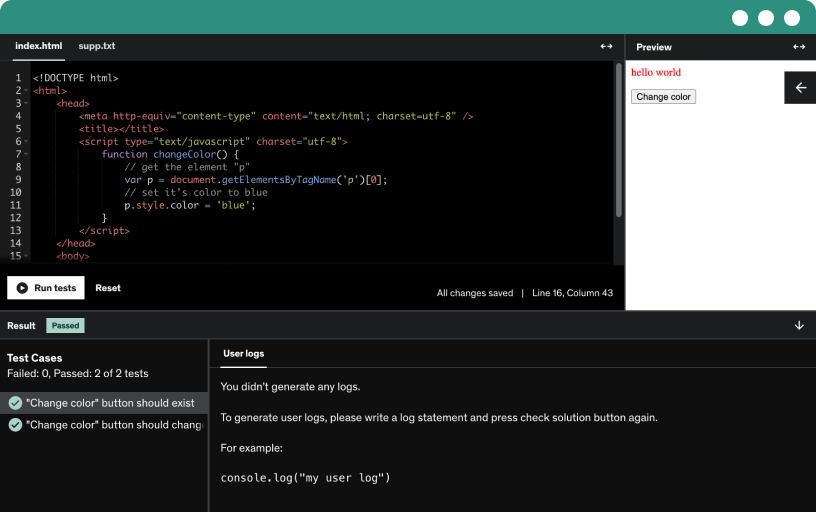
This course includes our updated coding exercises so you can practice your skills as you learn.
See a demo
Enable the developer tab from Excel options and access the Visual Basic editor to run macros. Save workbooks as macro-enabled or binary to run VBA scripts.
Navigate the VBA editor in Excel, learn to use the immediate, watch, and properties windows, insert modules, and debug with step into, toggle breakpoint, and run hotkeys.
Learn to write VBA code with ranges and cells, create a module and sub, assign values to cells, and combine range and cells for worksheet manipulation.
At least watch the Offset property, that one is a must know!
Create three vba subs to build a battleship board in Excel, select the carrier, place the battleship with b characters in italics, and style the destroyer with borders and color.
Place and clear boats in an excel vba battleship exercise using variables and if-then logic, setting carrier and destroyer positions from six cells with borders and color indexing.
Implement battleship logic in Excel VBA by adding VBS no message box, defining six variables (player, enemy, hit, sunk, boat name, grid address), and displaying miss, hit, or sunk messages.
Learn how to implement do loops in Excel VBA, compare do while and do until, and apply cells and offset to iterate over ranges with practical examples.
Explore static and dynamic arrays in VBA, including declaration, bounds with lbound and ubound, redim, and preserve. Learn range assignments, looping, and faster data handling than sheet access.
Explore array functions in VBA, including multidimensional and nested arrays, dynamic and static arrays, and practical examples like filtering a grocery list and managing ranges.
Format boats by looping through the boats table, clearing inner borders, setting none inside and continuous outside borders, and applying the color index from the player one boats range.
Learn how to pass values between subs in Excel VBA by using parameters, including optional parameters with defaults, by value and by reference, and handling ranges and variants.
Add three worksheet buttons (new game, start game, fire) with ActiveX or form controls and connect them to VBA subs (do turn, start game, new game) via the developer tab.
Finish project step by implementing load computer boats, end game logic, and dynamic button visibility in a battleship VBA game, enabling reset and replay with different grids.
Learn how to automate tasks in the world's most popular business tool, Microsoft Excel. This course only requires access to Excel, and it will teach you the core concepts to launch your programming career.
Some highlights of this course:
A step-by-step guide in making a comprehensive game of Battleship.
Several hours of high quality video lectures, covering topics such as variables, loops, and text files.
Exercises at the end of every section, and extra projects at the end of the course.