Your cart is empty.
Keep shopping

- Explore by goal
- Learn AI
Teach on Udemy
Turn what you know into an opportunity and reach millions around the world.
Learn MoreMaster Windows & Linux: Ultimate Admin Bootcamp (2025)
Master Windows & Linux: Ultimate Admin Bootcamp (2025)
IT Career Booster: Master AD, Linux, automation, security in Windows and Linux environments
Created byVitalii Shumylo
Last updated 10/2026
English
EnglishFrench [Auto],
What you'll learn
- Master Windows Server administration, including Active Directory, Group Policy, and security best practices for enterprise environments.
- Gain proficiency in Linux system administration, covering command-line operations, user management, and network configuration.
- Develop advanced scripting skills in both PowerShell and Bash to automate tasks and enhance productivity across both platforms.
- Implement and manage high availability solutions, including clustering and load balancing, for Windows and Linux servers.
- Master essential security practices for both Windows and Linux, including hardening techniques, access control, and threat mitigation.
- And much more...
Explore related topics
Coding Exercises
This course includes our updated coding exercises so you can practice your skills as you learn.
See a demo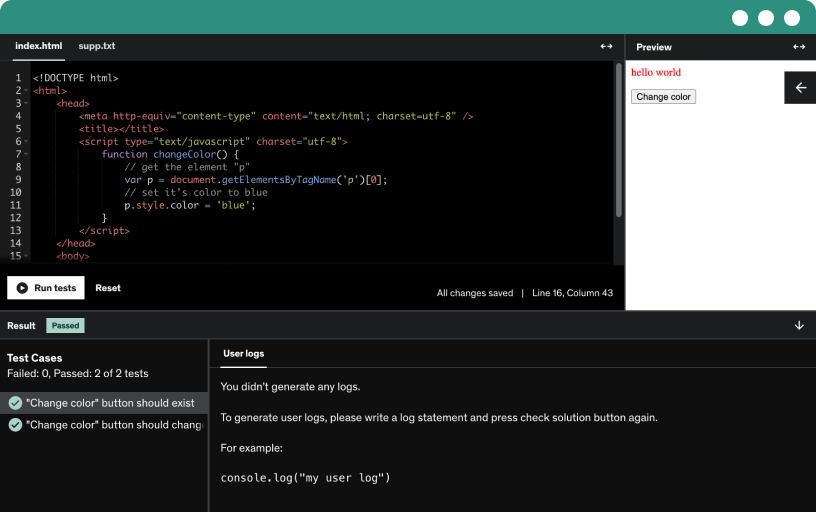
Course content
10 sections • 794 lectures • 100h 52m total length
- Instructor's Intro1:11
Whit, a technology veteran with over 20 years of experience across Microsoft, Linux, and macOS, invites feedback to tailor this Windows and Linux admin bootcamp to your career goals.
- Introduction and Installing Windows Server 202210:36
Install Windows Server 2022 via boot media by configuring BIOS boot settings, choose core or desktop, partition disks, and set the administrator password before using Server Manager.
- Activating Windows Server 20228:02
Perform post installation activation of Windows Server 2022 via internet or phone, check activation status, and activate core servers via command prompt using sl ui and ssl mgr.
- Post-Install Tasks. Part 16:01
- Post-Install Tasks. Part 210:43
Rename the server and join the domain via server manager or sysdm.cpl, ensure DNS is configured, and enable remote desktop for management; plan boot repair, sysprep, and git steps.
- Setting a Base Image with SYSPREP5:04
Prepare a base image by configuring updates, firewall, time and language, install Git, then run Sysprep with oobe and generalize to create a VHDX for new Windows servers.
- Recap3:04
Recap of hands-on Windows server admin tasks, from git clone and launching a Windows 2022 VM to using PowerShell, ssl mgr, dism, dev mgmt, and system info for remote administration.
- Setting up your first DC7:09
Demonstrates deploying domain controllers on Windows Server 2022 using Server Manager and PowerShell to create a new forest for vlab a.com, configure DNS, and promote a domain controller.
- Installing WAC and Joing a workstation to the domain4:35
Join a Windows client to the domain relapsed 8.com, install Windows Admin Center and remote server administration tools, and centralize management of Active Directory domain services with a self-signed certificate.
- Server Core3:10
Add the core server to the domain, configure DNS with sconfig, and install Active Directory Domain Services via Windows Admin Center to promote a new domain controller (dc2).
- Adding a Child Domain to the Lab3:16
Use PowerShell to install domain services on Dc2 and create a child domain named lab one, configure DNS delegation, and add domain controllers to Windows Administration Center.
- Recap: Base Lab SOP15:26
Create a basic Windows Server lab using PowerShell and Hyper-V, provisioning virtual machines, applying sysprep, configuring networking, and installing Active Directory Domain Services and the domain name system.
- AD DS Admin Tools6:20
Discover AD DS administration tools and the Active Directory Administrative Center, a PowerShell-based GUI for object management across domains. Learn to manage users, computers, policies, and domain trust relationships.
- Creating Users in our Lab3:12
Create an Active Directory user account using MMC, AD Administrative Center, PowerShell, or DS ad tool, defining username, password, full name, and a unique UPN logon with suffixes.
- Creating OU, Group, and User Template6:13
Manage active directory by creating sales and IT OUs, moving users, and creating a sales managers group; copy a sales template to new users with password settings.
- Managing AD DS Objects with PowerShell5:37
Learn to create and manage AD DS objects with PowerShell by creating organizational units, users, and groups, then assign members and verify with Get-AD commands and remove objects as needed.
- Building Trusts between Forests5:09
Configure a two-way selective forest trust between forests using dns manager to set conditional forwarders, and complete the trust via active directory domains and trusts wizard with forest wide authentication.
- Server Manager7:06
Learn how Server Manager consolidates administrative tools, monitors multiple Windows Server systems, and manages roles and features through dashboards, navigation panes, and events, services, Best Practices Analyzer, and performance tools.
- Getting started with Powershell9:34
Master Windows & Linux bootcamp teaches you to use PowerShell to manage Windows servers, run administrative tasks, and automate with cmdlets, piping, redirection, and help commands.
- Installing Hyper-V in Windows Server Lab10:35
Install the Hyper-V server role on Windows Server 22, verify prerequisites, and enable nested virtualization for lab use. Create external, internal, and private virtual switches and select VHD formats.
- Installing Hyper-V in Windows Server Lab. Part 26:23
Explore Hyper-V virtual machine management, including checking and updating configuration versions with PowerShell, choosing generation types, and using production or standard checkpoints.
- Networking basics13:22
Explore networking concepts for Red Hat Enterprise Linux in the master Windows & Linux bootcamp, including IP version four addressing, netmasks, routing, and configuring interfaces with nmcli and static hostnames.
- Configuring Network Settings22:29
Master IPv4 addressing, including dotted decimal notation, binary conversions, and classful versus classless networks, then practice subnetting with CIDR, subnet masks, network IDs, and default gateways.
- Installing updates and upgrading Windows Server 2019 to 20222:54
Update Windows Server by checking for updates, downloading, installing, and rebooting if required. Upgrade Windows Server 2019 to 2022 using installation media, keep files and apps, and reboot to complete.
- Creating an automated answer file to automate the installation5:40
Create an automated unattended installation using an answer file (autounattend.xml) with Windows System Image Manager, selecting the Windows Server 2022 image and dotnet updates for streamlined deployment.
- Module 1: Installing and configuring domain controllers. Overview3:05
Explore the core logical and physical components of Active Directory domain services, including domain controllers, forest and tree structures, domains, OUs, DNS namespaces, the AD DS schema, and Azure AD.
- AD DS components8:09
Examine active directory services architecture, focusing on logical components (partition, schema, domain, domain tree, forest, site, subnet, OU, container) and physical components (domain controllers, datastore, global catalog, rodc), group policy.
- What is the AD DS schema?8:07
Explore how the Active Directory schema defines object classes and attributes, enables data storage and replication across a forest's domain controllers via the schema master.
- What is an AD DS forest?5:56
Explore how a forest is a top-level container for domain trees sharing a schema and global catalog, with the forest root domain hosting the schema master.
- What is an AD DS domain?4:59
Define a domain as a logical container for users, computers, and groups, with Active Directory storing objects and domain controllers replicating copies for authentication and authorization.
- What are OUs?9:47
Organizational units group users, computers, and groups to link group policy objects to the OU and delegate administration within Active Directory.
- What is Azure AD?3:15
Explore how Azure AD provides identity management for cloud-based apps, while you manage only your users, synchronize with on-premises Active Directory, and integrate with Office 365.
- Overview of AD DS administration tools5:06
Explore Active Directory administration tools and workflows. Use the Active Directory Administrative Center to manage users, computers, groups, OUs, and password policies, with PowerShell cmdlets.
- Demo 1: Overview of AD DS administration tools and components7:47
Discover how to locate the ntds.dit database file, examine the schema partition, and verify the schema version using PowerShell, Ldp.exe, and the ADSI Edit tool.
- Demo 2: Overview of AD DS administration tools and components4:51
Use Get-ADForest to examine the Active Directory forest, including domain naming master and global catalogs. Review domain and forest functional levels; explore sites, trusts, and organizational units with AD tools.
- Demo 3: Active Directory Administrative Center to administer and manage AD DS7:52
Explore the Active Directory Administrative Center to administer AD DS, create objects, view their attributes, and use PowerShell history viewer to view commands and reset user passwords.
- Overview of AD DS domain controllers3:55
Analyze how domain controllers authenticate users and computers, and how global catalog placement affects sign-in times and replication, with guidance for single-domain and multi-domain forests.
- What is a domain controller?4:49
A domain controller stores a copy of the Active Directory database and Group Policy settings, and uses multi-master replication to keep data synchronized across domain controllers for high availability.
- Demo: What is a DC?3:37
Explore how a domain controller manages and replicates the Active Directory database (NTDS.dit) and the SYSVOL folder containing GPO templates, using DFS replication and AD DS services.
- What is a global catalog?4:12
Explore how a global catalog provides a partial, read-only copy of forest objects on domain controllers to enable cross-domain searches and efficient authentication.
- Overview of domain controller SRV records2:58
Explore the global catalog in Active Directory, a partial object replica that speeds logons and forest-wide searches. Ensure at least one per domain and site, for balanced replication.
- Demo: Overview of domain controller SRV records3:08
Discover how Active Directory uses DNS SRV records to locate domain controllers, perform LDAP service lookups, and leverage site-based ordering, with Netlogon registering records in DNS and ipconfig /register DNS.
- Demo: Overview of Domain Controller SRV Records5:56
Learn to view and verify SRV records in DNS manager, including LDAP and Kerberos services for domain controllers, and re-register DNS via Netlogon and ipconfig /register DNS.
- Demo: AD DS sign-in process4:47
Explore the ad ds sign-in process, from dns lookup and domain controller authentication to the lsa-based access token containing user and group sids for network logon.
- Demo: AD DS sign-in process3:13
Demonstrates using Windows PowerShell to query Active Directory for user and computer SIDs, domain and forest details, using commands like get local user, get add computer, and get add forest.
- What are operations masters?8:08
Understand the five operations master roles—schema master, domain naming master, read master, infrastructure master, and PDC emulator master—and how they coordinate domain controllers to prevent replication conflicts.
- Transferring and seizing roles3:16
Explore how to transfer and seize fisma roles across domain controllers, using GUI snap-ins, NTDS util, and PowerShell to maintain data consistency and handle failures.
- Deploying a domain controller: Overview4:06
Explore deploying domain controllers with virtualization best practices, including cloning for rapid provisioning in Hyper-V, handling rollback with VM generation ID, and Azure considerations, plus installation methods and upgrading paths.
- Installing a domain controller from Server Manager5:11
Install ads role and promote a domain controller via the Active Directory Domain Services Configuration Wizard, choosing to add to an existing domain, or create a new domain or forest.
- Demo: Part 1. Installing a domain controller from Server Manager7:15
Demonstrates installing a domain controller via Windows Server Manager, configuring Active Directory Domain Services on a Windows Server 2022, and promoting the domain controller for a functional lab environment.
- Demo: Part 2. Installing a domain controller from Server Manager9:07
Promote the server to a new forest with a root domain demo learned lessons.com, configuring DNS, global catalog, and directory services restore mode.
- Installing a domain controller on a Server Core installation of Windows Server2:38
Install a domain controller on server core by using Server Manager or PowerShell to install the Active Directory Domain Services feature and run the install ads domain controller cmdlet.
- Demo: Installing a domain controller on a Server Core6:37
Demonstrates installing Active Directory domain services on Windows Server Core, promoting a core server to a domain controller, and validating the first forest in a demo Hyper-V VM.
- Installing a domain controller by installing from media4:01
Deploy a domain controller from media to minimize WAN traffic at a remote site, create an ADS snapshot with NTDS util, copy locally, and promote via server manager.
- Cloning domain controllers3:31
Learn to clone domain controllers with Hyper-V to rapidly deploy or recover domain services, using provisioning in private clouds and Windows Server 2012 or later with an online PDC emulator.
- Demonstration: Cloning domain controllers6:06
This demonstration shows preparing a source domain controller in the Active Directory Administrative Center for cloning, exporting the VM with Hyper-V, and creating and starting the cloned domain controller.
- Demonstration: Adding Another domain controllers3:37
Add another domain controller to the Contoso domain by installing AD DS and DNS roles, promoting the DC, and configuring replication, storage locations, and the DS RM password.
- Demonstration: FSMO Roles9:30
Explore the five fsmo roles—schema master, domain naming master, rid master, PDC emulator, infrastructure master. Learn transfer and seize methods using the described commands.
- Managing User Accounts Overview2:55
Explore managing user accounts in active directory, including roaming profiles, account attributes, user profiles, templates, and handling inactive or disabled accounts to bolster enterprise security.
- Creating user accounts6:26
Create and manage user accounts to authenticate to the ads domain and access network resources. Apply naming conventions and unique logon names, including UPN suffixes.
- Demo: Configuring user account attributes7:48
Configure user account attributes in Active Directory using Administrative Center, ADs, PowerShell, and DS Mod, covering logon hours, logon to computers, expiration, password policies, and delegation.
- Demo: Managing user accounts7:53
Learn to manage user accounts in Active Directory Administrative Center by creating, deleting, and moving users, updating departments and group memberships within organizational units, and using scripts for population.
- Creating user profiles6:04
Create and manage roaming user profiles across multiple workstations by configuring profile paths, logon scripts, and home folders with group policy objects and folder redirection.
- Demo: Creating user profiles10:10
Explore creating and managing user profiles in Windows, configuring roaming profiles, logon scripts, and home folders, then enable or disable accounts and apply folder redirection with group policy.
- Demo: User account templates7:47
- Using Windows PowerShell cmdlets to manage user accounts3:41
Explore how Windows PowerShell cmdlets create, modify, and delete user accounts, with single commands or scripts for bulk operations, including password handling and account enablement.
- Using Windows PowerShell to create users11:36
Master Windows PowerShell for creating, modifying, enabling, disabling, moving, and deleting Active Directory user and computer accounts, with automation that complements GUI tools like Active Directory Users and Computers.
- Using Windows PowerShell for bulk users operations7:08
Create bulk Active Directory users with Windows PowerShell by looping, importing a CSV, and assigning properties such as display name, given name, surname, and user principal name.
- Using Windows PowerShell to modify users' properties9:16
Learn how to modify Active Directory user properties with Windows PowerShell, including bulk updates, updating descriptions, and changing attributes across OUs.
- Using Windows PowerShell to add users to groups0:59
Use Windows PowerShell to add a user to the same security groups as the administrator account by listing the administrator’s groups and adding James to each.
- Using Windows PowerShell to modify users' properties. Part27:52
PowerShell updates office, home, and mobile numbers for single or multiple users by identifying attributes with the attribute editor or Getdata user cmdlet and applying bulk changes from csv.
- Using Windows PowerShell to enable/move users8:31
Enable and disable Active Directory accounts in bulk with Windows PowerShell, and move user objects between OUs using enable-adaccount, disable-adaccount, and move-adobject, feeding inputs with Get-ADUser and Get-Content.
- Using Windows PowerShell to delete users3:16
Learn to delete Active Directory users with Windows PowerShell using the Remove-ADUser cmdlet, handle confirmations, and remove accounts listed in a text file via Get-Content.
- Managing groups in AD DS Section Overview1:54
Explain domain controllers and the global catalog in ad ds, including sign-in impact, gc placement in single versus multi-domain environments, and the role of dns and operations master.
- Group types3:06
Explore Windows Server 2016 group types, security and distribution, and how each enables permissions, email distribution, and ACL-based access; learn conversions and token implications in large Exchange deployments.
- Group types4:13
Learn to create and convert security and distribution groups in Active Directory, manage global scope, enable protection from accidental deletion, and inspect group properties with PowerShell.
- Group scopes7:16
Explore Windows server group scopes: local, domain local, global, and universal, and how they govern permissions and membership across domains and forests.
- Demo: Group scopes10:58
Explore group scopes in Active Directory, create and manage domain local and global groups, add members, and apply domain local groups to local resources on a Windows 11 client.
- Implementing group management6:24
Implement group nesting to form a hierarchy using global, domain local, and universal groups, granting access via ACLs and read permissions while aligning with role-based management rules.
- Demo: Implementing group management (IGDLA)18:00
Demonstrates Windows Admin Center setup and Active Directory group management, including domain controller access, group nesting, and site-based access with Lead New York Global.
- Managing members with GPO3:18
Use the restricted groups setting in a domain level GPO to control local group membership on domain-joined computers, automatically remove non-designated members from enterprise admins and domain admins.
- Demo: Using Restricted Groups Setting9:08
Use restricted groups in group policy to grant George local administrator rights on Windows 11 computers, then update policies with gpupdate /force and test disk management.
- Default groups4:18
Learn about Windows Server 2016 default local groups, including administrators, domain admins, enterprise admins, and schema admins, and how protected groups govern Active Directory rights.
- Demo: Using Account Operators Groups and Delegate Control16:39
Explore account operators and delegate control in Active Directory, demonstrating how built-in security groups grant create, move, and delete permissions, and how delegation narrows actions to specific OUs or domains.
- Special identities3:53
Master windows special identities, such as anonymous logon, authenticated users, everyone, interactive, network, and creator owner, and learn how to assign rights and permissions by authentication or connection.
- Demonstration: Managing groups in Windows Server2:52
Demonstrate creating a new group in Windows Server using Active Directory Administrative Center, adding members, changing group type and scope to distribution and universal, and configuring a group manager.
- Demo: Checking Groups Membership8:05
Demonstrates checking and managing user and group membership in Windows and Linux using Active Directory Administrative Center and PowerShell, including domain admins and commands like gpresult and get-adprincipalGroupMembership.
- Managing computer objects in AD DS Section Overview2:10
Learn to manage computer objects in Active Directory, join computers to the domain, understand trust relationships, and configure secure channels and group policy; handle password mismatches and lifecycle tasks.
- Specifying the location of computer accounts4:57
Create custom OUs to host computer objects and avoid using the default computers container, enabling delegated administration and precise group policy application.
- Controlling permissions to create computer accounts3:27
Control permissions to create computer accounts in the correct OU and join computers to the RDS domain. Delegate control, pre-create accounts, and manage the machine account quota to limit creations.
- Joining a computer to a domain1:05
Join or leave a domain by using the computer name tab in advanced system settings, entering the domain or workgroup name and credentials, then restart.
- Demo: Managing Computer Obejects10:04
Explore managing computer objects in an Active Directory domain by creating and moving organizational units, delegating computer-management tasks, and joining client machines to the domain with PowerShell.
- Resetting the computer account (secure channel)7:20
Reset the secure channel between a computer and its domain when authentication fails. Use methods like rejoining domain or resetting the computer account with DSMod, NetDom, NLTest, ADUC/ADAC, or PowerShell.
- Demo: Resetting the computer account (secure channel)3:25
Demonstrates resetting a computer account's secure channel via Active Directory users and computers, then verifies trust with Hyper-V and local/domain logins, and fixes it using PowerShell with credentials.
- Performing an offline domain join4:14
Learn how to perform an offline domain join. Use djoin to create and transfer the domain join file, enabling a computer to join a domain without online contact.
- Lab Tasks: Managing objects in AD DS9:27
Learn to create and configure AD DS groups and user accounts for a new branch office, manage computer objects, and repair a trust relationship via test computer secure channel repair.
- Lab Solution: Managing objects in AD DS9:00
Demonstrates step-by-step management of AD DS objects, including creating groups and organizational units, nesting security groups, and configuring user accounts. Shows resetting computer accounts and repairing secure channels.
- Implementing and managing OUs Section Overview1:55
Plan the ou structure in Active Directory and learn how permissions govern ou use, then use the delegation of control wizard to simplify assigning permissions and delegating tasks.
- Planning OUs9:17
Design Active Directory OU structures using location-based, resource-based, organization-based, multi-tenancy-based, and hybrid strategies to delegate rights and apply group policies.
- OU hierarchy considerations3:23
Plan Active Directory functionality by aligning the OO structure to administrative purposes, delegation models, and GPOs, while acknowledging inheritance, change, and reflecting departments at a lower OO level.
- Considerations for using OUs4:35
Explore considerations for using organizational units in Active Directory, including creation methods in Active Directory Users and Computers, Active Directory Administrative Center, and Windows PowerShell; enable protection from accidental deletion.
- AD DS permissions5:36
Explore Active Directory administrative delegation by merging object-oriented design with OU security, and learn how tokens, seeds, and security descriptors govern permissions and auditing in AD.
- Delegating AD DS permissions6:09
Learn to delegate administrative rights in Active Directory, choosing between object type delegation and role-based delegation, using groups rather than individuals, and employing the Delegation of Control Wizard for tasks.
- Using Windows PowerShell for AD DS administration Section Overview1:00
Master Windows PowerShell to automate administration with cmdlets, manage groups, computer accounts, and OUs, perform bulk operations, query and modify objects, and work with CSV files.
- Using Windows PowerShell cmdlets to manage groups4:55
Learn to manage groups in Windows PowerShell: create, modify, delete groups; manage membership with add group member and add principal group membership cmdlets; and use piping for bulk operations.
- PowerShell: Managing, configuring and modifying Group objects. Part 113:50
Learn to manage Active Directory groups with PowerShell, creating global, domain local, and universal security groups, and search, modify, and manage group memberships, including adding and removing members.
- PowerShell: Managing, configuring and modifying Group objects. Part 27:30
Learn how to add user and computer accounts to security groups in Active Directory using PowerShell, including single and multiple additions, batch input from files, and copying members between groups.
- PowerShell: Managing, configuring and modifying Group objects. Part 35:07
Manage Active Directory group memberships with PowerShell by adding computer accounts to security groups using Add-ADGroupMember and Get-ADComputer, appending the dollar suffix to names to group test and prod machines.
- PowerShell: Managing, configuring and modifying Group objects. Part 45:50
Learn PowerShell to manage, configure, and modify security group objects, nest groups with proper scope (universal, global, domain local), and create or add multiple groups in bulk.
- PowerShell: Managing, configuring and modifying Group objects. Part 512:40
Master PowerShell for Active Directory groups by listing members with Get-ADGroupMember, identifying object class, exporting to CSV, and removing or deleting groups with bulk and recursive options.
- Windows PowerShell cmdlets to manage computers and OUs4:44
Learn to use Windows PowerShell cmdlets to create, modify, display, and delete computer accounts and OUs, including managing trust relationships and protecting against accidental deletion.
- PowerShell: Managing, configuring and modifying Computer objects. Part 110:42
Manage computer objects in Active Directory with PowerShell, including creating, modifying, enabling or disabling, and deleting accounts. Learn pre-staging of computer accounts and moving them between OUs.
- PowerShell: Managing, configuring and modifying Computer objects. Part 26:15
Manage computer objects in Active Directory with PowerShell by enabling, disabling, and removing stale computers using Get-ADComputer, Enable-ADAccount, Disable-ADAccount, and Remove-ADComputer, with OU filters and last logon date.
- Course Overview2:18
Describe, deploy, and implement Active Directory Federation Services (ADFS) in Windows Server 2016 to enable single sign-on across local, partner, and online applications and extend to external clients.
- Section Overview5:57
Explore the components and boundaries of Active Directory, including domains, trees, and forests, and learn why organizations deploy multiple domains or forests, including Azure IaaS deployments.
- Overview of domain and forest boundaries in an AD DS structure8:01
Explore how Active Directory domain and forest boundaries govern authentication, access, and searches. Understand replication, administration, group policy, auditing, and DNS boundaries across domains and forests.
- Why implement multiple domains?3:55
Learn why organizations deploy multiple active directory domains to meet replication, dns namespace, and distributed administration needs, while noting autonomy without administrative isolation and the option of forests.
- Why implement multiple forests?3:40
Explore why organizations implement multiple forests, including security isolation and privileged access management with a bastion forest, plus incompatible schemas, perimeter network security, and mergers or divestitures.
- Deploying a domain controller in Azure IaaS9:48
Deploy domain controllers on Azure IaaS to host AD DS in virtual machines, enabling disaster recovery, geo-distributed authentication, and isolated app scenarios.
- Managing objects in complex AD DS deployments6:54
Learn how to automate user provisioning, group management, self-service, and certificate handling in complex AD DS deployments with Microsoft Identity Manager 2016, enabling cloud-ready identities and Azure AD synchronization.
- Deploying a distributed AD DS environment. Section Overview5:11
Learn to deploy a distributed AD DS environment with Windows Server 2008 as the minimum domain functional level and optimize DNS with conditional forwarders, suffix search order, and stop zones.
- AD DS domain functional levels10:20
Upgrade Active Directory domain functional levels from Windows Server 2000 native through Windows Server 2016 to unlock features like universal groups, DNS partitions, fine-grained password policies, and Kerberos enhancements.
- AD DS forest functional levels6:39
Understand forest and domain functional levels, trusts and forest trusts, linked value replication, and key Active Directory features across Windows Server versions.
- Demo: New domain and functional levels in Windows Server 20257:48
Explore new Active Directory functional levels in Windows Server 2025, including forest and domain levels, 32K database page feature, and unattended promotion using PowerShell and DC Promo.
- Deploying new AD DS domains2:47
Create a forest in AD DS to auto-create the forest root domain, forming the base with the schema master and domain naming master, and explore child and three-domain deployments.
- Considerations for implementing complex AD DS environments13:43
DNS, centralized vs decentralized models, verify, monitor, cross-forest name resolution, conditional forwarders, stop zones, global name zone, Active Directory integrated DNS, UPN suffixes, federated authentication.
- Demo: Installing a domain controller in a new domain in an existing forest5:34
Install ads binaries on the Toronto Dc1 domain controller and configure Dc1 as an ads domain controller using the active directory domain services configuration wizard to add adatum.com to forest.
- Upgrading a previous version of AD DS to Windows Server 20166:26
Upgrade Active Directory to Windows Server 2016 by either upgrading existing domain controllers or introducing 2016 domain controllers and decommissioning older ones, after upgrading the AD DS schema with adprep.
- Migrating to Windows Server 2016 AD DS from a previous version10:47
Learn to use the Active Directory Migration Tool (ADMT) to migrate user, group, and computer accounts across domains and forests, including pre-migration tasks, restructuring plans, and seed history management.
- Configuring AD DS trusts. Section Overview3:19
Master AD DS trusts and forest trusts by configuring name resolution between root domains, ensuring forest functional level Windows Server 2003 or later, and applying selective authentication to control access.
- Overview of different AD DS trust types3:18
Explore AD DS trust types and their transitivity and direction, including parent and child, tree root, external, realm, forest complete or selective, and shortcut trusts.
- How trusts work in a forest5:33
Explain how trusts in an active directory forest enable cross-domain resource access, routing session tickets through domain controllers, and how shortcut trusts shorten the trust path for faster access.
- How trusts work between forests3:50
Learn how forest trusts enable cross-forest access in Active Directory, including forest-wide and selective trusts, one-way and two-way configurations, transitivity, upn authentication, and Kerberos v5 across domains.
- Configuring advanced AD DS trust settings7:21
Master advanced AD DS trust settings by implementing seed filtering, selective authentication, and name suffix routing to control authenticated access and protect resources across external and forest trusts.
- Course Overview1:15
Explore how Active Directory domain services provide an efficient sign-in infrastructure and high availability by deploying multiple domain controllers, configuring sites, and monitoring replication to optimize authentication and traffic.
- Section Overview1:50
Describe how the configuration partition provides global catalog information and is replicated to all domain controllers, and outline the multi-master replication model, site topology, and conflict resolution in Active Directory.
- What are AD DS partitions?6:35
Explore how Active Directory data is partitioned to optimize replication across domain controllers in the forest, covering the configuration, schema, domain, and application partitions and their replication topology.
- Characteristics of AD DS replication7:10
Explore the characteristics of AD DS replication, including multiple master replication, pool replication, store and forward replication, data store partitioning, attribute level replication, and collision detection.
- How AD DS replication works within a site11:56
Learn how Active Directory domain controllers replicate within a site, driven by connection objects and the knowledge consistency checker, with notifications, polling, and automatic two-way, three-hop topology.
- Resolving replication conflicts5:17
Ads uses a multiple master replication model, so conflicts may arise when domain controllers modify the same attribute or object; stamp with version, timestamp, and server GUID determines the winner.
- How replication topology is generated4:44
Learn how replication topology is generated across forest-wide schema and configuration partitions, with cross-domain replication, global catalog considerations, and fault-tolerant, multi-partner domain controller replication.
- How SYSVOL replication works3:14
Learn how Sysvol replication synchronizes the domain-wide policy wall across domain controllers, moving from file replication service to dfs replication, using remote differential compression and migration tools.
- Configuring AD DS sites Section Overview2:51
Implement ads sites to manage bandwidth and localize authentication, explain replication between sites, the site topology generator, and how clients locate domain controllers within sites and move controllers between sites.
- What are AD DS sites?5:45
Manage replication traffic and localize services by mapping IP subnets to AD DS sites, ensuring domain controllers route clients to the nearest site and GPOs apply at the top.
- Why implement additional sites?3:15
Review how to create additional Active Directory sites to control authentication, replication, and service localization across slow links and locations with enough users to host domain controllers.
- How replication works between sites4:34
Explore how replication differs within and between sites, emphasizing site link bandwidth, compression, and scheduling, with change notifications and urgent or immediate replication to minimize inter-site latency.
- What is the ISTG?4:03
Explain how the intersite topology generator automates inter-site replication by calculating the ideal topology, designating bridgehead servers, and creating connection objects across sites.
- Overview of SRV records4:27
Publish service records (srv) to map Kerberos v5 and LDAP to host names, enabling authentication and directory services with ports 389, 88, 464, and 3268 using tcp or udp.
- How client computers locate domain controllers within sites4:21
Explore how Windows clients locate and authenticate to domain controllers using DNS SRV records, LDAP pins, and site-based affinities, with site coverage for local resources.
- Moving domain controllers between sites2:19
Move domain controllers between sites using Active Directory sites and services, with domain administrator privileges, to relocate controllers, enable automatic site coverage, or create sites without controllers.
- Configuring and monitoring AD DS replication Section Overview1:37
Configure and monitor AD DS replication via site links, inter-site settings, site link bridging, and universal group membership caching, including 15-minute replication duration. Use tools to monitor replication across sites.
- What are AD DS site links?4:29
Configure AD DS site links to enable replication between sites using the Knowledge Consistency Checker and ISG. ISG creates connection objects that determine replication paths.
- What is site link bridging?4:29
Configure site links and bridging to manage inter-site replication, using automatic bridging or custom site link bridges with in-between costs to ensure connectivity between Amsterdam, HQ, and Seattle.
- What is universal group membership caching?4:48
Explore universal group membership caching and how domain controllers cache user group data from a global catalog to speed remote sign-ins, with an eight-hour refresh and security risks.
- Lab: Sites and Replication. Exercies and Tasks10:25
Configure Active Directory sites, subnets, and domain controllers across Toronto and London HQ, set up site links and replication monitoring to optimize AD traffic.
- Lab: Sites and Replication. Solution16:45
Implement and configure Active Directory Domain Services on tor dc1, create and manage sites and subnets, set up site links and replication, and monitor replication across sites.
- Course Overview2:21
Explore group policy fundamentals and the GPO infrastructure, then implement and administer GPOs across sites, domains, and OUs with filtering, scope, processing, and troubleshooting guidance.
- What is Configuration Management1:40
Discover how configuration management centralizes changes across multiple computers, using scope and application to achieve a consistent, desired state with group policy and Active Directory.
- Overview of Group Policy tools and consoles3:16
Explore how individual policy settings configure user or computer environments, including administrative templates and not configured states, and how the Group Policy Management Editor applies, enables, or disables those policies.
- Computer Configuration and User Configuration6:29
Explore computer and user configuration policies, including software settings, Windows settings, scripts, security settings, folder redirection, and administrative templates, plus policy updates and results verification.
- Demonstration: Exploring Group Policy tools and consoles2:14
Navigate the group policy management console to create and edit a GPO named disable control panel, link it to the domain, and verify updates with gpupdate and gpresult.
- Benefits of using Group Policy3:41
Explore the benefits of group policy for centralized administration, security, desktop standardization, and software deployment across users and computers, with folder redirection and network configuration options.
- Group Policy Objects1:19
Define and manage group policy objects (GPOs) with the Gpmc, edit settings in the Group Policy Management Editor, and link GPOs to domain, OU, or site using PowerShell.
- Overview of GPO scope2:39
Define gpo scope by linking gpos to sites, domains, or ous to set the maximum scope, and refine it with security filters, wmi filters, and targeted group policy preferences.
- Overview of GPO inheritance4:11
Learn how GPOs link to sites, domains, or OUs, how the highest-precedence GPO determines the final values across GPOs, and how local, site, domain, and OU processing order governs inheritance.
- The Group Policy Client service and client-side extensions6:00
Operate the group policy client service to determine applicable gpos and apply settings locally via client-side extensions. Learn how extensions manage security settings, startup scripts, software installation, and registry changes.
- What are domain-based GPOs?4:19
Explore domain-based GPOs, their storage on domain controllers, and how to create, link, edit, and manage GPOs using Windows PowerShell and Gpmc, including starter GPOs and delegation of administration.
- GPO storage5:02
Explore domain based GPOs, including default domain policy and default domain controllers policy, their scope, and how local GPOs interact with domain policies.
- What are starter GPOs?1:01
Learn how a group policy object comprises a group policy container and a group policy template, stored in domain controllers, with versioned updates and DFSR or FRS replication.
- Common GPO management tasks5:40
Utilize starter GPUs in the Gpmc as templates to create domain GPUs with administrative templates settings, and export or import via cabinet or cap files for distribution.
- Delegating administration of Group Policy2:50
Delegate administration of group policy within the master Windows & Linux bootcamp by backing up, restoring, importing, copying, and migrating GPOs with Gpmc and PowerShell.
- Demo: Delegating administration of Group Policy3:15
Delegate group policy tasks to distribute workload, enabling groups to create, edit, link GPOs, perform policy model and analysis on a domain or OU, and manage WMI filters using GPMC.
- Demo: Delegating administration of Group Policy5:46
Delegate permissions to create and link GPOs, and to view results, then verify permissions with PowerShell and manage group policy in the adatum.com domain.
- What are GPO links?4:30
Learn how to scope and link GPOs, control processing order and inheritance, use loopback processing, and apply security filtering and WMI filters to manage policy across computers and users.
- Group Policy processing order3:08
Learn how to link GPOs to domains, sites, and OUs using the GPMC console, define scope, and understand group policy processing order, policy downloads, and site-linked GPOs across a forest.
- Configuring GPO inheritance and precedence7:30
Understand how group policy inheritance follows a hierarchical order—from local gpos to sites, domains, and ous—and how the last policy applied wins.
- Using security filtering to modify Group Policy scope6:33
Set the scope and precedence of GPOs using security filtering and link order. Learn how inheritance, blocking inheritance, and enforcement shape which policy settings finally apply.
- What are WMI filters?4:33
Learn to filter GPO scope using security filtering, ACLs, and read and apply permissions to target authenticated users, specific groups, and exemption groups, with delegation considerations.
- How to enable or disable GPOs and GPO nodes2:21
Learn how to enable or disable GPOs and GPO nodes using WMI filters, create WMI queries with WQL, and weigh performance implications before deployment.
- Loopback policy processing4:40
Configure GPO status options to enable or disable computer and user settings during policy refresh, optimizing processing. Use Gpmc to force a policy refresh for emergency configurations.
- Considerations for slow links and disconnected systems3:07
Apply centralized control of user environments with group policy loopback processing to tailor user settings by computer, enabling standardized desktops in conference rooms, labs, kiosks, and virtual desktop infrastructure scenarios.
- Identifying when settings become effective6:31
Group policy applies only selected settings on slow links detected by the client side extension, 500 kbps; disconnected computers retain policies, but startup and logon scripts may not run offline.
- Lab A Tasks: Implementing a Group Policy infrastructure7:24
Explore how group policy settings apply through replication and domain controller propagation, including GPO replication, security token updates, and refresh intervals, with manual gpupdate options and restart requirements.
- Lab A Solution: Implementing a Group Policy infrastructure7:05
Implement a group policy infrastructure to lock screens after ten minutes, enforce a 600‑second screen saver with password protection, and use security filtering and loopback for conference room exemptions.
- Lab A Solution: Implementing a Group Policy infrastructure9:35
Troubleshoot GPO deployment and scope by creating, editing, and linking group policy objects, applying loopback processing, and validating settings for screen saver, registry access, and firewall rules.
- Refreshing GPOs3:17
Master refreshing GPOs using gpupdate and invoke-gpupdate, configure computer and user refresh intervals, perform remote policy updates via gpmc, and troubleshoot health using event logs and replication status.
- What is RSoP and Generating RSoP Report1:14
Explore how RSoP reports reveal policy application and learn to generate RSoP reports; grasp computer and user refresh intervals, sign-in behavior, and remote group policy updates via Gpmc.
- Course Overview1:17
Explore how to analyze and troubleshoot group policy with the group policy results wizard and GP results, modeling outcomes and reporting applied settings across users and computers.
- Section Overview3:00
Learn to implement standard desktop environments using group policy objects, administrative templates, folder redirection, software installation, and configure scripts, and master configuring group policy preferences to manage settings.
- What are administrative templates?3:17
discover how administrative templates control operating system environment and user experience via gpo, with computer and user settings modify registry (hkey local machine, hkey current user) and organize into subnodes.
- What are .adm and .admx files?4:53
Explore how group policy settings are stored in dot adm and admx files, including language specific adml and idml files and the central store concept.
- Overview of the central store3:49
Create and maintain a central store for admx and adml files in a domain to standardize GPO templates and updates, enabling the Group Policy Management Editor to read them.
- Demonstration: Configuring settings with administrative templates12:33
Configure administrative template policy settings in the group policy editor, learn filtering options, and practice copying, backing up, and importing GPOs with commands.
- Importing security templates5:58
Configure Windows security settings with security templates and distribute them via group policy and Security Compliance Manager. Import templates into GPOs, compare configurations, and manage templates across devices.
- Managing administrative templates3:48
Learn to manage administrative templates by downloading or creating custom templates, adding them to the central store, customizing settings via the group policy editor, and deploying the GPO.
- Section Overview3:35
Explore folder redirection, software installation, and logon scripts via group policy to standardize user desktops.
- What is Folder Redirection?2:38
Learn how folder redirection places folders on a network server while appearing as local drives. Gain insight into offline files, cross-computer access, backups, and reduced roaming profile sizes.
- Settings for configuring Folder Redirection5:18
Explore folder redirection in group policy, selecting none, basic, advanced, or follow the documents folder, and configure per-user root paths to keep data private while noting sign-in impact.
- Security settings for redirected folders1:27
Configure manual permissions on a shared folder to store redirected folders, and apply NTFS and share permissions for root, subfolders, and files as folder redirection creates or uses existing folders.
- Demonstration: Configuring Folder Redirection4:17
Demonstrates creating a shared folder, configuring a GPO for folder redirection of documents, setting everyone with read/write access, and testing via gpupdate /force.
- Managing software with Group Policy10:05
Master software life cycle management with group policy in Windows Server 2016, including deployment, maintenance, and removal using MSI packages, assignments, publications, and upgrades, plus trade-offs.
- Group Policy settings for applying scripts2:04
Apply group policy scripts to automate startup, shutdown, sign-in/out tasks, and environment setup using VBScript, batch, or PowerShell, stored on the Netlogon share.
- Demonstration: Configuring scripts with GPOs3:51
Demonstrates creating a logon script and linking it to a GPO to display a message, then tests the script by signing in on client computers and using gpupdate /force.
- Section Overview3:13
Describe configuring group policy preferences to manage Internet Explorer with IE settings, shortcuts, and registry; explain item level targeting limits across forests and mapped drives delivered via group policy.
- What are Group Policy preferences? Comparing with Policy settings4:03
Explore group policy preferences and extensions like drive maps, folder options, printers, and scheduled tasks, compare them with policy settings, and learn the create, delete, replace, and update actions.
- Features of Group Policy preferences5:25
Learn how to configure group policy preferences, including general tab actions (create, delete, replace, update), input details for drive mappings and environment variables, and item level targeting.
- Item-level targeting options4:49
Explore item level targeting in group policy preferences, using 27 categories and/or logic to apply settings precisely to computers or users, with dynamic background refresh and real-world deployment scenarios.
- Demonstration: Configuring Group Policy preferences5:56
Create a printer with group policy preferences and set it as default. Configure a balanced Adatum Power Plan via group policy and test with gpupdate /force on Windows 10.
- Lab Tasks: Managing user settings with Group Policy20:54
Learn to manage user settings with group policy using administrative templates and preferences, implement drive mapping, shortcuts, folder redirection, and Office 2016 GPO design.
- Lab Solution: Managing user settings with Group Policy21:19
Explore practical group policy design to manage Office 2016 settings, drive mappings, a notepad desktop shortcut for IT security group, and folder redirection, using administrative templates and policy preferences.
- Lab Review: Managing user settings with Group Policy2:29
Learn to use folder redirection to map different shared folders on separate servers for security groups, and apply GPOs with WMI filters, GPO permissions, and item-level targeting for portable computers.
- Section Overview3:34
Secure domain controllers, implement account security, and audit authentication in a Windows network. Learn the security risks, secure settings, physical access, and password replication policies for read-only domain controllers.
- Security risks that can affect domain controllers5:20
Identify your security boundaries and defend domain controllers by addressing network security, authentication attacks, elevation of privilege, denial of service, operating system and app attacks, and physical security risks.
- Demo: Installing and Using Nmap for Network Scanning and Vulnerability Assess10:41
Install and configure nmap on a test server, then perform scans to identify open ports, service versions, and operating system details on a domain controller, and assess vulnerabilities.
- Modifying the security settings of domain controllers8:36
Configure security settings for Active Directory domain controllers centrally with a GPO, ensuring consistent enforcement of password, audit, and firewall policies across all domain controllers.
- Demo Example 1: Configuring and Verifying Domain Controller Security Policies5:14
Configure domain controller security policies with group policy management, set password length to 14, increase log size, enable audit logon events, and verify with event viewer after gpupdate /force.
- Demo Example 2: Configuring Custom Security Policies for Domain Controllers7:07
Configure a custom domain controller security policy gpo, including restricted groups for remote desktop users. Disable select services to harden security.
- Benefits of Custom GPOs for Domain Controllers: Best Practices and Consideration3:38
Create custom GPOs for domain controllers to preserve defaults and enable granular, OU-based policy application. Adopt custom GPOs for most configurations to follow Microsoft recommendations and ensure proper change management.
- Implementing secure authentication8:46
Implement secure authentication by hardening user accounts and passwords, securing elevated groups, auditing critical changes, and deploying two-factor authentication with smart cards or mobile MFA, and deprovisioning.
- Securing physical access to domain controllers3:49
Ensure physical security for domain controllers hosting Active Directory by deploying in secure locations, enabling BitLocker on volumes, monitoring hotswap disks, protecting virtual disks, and storing backups securely.
- What are RODCs?11:38
Explore read-only domain controllers (RODCs) for branch offices, detailing caching, password replication policies, and the security and replication limitations for Exchange and DNS.
- Deploying an RODC3:33
Deploy a read-only domain controller (RODC) using the Active Directory Domain Services Configuration Wizard or remote PowerShell. Plan a two-stage deployment with pre-staging, delegated promotion, and password replication policy.
- Planning and configuring an RODC password replication policy6:18
Configure an RODC password replication policy to control which user and computer credentials are cached, using allowed and denied lists and domain groups.
- Demonstration: Configuring a password replication policy6:19
Configure the password replication policy on read-only domain controllers to decide which users' credentials are cached. Use allowed and denied lists with precedence to manage domain-wide groups.
- Separating RODC local administration2:41
Delegate rodc local administration by assigning a domain user or group as a local administrator on a read-only domain controller; the delegated admin can perform maintenance on that server only.
- Best Practices for Securing Active Directory10:41
secure active directory by reducing the attack surface, enforcing least privilege, implementing secure administrative hosts, and monitoring for signs of attack with incident recovery planning.
- Section Overview4:03
Describe account security options in Windows Server 2016 and later, including password and lockout policies, Kerberos, protected groups, and fine-grained policies. Explain Windows Hello and Azure MFA integration.
- Password policies4:39
Configure domain and local password policies via the group policy console, enforcing password history of 24, max age 42 days, min age 1 day, min length 7, and complexity.
- Account lockout policies3:39
Examine how account lockout policies set thresholds, durations, and unlock methods to prevent brute force attacks and protect user accounts.
- Kerberos policies7:39
Configure Kerberos policy settings from the default domain policy to govern domain, user, and computer accounts, including service ticket lifetimes, user ticket lifetimes, and clock synchronization tolerance.
- Demonstration: Configuring a fine-grained password policy3:21
Configure password policy and lockout policy via Group Policy Management Console; enforce history 20, max age 45, min length 10, and complexity; set lockout duration 30 and reset after 15.
- Protecting groups in AD DS5:35
Learn to enforce secure local group membership with restricted groups in group policy and to protect credentials using the Protected Users Security Group on Windows Server 2012 R2 or newer.
- Fine-grained password and lockout policies6:22
Explore fine grained password policies in Windows Server 2008+ that assign per-user or per-group password and lockout settings using password settings containers and shadow groups.
- Tools for creating PSOs6:38
Configure fine grained password policies in Windows Server 2012 or newer using PowerShell or Active Directory Administrative Center, setting complexity, length, age, history, reversible encryption, and lockout rules.
- Demonstration: Configuring authentication-related audit policies and viewing log3:21
Demonstrates configuring a fine-grained password policy in Active Directory Administrative Center, creating password settings for the Adatum managers group, and enforcing length 15, history 20, complexity, age, and lockout.
- PSO precedence and resultant PSO3:49
Link multiple PSOs to a user or group and use the PSO with the lowest password settings precedence as the resultant PSO. Apply default domain policy when none are linked.
- Account-security options14:46
Configure password, account, and Kerberos policies across local and domain environments using Local Security Policy Console or Group Policy Management Editor, noting default domain policy precedence and policy conflicts.
- Configuring user account policies3:57
Configure auditing to address common scenarios, describing account logon and logoff events. View events in the security log and configure authentication related audit policies and object auditing.
- Account logon and logon events10:50
Explore the difference between audit account logon events and audit logon events, and how advanced and basic audit policies, domain controllers, and GPOs govern logon and logoff auditing.
- Demonstration: Configuring authentication-related audit policies and viewing log5:11
Learn to configure authentication audit policies with group policy management, enabling account logon and Kerberos auditing, and view event IDs 4771 and 4768 in Event Viewer.
- Scoping audit policies1:18
Define the scope of audit policies with GPOs linked to the correct OUs to apply logon event auditing and account logon events across domain controllers.
- Section Overview1:43
Explore configuring managed service accounts and group MSAs, extending standard MSAs to multiple servers. Learn Kerberos delegation and SPNs for secure Windows Server 2016 service authentication.
- Overview of service accounts4:15
Understand how Windows uses built-in local accounts: local system, local service, and network service. Weigh domain admin passwords that never expire against built-in accounts and perform a thorough security analysis.
- Challenges of using service accounts3:21
Identify challenges with service accounts, including domain and local accounts, password management, and SPN administration, and explore managed service accounts in Windows Server 2016.
- Overview of managed service accounts5:43
Master managed service accounts (MSAs) for automatic password and SPN management, their Active Directory integration, and key usage requirements across Windows Server 2008 R2 and Windows Server 2016.
- What are group MSAs?6:13
Extend managed service accounts with group MSAs to run across multiple servers, enabling automatic password maintenance and simplified SPN management within domain environments and server farms.
- Demonstration: Configuring group MSAs2:53
Demonstrates configuring group MSAs by creating a KDS root key in the London C1 domain, provisioning a sample app MSA, and setting the Data Sharing service logon in PowerShell.
- Lab: Securing AD DS Exercises and Tasks21:35
Implement and enforce AD DS security policies, password and lockout rules, and auditing, while deploying an RODC in the branch office and evaluating a group MSA for secure app access.
- Lab: Securing AD DS. Solution. Part 121:54
Configure security policies for accounts and passwords, enforce restricted groups and auditing in Active Directory, and implement fine grained password settings for IT administrators and domain admins.
- Lab: Securing AD DS. Solution. Part 214:01
Deploy and configure Active Directory Domain Services, create domain controllers, implement password replication policy, manage groups, and install a managed service account for web services.
- Lab Review1:17
Configure domain password policies with a PSO for all users, linked to the domain users group, to centralize management and tailor settings across the domain.
- Module Review and Takeaways3:45
Review essential security practices for Active Directory, including physical security, auditing domain authentication, and domain controller policies, while addressing account lockout considerations and multi-controller event auditing.
- Plan Your Progress1:21
Plan your progress by exploring theoretical lectures, demonstrations, and labs, including hands-on labs and lab videos. Use section overviews and review questions to build practical, well-structured knowledge.
- Course Overview1:22
Explore Active Directory Federation Services (ADFS) in Windows Server 2016 to enable single sign-on across local, partner, and online apps, and learn to deploy ADFS for external clients.
- Section Overview: Deploying CAs6:07
Compare enterprise and standalone CA deployments, using auto enrollment, certificate templates, and policy-based approval. Deploy multiple subordinate CA for segmentation, high availability, and geographic regions within Active Directory.
- What is AD CS?9:58
Learn how AD CS enables PKI in Windows Server to issue and manage certificates, secure data with encryption and signatures, and ensure availability with a CA hierarchy and enrollment services.
- Options for implementing CA hierarchies5:48
Explore designing a CA hierarchy for PKI, from root and subordinate CAs to policy keys and cross certification, including two-tier setups and when single or external CAs suffice.
- Standalone vs. enterprise CAs3:22
Compare standalone and enterprise certificate authorities, detailing ad ds integration, auto enrollment, and publication points for Windows Server environments.
- Considerations for deploying a root CA7:09
Consider offline versus enterprise and standalone root CA deployments, and plan cryptographic provider, key length, hash algorithm, and CRL/CDP/AIA publishing for offline security.
- Demonstration: Deploying an enterprise root CA3:18
This demonstration deploys an enterprise root CA with Active Directory Certificate Services. It covers configuring the enterprise CA and route CA option, 4096-bit keys, and private key creation.
- Considerations for deploying a subordinate CA3:37
Issue certificates to clients with a subordinate CA to enforce PKI policy securely. Use enterprise subordinate CA in ads environment with offline root CA for load balancing and fault tolerance.
- How to use the CAPolicy.inf file for installing a CA4:23
Configure root or subordinate CAs with CA policy.inf file during AD CS installation. Define sections, keys, and values to set certification practice statement, CRL intervals, renewal settings, and AIA/CDP paths.
- Section Overview: Administering CAs6:46
Learn to administer key hierarchy and keys, configure security options and auditing in ADCs, and tailor role-based administration and permissions to control certificate issuance and enrollment.
- Managing CAs8:46
Learn to deploy and manage a certification authority using the Certification Authority Console, PowerShell, and certutil, including templates, CDP, AIA, OCSP, and group policy for auto enrollment.
- Configuring CA security3:27
Configure CA security with the Certification Authority console, grant read and issue rights, read issued certificates, delegate template rights via certificate manager, and restrict access via certificate members.
- Security roles for CA administration7:53
Explore role based administration in ADCs by delegating permissions to groups, and configuring roles such as enterprise PKI admins and certificate managers through the Certification Authority Console.
- Configuring CA policy and exit modules8:33
Configure policy and exit modules on your certificate authority to route, approve, and publish certificates using CA console or cert util, including MIM workflow and email or file-based notifications.
- Configuring CDPs and AIA locations9:01
Configure the AIA and CDP certificate extensions on your CA to enable trust chain validation and revocation checks in a PKI environment; publish these URLs for enterprise and offline CAs.
- Demonstration: Configuring CA properties2:08
Configure key certification authority properties by reviewing general, policy, exit, extensions, and security settings, and learn to restrict security principals to certificate templates in a practical CA demonstration.
- Section Overview: Troubleshooting CAs7:30
Explore built-in tools for troubleshooting certificate authorities, including certificate snap-in, PKI view, Certification Authority Console, certutil, PowerShell, and GP results tools for auto enrollment and template permissions.
- Renewing a CA certificate7:01
Learn how to renew root and subordinate CA certificates, set appropriate validity periods, manage keys (including 4096‑bit RSA), and handle CRLs and renewal procedures.
- Moving a root CA to another computer8:28
Learn how to move a root certificate authority to new hardware, preserving the key identity through backup and restore of private keys, CA certificate, certificate databases, and templates.
- Monitoring CA operations4:11
Monitor enterprise PKI with the Sky View and PKI view consoles in Windows Server 2016, review key health, and manage certificate templates, CDP, AA locations, and CRLs.
- Lab Task: Deploying and managing AD CS12:43
Deploy a two-tier AD CS PKI on Windows Server 2016, establishing an offline root CA and an enterprise subordinate CA, with proper CDP/AIA configurations, CRL publishing, and DNS registration.
- Lab Demonstration Steps: Deploying and managing AD CS18:43
Deploy and configure Active Directory Certificate Services across offline root and enterprise subordinate CAs, publish certificates via CDP and AIA, create DNS records, and distribute trusted roots through group policy.
- Course Overview1:17
Develop the skills to deploy and manage certificates, configure certificate templates, and manage backup and recovery. Learn to use certificates in business environments and manage smart cards.
- Section Overview7:02
Explore certificate templates in a CA and Active Directory Domain Services environment, including versions, permissions, auto enrollment, and updating or superseding templates.
- What are certificates and certificate templates5:06
Explore how certificates bind identities with a private/public key pair, usage types, validity, and revocation lists, and configure certificate templates to tailor distribution and enrollment control.
- Certificate template versions in Windows Server3:34
Explore certificate template versions in Windows Server from version 1 to 3, including auto enrolment, customization, and CNG cryptography. Learn how compatibility, template duplication, and key protection influence deployment.
- Configuring certificate template permissions3:43
Configure certificate template permissions by defining the security tab settings to control read, write, full control, enroll, and auto enroll, and assign these permissions to global or universal groups.
- Configuring certificate template settings4:03
Explore configuring certificate template settings across versions, including security, default templates, single and multi-purpose certificates, and steps for duplication, format, key length, validity, CSP, and enrollment.
- Options for updating a certificate template2:31
Modify an existing certificate template or merge multiple templates into one, so issued certificates reflect updates; supersede templates via the Certificate Templates console to switch users to the new template.
- Demonstration: Modifying and enabling a certificate template2:37
Learn to modify and enable a certificate template in the Certification Authority console, review IPsec, duplicate templates, adjust security for enroll and auto enroll, and issue Exchange User Test one.
- Assess Your Knowledge. Section Overview: Managing certificate5:21
Explore PKI deployment essentials, including certificate distribution, enrollment, revocation, and key archival with recovery options. Learn how CRL, automatic enrollment, and enrollment agents support secure certificate lifecycle.
- Certificate enrollment methods4:27
Explore multiple certificate enrolment methods in Windows Server 2016, including auto enrolment for mass deployment and manual enrolment for certificates tied to specific security principles.
- Overview of certificate autoenrollment5:50
Discover how auto enrollment streamlines certificate issuance in an enterprise CA by using templates, read/enroll/auto enroll permissions, and domain group policy for computers and users.
- What is an enrollment agent?5:56
Configure certificate enrollment using an enrollment agent on Windows Server 2016 CE, enabling designated users to enroll on behalf of others while restricting scope to specific groups and templates.
- How does certificate revocation work?5:54
Learn how certificate revocation works through CRLs and OCSP, including the revocation life cycle, crypto API phases, path validation, and configuring online responders.
- Overview of key archival and recovery11:44
Discover how to archive and recover private keys for EFS-encrypted data, and configure key archival with CRA, KRA, and data recovery agents.
- Demonstration: Configuring a CA for key archival4:19
Configure key properties in a certification authority by inspecting certificate details, policy module, exit module, extensions (CDP and AIA), ACL permissions, then restrict security principals to certificate templates.
- Using certificates for SSL13:39
Learn how SSL certificates create secure, encrypted connections between clients and servers, enabling authentication, key pair usage, CA trust, certificate installation, and certificate signing requests.
- Using certificates for digital signatures5:34
Sign documents digitally with a private key in a PKI certificate to protect content and verify authorship. Verify with the public key, hash digest, and certificate trust, including CRL checks.
- Using certificates for content encryption10:58
Discover how to protect content with encryption using Windows EFS and certificate-based keys, including hybrid encryption with a file encryption key, key recovery options, and sharing across users.
- Demonstration: Signing a document digitally. Encrypting a file4:31
Demonstrates signing a Word document digitally using a user certificate enrolled via MMC and the certificate enrollment wizard, then encrypts the file with EFS and tests cross-user access.
- Lab: Deploying and using certificates12:43
Deploy a two-tier PKI on Windows Server 2016 with an offline root CA and an enterprise subordinate CA, configuring CDP and AIA, CRLs, and DNS/group policy trust.
- Lab Demonstration Steps: Deploying and using certificates27:53
Configure certificate templates, enable auto enrollment, and issue and manage certificates to secure websites, smart card logon, EFS, and digital signatures in Office documents.
- Module Review and Takeaways3:49
Review PKI deployment with Windows Server 2016 ADCs for EFS, digital signing, and web certificates. Learn key recovery, auto enrollment, enrollment agents, virtual smart cards, templates, and common troubleshooting.
- Building a PKI Lab Environment with Hyper-V and Base Image13:39
Build a PKI lab environment with Hyper-V using a sysprep base image and differencing VHDs, then configure AD DS, DNS, and an offline root CA with PowerShell.
- Configuring Offline Root Certification Authority13:02
Configure an offline root certificate authority by preparing the CA policy.inf file, setting the OID, installing a standalone root CA, and using 4096-bit keys with sha-256 for 10 years.
- Configuring Root CA Settings5:23
Configure root CA settings by adjusting CRL distribution point and AIA via GUI and PowerShell, set 12 hour overlap, ten-year validity, and verify URIs for certificate revocation lists.
- Installing IIS Web Server and Importing Root CA Certificate3:19
Configure PKI infrastructure across subordinate CA Svr2 using PowerShell, install the Windows web server role and IIS management service, and add root certificates and DNS records.
- Configuring IIS Virtual Directory and Settings for PKI6:12
Configure IIS for PKI by creating a PKI folder, granting cert publishers access, adding a virtual directory, enabling directory browsing and anonymous authentication, and enabling double escaping via PowerShell.
- Setting Up an Enterprise Subordinate Certification Authority10:57
Set up an enterprise subordinate CA on the Vr2 server, which also runs IIS, configure CA policy, generate and submit certificate requests, and complete the offline root process.
- Configuring CRL and AIA Distribution Points on Subordinate CA9:20
Configure CRL distribution point and AIA on the subordinate CA by clearing, adding, and verifying points, then set CRL properties with certutil and verify via PowerShell.
- Building a PKI infrastructure lab on Windows Server Core VMs3:33
Build a PKI infrastructure lab on Windows Server Core VMs by provisioning a three-server domain with a root and lead CA on Hyper-V, using PowerShell direct and certificate issuance steps.
- Building a PKI infrastructure lab on Windows Server Core VMs.13:55
Build a PKI lab on Windows Server Core VMs by provisioning VHDs and VMs, configuring a root CA offline, and setting up certificate services, CRL distribution points, and DNS.
- Building a PKI infrastructure lab on Windows Server Core VMs.16:22
Build and configure an enterprise subordinate certificate authority lab on Windows server core VMs, including PKI directory setup, IIS anonymous authentication, offline enrollment, and verification of CDP/AIA settings.
- Managing disks in Windows Server9:50
Learn to select a partition table format on Windows Server, compare MBR and GPT, and note MBR limits like four primary partitions and two terabytes.
- Selecting a disk type5:40
Initialize new disks with MBR or GPT, convert between basic and dynamic disks, and manage system and boot volumes while noting BitLocker options during Windows installation.
- Selecting a file system13:00
Attach and initialize virtual disks, then select an appropriate file system, such as NTFS, FAT32, exFAT, or ReFS, considering boot options, security features, and optimal allocation unit sizes.
- Implementing ReFS6:26
ReFS is an NTFS-based file system that enhances metadata integrity with checksums, improves data resiliency, supports large volumes and storage pools, and remains backward compatible with NTFS features.
- Implementing ReFS with Powershell9:53
Learn to configure and format ReFS volumes with PowerShell, using Get-Disk, Set-Disk, Remove-PartitionStyle, Clear-Disk, and Initialize-Disk to GPT, then Format-Volume with ReFS to assign drive letters.
- Using .vhd and .vhdx file types11:18
Learn to manage virtual hard disks using vhd and vhdx files in Windows Server, including creating, attaching, and booting from virtual disks with Hyper-V and PowerShell.
- Using .vhd and .vhdx file types10:07
Enable nested virtualization on the host VM and install Hyper-V, then create, mount, and manage VHD and VHDX disks with PowerShell, including dynamic or fixed sizes, partitioning, and NTFS formatting.
- Working with Dynamic Volumes8:23
Explore dynamic disks and create simple, spanned, striped (raid 0), mirrored (raid 1), and raid5 volumes in Windows Server. Understand basic management via Server Manager and disk management.
- Working with Diskpart6:33
Master the diskpart workflow to manage disks and volumes, including listing, selecting, deleting, cleaning, creating partitions, assigning letters, and extending volumes, while understanding limitations with dynamic disks and storage spaces.
- Lab Assignment: Configuring Local Storage7:16
Create and manage volumes and virtual hard disks for a Windows server; resize and shrink volumes, configure mirrored NTFS volumes, and use PowerShell and DiskPart to prepare scalable local storage.
- Lab Solution: Configuring Local Storage11:30
Learn to configure local storage in Windows through practical labs: initialize disks, create ReFS and mirrored volumes, resize and shrink volumes, and manage VHD/VHDX with Hyper-V tasks.
- Selecting a disk type6:38
Explore disk types for server and client storage, including IDE, SATA, SCSI, SAS, and SSD. Learn how IOPs, speed, reliability, and cost influence storage choices.
- What is RAID?6:51
Explore how raid on Windows Server combines disks into a single array to provide fault tolerance, redundancy, and improved reads through mirroring, parity, and striping.
- RAID levels5:59
Explain raid levels from raid 0 to raid 6, detailing striping, parity, and mirroring, and their performance and redundancy trade-offs.
- What is DAS?7:20
Explore storage planning for data centers, comparing direct attached storage, NAS, and SANs while evaluating Fibre Channel, iSCSI, and networked options to meet growing storage demands.
- What is NAS?4:35
Explore nas, a network attached storage solution with file-level access via cifs/smb and nfs protocols. Compare low-end appliance nas and enterprise nas integrated with san, highlighting storage and cross-platform accessibility.
- What is a SAN?5:01
Learn how a storage area network provides block-level access by linking servers to centralized storage pools via Fibre Channel over Ethernet or iSCSI.
- Comparison and scenarios for usage11:08
Compare DAS, NAS, and SAN storage topologies and their best-use scenarios, from high-performance transactional databases to branch offices, highlighting cost, scalability, and administrative overhead.
- Block-level storage vs. file-level storage4:47
Block level storage and file level storage offer flexible storage options; large enterprises often use both, delivering volumes and LUNs to servers via iSCSI, Fibre Channel, or SMB/NFS.
- What is Fibre Channel?6:21
Compare fibre channel and iSCSI SAN approaches, describe components and layouts, and note better practice of a dedicated iSCSI network.
- Considerations for implementing Fibre Channel6:57
Evaluate infrastructure, bandwidth, connectivity, reliability, and security when choosing Fibre Channel for storage. Understand dedicated Fibre Channel components, costs, and training, plus Fibre Channel over Ethernet as an alternative.
- What is iSCSI?4:45
iSCSI is a protocol that carries standard SCSI commands over TCP/IP networks to enable remote storage access and SAN creation, using port 3260 and supporting iSCSI targets and initiators.
- iSCSI components9:52
Learn about iSCSI components—target server and initiator—and how to create iSCSI targets and virtual disks, enable authentication, and manage block storage with Server Manager and Windows PowerShell.
- Core storage components9:42
Explore storage components in detail, including network adapters, HBAs, converged network adapters, InfiniBand host channel adapters, and disk controllers, with notes on speeds, WWNs, and virtualization implications.
- Demo: Configuring an iSCSI target2:55
Demonstrate configuring an iSCSI target in server manager, creating a 1 GB iSCSI virtual disk, and attaching it to an initiator with IP 192.168.1.23.
- What is iSNS?9:17
Describe Isns as a central directory for iSCSI targets and Esns for discovering and managing iSCSI and Fibre Channel devices, and explain DCB with Mpi-io for path redundancy and performance.
- What is DCB?6:16
Explore data center bridging that unites Ethernet, Fibre Channel, and InfiniBand networks with congestion notification and priority-based flow control, and install and manage DCB on Windows Server with PowerShell.
- What is MPIO?3:26
Explore MPIO’s redundancy with multiple storage paths, enabling seamless failover and throughput via MPI-IO load balancing and DCM software on Windows Server.
- Demo: Configuring MPIO1:30
Demonstrates configuring MPIO on Windows Server by installing the MPIO feature and enabling iSCSI device support. Shows discovering multi-paths and verifying devices under MPIO devices.
- What is SMB?8:22
Describe the SMB file sharing protocol and its history from SMB 1.x to 3.1.1. Note SMB 3.x improvements, Windows server shared folders, NFS, Kerberos authentication concepts, and auditing SMB one.
- Configuring SMB shares6:42
Configure SMB shares on Windows Server with File Explorer, Server Manager, and Windows PowerShell, balance share and NTFS permissions, and use quick, advanced, or applications profiles via SMB share cmdlets.
- Demo: Configuring SMB shares by using Server Manager and6:44
Configure smb shares using Server Manager and Windows PowerShell, create a new volume on disk Z, enable access based enumeration, and verify shares with get smb share.
- What is NFS?7:34
Explore the evolution of the network file system (NFS) from version 1 to 4.1, covering open standards, exports, performance, security, and cross-platform support across Unix, Windows, and more.
- Configuring NFS shares6:25
Configure NFS shares on Windows servers using quick or advanced profiles, install the NFS service, and create shares with Windows PowerShell or Server Manager, using Kerberos authentication and UID/GID mappings.
- Demo: Configuring an NFS share by using Server Manager2:51
Configure an NFS share with server manager, enabling file and storage services and server for NFS, then create an NFS share with Kerberos v5 authentication and all machines permissions.
- Lab Assignment: Implementing enterprise storage solutions17:10
Design enterprise storage solutions with centralized management, enabling low-cost, scalable block and file storage, iSCSI, Fibre Channel, InfiniBand, and VMware ESXi and Hyper-V provisioning across remote sites.
- Lab Solution: Implementing enterprise storage solutions26:37
Learn to implement enterprise storage solutions using iSCSI, SMB, and NFS, deploy iSCSI across geographic locations, evaluate SQL database storage types, enable multipath I/O, and disable legacy SMB access.
- Enterprise storage needs7:21
Explore storage spaces in Windows Server 2016, learn to virtualize and provision storage with storage pools and virtual disks, and implement data deduplication for cost-effective enterprise storage.
- What are Storage Spaces?5:25
Explore storage spaces, a Windows storage virtualization feature with storage pools and virtual disks managed as a single unit. Understand resiliency, provisioning options, and file systems like NTFS and ReFS.
- Components and features of Storage Spaces11:35
Explore storage spaces components and features, including storage pool layouts. Learn about two-way and three-way mirrors, data striping, and thin and fixed provisioning to optimize fault tolerance and performance.
- Demonstration: Configuring Storage Spaces2:01
Create a storage pool from a disk, set automatic allocation for a simple virtual disk with thin provisioning, and configure a volume in storage spaces via server manager.
- Changes to file and storage services in Windows Server13:49
Explore advances in file and storage services in Windows Server, including SMB over QUIC, encryption, NTLM blocking, Storage Migration Service, Storage Spaces Direct, Storage Replica, ReFS snapshots, and SMB compression.
- Storage Spaces usage scenarios7:51
Assess Storage Spaces to pool drives into reliable storage with mixed media and hot spares. Manage via MMC or PowerShell, enable VSS snapshots, and deploy Storage Spaces Direct with Hyper-V.
- Discussion: Comparing Storage Spaces to other storage sol2:15
Compare storage spaces to san and nas, noting storage spaces offer an inexpensive, easy-to-manage way to attach disks with redundancy and tiering, while san and nas provide higher performance.
- Managing Storage Spaces8:17
Plan, implement, and manage storage spaces to mitigate disk failure, expand pools, and monitor performance with event logs, using Server Manager and PowerShell for SSD and HDD tiering.
- Managing disk failure with Storage Spaces11:30
Plan fault-tolerant storage spaces with two-way mirror or parity spaces, three-way mirrors, clustered storage pools, and enclosure-aware jbods to minimize outages and data loss.
- Storage pool expansion4:05
Learn to expand a storage pool by adding disks, analyzing column usage and layout options (mirroring or parity), and perform expansion via Server Manager or PowerShell with get-virtualdisk and add-physicaldisk.
- Demonstration: Managing Storage Spaces by using Windows P7:11
Explore how to manage storage spaces with Windows PowerShell by viewing storage pool properties, listing disks, and adding physical disks to storage pool one, then creating and inspecting virtual disks.
- Event logs and performance counters2:25
Monitor storage behavior to ensure reliability and performance, using event logs to diagnose storage spaces issues. Understand event IDs 100 and 102 related to configuration read failures and update problems.
- Event logs and performance counters. Part 24:16
Analyze event IDs, monitor storage pool capacity thresholds and drive health, and review metadata to map or unmap storage, trim space, and address io, drive, and configuration failures.
- Performance counters2:35
Monitor storage performance with Windows PowerShell and Performance Monitor, using the storage spaces performance analysis module, and measure spaces with a cmdlet to capture 60-second samples.
- Lab A Tasks: Implementing Storage Spaces. Execrcise 17:47
Learn to implement storage spaces by creating a storage pool from six disks, build a three-way mirrored virtual disk, enable storage tiering, and simulate drive failure with recovery steps.
- Lab A Tasks: Implementing Storage Spaces. Execrcise 24:23
Develop and apply storage tiering with Windows storage by creating a tiered storage pool from SSD and HDD, then provision a virtual disk using PowerShell and the Virtual Disk Wizard.
- Lab A Solution: Implementing Storage Spaces. Execrcise 18:56
Implement storage spaces by creating a storage pool with multiple disks, configuring a three-way mirror with thin provisioning, forming a mirrored volume, and validating data integrity.
- Lab A Solution: Implementing Storage Spaces. Execrcise 28:20
Create a tiered storage pool with PowerShell by selecting physical disks and creating a virtual disk. Set SSD or HDD media types, build storage tiers, and create a volume.
- What is Data Deduplication?14:13
Enable and optimize data deduplication in Windows Server to store more data in less space while preserving data integrity, supporting NTFS and ReFS, VDI and running VMs.
- Data Deduplication components10:12
Explore data deduplication components in Windows Server, including the filter driver, deduplication service, optimization, garbage collection, and scrubbing, plus integrity checks, hotspot chunk redundancy, and repair workflows.
- Deploying Data Deduplication13:01
Plan and deploy data deduplication by evaluating candidate volumes and data types, install components, enable dedup on volumes, and schedule optimization, scrubbing, and garbage collection to achieve savings.
- Usage scenarios for Data Deduplication5:06
Identify data deduplication usage scenarios across user documents, software deployment shares, virtualization libraries, file shares, with savings from 30% to 95% and deployment candidates, boot-storm, VDI, BranchCache, and WAN optimization.
- Monitoring and maintaining Data Deduplication13:51
Monitor and maintain data deduplication on Windows Server to ensure optimization efficiency. Plan volume size based on data churn and throughput, and use PowerShell cmdlets to track status and health.
- Backup and restore considerations with Data Deduplication2:56
Explore how data deduplication speeds backups and restores by reducing data on the volume, detailing optimized backups, chunk store, VSS writer restores, and Windows Server 2016 limitations.
- Lab B Tasks: Implementing Data Deduplication2:33
Install and enable data deduplication on Windows Server, verify dedup status, and measure virtual machine storage performance using PowerShell to maximize file server space.
- Lab B Tasks: Implementing Data Deduplication3:59
Configure data deduplication on a data volume, run optimization, verify dedup status and savings, and assess vm performance to prepare for the next lab.
- Lab B Solution: Implementing Data Deduplication6:53
Install and configure data deduplication on Windows Server, verify status, optimize files, and monitor performance to maximize storage for file servers and virtual machines.
- A Disk Has Failed and the File Server Is Nearly Full
- Module Introduction6:22
Explore domain controllers and the global catalog, and learn how their placement affects sign-in times. Plan global catalog distribution in single and multiple domain environments and understand operations masters.
- New Hyper-V host features in Windows Server7:20
Explore new Hyper-V host features across Windows Server versions, including Hyper-V Manager for Server Core, shielded VM improvements, offline mode, PowerShell direct, and nested virtualization.
- New Hyper-V virtual machine features8:02
Explore Hyper-V virtual machine features in server 2016 and later, including discrete device assignment for PCI Express devices, hot add or remove for network adapters and memory, and production checkpoints.
- Lesson 3: Configuring storage on Hyper-V host servers7:33
Explore Hyper-V storage options, including virtual hard disk formats VHD and VHDX, and types fixed, dynamically expanding, differencing, and passthrough, plus SMB three shares and Fibre Channel for high availability.
- Considerations for virtual hard disk formats and types8:48
Explore virtual hard disk formats and types in Hyper-V, including VHDs and dynamic vs fixed disks, plus Fibre Channel support and SMB 3 storage considerations.
- Demo: Managing storage in Hyper-V11:06
Demonstrates creating differencing disks from a base VHDX with Hyper-V Manager and PowerShell, linking differencing disks, and working with a sysprep Windows Server 2022 Core Edition image.
- Lesson 4: Types of Hyper-V networks3:51
Explore the three types of Hyper-V virtual switches: external, internal, and private, and how to configure them, including NAT considerations and VLAN extensions, for secure, scalable networks.
- Best Practices for configuring Hyper-V virtual networks2:11
Explore best practices for configuring Hyper-V virtual networks, including NIC teaming across adapters and switches, bandwidth management per VM, VMQ performance, and using network virtualization to isolate hosts without VLANs.
- New Hyper-V networking features in Windows Server3:53
Master Windows Server Hyper-V networking with software-defined networking and QoS integration, VMQ and multi-queue enhancements, RDMA for virtual switches, and switch-embedded teaming with NAT virtual switch capabilities.
- Demo: Configuring Hyper-V networks18:25
Configure Hyper-V networking with PowerShell to create an internal net switch, assign 192.168.10.0/24, connect virtual machines, and compare external and internal switches using Get-VMSwitch and Set-VMSwitch.
- Lesson 5: Configuring Hyper-V virtual machines4:46
Configure hyper-v virtual machines, manage configuration versions, and use generation two vms for hot add memory and network adapters. Learn upgrade paths, manual vm version updates, and shielded vms.
- Virtual machine generation versions1:54
Explore virtual machine generation versions, compare generation one and generation two Hyper-V VMs, and learn about boot options, uefi support, and os compatibility for Windows Server 2016 and above.
- Virtual machine settings3:36
Configure Hyper-V virtual machines with integration services, smart paging, resource metering, and discrete device assignment (PCIe, NVMe, GPUs) while noting secure boot support for Linux and FreeBSD.
- VMs features and best practice5:10
Explore hot add memory and dynamic memory in Hyper-V, generation two VMs, shielded VMs with a Host Guardian service, and attestation modes, plus best practices for memory, networking, and storage.
- Demo: Virtual machine configuration versions6:20
Explore configuring Hyper-V virtual machines by checking and upgrading configuration versions, comparing generation one and two, and understanding host supported versions, imports, and upgrade benefits.
- Demo: Creating a virtual machine9:13
Explore how to create and configure Hyper-V virtual machines, choosing generation one or two, assigning memory, networking, and disks, with planning for guest OS support and Azure upload.
- Demo: Creating a virtual machine with Powershell6:35
Master the basics of creating and managing Hyper-V virtual machines with PowerShell. Practice using New-VM, Get-VM, memory startup bytes, VHD creation and linking, generation settings, and start/stop operations.
- Lesson 6: Managing virtual machines3:33
Learn to manage Hyper-V virtual machines, including VM states, production checkpoints, and memory state handling. Export, import, create checkpoints, and use PowerShell direct for host-based VM management.
- Managing checkpoints5:39
Explore how to create and manage Hyper-V checkpoints for virtual machines, including standard and production checkpoints, application compatibility, and the impact of reverts on domain joins and backups.
- Demo: Creating checkpoints18:08
Demonstrates creating, renaming, applying, exporting, and deleting production and standard checkpoints in Hyper-V manager, using PowerShell direct to configure and manage virtual machines.
- Importing and exporting virtual machines5:08
Learn how to import and export virtual machines in Windows Server, including register, restore, and copy options, exporting with or without checkpoints, and live migration across Hyper-V hosts.
- Demo: Live migration of a virtual machine12:45
Learn how to perform live migrations of Hyper-V virtual machines, enable incoming and outgoing migrations, configure migration networks, and troubleshoot authentication and resource issues that can block migrations.
- What is Docker?3:18
Discover how Docker packages apps into portable containers with a complete file system and shared kernel, using the Docker engine and open standards across Windows, Linux, and cloud.
- Demo: Installing Docker9:29
Demonstrates installing and configuring Docker on Windows Server, enabling containers feature, using PowerShell or Server Manager to install Docker engine and client, with a script-based setup.
- Module Overview5:17
Explore domain controllers, the global catalog, and DNS service records, and learn how global catalog placement affects sign-in times and planning in single-domain versus multi-domain environments.
- What is high availability?5:17
Design for high availability by enforcing redundancy across data center infrastructure, power, cooling, and storage to avoid a single point of failure. Enable multiple ISPs, switches, NICs, and domain controllers.
- What is continuous and availability?7:10
Learn to design continuous availability strategies that keep data and services running through planned downtime, guided by business impact and risk analyses, with backups, failover, clustering, and disaster recovery planning.
- Highly available networking and storage12:19
Analyze and plan high availability networking and storage to meet business continuity goals, eliminate single points of failure, and implement redundancy through adapters, MPIO, RAID, NAS, SAN, and cloud options.
- Lesson 2: Planning high availability and disaster recover3:35
Explore high availability and disaster recovery planning for Hyper-V virtual machines, including migration options, Hyper-V replica, failover clustering, and how to design and implement resilient Hyper-V environments.
- High availability considerations with Hyper-V virtual mac11:23
Explore high availability options for Hyper-V, including host clustering, guest clustering, and NLB. Learn to configure failover, migrations, and shared storage for virtual machines.
- Overview of Live Migration8:04
Learn how Hyper-V live migration moves running virtual machines between hosts with minimal outage, using cluster or non-cluster setups, via a four-step process: setup, memory transfer, state transfer, and cleanup.
- Providing high availability with storage migration4:03
Discover live storage migration in Hyper-V to move virtual machines to another location or host without turning off the virtual machine, using the storage migration wizard.
- Demo: Configuring live migration4:46
Enable and configure live migration on Hyper-V hosts, including incoming and outgoing migrations, network or IP options, and Kerberos authentication. Demonstrate migrating VMs and storage between hosts.
- Overview of Hyper-V Replica15:18
Explore how Hyper-V replica maintains a primary and replica copy for disaster recovery, with configurable replication intervals and extended replication to a third site or Azure.
- Demo: Configuring storage migration. Implementing Hyper-V9:01
Demonstrates configuring Hyper-V replication between two servers, enabling a replica, choosing Kerberos authentication, configuring firewall rules, selecting replica storage, and performing planned failover.
- Lesson 3: Backing up and restoring by using Windows Serve12:20
Learn to protect data with Windows Server Backup, performing full server, volume, file, and VM backups, and restoring via bare metal, system state, or Azure Site Recovery options.
- Lesson 4: High Availability with failover clustering in W3:55
Learn how Windows Server failover clustering delivers high availability by moving cluster resources between nodes, using quorum and witness components, and enabling failover and failback for continuous service.
- What is failover clustering?6:11
Explore how failover clustering enables high availability, supports live migration, and minimizes downtime by coordinating nodes, shared storage, and networks.
- Course Introduction2:23
Design and deploy highly available failover clusters on Windows Server. Learn storage, networking, and infrastructure best practices, configure shared storage, quorum settings, and cluster aware updating.
- Key Considerations for Designing a Highly Available Failo4:13
Plan a highly available failover cluster with dynamic quorum and dynamic witness. Execute rolling upgrade steps and VM migrations, upgrading nodes, and updating cluster functional level.
- Identifying and Preparing Applications for Failover Clust3:11
Identify highly available services for failover clustering, emphasizing stateful apps and Hyper-V VMs with IP-based failover and automatic client reconnect; plan capacity and uniform hardware to avoid single failure points.
- Storage Options and Requirements for Failover Clusters7:16
Explore five storage options for failover clusters, including sas, iscsi, fibre channel, shared virtual disks, and smb storage. Include requirements like ntfs or refs and mbr or gpt.
- Hardware and Network Requirements for Failover Clustering6:58
Learn hardware and network requirements for failover clustering in Windows Server, including identical, certified hardware across nodes and redundant networks for high availability.
- Configuring Software, Security, and Migration for Failove9:48
Plan and configure failover clusters that meet hardware criteria and run Windows Server versions. Secure Active Directory, DNS, and availability while considering detached clusters, Kerberos, NTLM authentication, and rolling upgrades.
- Cluster Configuration: Properties, Nodes, and Failover/Fa6:14
Configure cluster properties and manage nodes with Failover Cluster Manager, including adding, evicting, pausing, and setting preferred owners and resource types; failover and failback processes ensure seamless resource movement.
- Quorum Modes and Configuration in Failover Clustering7:26
Explore quorum modes and dynamic quorum in Windows failover clustering, including disk, file share, and Azure cloud witnesses. Learn how to configure these options for optimal availability across cluster nodes.
- Deploying and Configuring Failover Clusters5:11
Configure and validate Windows failover clusters by installing the clustering feature, creating clusters, configuring roles and apps, managing nodes, and testing failover with the Validation Wizard and Test-Cluster cmdlets.
- Demo: Creating a failover cluster1:50
Validate and configure a Windows failover cluster using Failover Cluster Manager by adding two nodes and running the Validate Configuration wizard to test servers and storage, with potential warnings.
- Configuring Storage and Networking for Failover Clusters5:08
Learn to create and configure a Windows failover cluster, validate configurations with the validation wizard, set up storage and networking, manage roles and cluster properties for high availability.
- Setting Up and Administering Failover Clustering Roles5:06
Install the failover clustering feature on all cluster members using Server Manager or PowerShell, create the cluster with selected nodes, install and configure the cluster role, and test failover.
- Demo: Creating a general file-server failover cluster28:10
Create a general file-server failover cluster from scratch by configuring virtual machines on ESXi, iSCSI storage, and domain integration to ensure high availability.
- Configuring Cluster Quorum Settings5:23
Configure cluster quorum with the wizard or PowerShell to keep resources online during node changes, and support dynamic quorum management with typical, witness, or advanced options.
- Demo: Configuring the quorum4:08
Learn to configure a cluster quorum from disk witness to file share witness using PowerShell commands like Get-ClusterQuorum and Set-ClusterVolume, and validate the change.
- Monitoring, Backing Up, and Maintaining Failover Clusters7:48
Monitor failover clusters, back up and restore configurations, and maintain health using Event Viewer, Performance and Reliability Monitor, tracer TSX, and the Validated Configuration Wizard.
- Demo: Configure failover and failback settings8:30
Add a shared folder to a highly available file server, configure failover and failback, and validate the deployment; verify quorum and disk witness settings via Windows Admin Center.
- Failover Cluster Maintenance - Backup, Recovery, and Trou7:19
Master Windows failover cluster backup and restore, ensuring quorum and witness disk replication, plus non-authoritative and authoritative restores. Learn validation and structured troubleshooting to identify and fix cluster issues efficiently.
- Optimizing Network Thresholds and Monitoring for Cluster4:55
Optimize cluster network thresholds and monitoring to sustain node health in Windows failover clusters. Explore aggressive vs relaxed monitoring and configure same-subnet, cross-subnet, and cross-site delays and thresholds.
- Zero Downtime OS Updates Using Cluster-Aware Updating5:17
Discover how cluster aware updating enables zero downtime updates by automatically orchestrating updates across cluster nodes, in remote or self-updating modes, with core orchestrator and PowerShell tools.
- Demo: Configuring CAU4:55
Demonstrates configuring cluster aware updating (CAU) by adding roles, connecting to a failover cluster, generating update previews, applying updates, and enabling self-updating schedules.
- Identifying and Resolving Failover Cluster Communication7:45
Identify and resolve failover cluster communication issues, including network latency, failures, drivers, firewall rules, and anti-malware software, and generate the cluster log with Get-ClusterLog in PowerShell.
- Troubleshooting Cluster Availability Issues Related to CN6:26
Troubleshoot cluster availability by resynchronizing the CNO password and repairing CNO or VCO objects with Failover Cluster Manager, and manage quorum with Event ID 1177 checks.
- Monitoring and Diagnostic Tools for Failover Cluster Mana8:24
Monitor failover clustering performance and cluster parameters to troubleshoot failures and optimize scalability using Performance Monitor, Event Viewer, failover cluster management snap-in, and PowerShell cmdlets such as Get-Cluster and Test-Cluster.
- Deploying Stretch Clusters for Site Resiliency5:21
Deploy stretch clusters to deliver high availability across sites with independent storage and automatic failover. Weigh cost and complexity, and prerequisites like storage replication and low-latency networks.
- Deploying Highly Available Stretched Clusters Across Loca5:21
Deploy a stretch cluster to deliver high availability across multiple sites with independent storage and replication, enabling automatic failover and reduced administration, while weighing cost and complexity.
- Understanding Synchronous vs Asynchronous Replication for3:18
Learn how Storage Replica in Windows Server 2016 enables synchronous or asynchronous replication without vendor hardware, coordinating writes with a data witness and addressing latency.
- Using Storage Replica for Stretched Clusters and Replicat11:49
Storage replica in Windows Server 2016+ provides block-level, storage-agnostic replication between clusters and servers, offering synchronous and asynchronous modes for stretch cluster, server-to-server, and cluster-to-cluster configurations, with disaster recovery support.
- Witness Selection for Site-Aware Stretched Failover Clust4:07
Explore dynamic quorum and dynamic witness in site-aware stretched clusters, comparing Azure Cloud Witness, file share witness, and no witness options for resilient Windows Server storage.
- Implementing Site-Aware Failover Clustering5:43
Explore site aware failover clustering in Windows Server 2016, defining site locations, configuring site aware nodes, and using failover affinity and preferred side settings to optimize failover and heartbeat behavior.
- Failover and Failback Procedures for Stretched Clusters4:45
Learn to design failover and failback for stretched clusters during site disasters, prioritizing critical services (Active Directory, DNS, DHCP), quorum, storage replication, and client connectivity.
- Course intro5:21
Explore how network load balancing with Windows Server boosts scalability and high availability across multiple hosts. Learn to configure and manage NLB clusters with PowerShell.
- What is NLB?10:27
Balance traffic across Windows Server 2016+ nodes with network load balancing, enabling scalable, high-availability services for stateless web tiers.
- Deployment requirements for NLB4:43
Explore deploying NLB by planning affinity and port rules and meeting infrastructure requirements, including static IP addresses and unicast or multicast adapters. Use DNS round robin for multi-site distribution.
- Network considerations for NLB8:30
Configure network load balancing clusters using port rules and affinity settings to distribute traffic, manage node priorities, and tune host parameters for high availability.
- Configuration options for NLB4:51
Explore unicast and multicast options for a Windows NLB cluster, including Mac address behavior, single versus multiple adapters, management access, and VLAN segmentation to optimize performance and reduce switch flooding.
- Designing applications and storage support for NLB5:19
Design applications and storage support for NLB, ensure consistent node configuration, and plan securing, scaling, and upgrading clusters (VM, IIS shared config, CSVs, S3) to Windows Server 2016 or later.
- Considerations for deploying an NLB cluster on virtual ma5:17
Deploy an NLB cluster on Hyper-V by placing nodes on separate disks and hosts, using redundant hardware, and configuring unicast mode with mac spoofing for separated cluster and management networks.
- Considerations for securing NLB9:22
Secure network load balancing by restricting traffic with port rules, enforcing firewall rules on each cluster node, and enabling an SSL certificate, host headers, least privilege, and Pam.
- Considerations for scaling and upgrading NLB6:18
Scale an nlb cluster by adding 32 nodes on the same subnet, or use dns round robin across clusters, and upgrade with piecemeal or rolling strategies on a single os.
- Demo: Implementing NLB12:47
Demonstrate implementing a two-node network load balancing cluster using IaaS and IIS, configuring a cluster IP and testing with simple pages on litfs two and litfs three.
- Introduction12:43
Explore how to plan, create, and manage deployment images with MDT and Windows Deployment Services, compare file-based and sector-based imaging, and work with WIM and VHD formats.
- Hands-On Lab Overview5:46
Explore automating Windows 11 deployment with MDT and WDS in a hands-on lab, covering deployment shares, task sequences, domain join, and network-based installations across multiple machines.
- Hands-On Lab Part 19:19
Deploy Windows 11 across a network using MDT and WDS, with prerequisites on Windows Server 2022 and an Active Directory domain, and install MDT, ADK, Windows SDK, and WinPE add-ons.
- Hands-On Lab Part 27:50
Create a deployment share in MDT and configure its path and permissions. Import Windows 11 version 23H2, add applications like Total Commander, and review PowerShell scripts for automation.
- Hands-On Lab Part 319:13
Develop expertise in automating Windows deployments by building a task sequence, configuring MDT deployment shares, updating boot images, and integrating with Windows deployment services in a Hyper-V lab.
- Hands-On Lab Part 49:27
Configure and deploy a Windows 11 domain environment using a task sequence, DNS settings, and a domain controller, then validate deployment with MDT and WDS monitoring.
- Setting up an Azure Environment on How to47:14
Learn to set up an Azure environment, navigate the Azure portal, use Cloud Shell, create resource groups and storage, provision a Windows Server VM with RDP, and export ARM template.
- Azure Subscriptions and Resource Management Fundamentals56:29
Understand Azure free subscription benefits, including 12 months of free services, 200 Azure credits for 30 days, and always free services, plus budgeting and cost control.
- Automating Azure VM Deployment Using PowerShell Scripts43:35
Learn to automate azure vm deployment with PowerShell scripts stored in a GitHub repository, clone and run them in Azure Cloud Shell, and manage resources from code using Codespaces.
- Multi-Region Azure Deployment and VM Access Security54:43
Explore multi-region Azure deployment by automating resource creation with PowerShell to spin up multiple virtual machines, networks, and security groups, then secure remote access using private and just-in-time methods.
- Azure Bastion, Static IP Configuration, and AD Domain Setup39:04
leverages Azure Bastion to securely access Windows VMs via the browser without exposing public IPs, then configures static IP addresses and promotes a root domain controller for an AD forest.
- Multi-Site AD Setup, DNS Configuration, and VNet Peering50:54
Explore multi-site active directory deployment across Azure with dns configuration, VNet peering, and domain controller promotion to ensure seamless cross-site authentication and resolution.
- Windows Server 2025 Editions and Licensing Selection21:40
- Changing the directories, inspecting the system, examinin8:33
Navigate directories with cd and pwd, explore home paths, and switch between locations. Inspect system status and user activity with who, w, uptime, Who am I, id, and uname.
- Displaying and setting time and date. Part 17:30
Explore rtc versus system clock, utc versus local time, and dst handling, then configure time settings with timedatectl, date, and hwclock on Red Hat Enterprise Linux, including ntp synchronization.
- Displaying and setting time and date. Part 27:23
Learn to display and configure the Linux system clock using date and hwclock, including UTC vs local time, format options, and root-level time adjustments.
- Getting device information and using compression/archivin10:07
Master device information gathering on Red Hat Enterprise Linux with commands such as which, lspci, lsusb, and lscpu, and compression and archiving using gzip, gunzip, bzip2, and tar.
- Getting help (continued)4:28
Learn how asterisk and question mark wildcards match file names, apply safe naming conventions for files and directories, and use man and help commands to access online manuals.
- Path and file types3:02
Learn to locate and read Unix manual pages using man commands, section numbers to target descriptions, and helper formats like dash dash, dash h, and info for daily commands.
- Creating files or directories and listing files or direct7:59
Explore absolute and relative paths, the present working directory with pwd, and cd navigation from home to root, while identifying regular, directory, executable, symbolic link, and device files.
- Copying, moving, renaming, removing files and directories10:11
Learn to copy, move, rename, and remove files and directories, create files with touch or cat, build directory structures with mkdir, and view contents with ls and paging tools.
- File and directory control attributes6:06
Copy files and directories with cp, including recursive copies with -r and overwrite protection via -i or the lz cp alias; move, rename, and remove with mv, rm, and rmdir.
- Finding files in Linux17:08
Explore how to find and locate files in Linux using find and locate. Discover criteria by name, owner, permissions, size, and type, and execute actions with -exec or -delete.
- Hands-On Task Demo: Finding Large Files and Creating a Lo3:46
Learn to install and use the locate (mlocate) command on Red Hat, update its database, create a test file, and perform fast searches with dash options and case-insensitive mode.
- File permissions. Part 15:40
Explore file system security by examining access rights with ls -l, and use chmod to manage read, write, and execute rights for user, group, and others.
- File permissions. Part 27:56
Learn to create and manage files and directories with mkdir, touch, and ls, then control access using chmod and recursive -R changes, plus umask and basic ownership commands.
- Permissions for group collaboration5:11
Master linux group and user management: create groups with groupadd, add existing users to groups, override or append supplementary groups, and apply setgid with chown and chmod.
- Hands-On Task Demo: Configuring Linux Permissions for a D4:25
Configure a secure Linux development environment by creating a shared dev share directory, a dev team group, and a new user, and apply 3770 permissions with setgid and sticky bits.
- Getting Started with Vim Basics12:42
Master Vim basics by learning insert and normal modes, with navigation using h j k l and word commands w b e. Learn editing, searching, and simple undo/redo shortcuts.
- Creating, opening and saving a file. Moving around VIM ed5:33
Master vim basics: create, open, and save files, switch between insert and command modes, and navigate with h, j, k, l using :w and :q for efficient editing.
- Getting help in VIM1:41
Access vim's built-in help by typing colon help, explore topics with typing help or colon help <topic>, and use the tab key for suggestions before exiting back to editing.
- Creating the first file in vim1:41
Open vim and create text one.txt, enter insert mode, and type some text. Return to command mode with escape, then save and quit with wq to finalize edits.
- Basic vim commands8:15
Master Windows and Linux students learn basic vim commands for navigation and editing, using h j k l for movement and operators like dw cw dd cc and u.
- VIM motion commands and search6:10
Master vim motion commands and search techniques to navigate and scroll text efficiently. Use screen scrolling, z commands, line and word moves, and slash search with n and N.
- Opening and saving files in VIM6:16
Master vim by opening files at a specific line number or pattern with vim plus <line> or plus /<pattern> and read-only mode with -R or view.
- Opening multiple files and splitting windows4:27
Master vim multi-window editing to view and edit files at once. Use horizontal and vertical splits, open multiple files with vim -o, and control status lines with laststatus.
- Switching between windows1:03
Explore switching between Vim windows by enabling the mouse with set mouse=a and using Ctrl w to navigate between panes, or rely on keyboard navigation for efficient multi-window work.
- Introduction to Basic Navigation in Vim14:36
Master vim navigation by learning normal and insert modes, h j k l cursor moves, numeric multipliers, word and paragraph moves, search, and save or quit commands.
- Hands-on Practice: Vim Installation and Basic Navigation5:20
Learn to install vim on Ubuntu, macOS, or Windows, start vim, and explore basic navigation and editing commands, including insert mode, help, and exiting, with movement by lines and words.
- Fundamentals of Editing in Vim14:22
Master Vim basics: navigate with word and paragraph motions, search and clear highlights, copy and paste lines, delete and modify text, and use insert, append, and undo redo.
- Basic Vim Navigation4:20
Practice vim navigation with hands-on exercises: create a file, insert and paste text, jump between paragraphs with curly braces, and navigate window and lines using 0, $, gg, and G.
- Advanced Vim Navigation7:07
Practice advanced vim navigation by searching for Python occurrences with / and moving with n and N. Edit efficiently using dw, D, x, and undo redo with U and Ctrl-R.
- Vim Search and Replace5:40
Master vim search and replace, copy, and insert operations to boost text editing efficiency, including global substitutions, line-range targeting, and confirmation prompts.
- Vim Copy and Insert8:21
Learn Vim copy and insert operations using yank and paste, duplicate lines, undo and redo, and insert text from files or at line starts to boost editing efficiency.
- Vim Fundamentals: A Comprehensive Review of Core Concepts5:45
Master vim's modal system, with normal mode for navigation and insert mode for editing, navigate efficiently, edit and replace text, and search with / and ? using yank and undo.
- Overview of Exercise Lessons. What will we learn?3:52
Master vim editing from basics to advanced techniques, including file creation, navigation, text manipulation, visual mode, substitutions, windows and buffers, with practical exercises to boost speed and precision.
- Exercise 1: Editing in Vim9:43
Practice vim text editing hands-on, including insert mode, paste and delete, undo, change words with cw, navigate with G and $, search with /, and use block visual mode.
- Exercise 2: Editing in Vim7:47
Master vim editing techniques by practicing block moves, global edits, and multi-section rearrangements to organize scripting languages, web development, and system administration content.
- Exercise 3: Editing in Vim11:26
Master Windows & Linux: ultimate admin bootcamp teaches practical Vim editing techniques, including deleting lines, substitutions, indentation, visual selection, yanking, and changing inside parentheses.
- Navigating and Editing Multiple Files in Vim7:31
Learn to manage multiple files in vim on Waymo Linux by opening several files, navigating with :next and :previous, splitting windows, and saving changes with :wq.
- Advanced Vim Techniques for Managing Multiple Files13:08
Learn advanced Vim techniques to manage multiple files, using split windows, diff mode, and multi-buffer edits across web.config, db.config, and cache.config YAML files.
- Searching the needed info with grep&wc3:14
Learn to search for words and phrases with grep, count lines and words with wc, and navigate content with pipes, using logrotate.conf and the word monthly.
- Cat and output redirection3:00
Discover how to use the cat command with and without files, read from standard input, redirect to standard output, create and append to files, and concatenate multiple files.
- Using pipes1:08
Use pipes to connect command outputs, turning who into a sorted, faster list with who | sort, and count logged-in users with who | wc -l.
- Processes revealed7:04
Explore how processes allocate system resources, manage lifecycles with PIDs, and use PS, PPS, and top tools to monitor daemons and real-time performance.
- Processes and jobs7:20
Manage Linux processes and jobs by using pid and ps to identify tasks, run foreground and background jobs with ampersand, use bg/fg and jobs, and kill.
- Exploring all running processes with top command8:58
Discover how to use the top command to view all running processes, monitor CPU and memory usage, interpret load averages, and customize views with key switches and sorting options.
- Understanding process states3:46
Explore how to identify process IDs with commands like pgrep and ps, list processes by user or group, and understand the five process states: running, sleeping, waiting, stopped, and zombie.
- Changing process priority with nice4:42
learn how process niceness controls cpu scheduling with values from -20 to 19 (default zero). view and adjust priorities using ps, top, and the nice or release commands.
- Controlling processes with signals5:16
control processes with signals by using kill and pkill to send soft or hard terminations, and learn common signals like sighup, sigint, sigterm, and sigkill.
- Changing password with passwd and working withPATH4:40
Change your password with the passwd command, then explore shell and environment variables, including assigning with equals, echoing values, and how path searches directories.
- Special characters and command-line keystrokes4:10
Explore essential Linux special characters and key command line keystrokes, including glob patterns, variables, and history substitutions, with hands-on practice using Ctrl keys.
- Chaining operators5:51
Master command chaining operators for Linux and Windows administration: run background tasks with &, execute sequential commands with ;, and apply conditional logic with &&, ||, and !.
- Sed and awk3:16
Learn how to use sed for search and replace, including global substitutions, and harness awk to print fields and extract data from files, such as /etc/passwd, empowering Linux system administration.
- Sed and awk. Part 23:46
Master Windows & Linux: Ultimate Admin Bootcamp (2025) teaches practical set command techniques for viewing, editing, and formatting text, including range selection, case-insensitive replacements, and inserting blank lines.
- Performing exit, reboot or shutdown on the system2:26
Log off the console with exit to terminate your session, then reboot, poweroff, or shutdown with root privileges and timing options like now or in five seconds.
- Using BASH history8:17
Learn how bash history stores and recalls commands via the history file and hist variables, startup and initialization files, and edit history with history, fc, nano, vim, and keyboard shortcuts.
- Using aliases to create your own commands3:12
Use the alias command to set, list, and view aliases. Persist aliases for future bash sessions by adding them to ~/.bashrc, then remove or adjust as needed.
- Watching files and how they're changing live with watch c4:21
Use watch to monitor changing command output, track load average, and highlight diffs with -D; adjust refresh with -n and tail logs like syslog for live updates.
- Gaining administrative privileges with sudo command12:16
Learn to grant and manage elevated privileges on Linux using sudo, su, and root access, configure sudoers, assign users to the admin group, and track privileged activity.
- Understanding Job Scheduling with cron and at commnds13:49
Discover how the atd and cron daemons schedule one-time and recurring tasks, manage execution, log activity, and control access with crontab syntax and allow/deny rules.
- Packages overview4:37
Explore package management in Red Hat Enterprise Linux, compare rpm and preferred tools, understand metadata, dependencies, and the Red Hat subscription workflow for installing, upgrading, and removing rpm packages.
- Managing packages with rpm command6:17
Gain hands-on skills in rpm package management by querying installed packages, listing files and documentation, checking dependencies, and installing or removing packages, aided by mounting the RHEL seven DVD.
- Installing and modifying packages with rpm command8:31
Learn to install, upgrade, freshen, overwrite, and remove rpm packages, handle dependencies, extract files, and verify integrity with md5 and gpg keys for Red Hat packages.
- Viewing pgp keys and verifying package attributes5:55
View gpg keys persisted on the system with rpm, then verify package attributes using rpm -V, comparing owner, group, permissions, size, and digest with Chrony package examples.
- YUM package manager. Part 14:38
Explore how Yume, the Yellow Dog Updater Modified, acts as a front end to rpm for package management, configure yume.conf, and manage wrappers and repositories.
- YUM package manager. Part 25:00
Master yum subcommands to manage packages, including check update, install, remove, group info, and wrapper list, then set up a local repository from installation media.
- YUM package manager. Part 37:52
Explore yum for Linux administration: install and update packages, manage package groups, view header information, use provides, search, and review transaction history.
- Configuring hostname5:45
Configure a unique hostname for a Linux system, view and change it temporarily or permanently with hostname, hostnamectl, and nmcli, and update /etc/hosts.
- IPv4 concepts and traceroute command usage14:56
Explore IPv4 fundamentals, including static and dynamic addresses, subnet masks, and network versus host parts, and master ping and traceroute usage to diagnose connectivity.
- Using 'ip' command6:04
Master the ip command to view and configure network interfaces, assign ip addresses, and inspect arp and routes using commands like ip link show, ip address show, and ip route.
- Validating and Troubleshooting Network Configuration7:36
Validate and troubleshoot network configuration by testing interfaces, addresses, and routing with ip and ip route, and verify connectivity and ports using ping, traceroute or tracepath, and ss or netstat.
- Practice Lab: Examining Network Configuration3:06
Learn to examine network configuration by listing interfaces with ip addresses and netmasks, view routing information, verify router access, trace hops to an internet address, and display listening tcp sockets.
- Configuring Networking with nmcli10:03
Master nmcli to configure networking with the Network Manager, create and manage DHCP and static connections, view devices and active connections, and adjust DNS and interface settings.
- Validating Network Configuration (with Guided Exercise)(11:07
Validate network configuration by gathering interface details with ip link and ip addr, verify mac addresses for eth0, review ipv4/ipv6 addresses and routing with ip route, ping, and tracepath.
- Editing Network Configuration Files (with Guided Exercise9:27
Learn to edit Linux network configurations safely by backing up connections, comparing nmcli con mod and ifcfg files, and applying changes with nmcli con reload and interface restart.
- Lab: Managing Networking5:43
Configure a server network with two static IPv4 addresses on a single interface, set the gateway and DNS, enable auto connect, update the hosts file, and reboot to verify connectivity.
- Installing RHEL95:30
Create a Red Hat Enterprise Linux nine virtual machine with Hyper-V or another hypervisor, install Red Hat Enterprise Linux 9.2 server with GUI, and configure static IP, hostname, and DNS.
- Registering RHEL93:14
Register Red Hat Enterprise Linux from the command line, attach subscriptions, verify status, and access updates, support, and repositories with Red Hat Subscription Management.
- Users: Intro, id command, passwd file6:52
Understand user accounts as security boundaries, including uid and root, and distinguish super, system, and regular users. Use id, ps, and ls to view ownership and learn /etc/passwd and /etc/shadow.
- Users: Gaining Superuser Access. su and sudo commands8:19
Gain superuser access using su and sudo to switch to root, run commands as another user, and manage privileges with login shells and environment settings.
- Users: Configuring sudo6:26
Configure sudo access using the sudoers file and the e.t.c. sudoers directory, creating per-user and group rules, enabling no-password sudo, and comparing sudo su dash to sudo -i.
- Users: Guided Exercise Using sudo10:44
Practice gaining superuser access using sudo and su, explore root vs. non-login and login shells, inspect id, pwd, home and path, and configure operator one for privileged commands.
- Users: Using useradd, userdel and usermod10:05
Create new users with useradd, specify home directories and groups, and set passwords. Modify or delete users with usermod or userdel, manage uids and login.dev defaults, and handle unowned files.
- Users: Practice excersise with useradd, userdel and userm3:05
Practice creating operator two, three, and deleting operator four user accounts on a Linux system using useradd, usermod, and userdel. Switch to root, set passwords, and verify changes in /etc/passwd.
- Groups: groupadd, groupdel and groupmod6:20
Learn to create, modify, and delete local groups with groupadd, groupdel, and groupmod, manage system and supplementary groups, and adjust GIDs and memberships using usermod and related options.
- Groups: adding users to groups4:35
Create local groups with GID 30000 named operators and admin; add operator one to operators and sysadmin one to admin; verify with id and configure sudoers for admin.
- Users: working with passwords12:25
Learn how Linux stores and verifies passwords with the shadow file, using sha-512 hashes and salt, and configure aging, expiration, and login policies.
- Users: Practice. Working with passwords6:01
Enforce password policies by forcing a first-login password change, setting 90-day expiry, and expiring accounts after 180 days, including updating /etc/login.defs for new users.
- Lab: Managing Users and Groups6:18
Manage Linux users and groups. Create consultants group (gid 40000), grant admin rights, add consultant1–3, set 90-day expiry, enforce 15-day policy for consultant2, and require first-login password changes for consultant1–3.
- File permissions11:18
Explore Linux file system permissions, including user, group, and other rights, and practice how read, write, and execute govern access, ownership, directory behavior, and sticky bit considerations.
- Changing Permissions for Files and Directories8:12
Learn to manage file and directory permissions with chmod, using symbolic and numeric methods to add, remove, or set read, write, and execute rights for user, group, and others.
- Changing Ownership for Files and Directories4:35
Master file ownership on Linux by using chown to change owner and group, apply recursively with -R, and understand colon syntax for owner:group versus the separate group command usage.
- Guided Exercise: Managing File System Permissions from th5:15
Learn to set up a group directory with proper permissions using mkdir, chown, and chmod so consultants can add and delete files in a shared folder.
- Umask and Managing Default Permissions and File Access12:59
Explore how umask controls default file and directory permissions, and master special permissions—setuid, setgid, and the sticky bit—via symbolic and numeric modes.
- Guided Exercise: Umask and Managing Default Permissions7:34
Mastering default permissions with umask, set group ownership to operators, and create shared files in a tmp/shared directory that are owned by the operators group.
- Lab: Controlling Access to Files8:22
Create the home tag docs directory, assign the tag docs group, and apply setgid permissions so group members can create and edit files, while others cannot; enforce a restrictive umask.
- Listing Processes and Process States. PS command options12:37
Learn to monitor and manage Linux processes on Red Hat Enterprise Linux using ps command options to view status, resource use, ownership, batch jobs, and kill processes.
- Controlling Jobs6:46
Use bash job control to manage multiple processes from a single terminal; run foreground and background jobs, use jobs, fg, bg, Ctrl+Z, and pipeline with ampersand.
- Guided Exercise: Controlling Jobs7:00
Master the basics of job control by starting, suspending, resuming, and terminating multiple background processes via ssh, foregrounding and backgrounding with fg, bg, and jobs, while monitoring output with tail.
- Killing Processes8:03
Learn to manage processes by using signals, including how to send kill and other signals with kill, pkill, and pgrep, identify PIDs with ps, and review a process tree.
- Monitoring process activity8:50
Explore how the Linux kernel computes load average and use uptime, w, and top to identify processes waiting for CPU or IO, including disk and network activity.
- Lab: Monitoring and Managing Processes11:33
Learn to monitor and manage Linux processes with top, observe cpu usage and memory, and run artificial cpu-load scripts (process 101, 102, 103) in the background.
- Controlling Services and Daemons11:26
Learn to control and monitor Linux services and daemons with systemd, using service, socket, and path units and the systemctl tool to manage startup and status.
- Controlling Services and Daemons: Guided Exercises12:04
Manage systemd services with systemctl, checking status, enabling at boot, and starting, stopping, restarting, or reloading sshd and other units; mask or unmask conflicting services and verify dependencies.
- Accessing Comand Line with SSH10:57
Configure secure ssh access with OpenSSH, set up key-based authentication for passwordless login, restrict root login, disable password authentication, and manage known_hosts for trusted hosts.
- Configuring SSH key-based authentication12:40
Configure ssh key based authentication by generating a private and public key, copying the public key to remote systems to enable passwordless login.
- Configuring and securing SSH10:20
Configure OpenSSH by editing /etc/ssh/sshd_config to disable root login and password authentication, then reload sshd; enforce key-based logins and reduce attackers' chances by eliminating password-based access.
- Describing System Log Architechture9:14
Analyze and interpret Red Hat Enterprise Linux logs to troubleshoot issues, reviewing the system journal, rsyslog, and var/log files such as messages, secure, mail.log, cron, and boot.log.
- Reviewing Syslog Files11:32
Learn to configure Rsyslog to classify and route syslog messages by facility and priority, monitor logs with tail and logger, and manage rotation with logrotate.
- Reviewing System Journal Entries10:19
Learn to view system journal entries with journalctl in Red Hat Enterprise Linux 8, filter by priority and time, and inspect fields like _PID and _systemd_unit for troubleshooting.
- Preserving the System Journal10:16
Configure the systemd journal to preserve events across reboots by setting storage to persistent in the journal dconf file (var log journal directory) and restarting the service.
- Maintaining Accurate Time10:11
Maintain accurate system time with ntp synchronization, configure time zones, including UTC, use tzselect and time date ctl, and verify with chrony sources for reliable log timestamps.
- Lab: Analyzing and Storing Logs6:49
Update the server time zone to europe paris, configure rsyslog to write authentication and security events to /var/log/auth-errors, and review the last 30 minutes of logs with journalctl and logger.
- Archiving and Compressing Files11:57
Master archiving and compressing files with tar, creating, listing, and extracting archives using gzip, bzip2, and xz, and securely transfer or synchronize them over ssh.
- Transferring Files Between Systems Securely6:01
Master secure file transfers with ssh-based scp and sftp, including recursive directory copies, key or password authentication, and uploading or downloading files between remote and local systems.
- Using 'at' Package10:27
Schedule future tasks with the at package and its add daemon, manage deferred jobs with ad queue and ad dash C, and learn to remove them.
- Scheduling Recurring Tasks with 'crontab'11:30
Schedule recurring tasks on Red Hat Linux using crontab and the cron daemon. Learn per-user cron files, -l/-r/-e commands, and hands-on exercises with real examples.
- Crontab Schedule Checker: When Does This Job Run?
- Scheduling Recurring System Jobs8:44
Schedule recurring system jobs using system-wide crontab files and systemd timer units, manage hourly, daily, weekly, and monthly scripts, ensure executables, and enable timers with systemctl daemon reload.
- Guided Exercise: Scheduling Recurring System Jobs7:15
Configure a daily cron job that counts active users and logs the count with logger. Install and enable sysstat's systemd timer to collect system activity every two minutes.
- Managing Temporary Files10:18
Enable or disable systemd timers to run systemd-tmpfiles-clean, configuring a timer that purges stale files and ensures required temporary directories exist.
- Guided Exercise: Managing Temporary Files6:41
Configure systemd tmp files to remove unused /tmp files after five days and purge the run momentary directory after 30 seconds, with verification and protection against package overwrites.
- Adjusting Tuning Profiles11:28
Optimize system performance by adjusting tuning profiles with the tuned daemon, leveraging static and dynamic tuning and profiles such as power saving and high throughput.
- Adjusting Process Scheduling10:23
Learn how Linux and other systems schedule processes using time slicing, sched_normal policies, and nice values. Monitor and adjust priorities with top and ps, noting root and unprivileged permissions.
- Guided Exercise: Changing Process Scheduling4:28
Adjust process scheduling with nice and really nice commands, observe cpu usage, and manage multiple sha1sum processes across cpu cores using /proc/cpuinfo, ps, pgrep, and pkill.
- Interpreting File ACLs13:32
Interpret and set ACLs on files to manage complex permissions for named users and groups, and learn to view with getfacl, setfacl, and apply default ACLs.
- Securing Files with ACLs13:30
Learn how to set, modify, and delete ACLs on files and directories with setfacl, including recursive application, masks, and default ACLs for inheritance.
- Guided Exercise: Securing Files with ACLs9:32
Grant the consultants group read, write, and execute on the shares content directory while denying consultant one; set default acl so new files inherit access and verify permissions.
- Adding Partitions, File Systems, and Persistent Mounts24:01
Manage storage devices, partitions, file systems, and swap spaces from the command line, including MBR and GPT partitioning with parted and formatting with mkfs, then mount and persist via fstab.
- Guided Exercise: Adding Partitions, File Systems, and Per5:02
Guide to create a 1 GB partition on /dev/sdb, label it MS-DOS, format with ZFS, and configure persistent mounting at /archive via fstab.
- Managing Swap Space9:48
Create and manage swap spaces to supplement ram and form virtual memory, size swap by workload and hibernation needs, then control swap with swapon, swapoff, and prioritize via fstab.
- Lab: Managing Basic Storage11:53
Create partitions with GPT and a ZFS filesystem at /backup, then mount it and configure two 512 MB swap partitions, enable at boot, and verify swap and mount after reboot.
- Managing Logical Volumes22:08
Learn to create and manage logical volumes with lvm, including physical volumes, volume groups, and logical volumes, format with a file system, and non-destructively extend or migrate storage.
- Extending Logical Volumes13:19
Extend and reduce a volume group by adding or removing physical volumes, moving extents with PV move, extending VG and LV, and using ZFS grow fs or resize to fs.
- Guided Exercise: Extending Logical Volumes4:32
Extend the volume group with a new physical volume and resize the logical volume while mounted, using vg extend, lv extend, and zfs growfs to use the remaining space.
- Lab: Managing Logical Volumes8:41
Resize the server1 lv1 to 768 MiB and extend the server1-vg1 with 512 MiB partition. Create server1-lv2 as 128 MiB with a ZFS file system mounted persistently at /storage/data2.
- The Database Server Is Out of Space: Extending LVM Safely
- Managing Layered Storage with Stratis13:33
Explore how Stratis manages layered storage by creating pools, adding devices, building file systems with thin provisioning, and using snapshots.
- Guided Exercise: Managing Layered Storage with Stratis8:19
Learn to create and manage Stratis storage pools, volumes, and thin provisioned file systems, verify dynamic growth, mount and access snapshots, and perform basic file operations.
- Compresson and Deduplicating Storage with VDO12:19
Explore how Red Hat Enterprise Linux eight's Video driver reduces storage on block devices via zero block elimination, deduplication, thin provisioning, and K video and UDS modules with LZ4 compression.
- Lab: Implementing Advanced Stirage Features15:54
Use the straight storage management solution to create a thinly provisioned lab fs, verify dynamic growth, and explore a virtual data optimizer volume with deduplication and compression.
- Accessing Network-Attached Storage8:51
Mount and unmount NFS shares using mount and create a mount point. Configure NFS with fstab and NFS conf to enable version 4.2 over tcp, noting v2 and v3 deprecation.
- Guided Exercise: Accessing Network-Attached Storage6:40
Configure and test an nfs network attached storage by exporting /shares/public with rw and no_root_squash, and mounting from a client using v4 only. Mount via /etc/fstab and reboot to verify.
- Describing the Boot Process14:02
Master the linux boot process from firmware and bios/uefi to grub2, kernel, and initramfs. Set default targets, manage systemd units, and troubleshoot boot problems using rescue and emergency targets.
- Guided Exercise: Selecting the Boot Target3:38
Identify and switch boot targets using systemctl: verify the default graphical target, switch to multi-user, test automatic boot, and boot into rescue mode via the bootloader, logging in as root.
- Guided Exercise:Resetting the Root Password. Using Debug13:45
Master Windows and Linux: ultimate admin bootcamp (2025) shows how to reset the root password from bootloader or initramfs, remount root as read-write, and use passwd root.
- Lab: Controlling the Boot Process6:01
Learn to control the boot process by resetting the root password, fixing boot issues, and setting the default target to graphical, with emergency mode and SELinux relabel steps.
- Describing Networking Concepts17:35
Describe fundamental network addressing and routing concepts for a server, test and inspect network interfaces, and configure linux network settings with nmcli, static or dhcp options, and host name resolution.
- IPv4 settings. Defining subnets22:26
Explore how IPv4 addresses work, including dotted decimal notation, binary octets, subnet masks, network and host IDs, default gateway, classful vs. classless addressing, and subnet planning.
- IPv4 Guided Exercises. Public and Private Adresses10:26
Explore IPv4 fundamentals through classful versus classless addressing, subnet design for a four-building campus with a 10.34.0.0/16 network, including hosts, printers, and a data center, plus private and NAT considerations.
- Lab: Planning an IPv4 network9:00
Plan an IPv4 address assignment for Adatum’s North American branches, determine address requirements for wired and wireless devices, and design slash-24 subnets for Houston, Mexico City, and Portland.
- Using OpenSSL on Red Hat Linux to Create, Operate, and Se4:57
Create a private key and a self-signed TLS certificate on Red Hat Linux using OpenSSL. Learn key concepts like RSA, X.509, passphrase protection, and specifying a common name.
- Creating Certificate Authority (Self-Signed)4:09
Create a self-signed certificate authority with OpenSSL, generating a 2048-bit root CA key and certificate, verify contents, and sign other certificates.
- Hands-On Lab on OpenSSL7:13
perform a hands-on lab with OpenSSL to create a CA private key and self-signed certificate, generate a server key and CSR, sign it, and test tls.
- Administration and Monitoring with udevadm5:26
Explore the udevadm command to query attributes, monitor events in real time, and troubleshoot Linux devices, including inspecting block devices like vda and writing udev rules.
- Question 7: Using dmesg to view the kernel ring buffer7:19
Master Linux troubleshooting with Bash scripting by learning the dmesg command to view, filter, and monitor the kernel ring buffer in real time.
- Guided Exercise: Writing Your First Script2:34
Write and run a simple bash script with vim, including a shebang and echo commands, redirecting output to output.txt. Make it executable with chmod +x and review the results.
- Using Loops14:50
Master Windows and Linux administrators learn to streamline tasks with bash for loops, exit codes, tests, and if, elif, and else conditionals, enabling efficient shell scripting.
- Guided Exercise: Using Loops2:47
Learn to use loops to print hostnames from server one and server two with ssh and hostname, then implement a for loop in a shell script and make it executable.
- Describing a Simple Regular Expression9:11
Learn to craft regular expressions that match text in command output and files using grep. Master syntax, anchors, wildcards, and quantifiers across vim, grep, Perl, Python, and C.
- Guided Exercise: Using grep with RegEx3:30
Learn to use grep with regex to search system logs for postfix activity, filter by date and gid/uid, ignore case with -i, and verify postfix configuration and running processes.
- Using grep with RegEx5:14
Master grep with regular expressions to isolate matches, use single quotes to protect patterns, combine with pipes, and apply options like -i, -R, -v, -e for practical file searches.
- Lab: Your First Script5:59
Create a bash script that filters host information from multiple servers (hostname -f, lscpu), redirects output to files, uses loops and regular expressions, and saves results for two servers.
- Building Scripts: Using Variables and Redirecting Input/O14:58
Master Windows & Linux: ultimate admin bootcamp teaches using echo with quotes, integrating date and who outputs, and handling variables, command substitution, and input/output redirection.
- Building Scripts: the if-then statements8:14
Explore Bash if-then-else and elif structures, using exit status to run then or else blocks, with nested conditions and readability improvements, and alternatives like case.
- Building Scripts: Trying the Test command. Using Comparis10:06
Explore the test command in bash, using if then fi and [ ] for numeric, string and file comparisons, including exit statuses, escaping, and uninitialized variables.
- Building Scripts: Using File Comparison10:58
Master Linux file test conditions for shell scripts, using -d, -e, -f, -r, -s, -w, -x, -O, -G, and date comparisons (-nt, -ot) to verify files and directories.
- Compound Testing. Working wit Advanced If-Then Statements8:19
Explore advanced if-then statements in bash, using and and or operators to combine conditions. Explore subshells, double parentheses for math, and double brackets for string matching in then else logic.
- A Practical Example5:43
Learn to use the case command to replace if-else chains, with patterns and esac, by building a script that detects package managers and infers Linux distribution bases.
- Looping with the 'for' statement8:22
Use the bash for loop to iterate over a list with for var in list, using do and done, and handle quotes, spaces, and values from variables or command output.
- Looping with the 'for' statement. Part 212:00
Master bash looping with the for statement, including controlling IFS for fields containing spaces and using file globbing to iterate directories and files. Explore c-style for loops and multi-variable iterations.
- Using 'while' and 'until' commands. Using Loops8:20
master while and until loops in bash, test conditions and exit statuses, and nesting to control script execution with variables and multiple test commands.
- Using Loops. Part 29:08
Learn to combine nested loops with IFS to parse line-by-line data, such as Etsy password entries, using break and continue to control flow, and redirect or sort loop output.
- Practical Examples Using Loops8:25
Explore practical bash loop examples to automate system tasks, including listing executable files across path with for loops and creating users from a csv using while loops.
- Passing Parameters7:26
Learn to pass and read command line parameters in bash using positional parameters like dollar one, handle spaces with quotes, and log the script name with the base name.
- Using Special Parameter Variables7:14
Explore special bash shell variables to track and manage command line parameters, including counting with $#, using $* and $@ to access all parameters, and shifting for iteration.
- Working with Options11:48
Master Windows & Linux bootcamp teaches options in shell scripts: parse options and parameters with case statements, separate them with a double dash, and use getopt or getopts for parsing.
- Using Read Command6:21
Master the bash read command to capture interactive input, assign to variables, prompt with -p and -s, manage timeouts with -t, and read from files via piping using REPLY.
- A Practical Example6:41
Demonstrates a bash script using the pin or pin6 command to test connectivity to local systems, with targets via command line or file, and input handling via getopts and read.
- Understanding Input and Output14:37
Understand how Linux treats every object as a file and uses stdin, stdout, and stderr to manage input and output, with redirection and error logs.
- Redirecting Output in Scripts10:14
Master redirecting stdout and stderr in scripts to destinations, using temporary redirects or permanent exec-based redirects. Explore extra file descriptors, redirecting stdin from files, and logging outputs to log files.
- Read/Write file descriptors9:35
Explore redirecting input and output with file descriptors, including preserving stdin and using a single descriptor for both read and write. Learn to close descriptors and list them with lsof.
- Supressing Command Output. Using temp files. Logging Mess10:03
Learn to suppress script output with /dev/null redirection, manage temporary files in /tmp using mktemp, and duplicate output to the console and a file with the t command, including appends.
- A practical example: using input and output7:55
Demonstrates using bash file redirection to read a CSV and generate SQL inserts for a MySQL database, with lessons on input, output, error handling, and temporary files.
- Signaling the Bash shell8:43
Learn to signal and control bash scripts, including handling sigint and sigtstp with ctrl-c and ctrl-z, and managing jobs with ps and kill.
- Using traps5:09
Using traps, learn to watch and intercept linux signals, handle Sigint and exit events, and manage trap reconfiguration and removal to keep scripts robust.
- Running scripts in background9:17
Run shell scripts in background mode with ampersands, detach with no hup to logout without stopping, and redirect stdout and stderr to a no output file.
- Running Scripts without a Hang-up2:23
Learn to start a shell script in the background using nohup, which ignores sighup signals, lets you log out, and redirects stdout and stderr to a nohup out file.
- Controlling the Job. Viewing Jobs3:04
Master Linux job control by viewing, stopping, killing, and restarting shell jobs with the jobs command, and use plus and minus signs to identify default jobs.
- Preparing for CompTIA Linux+ and LPIC-1. Part 136:43
Explore Linux device management with udevadm and udev, querying attributes and monitoring events. Troubleshoot kernel modules, interrupts, and USB devices through hands-on commands.
- Preparing for CompTIA Linux+ and LPIC-1. Part 247:22
Master linux administration by exploring runlevels and systemd targets, inspecting kernel messages with the message command, and handling mounts, grep-based log filtering, redirection, and hard or symbolic links.
- Preparing for CompTIA Linux+ and LPIC-1. Part 336:46
Master Windows & Linux admin concepts with hands-on coverage of mkfs default ext2, system V init runlevels, dpkg purge, gzip and tar workflows, bios boot, and bash redirection.
- Preparing for CompTIA Linux+ and LPIC-1. Part 432:22
Master essential Linux admin commands for CompTIA Linux+ and LPIC-1, including pwd and PWD, pgrep, which, dpkg -r, init pid 1, mod blacklist, Zipper, and VI basics.
- Preparing for CompTIA Linux+ and LPIC-1. Part 533:45
Cover essential linux admin topics for CompTIA linux+ and LPIC-1 prep, including here documents, tune2fs check interval, crlf to lf conversion with tr, signals, grub install, and /etc/passwd data extraction.
- Preparing for CompTIA Linux+ and LPIC-1. Part 630:27
Learn practical Linux admin skills, including tuning ext file system check intervals with tune2fs, converting CRLF to LF with tr, and grasping grub installation and VM cloning considerations.
- Preparing for CompTIA Linux+ and LPIC-1. Part 732:24
Explore inode metadata with ls -i and stat, and preview archiving, split, niceness limits, zfs repair, hard links, and man pages.
- Preparing for CompTIA Linux+ and LPIC-1. Part 847:22
Learn grep with regular expressions for content searches, explore hard links for backups and find maxdepth, and compare containers with virtual machines while configuring etc/fstab with label or uuid.
- Preparing for CompTIA Linux+ and LPIC-1. Part 938:31
Explains the fstab file structure with six fields - device name, mount point, file system type, mount options, dump frequency, and fsck order - and demonstrates core Linux admin tasks.
- Your First Bash Script. Part 111:06
Learn to write your first bash script, including creating, making it executable, and running it. Understand the shebang, echo, and command substitution, and build an interactive script with user input.
- Your First Bash Script. Part 28:22
Make your first bash script executable with chmod plus x, run it with bash or ./script, and use a shebang for portability, then read a name and greet the user.
- Bash Syntax Fundamentals. Part 110:41
Explore bash syntax fundamentals by mastering variables, data types (including arrays), command substitution, quoting, and special variables, with hands-on scripting examples.
- Bash Syntax Fundamentals. Part 28:11
Master bash fundamentals: treat all data as strings, use quotes for spaces, perform arithmetic with $(( )), work with arrays (zero-based), and apply command substitution with $() or backticks.
- Bash Syntax Fundamentals. Part 36:27
Learn bash basics by writing a script that demonstrates special variables like $0, $1, $#, and $@, echoes, and a shebang, then explores command substitution and quoting rules.
- Working with Files and Permissions. Part 112:54
Explore navigating the unix-like file system with bash commands such as pwd, ls, cd, mkdir, cp, mv, touch, rm, and rmdir, and learn about file permissions.
- Working with Files and Permissions. Part 24:44
Explore Unix file permissions, including owner, group, and others, learn to view and modify read, write, and execute rights with symbolic and numeric chmod methods.
- Working with Files and Permissions. Part 310:32
Create a Bash script to build a project directory with src, docs, and tests, add files main.py and readme.md, set 755 and 644 permissions, and verify structure with ls -l.
- Script Example: File Operations and Bash Concepts13:18
Explore an enhanced bash scripting lesson that builds a robust file operations script using special variables, command substitution, and user input—incorporating timestamps, file permissions, and configuration-file modifications for flexible automation.
- 'if' Statement. Part 17:59
Explore bash conditional statements with 'if', including else and elif, and learn to use and or operators, check file existence, compare numbers, and build simple scripts that adapt to conditions.
- 'if' Statement. Part 212:14
Learn bash conditionals using file tests, string tests, and numeric comparisons, and use if/elif/else with and and or to build dynamic scripts.
- Loops in Bash. Part 18:33
Master Bash loops by exploring for, while, and until loops, mastering loop control with break and continue, nesting, and writing scripts that count processes and handle files.
- Loops in Bash. Part 210:23
Explore bash loops in this lesson, including for loops, until loops, while loops, break and continue, and nested loops, with practical examples processing all .txt files in a directory.
- Hands-on Lab: Interactive Menu Script. Part 19:23
Develop a bash scripting hands-on lab to build a linux system administration interactive manuscript with a menu, featuring a while loop, case statements, and expandable options for debugging.
- Hands-on Lab: Interactive Menu Script. Part 211:23
Create an interactive bash menu script with a six-option interface, including a clear screen, date display, and a guess-the-number game, using case statements, while loops, and user input.
- Hands-on Lab: Linux Administration Interactive Menu Scrip9:47
Craft a hands-on Linux lab by building a bash, menu-driven script that executes uptime, disk usage, top CPU, memory, logs, and a search for large files.
- Hands-on Lab: Linux Administration Interactive Menu Scrip8:19
Learn to build an interactive Linux administration menu script using bash, with case statements, read input, and commands for uptime, disk usage, load average, and large file searches.
- Functions in Bash. Part 110:35
Explore Bash functions, including defining and calling with parameters, returning values, and using local variables, with examples like greeting users, calculations, and a guessing game.
- Functions in Bash. Part 211:52
Explore Bash functions with local variables to limit scope, define check_even_odd and generate_random_number, and use a loop over 1 to 5 to print random numbers.
- Error Handling and Debugging in Bash. Part 18:55
Learn robust bash scripting through error handling and debugging techniques. Check exit statuses, use custom functions and traps, add verbose output, and leverage the bash debugger with practical examples.
- Error Handling and Debugging in Bash. Part 211:39
Learn robust bash error handling and debugging using set -e, a custom error function, and traps to clean up and report failures.
- Error Handling and Debugging in Bash. Part 310:58
Explore practical bash debugging techniques, including set -x for verbose output, echo-based debugging, and robust error handling with traps, cleanup functions, and exit status checks.
- Advanced Bash Scripting Techniques - Examples Explained.9:53
Explore advanced bash scripting concepts such as parameter expansion, brace expansion, associative arrays, process substitution, and parsing command line options, with practical examples and a complex script demonstration.
- Advanced Bash Scripting Techniques - Examples Explained.10:05
Explore advanced bash scripting techniques, including indirect references, advanced parameter expansion, associative arrays, array slicing, process substitution, and brace expansion, with practical examples.
- Advanced Bash Scripting Techniques - Examples Explained.13:45
Explore advanced bash scripting techniques, including input output redirection, here documents, subshells and command grouping, process substitution, traps, recursive functions, and getopts driven options.
- Advanced Bash Scripting Techniques - Practical Example Wa9:29
The lecture demonstrates practical bash scripting techniques through a worked script, covering declare, for and if structures, trap cleanup, here documents, and recursive directory traversal to count file extensions.
- Bash Script Optimization and Performance. Part 18:56
Master bash script optimization and performance by applying built-in commands, avoiding unnecessary pipes, and using grep without cat, while exploring advanced techniques for large data sets and bottleneck profiling.
- Bash Script Optimization and Performance. Part 210:20
Explore bash optimization techniques, using arrays to replace multiple variables, parsing with read and multi-line strings, and handling large data with awk, sort -u, grep -F, and parallel.
- Bash Script Optimization and Performance. Part 38:54
Profile your bash scripts to identify time hotspots using the time command, then optimize with set -x, printf, shell arithmetic, awk, grep, and sort -u for reliable performance.
- Bash Script Optimization and Performance. Part 49:26
Learn how to optimize bash scripts, fix typos like printf, and build scripts that generate data.csv, large_underscore_file.txt, and names.txt with for loops and redirection.
- Bash Script Optimization and Performance. Practical Examp6:31
Learn bash script optimization and performance, including generating necessary data files, troubleshooting, and evaluating improvements with measurable before-and-after results to boost readability and maintainability.
- Intro to Vagrant4:06
Learn how domain controllers authenticate users and computers, why the global catalog affects sign-in times, and the roles of dns, service records, and operations masters.
- Getting Installed4:20
Install virtualbox and vagrant on linux, windows, and mac os using the embedded ruby interpreter and the virtualbox provider, then follow ubuntu steps to install and verify.
- Using Vagrant0:58
Master vagrant by initializing projects, importing base boxes, and controlling the virtual machine from powering on and off to suspending and resuming. Configure port forwarding, folder mapping, and networking.
- Using Vagrant. Part 28:51
Create Vagrant projects by initializing a base box and configuring the Vagrant file to boot virtual machines, synchronize folders, and forward ports.
- Using Vagrant. Part 33:38
Explore vagrant box management with subcommands, including list and remove, and learn how vagrant up downloads, boots, networks, and shares folders to enable provisioning with puppet, ansible, chef, or ssh.
- Using Vagrant. Part 49:41
Use Vagrant destroy, then Vagrant up to reset the VM from a base box with separate config and provisioning files. Connect via SSH and explore port forwarding and synced folders.
- Using Vagrant. Part 54:36
Learn to manage vagrant boxes with add, list, update, and remove commands, check box status globally, and perform reload, suspend, and destroy operations across providers like VirtualBox and Hyper-V.
- Using Vagrant. Part 61:25
Run multiple virtual machines in a single vagrant project, configure distinct names, ip addresses, base boxes, provisioning, and shared folders, and connect via ssh to test distributed systems locally.
- Using Vagrant. Part 74:41
Configure multiple virtual machines in a single vagrant project by defining per-VM blocks with config.vm.define, specifying a box, and mapping host ssh ports to each guest.
- Using Vagrant. Part 83:46
Configure a two-VM vagrant project on a private network with predefined IPs to enable direct VM-to-VM communication, then run vagrant up and test connectivity with vagrant ssh and ping.
- Creating VM in RHEL cockpit10:55
Learn to set up cockpit on Red Hat Enterprise Linux, enable cockpit socket, configure firewall rules, and create a Red Hat Enterprise Linux 9 virtual machine for an Ansible lab.
- Configuring VMs7:58
Configure virtual machines by logging in, obtaining IP addresses, ssh between nodes, setting hostnames, and taking snapshots, then install Ansible core on control node to manage the rhel nine node.
- Configuring the prerequisites on managed hosts5:52
Learn to configure prerequisites on managed hosts by installing Python on the remote node, verify with the Ansible setup module, and understand when the raw module is needed.
- Setting up SSH Key-based Authentication3:14
Generate an RSA 4096-bit SSH key pair on the control node and copy the public key to the managed node to enable passwordless access.
- What is an Ansible Inventory?7:42
Discover how Ansible inventories organize managed hosts into static or dynamic inventories, groups and variables, with host precedence over group variables and support for ini style and YAML formats.
- Building an Ansible Inventory4:54
Create and maintain an inventory for Ansible by editing the default /etc/ansible/hosts or a custom inventory, define lab and ungrouped hosts, and verify with --list-hosts.
- Using Ansible Ad-Hoc Commands11:12
Execute quick, single Ansible tasks with ad hoc commands and modules using -m and -a, specifying a host pattern and inventory, for fast testing on multiple hosts.
- Ansible Ad-Hoc Commands: A Practical Demonstration6:53
Demonstrates practical ad-hoc Ansible commands to manage hosts with the pin module, test connectivity, manage users with the user module, and use inventory and privilege escalation options.
- Guided Exercise: Ansible Ad-Hoc Commands in Practice16:26
Guides hands-on practice with ansible ad-hoc commands on a small lab, covering inventory setup, ssh key provisioning, and executing modules to manage files and permissions.
- Intro to Ansible1:38
Configure and monitor Active Directory domain services replication across domain controllers and sites to optimize authentication traffic and ensure a highly available sign-in infrastructure.
- Getting Installed3:25
Install and run Ansible across macOS, Windows, and Linux using Python and pip, with vagrant on CentOS to spin up a seven-VM lab including a master node and client nodes.
- Configuring SSH4:34
Log in via vagrant ssh master, install Ansible with yum or apt, edit /etc/hosts, generate SSH keys, and copy them with ssh-copy-id to client servers.
- Getting inventory4:54
Master ansible basics: use playbooks and ad hoc commands, run modules with -m or raw commands with -a, and manage hosts via an inventory file with groups db and web.
- Using modules3:06
Explore using Ansible modules to manage hosts, ping DB group, app servers, and all servers, check hostname, disk space, and memory, and access apt module docs to list available modules.
- Starting with Playbooks2:31
Learn to create a YAML playbook in Ansible, define plays and tasks, and run them against all hosts or a subset via the DB group, using the ping module.
- Starting with Playbooks. Part 27:36
Learn how ansible playbooks orchestrate multi-machine deployments by defining variables, configurations, roles, and tasks in yaml, using modules for file operations, packages, and services.
- Starting with Playbooks. Part 32:46
Learn to manage files, directories, and users with Ansible playbooks. Use the file and user modules, loop over items to create multiple directories and set absent state for deletions.
- Starting with Playbooks. Part 47:09
Continue building playbooks by looping to create files and copying content, then archive and zip them with the archive module and manage Debian-like and RedHat systems using apt and yum.
- Building Ansible Lab Environment9:37
Set up a ready-to-learn ansible lab using Vagrant and VirtualBox with a multi-VM CentOS 8 stream environment, enabling ssh access for hands-on practice.
- Describing Ansible Inventory Files10:03
Describe Ansible inventory concepts and manage static and dynamic inventories. Organize hosts into groups, assign variables, use ini or yaml formats, and verify group membership with Ansible commands.
- Guided Exercise: Ansible Inventory Files6:18
Create and manage static Ansible inventories by editing /etc/ansible/hosts and a custom inventory file, organizing hosts into web servers and other groups, and verify managed hosts with list-hosts commands.
- Managing Ansible Configuaration Files10:54
Explore where Ansible config files live, how Ansible selects them by precedence, and how to edit defaults to tailor inventory, connections, and privilege escalation.
- Managing Connectivity and Configuaration Files10:29
Configure an ssh key pair on the control node, deploy public keys to managed hosts with ssh-copy-id or an Ansible authorized_keys module, and manage privilege escalation, connections, and inventory variations.
- Guided Exercise: Managing Ansible Configuaration Files5:14
Customize your ansible environment by editing an ansible.cfg and adding a default inventory reference. Create a static inventory with groups myself, intranet, and internet web, and enable sudo privilege escalation.
- Running Ad Hoc Commands15:14
Run ad hoc Ansible commands to perform quick tasks across managed hosts using modules like pin and command, specifying host patterns and inventories, and understanding idempotent behavior.
- Guided Exercise: Running Ad Hoc Commands7:58
Execute ad hoc commands across multiple managed hosts using the vagrant account, privilege escalation, and Ansible copy and command modules on a control node and server A.
- Implementing Playbooks13:58
Implement an Ansible playbook to automate tasks across multiple hosts using plays and tasks, with per play privilege escalation, YAML syntax, and idempotent, repeatable deployments.
- Guided Exercise: Implementing Playbooks8:02
Write and run an Ansible playbook using basic yaml syntax to configure web hosts, ensuring httpd is present, index.html is copied to /var/www/html, and httpd is started and enabled.
- Multiple Plays15:46
Learn how to write multiple plays in a yaml Ansible playbook, target distinct hosts from inventory, and apply privilege escalation with remote user and become methods using various modules.
- Guided Exercise: Multiple Plays9:39
Create a multi-play ansible playbook to manage configuration on a remote host with privilege escalation, updating httpd and firewalld, test intranet server locally via uri for 200 status and content.
- Lab: Implementing Playbooks8:40
Configure and execute an Ansible playbook to install and verify firewalld, httpd, MariaDB, and PHP on b-lab.example.com, enable firewall, deploy web content, and test via get_url module.
- Managing Variables13:41
Explore managing variables and facts in Ansible, including precedence across inventory, playbooks, and command line; encrypt sensitive variables with vault encrypted files; reference facts and register outputs for automation.
- Guided Exercise: Managing Variables6:17
Define and use variables in an Ansible playbook to install Apache httpd, configure firewall ports, start and enable services, populate web content, and verify the site with the URI module.
- Managing Secrets13:34
Learn to protect sensitive data in Ansible by using Ansible Vault to encrypt, decrypt, view, and rekey inventory variables, playbook files, and password files with vault IDs.
- Guided Exercise: Managing Secrets4:39
Encrypt sensitive variables with Ansible vault and run a playbook that creates a user from an encrypted secret yaml file. Validate with the vault password and syntax checks.
- Managing Facts14:54
Master Ansible facts to reference and use host data for dynamic configuration, enable custom facts, and leverage the setup module to gather, inspect, and apply facts and magic variables.
- Guided Exercise: Managing Facts4:57
Gather Ansible facts from a managed host using the setup module, create and use custom facts to install httpd and start the service via a facts-driven playbook and syntax checks.
- Lab: Managing Variables and Facts8:30
Write and run an Ansible playbook to automate a web server on server B-lab dot example.com, using variables, secrets, and facts for Apache basic authentication and firewall setup.
- Writing Loops and Conditional Tasks17:08
Explore writing loops and conditional tasks in Ansible to control task execution, iterate over lists or dictionaries, use register and when, and handle failures.
- Guided Exercise: Writing Loops and Conditional Tasks3:08
Guide learners through writing an Ansible playbook with conditionals and loop, installing MariaDB packages and starting the service for database dev and prod hostgroups using when and loop.
- Implementing Handlers8:50
Learn how ansible handlers, triggered only when tasks report changes, run once at end to restart services after idempotent updates in a configure db playbook.
- Handling Task Failure6:35
Learn to control task failure handling in Ansible by using ignore_errors, force_handlers, failed_when, changed_when, fail module, and blocks with rescue and always to recover gracefully.
- Guided Exercise: Handling Task Failure8:22
Learn to manage task failure in an Ansible playbook by ignoring errors, using block, rescue and always, and configuring variables such as web_package and db_package in an inventory.
- Guided Lab:Implementing Task Control5:31
Install and secure Apache with mod SSL, configure Ansible playbooks using conditionals, loops, and handlers, ensure required packages and services, enable firewall for http/https, and verify https responses.
- Intro1:26
Explore how to deploy Active Directory domain services with multiple domain controllers, monitor replication across sites, and configure AD sites to optimize authentication and replication traffic.
- Getting Installed1:23
Install git on Windows, macOS, and Ubuntu using the official installer, Homebrew, or apt, and run git bash to execute commands. Verify git version and set global configuration settings.
- Configuring Git2:47
Configure git globally by setting your user name and email and enabling color ui auto, edit the .gitconfig in your home directory, and initialize your first git project.
- Your First Commit6:06
Create a project directory, initialize git, track files with git add, and commit with meaningful messages, then check status and use a remote repository.
- Using Push3:36
Learn how to create a remote repository on GitHub after sign up, set up the origin remote, push your local project, and pull updates for collaboration.
- Clone and Pull2:26
Learn how to clone a remote repository, create a local directory, commit changes, push to origin master, and pull updates to synchronize your copy.
- Use Ignore3:46
Master Windows & Linux: ultimate admin bootcamp teaches using a root .gitignore to exclude files and directories (like temp and config.txt), commit ignore rules, and avoid accidentally tracking ignored files.
- History4:11
See how git tracks files and ignores others, shows changes with git status and git diff, stages with git add, commits, and reviews history with git log and git show.
- Use Branches5:36
Explore git branching by creating and checking out new branches, testing changes without touching the master, and safely merging or deleting branches when ready.
- Always Run the Shell as Administrator1:56
Learn to run the Windows PowerShell shell with administrator privileges on 64-bit and 32-bit systems, identifying 64-bit and x86 variants by their title bars.
- Tips and Tricks2:42
Master practical PowerShell tips: launch with Windows key plus R, inspect PS version table variable, view host and private data settings, and enable Windows PowerShell in the taskbar.
- Configuring the Console3:35
Configure the console font, size, and colors to improve readability in Windows PowerShell. Use TrueType fonts for easier reading, adjust window size to fit, and enable Quick Edit for copy-paste.
- Configuring the Console (demo)2:48
Configure the PowerShell console, copy and paste text, manage command history with F7 and get-history, run as administrator, pin to the taskbar, and customize font, layout, and transcript settings.
- Configuring the ISE2:20
Configure the isc graphical environment to edit scripts, debug, and interact with a console while exploring Windows PowerShell commands, and customize panes, themes, fonts, colors, and an extensible snippets library.
- Configuring the ISE (demo)2:06
Open Windows PowerShell ISE, run as administrator, then arrange script and console panes, dock or undock the command pane, adjust font size, and apply a presentation theme.
- LAB 1 Exercise 12:03
Configure the Windows PowerShell console and PowerShell ISE, adjust appearance and layout, pin the console icon to the taskbar, and start a transcript on the C drive.
- LAB 1 Exercise 1 Answer Video3:09
Configure the Windows PowerShell console: run as administrator, ensure 64-bit, pin to the taskbar, set Consolas font, adjust colors and layout, and start a transcript.
- LAB 1 Exercise 21:39
Open the 64-bit Windows PowerShell ISC application as administrator and customize its appearance to use the single pane view, hide the command pane, and adjust the font size.
- LAB 1 Exercise 2 Answer Video1:50
Open the 64-bit Windows PowerShell ISE as administrator, then switch to a single-pane view by showing the script pane, hiding the command pane, and adjusting the font size.
- LAB Review1:15
Evaluate why the console application supports transcripts, multi-line command entry, and Windows PowerShell features that the ASC lacks. Learn how changing default ASC colors improves visibility and reduces errors.
- Part 2 Overview1:54
Learn to find and learn commands using Windows PowerShell, master the shell help system, apply correct and shortened syntax, and execute familiar commands now implemented as lsis.
- Commands that Seem Familiar2:18
Explore how Windows PowerShell commands resemble familiar Linux and Windows commands, with aliases that map to native commands. Understand correct syntax, including Get-ChildItem, and note how some parameters differ.
- Learning Commands Syntax3:00
Explore Windows PowerShell help using Get-Help, help, and man to view command content, switch between page-at-a-time and full displays, and access online or updatable Get-ChildItem help.
- Viewing Help (demo)2:00
This demo shows basic command help with a floating window, usage examples, and online help; compare help deer with get help deer, and explore mandir and help dir.
- Finding Commands7:30
Learn how to discover and use Windows PowerShell commands through built-in help, Get-Command, and module auto-loading. Explore verb-noun naming conventions, wildcard searches, and module-specific command lists to efficiently manage systems.
- Finding Commands (demo)2:29
Learn techniques to locate Windows PowerShell commands using help, wildcard patterns, and Get-Command, recognizing verbs and nouns and how to target remote computers and event logs.
- Interpreting Help5:23
Learn to interpret command help files in PowerShell, identify parameter sets and mandatory parameters, and use full help to understand syntax, examples, and best practices.
- Updating Help2:32
Master Windows PowerShell update help by accessing online help hosted by Microsoft for commands. Use the force parameter, 24-hour update checks, and offline safe help for disconnected computers.
- Updating and saving help files5:07
Update and save PowerShell help files using get-help and update-help, with save-help to a shared destination, while configuring culture settings and group policy for automated monthly updates.
- Demo: Updating and saving help files11:30
Demonstrates configuring a network share to host and save PowerShell help files, and updating help from a local source with update-help, plus a group policy to set the source path.
- About Files1:36
Explore Windows PowerShell help files, covering the scripting language, operators, and global shell techniques. Learn to view topics with help about and use wildcards to find relevant commands for labs.
- About Files (demo)1:44
Demonstrates using Windows PowerShell about topics and the help system, including full text search with wildcard characters, listing all about topics, and exploring topics on aliases and event logs.
- Part 3 Overview0:45
Develop command proficiency by learning syntax, then run commands with full or shortened syntax, provide multiple parameter values, execute the show command, and apply configuration changes in Windows PowerShell.
- Full Command Syntax1:39
Learn the full formal syntax of Windows PowerShell commands, including verb-noun forms, dash parameters, case insensitivity, and tab completion to reduce errors and improve accuracy.
- Specifying Multiple Parameter Value3:15
Specify multiple parameter values using double square bracket notation and comma separated lists for commands like Get-EventLog. Use text files and variables with Get-Content to pass multiple computer names.
- Shortened Command Syntax2:12
Learn how Windows PowerShell enables shortened syntax through aliases, positional parameters, and truncated parameter names, and why tab completion with full names improves readability and maintenance.
- Show-Command Command2:24
Explore the show-command PowerShell command that opens a graphical dialog showing command parameters in tabs, allows copying the generated command, and compares parameter sets in the ILC pane.
- Commands that Modify the System3:21
Learn how Windows PowerShell commands modify the system state and how what-if and confirm parameters test and control execution, including defaults and the $ConfirmPreference and $WhatIfPreference.
- Show-Command (demo)1:08
Shows how to use Show-Command in Windows PowerShell to display parameters for the Get-Service cmdlet, select a parameter set, and copy the final command to the clipboard.
- Commands that Modify the System (demo)2:48
Explore how what-if and confirm parameters, plus the confirm preference variable, affect system commands such as stop and start service or stop process, with practical demos.
- Lab B: Finding and Running Basic Commands Tasks5:29
Discover and run basic Windows PowerShell commands, using help discovery and Get-Command, to complete tasks on a virtual machine, including firewall rules, IPv4 addresses, and service management.
- Lab B Solution: Finding and Running Basic Commands6:26
Explore Windows PowerShell by finding and running basic commands to manage entries like DNS resolution, network adapters, MAC addresses, firewall rules, IP addresses, and scheduled tasks.
- Module Review and Takeaways1:48
Explore common group policy issues, including logon script access, security permissions, and security filtering, and learn how slow links, domain level enforcement, and startup settings impact policy application.
- Course overview0:59
Master the Windows PowerShell pipeline by understanding its concept, and learn to select, sort, measure, convert, export, import, filter, and enumerate objects to use PowerShell more effectively.
- Part 1 Overview0:40
Learn the Windows PowerShell pipeline, run multiple commands, and describe pipeline output and objects using proper terminology, while discovering object members and addressing commands that produce multiple object types.
- Understanding the Pipeline. Part 1. Lesson 11:50
Explore how Windows PowerShell uses a pipeline to chain commands, passing output through vertical bars, enabling multi-line input via extended prompt mode and displaying the last command's output.
- Understanding the Pipeline. Part 1. Lesson 21:23
Chain commands in PowerShell pipelines to redirect output to files, using out file or the greater-than symbol, creating text files like service list.txt.
- Understanding the Pipeline. Part 1. Lesson 32:05
Learn how Windows PowerShell outputs objects instead of text, enabling you to inspect service objects and their properties, and simplify pipelines by displaying only the desired fields.
- Understanding the Pipeline. Part 1. Lesson 42:36
Explore the difference between properties, methods, and events in objects, using PowerShell commands like Get-Service and Get-Member to inspect and document object types.
- Understanding the Pipeline. Part 1. Lesson 51:42
Learn to use the PowerShell pipeline and Get-member to inspect commands like Get-Service and Get-Process, display the newest five entries from the security event log in a grid view.
- Understanding the Pipeline. Part 1. Lesson 61:40
Explore how PowerShell commands can emit multiple object types, such as file info and directory info, and learn to filter and manage multi-type pipelines with Get-Member.
- Knowledge Check: Whole-Course Review (40 Questions)
- Test 1: Linux
- Test 2: Windows Server Administration
- Bonus Lecture: What to Learn Next0:14
Requirements
- Basic IT knowledge and familiarity with computer concepts. No prior experience with Windows Server or Linux is required, but basic computer skills and understanding of networking fundamentals will be helpful. A computer with internet access and the ability to set up virtual machines (8GB RAM recommended) is needed for hands-on practice. We'll guide you through all necessary software installations. This course is designed to take you from beginner to advanced, so come with an eagerness to learn and you'll be well-prepared for the course!
Description
Master Windows Server and Linux Administration: The Ultimate Hands-On Guide
Elevate your IT career with our comprehensive 90+ hour course covering essential skills for managing Windows Server and Linux environments. Perfect for aspiring system administrators and IT professionals looking to expand their expertise and unlock new career opportunities.
Key highlights:
• Dive deep into Windows Server administration, from installation to advanced features
• Explore Active Directory, Group Policy, and security best practices
• Learn Linux fundamentals and advanced concepts across popular distributions
• Master PowerShell and Bash scripting for efficient system management
• Hands-on labs and real-world scenarios to reinforce your learning
Linux in the Modern World:
Linux powers much of the world's technology infrastructure, from web servers and cloud platforms to mobile devices and embedded systems. Its open-source nature, stability, and flexibility make it a top choice for enterprises, startups, and governments alike. By mastering Linux, you'll position yourself at the forefront of technological innovation and open doors to exciting career opportunities in cloud computing, DevOps, IoT, and more.
Windows Server in Enterprise Environments:
Windows Server remains a cornerstone of enterprise IT infrastructure, providing essential services for businesses of all sizes. From managing user identities and access to hosting critical business applications, Windows Server skills are in high demand. Proficiency in Windows Server administration will make you an invaluable asset to organizations relying on Microsoft technologies.
The Power of Mastering Both:
By acquiring skills in both Windows Server and Linux administration, you'll become a versatile and highly sought-after IT professional. This unique combination allows you to:
• Seamlessly navigate and integrate diverse IT environments
• Implement robust, cross-platform solutions for complex business needs
• Adapt quickly to evolving technology landscapes and job requirements
• Stand out in the job market with a broader skill set than most candidates
• Contribute effectively to hybrid cloud and multi-cloud strategies
• Solve a wider range of IT challenges, making you indispensable to employers
Career Advancement and Opportunities:
Completing this course will significantly enhance your career prospects in the IT industry:
• Qualify for in-demand roles such as Systems Administrator, Network Administrator, or IT Infrastructure Specialist
• Boost your earning potential - skilled Windows/Linux admins command competitive salaries
• Prepare for sought-after certifications in both Microsoft and Linux domains
• Position yourself for career growth into roles like IT Manager or Cloud Architect
• Gain the versatility to work across diverse IT environments and industries
• Develop a strong foundation for specializing in cloud technologies, DevOps, or cybersecurity
By the end of this course, you'll have the confidence and skills to:
• Deploy and manage Windows Server and Linux systems in enterprise environments
• Implement robust security measures and troubleshoot common issues
• Automate tasks with PowerShell and Bash scripting
• Tackle certification exams with ease
• Impress employers with your broad skill set and hands-on experience
Whether you're new to system administration or looking to level up your skills, this course provides the perfect blend of theory and practical knowledge to succeed in today's IT landscape. Start your journey to becoming a versatile and in-demand IT professional today!
Invest in your future - gain the skills that will set you apart in the competitive IT job market and open doors to exciting career opportunities.
Brief Course Outline:
1. Windows Server Administration
- Installation and configuration
- Active Directory and Group Policy
- Networking and storage management
- High availability and disaster recovery
- Security and performance optimization
2. Linux Administration
- Linux fundamentals and command line mastery
- User and group management
- File system administration
- Network configuration and security
- Package management and software installation
3. PowerShell Scripting
- PowerShell basics and syntax
- Writing and executing scripts
- Automating Windows Server tasks
- Managing Active Directory with PowerShell
4. Bash Scripting
- Bash scripting fundamentals
- Creating and debugging scripts
- Automating Linux system administration tasks
- Text processing and data manipulation
5. Advanced Topics
- Virtualization and containerization
- Cloud integration
- Configuration management tools (Ansible)
- Monitoring and logging
What You'll Learn:
- Install, configure, and manage Windows Server and Linux systems
- Implement and administer Active Directory services
- Configure and maintain network services on both platforms
- Manage storage solutions, including RAID and LVM
- Implement security best practices and hardening techniques
- Write powerful scripts in PowerShell and Bash for task automation
- Deploy and manage virtual machines and containers
- Implement high availability and disaster recovery solutions
- Monitor system performance and troubleshoot common issues
- Integrate on-premises systems with cloud services
- Use configuration management tools for efficient system administration
By the end of this course, you'll have a comprehensive skill set covering both Windows and Linux environments, positioning you as a versatile and valuable IT professional ready to take on the challenges of modern infrastructure management.
Who this course is for:
- T professionals and aspiring system administrators looking to advance their careers by mastering both Windows Server and Linux administration skills.
- Recent IT graduates or career changers aiming to build a strong foundation in enterprise-level server administration across multiple operating systems.
- Experienced Windows administrators looking to add Linux skills to their repertoire, or Linux admins wanting to become proficient in Windows Server environments.
- Network administrators seeking to expand their expertise to include cross-platform server management and automation techniques.