
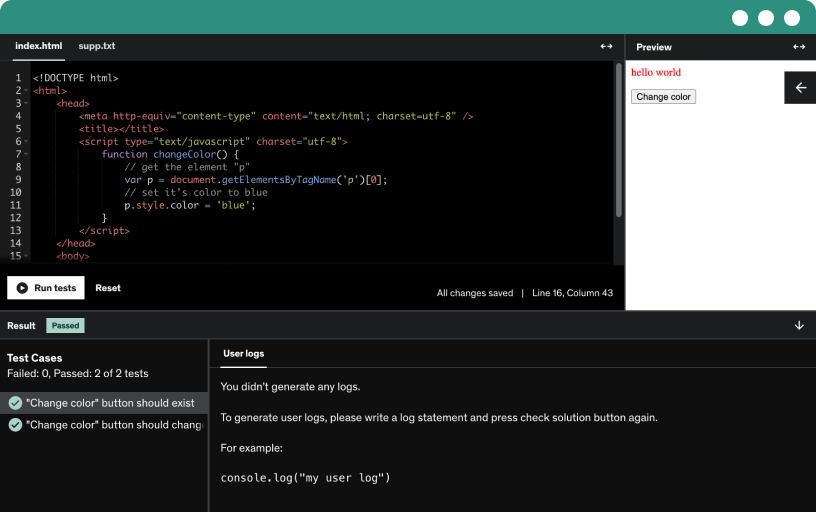
This course includes our updated coding exercises so you can practice your skills as you learn.
See a demo
A successful app in most cases requires the use of a form. A form allows a user to enter data that is then sent to a server for processing. So in a way they resemble a paper or database form. In all cases, the user fills out forms using text fields, radio buttons, checkboxes and the like.
On the face of it, everything seems simple.
But dig deeper, and there's a whole bunch to forms that most developers don't know much about. Things like the encryption type, the differences between a GET or POST request, the TONS of different form widgets and how a server actually grabs the data and does something with it.
This is an exciting course ... all about forms.
Creating a form is straightforward.
All you need to do is wrap your entire form code (which is written in HTML by the way) in the <form> element. Simple enough right.
And often we have attributes attached to the form, and the 2 most common attributes you'll see developers use are (1) the METHOD attribute and (2) the ACTION attribute. I'll discuss in this lecture the differences between them. But don't worry, we get into a LOT more detail later in this course. This is only a teaser.
We've seen that we have to wrap our form (written in HTML) in the <form> element.
But if you're anything like me, you want to know ....
WHY????
Great question, which is what I speak about in this lecture.
Sometimes we stand too close to the wall we can't see the painting. This is just a high level view of what we've covered so far.
Sometimes we stand too close to the wall that we can't see the painting. Thats why I always like to take a step back and recap along the way.
The remainder of this section we will be creating a form together.
It is going to be a simple form. But very important. Not only do we use toggles, dropdowns and input boxes, but we also style our form by using CSS flexbox.
If you are familiar with forms and CSS, then you are welcome to skip this section entirely. This is for those of you who are not yet familiar with the <form> element.
I can't wait.
It can be daunting to know which IDE or software application you should install to start coding.
In this short article I'll give you insight into what I use.
Before we build our HTML form, lets create our form header and also define our CSS variables for later use.
We started building our profile header in the previous lecture, but we didn't manage to finish. In this lecture I want to finalize the header so that we can get into the meat of this project - the <form> element.
Now its time to get into creating our form. Remember, we have to wrap our form inside the <form> tag. But as I previously mentioned, this does not do anything visually.
The first item I want to create in this form is a text input box where the user can type their profile name. This means we will be coding our first form widget together - the <input> tag.
Before we move on, lets review the <input> element. In fact, as you will discover in later sections, the <input> element is one of the MOST POWERFUL elements in an <html> document. There are tons of things we can do with the <input> element. So far, we've only seen it be used for the user writing in simple text.
The <input> element is powerful. <input> elements are essential for creating interactive forms that enable users to provide information, make choices, and submit data to servers.Libraries and frameworks leverage <input> elements to create custom input fields, date pickers, sliders, and other interactive components.
Coding up our <input> element is one thing. But the default styling is ... how do I say this ... AVERAGE at best!
So now lets use some of those CSS variables we defined in an earlier lecture and make this widget pop.
Remember what I said earlier - that the <input> element is one of the most powerful of ALL HTML ELMENTS!!!
Well, now we're also going to use the <input> element to create a simple email widget. The email widget comes with standard default browser validation which is also useful and improves UI / UX.
A radio button is basically a selection button. In other words, it gives the user the ability to toggle between different selections. Importantly, with radio buttons the user can only select ONE item within the entire group. If you want the user to have the ability to select multiple items, then there's another form widget for that (more on this later).
This lecture is a quick introduction to radio buttons and some of the most important things you need to remember when dealing with it.
Radio buttons are often used in forms and quizzes.
Enough talk! It's now time for us to open Visual Studio Code (our code editor) and start coding a radio button. Remember, its just an <input> element with its type attribute set to "radio". But usually (not always) we want our radio button group to have a heading and labels, so we will introduce the <fieldset> and <legend> elements in this lecture too.
Remember, a radio button is just a normal HTML <input> element, but with its type attribute set to "radio". We did, however, introduce other elements like <fieldset> and <legend> which can be particularly confusing for new programmers. Thats why I've put this lecture together, to give a birds eye view of how all these HTML elements work together.
Styling a radio button is a little more of a hassle than other HTML elements. Why? Because it does not work well with flexbox. But don't worry, in programming there are many ways to complete a task. So in this lecture I will show you how to style our radio buttons so that they look presentable.
The <input type="radio"> defines a radio button.
The interesting thing about radio buttons is that they are usually presented in radio groups. In other words, radio buttons are usually an entire collection of buttons that describe a set of related options. Importantly, only one radio button in a group can be selected at the same time.
A dropdown menu is a toggleable menu that allows the user to choose one value from a predefined list.
Dropdown menus are a great way to clean up a busy layout.
If done properly, dropdown menus can be a great navigation tool. Often dropdown menus are used to group pages in a certain category together, but they don’t have to be. Dropdown menus can also be used to organize categories in a blog, recipes on a food site, products on an ecommerce site and a bunch more.
In this lecture we look at creating our first dropdowns.
We've already seen the <input type="text"> widget, which gets the question: WHY DO WE NEED A TEXTAREA?
Great question.
The largest downside with the <input type="text"> widget is that it is only used for one line of text. Sometimes you need more. The <textarea> elements allows the user to input multi-line text. Its used to collect user inputs like comments or reviews.
The <textarea> element can hold an unlimited number of characters, and the text renders in a fixed-width font (usually Courier). The size of a text area is specified by the <cols> and <rows> attributes (or with CSS), which we'll get into more detail on later on in this course.
Later on, I will dedicate specific time talking about the <textarea> element. But for now, just realize that it is pretty powerful.
We all know checkboxes. You know, that box that can be toggled by the user to indicate a YES or NO choice. It is frequently found in HTML forms, dialog boxes, and in the GUIs of applications and operating systems.
Its easy to create a checkbox. Again, we will be using the famous <input> element. But this time, its type is set to checkbox. They are rendered by the browser as boxes that are checked (ticked) when activated, like you might see in an official government paper form. The exact appearance depends upon the browser you're using (Mozilla, Chrome, Safari, etc.). Generally a checkbox will be shown as a square but it may have rounded corners.
Its great having all the form controls. But the last piece of the puzzle is of course adding a button so that the user can decide to submit the form.
That is what we'll do in this lecture.
Oh, and one last thing we'll do is finish off the styling of the form so it looks complete.
I want to briefly summarize what the action and method attributes do before we move on. Why? Simple. These 2 attributes are usually always placed within a <form> element. They are vital because they allow us to tell the browser where we want to send the form data to, and how we would like to send that data.
I have also attached the final index and style sheet.
You've completed the first section of this course - well done.
I have attached the final project code to this lecture so feel free to download it and compare your file to mine.
Have fun, and see you in the next section.
The <form> element is the cornerstone of modern web development.
This section is going to be epic.
I was literally walking to the shops and had a great analogy I wanted to share with you. The <form> element is just a wrapper or container. What I mean by this is that there is ZERO visual effects as a result of the <form> element.
This begs the question then, why have the <form> element at all? Why not just create our entire form directly inside the <body> tags?
Great question.
The short answer is that by using the <form> element, we have certain unique attributes that we can use that help us with our form.
The long answer is this entire section. Enjoy!
I want us to focus on the <form> element in this section. The <form> element is the wrapper for all of our form content. Although in theory you can choose to ignore it, in practice you should always have it.
The <form> element was designed to contain other form widgets and controls. It's mostly used to gather information from a user and it was introduced in the HTML2 specification (its been around a LONG time already).
We will be talking about many attributes in this course, but for now I want to remind you about the ACTION and METHOD attributes. We've mentioned them briefly before so you may remember what they do.
You can add attributes to any HTML element, and the <form> tag is no exception.
Attributes are always placed in the opening tag.
Important: the browser knows the standard attributes and automatically creates an attribute property on the DOM object. This just makes our lives a lot easier.
We are discussing the accept-charset attribute, which is a request HTTP header that defines which character encodings the client (browser) understands.
This is important because it gives you, the developer, power to define what characters you want your form to accept. In this lecture we will be looking at ISO which includes the 128 ASCII characters and a few more (like the British pound symbol). We will also look at the ASCII seven-bit encoding technique which assigns a number to each of the 128 characters used most frequently in American English.
The accept-charset attribute is a request HTTP header that defines which character encodings the client (browser) understands.
In the previous lecture we looked as ISO which inclues the 128 ASCII characters and a few more (like the British pound symbol). We also looked as the ASCII seven-bit encoding technique which assigns a number to each of the 128 characters used most frequently in American English.
But as I mentioned in the previous lecture, ASCII is just not enough. What about emojis or Chinese characters for example? Well, today we have Unicode (UTF) which will blow your mind.
Lets jump in.
We've spent a long time talking about the accept-charset attribute (and rightly so) but sometimes it can get very confusing.
Right now I want to teach you a few more things about the attribute which you'll hopefully find very interesting.
Don't get intimidated by all the theory so far.
All you need to know at this point is that as a developer, you have the flexibility to define what characters you want your users to write into your form. You do this with the accept-charset attribute on the form.
Most of the time, we don't even need to specify this attribute because by default, the encoding type is UTF-8.
Don't get lost in all of the other detail.
The burning question is what happens if you define a character encoding type, and then the user types in a character that is not recognized by that type?
Great question.
Firstly, the browser will not be able to URL encode the character straight away. It will first have to attempt to convert that character into something it understands. Different browsers may do different things, but at the time of filming this lecture, Chrome attempts to convert the character into its own character set. It is in fact Unicode decimal form.
The problem with this, however, is that the server expects to receive values in the %HH format, which means that the server may not be able to read the character the browser sends it.
Enough talk, lets jump into this lecture.
In the previous lecture you've seen that the URL consisted of a bunch of weird characters. Well, this is because the browser has to URL Encode everything that is sent inside of a URL.
I give you an introduction to why this is the case and what those numbers mean.
When a browser can't find the encoding reference for a character, the default approach is to then convert that character into something the browser can understand.
The browser does this by converting that character into a numerical character reference.
The important point to take from this is that the numerical character reference is in DECIMAL form that the browser understands - not necessarily the server.
Servers typically understand %HH values (i.e. hex values) and not decimal ones. This is why our theta character (which is represented by the character 952 in decimal form) will likely never be recognized by the server.
What is the solution?
Easy. All you need to do is choose the an encoding type that covers all your bases. And as I've mentioned, the default accept-charset attribute is UNKNOWN, which is whatever the encoding type of your HTML document is. This is UTF-8, which is great for us and is why we often don't have to worry about writing this attribute out explicitly in our code.
As you would guess, the name attribute specifies the name of a form.
Why do you need to name a form?
For most cases it doesn’t matter, but it allows you to quickly access your form by writing less code.
Once you assign a name to an element, it is registered on the document object itself. This means that you can refer to that element via document.name_of_element throughout your code.
Granted, it won’t work too well if you have multiple elements with the same name, but it does allow shortcuts. So if you have <form name="myForm" ...> then you can access it later via document.myForm.submit(); for example.
The accept attribute limits the file selection dialog to files with certain MIME types. In other words, it specifies the types of files that the server accepts (i.e. that can be submitted through a file upload).
However, as we will see in the lecture, the <form> accept attribute is no longer supported in HTML5. If you want to use it, then we need to do so on the <input> element instead.
When building forms and asking users to submit data on your site or web application, you’ll often want to do something with your data, right?
And thats why the action attribute is so important, because the action attribute is WHERE you want the form to send your data to. Specifically, the action attribute provides the URL of the script (which is usually on the server) that receives the information from the form and processes it. In case you were wondering (which you probably weren't) most of the servers keep these form processing programs in a bin known as Common Gateway Interface-binaries (cgi-bin).
Before we move onto the method attribute, I thought this will be a good time to stop and review the action attribute in action (see what I did there?).
We will build a simple HTML form together, submit data and extract it to the screen. A simple exercise I know, but one that will help you fully understand the purpose of the action attribute.
We've built our form, but now its time to submit the data and try extract its data from the URL.
But how do we do this?
Well, in the old days we had to implement detailed string parsing to get the part of the URL we wanted, but today we have native access to the URLSearchParams() API which is given to us by the browser.
This lecture shows you how it works.
I know what you may be thinking: "will this form ever be finished?"
Good news ... yes it will.
In this lecture I want us to finish off writing our code inside of our main index.html file. We will then have to access to the <h1> tag to change its innerHTML content so that we can make it dynamic.
Well done for following along.
The method attribute defines how data is sent.
The HTTP protocol provides several ways to perform a request but the most common being the GET method and the POST method.
The GET method is the method used by the browser to ask the server to send back a given resource: "Hey server, I want to get this resource." In this case, the browser sends an empty body. Because the body is empty, if a form is sent using this method the data sent to the server is appended to the URL.
Enough already, lets GET (see what I did there) into the lecture.
The POST method is a little different to GET.
It's the method the browser uses to talk to the server when asking for a response that takes into account the data provided in the body of the HTTP request.
Its like the browser asking the question: "Hey server, take a look at this data and send me back an appropriate result."
If a form is sent using this method, the data is appended to the body of the HTTP request. In other words, you don't get data appended to the URL.
POST request parameters can’t be saved in browser history, can’t be bookmarked, has no restriction on form data length, cannot be cached, and is more hack-proof.
On the other hand, GET request parameters can be archived in the browser history, can be bookmarked, it is easier to hack, has restriction on form data length, and can be cached.
HTTP is a protocol which allows the client (your browser) to fetch resources, such as HTML documents. It is the foundation of any data exchange on the web and it is a client-server protocol. Don't let this scare you. All this means is that requests are initiated by the recipient (the browser), and processed by the server.
Now, this is the interesting thing with HTTP. HTTP allows the submission of all method types (like GET, PUT, DELETE and POST) BUT the HTML specification for forms does not allow it. This has been a debate for quite some time now.
This lectures sheds some light on this.
Browsers do support PUT and DELETE, but it’s the HTML protocol for forms that only accepts POST and GET.
It can get quite confusing when starting out to find out what information is being sent with the HTTP request. Whats more is that the information is placed in different places depending on whether you are using a GET request or a POST request. This is a brief article that outlines where you can find the information.
We've seen how text files are sent over the internet (in the body of the HTTP request) but how are images sent over the wire?
I want to now move on to discuss another form attribute - the enctype.
As we will see, the enctype attribute specifies how the form-data should be encoded when submitting it to the server. Note: The enctype attribute can be used only if method="post" .
Theory is one thing, but looking at a practical example is just ... way better. In this lecture lets create a form and submit a GET request to see how the enctype attribute works.
When you make a POST request, you have to encode the data that forms the body of the request in some way.
HTML forms provide three methods of encoding.
application/x-www-form-urlencoded (the default)
multipart/form-data
text/plain
Work was being done on adding application/json, but that has been abandoned.
(Other encodings are possible with HTTP requests generated using other means than an HTML form submission. JSON is a common format for use with web services and some still use SOAP)
An infographic to help you remember the different types of encodings
We are still dealing with a POST request, but now I want to dig deeper into what exactly multipart/form-data does.
One of the things you would have noticed is that when we use multipart/form-data, the Content-Type contains a boundary to separate name/value pairs. The boundary acts like a marker of each chunk of name/value pairs passed when a form gets submitted.
The boundary is automatically added to a Content-Type of a request header by the browser. In other words, we have no control over how it is generated.
A quick summary.
The Boundary value can seem daunting when starting out - but don't stress. I have your back.
We're looking at quite an advanced example. The first step is setting up our HTML file.
The next step in our example is setting up a Node.js server.
With all our code done, we can now get to the point ... and that is, to examine why multipart/form-data may be better than application/x-www-form-urlencoded.
In summary, HTML forms provide three methods of encoding.
application/x-www-form-urlencoded (the default)
multipart/form-data
text/plain (don't ever use this)
When it comes to complicated forms, we often use enctype="multipart/form-data". This is used to upload files to the server. It means no characters will be encoded. To state this another way, we use this when a form requires binary data, like the contents of a file, to be uploaded and sent to a server.
For simple forms, it's okay to use the default enctype, which is application/x-www-form-urlended.
The rel attribute (short for relationship) specifies the relationship between the current document and the linked document/resource. Depending on the type of element, the allowed values for REL will differ. In this lecture we'll look at REL in the context of forms.
The autocomplete attribute set to “off” can prevent specific fields from being auto-filled. For example, a form might ask for a pet’s name. In this case, it's likely that the field will auto-fill incorrectly and cause problems (hence a valid reason to turn it off in this instance).
Some other points:
Values include “on” and “off”
Default is “on”
Possibly useful for extra security on password fields
Lets create a very simple form and see autocomplete in action.
A very quick summary of what we've learnt about the autocomplete attribute.
The novalidate is a <form> attribute that we use to turn off validation for a form. In other words, we're telling the browser to ignore any validation it would normally perform.
Why would you ever want to use this?
A few reasons come to mind ... you may want to perform your own client-side validation (create your own validation bubbles) or you may want your server to validation everything.
Lets code up an example of asking the user to enter an even number only and see how novalidate works.
p.s. I know I said you can use novalidate on a per control basis, but this is only a half truth. We can only do this on a few controls and when we do, we have to call it formnovalidate.
The target attribute specifies a name or a keyword to the browser, that indicates where to display the response that is received after the user has submitted the form.
There are 5 values it can take:
_blank: The response is displayed in a new window or tab
_self: The response is displayed in the same frame (this is the default type)
_parent: The response is displayed in the parent frame
_top: The response is displayed in the full body of the window
framename :The response is displayed in a named iframe
Lets now look at an example using iframes. I've included the files so you don't have to type everything up yourself.
Lets finish off this section by looking at a real life example of a form and how it was created. You'll see that we have covered all of the attributes present on the form. WELL DONE!
In this section we looked exclusively at the <form> element.
I did this because it is so very important to master the fundamentals before getting more advanced.
Well done and see you in the next section about the MOST powerful form widget - the <input> element.
Web browsers request pages from web servers by using a URL. But did you know that the characters inside of a URL have to adhere to a set of predefined rules?
These rules state that only certain ASCII characters are allowed in the URL.
But we already know that ASCII is limited in scope, which is why we need URL Encoding. URL encoding converts non-ASCII characters into a format that can be transmitted over the Internet, and it does this by replacing unsafe ASCII characters with a "%" followed by two hexadecimal digits.
URL encoding converts non-ASCII characters into a format that can be transmitted over the Internet. URL encoding replaces non-ASCII characters with a "%" followed by hexadecimal digits.
As an example, URLs cannot contain spaces, and so URL encoding normally replaces a space with a plus (+) sign, or %20.
URL encoding can get complicated. In the previous lecture I said that non-ASCII characters have to be percent encoded. But if this were that simple, then why can we see international characters in the URL address bar ?
In the next few lectures we will be digging deeper into this.
URL stands for Uniform Resource Locator. A URL is nothing more than the address of a given unique resource on the Web. In theory, each valid URL points to a unique resource such as an HTML page, a CSS document, an image, etc.
URLs consist of multiple parts -- including a protocol and domain name -- that tell a web browser how and where to retrieve a resource.
In this lecture we will see how a URL is constructed and why we need URL encoding.
Before we move on, I want to clarify what a URL is and the differences between a URL and a domain name.
URLs understand Hexadecimal values.
But what exactly is hex?
At its most basic level, it's just a numeric counting system. Hex is a base-16 number system, which consists of 16 unique symbols. Hexadecimal uses all 10 numbers in the decimal system (0, 1, 2, 3, 4, 5, 6, 7, 8, and 9) and letters A through F.
For example, "computer hope" in hexadecimal becomes "636f6d707574657220686f7065".
Anyone who has designed a web page has encountered hexadecimal value when doing colors. For example, to create red text use the HTML color code #FF0000, which translates to 255 red, 0 green, and 0 blue in hexadecimal.
When working with large digital systems, such as computers, it is common to find binary numbers consisting of 8, 16 and even 32 digits!
This makes it not only difficult to read, but also difficult to write.
One common way of overcoming this problem is to arrange the binary numbers into groups or sets of four bits (4-bits). These groups of 4-bits uses another type of numbering system also commonly used in computer and digital systems called Hexadecimal Numbers.
URLs have to abide by certain rules, and these rules say that a URL needs to be composed from a limited set of characters belonging to the US-ASCII character set. These characters include digits (0-9), letters(A-Z, a-z), and a few special characters ("-", ".", "_", "~").
This means that any weird characters (like a backspace, vertical tab, horizontal tab, line feed etc), unsafe characters like space, \, <, >, {, } etc, and any character outside the ASCII charset is not allowed to be placed directly within URLs.
So what do we do when we need to transmit any data in the URL that contain these disallowed characters? Well, we encode them!
You've learnt a lot over a short space of time, so its now time to take a step back and recap what we've learnt about URL encoding and why we can see international characters in the address bar of most browsers.
We have the RFC 3987 document that defines an IRI. However, this document only applies to international characters that are found within the path section of the URL. Few developers know this.
This lecture is long.
Brace yourself, enjoy and stick with me.
It can be very confusing when it comes to understanding how encoding works and the different rules that apply depending on what spec is governing the current URI.
That's why I've put together this short article, to help you become a master at this.
Sometimes you'll see a space being converted to %20, and other times to a +.
The question is why?
That's what this lecture is all about.
The encodeURIComponent() function encodes part of your URI into a UTF-8 representation. This lecture shows you an example.
Let me clarify what and why we use the encodeURIComponent() method.
Taking a step back, remember that a <form> is just HTML. And this means that you have the power to use all of HTML's markup to style and structure your form. There are a few rules we need to follow (for example, we know that your form needs to be wrapped within <form> tags), but for the most part, you have tremendous power to let the inner 'creative' you shine by designing forms the way you wish.
The <fieldset> element allows developers to group related controls.
Why would you want to do this? Well, grouping controls makes it easier for users to understand their purpose. It also helps tabbing navigation for visual user agents and helps with speech navigation for screen readers.
Bottom line: the proper use of <fieldset> makes documents more accessible.
In the previous lecture, I mentioned that <fieldset> can be used not only for forms. In fact, many developers use <fieldset> to style other content in HTML as well as images. This lecture will illustrate the use of <fieldset> in all 3 of these scenarios. Enjoy :)
I want to turn your attention now to some <fieldset> attributes - disabled and form.
If the disabled attribute is present (it is a boolean attribute), it means that all form controls that are descendants of the <fieldset>, are disabled. Even more, those fields are not editable and won't be submitted along with the <form>.
Next I want to talk about the form attribute. This attribute takes the value of the id attribute of a <form> element you want the <fieldset> to be part of, even if it is not inside the form. BEWARE: the usage of this is confusing — if you want the <input> elements inside the <fieldset> to be associated with the form, you need to use the form attribute directly on those elements.
I want us to look at an example of using the form attribute. As you'll see, the usage of the form attribute is a little confusing, because if you want the <input> elements inside the <fieldset> to be associated with the form, you need to use the form attribute directly on those elements.
In the previous lecture I mentioned that you can use the form attribute on the <fieldset> element to associate it with a form. But as we have seen, this form attribute can be misleading, because you still have to insert the form attribute on each individual <input> element for it to also be associated with the main form.
So then, why have the form attribute placed on the <fieldset> at all? What purpose does it serve?
Well, one purpose is so that we can target all form-related content easily, and style it.
Let me show you.
I'm excited to get into this section about the <input> element.
Did you know that the <input> element is very powerful? So powerful, because you can do so many things with it.
In fact, the <input> element reminds of me of a lime.
Why?
Well, a lime is pretty straightforward by itself ... after all, its just a lime (its just an <input> element). But depending on the recipe we apply to the lime (attribute we apply to the <input> element), we can create many different products (widgets) from it.
Hope you enjoy this section as much as I did putting it together.
Limes are an awesome fruit.
And similarly, the <input> tag is such an awesome HTML element.
This is a brief article / infographic explaining why a lime and the <input> element may be more similar than you think.
Before we talk about the <input> element, I want to show you where its from.
Spoiler alert - its from the HTMLInputElement interface, which is a Web API given to us by the browser. This in theory means that all input types share the same properties and methods, although in reality how they work will depend on what type we are dealing with.
Bottom line: the HTMLInputElement interface provides special properties and methods for manipulating the options, layout, and presentation of <input> elements.
In the first part of this lecture, I want to show you what the most common input type is, the TEXT input.
Inputs are known as void elements, meaning that we should not be using a closing tag.
All text input controls (including <input type="text">), share common attributes. These attributes include spellcheck (where I give an example), size and others.
You've come a long way already, and we're only getting warmed up. I want to show you a simple form section asking the user to pick their favorite fruit. I want you to try and recreate this page using <fieldset> and a <legend> element.
Good luck.
Here is the basic solution (without fancy CSS), which I hope you have managed to do on your own.
In the next lecture I will code up some CSS to show you how to build a custom toggle.
In this bonus lecture, I'll show you how to use some basic CSS to create a cool custom toggle animation. CSS is beyond the scope of this course, so feel free to skip this lecture if you want.
Now we're going to talk about labels.
HTML label acts as a caption or title for a specified element. It is very convenient to use HTML label for <input> elements. It also increases the clickable area, as clicking the label activates the input as well.
But did you know that there are 2 other big benefits with using the <label> tag?
Watch to find out.
We have already seen the <input> element with type of TEXT, but in this entire section, we're going to cover the original values of the type attribute available since the early days of HTML.
Stick with me my dear students. We have a lot more to cover.
You can basically use password attribute for any input control where you want to obscure the content the user enters. When a dynamic keypad is used for data entry, many browsers will temporarily display each character as it is entered for better user experience (it’s easy to typo when a key is so tiny).
But beware, the password input type is not actually secure. The value is passed obscured and not encrypted, so always, at minimum, use method="post" over SSL.
If your form contains sensitive information like passwords (e.g. login forms), these should really be served over HTTPS. Many browsers now implement mechanisms to warn against insecure login forms.
Before we move on, a quick few pointers about the pattern attribute.
Regular Expression, or regex in short, is extremely and amazingly powerful in searching and manipulating text strings, particularly in processing text files. One line of regex can easily replace several dozen lines of programming codes.
What is really cool is that regex is supported in all the scripting languages (such as Perl, Python, PHP, and JavaScript); as well as general purpose programming languages such as Java; and even word processors such as Word for searching texts
A hidden field is a special input field whose value is sent with a form submission (just like any other field), but the field itself is not visually rendered on the browser.
Weird right.
The URLSearchParams interface defines methods to work with the query string of a URL. You know by now that the HTTP protocol allows the request to a web page to be made with a query string (think GET request). The parameters passed as a query string are normally used server-side, to generate a proper response.
But you can also access the query string parameters from the browser.
To access the value of the query inside the browser, using JavaScript, we have a special API called URLSearchParam, supported by all modern browsers.
This lectures shows you how to use it.
A common use for using input fields is to store an id and sent this back to the server so you can easily update the correct fields. Let me elaborate on this a little more.
Hidden input fields are a double edged sword.
On the one hand, they can be useful to pass information to a different page or server.
But on the other hand, they can pose security concerns.
Often you'll find yourself in the position of wanting to submit a timestamp to the server when a user submits a form. Well the good news is that I show you how this can be done with simple JavaScript.
I keep saying that the use of hidden input fields can pose security concerns, but HOW exactly?
Well, let me set up a purely fictitious example and walk you through how vulnerable a hidden input field can really be.
As developers, we have a lot of flexibility. And this means we have more than 1 way to create cool buttons on forms.
The HTML <button> element creates a clickable button, which can be put anywhere in the web page, including forms.
But we also have an <input type="button"> than creates a clickable button.
Let me explain.
By default, both <input type="button"> and <button> are displayed as buttons, and they both usually rely on JavaScript for their use.
But there are important differences, which I want to get into in this lecture.
The difference is that the <button> element can have content, while the <input> element is null. By "null" I mean that it does not have a closing tag and cannot contain any content. This means that the <button> element can have a picture, marked-up text, etc while the <input> can't.
I want to put the "nail in the coffin" with what the different button types mean.
This is why I've created this fun page with the different button types for you to play around with.
Feel free to download my code and have fun.
Checkable items are controls whose state you can change by clicking on them.
There are two kinds of checkable items: the checkbox and the radio button.
Both use the checked attribute to indicate whether the widget is checked by default or not.
This lecture is about the checkbox. HTML checkboxes are great when a user wants to select more than one option for a limited number of choices.
Radio buttons are similar to checkboxes, but with an important distinction — only one radio button in a given group may be checked at a time. This means that when one of them is checked all the others automatically get unchecked. When the form is sent, only the value of the checked radio button is sent to the server for processing.
If none of them are checked, the whole pool of radio buttons is considered to be in an unknown state and no value is sent with the form. Once one of the radio buttons in a same-named group of buttons is checked, it is not possible for the user to uncheck all of the buttons without resetting the form.
I want to take the time to answer 2 common questions with regards to radio buttons:
1. why are they called radio buttons?
2. can you allow the user to enter their own value with radio buttons?
:checked is a pseudo-class selector that’s used to style the checked state of radio, checkbox or option elements.
II want to give you challenge of creating a custom checkbox.
Hint: in order to do this, you first need to remove the default styling of the checkable toggle that the browser gives you. You can do this with simple CSS. After this, you then need to create your own toggle button, which I will do by wrapping it within a <span> element.
Good luck.
In this lecture I want to code up the HTML.
I will also show you how we can use a <span> element to create and style our own checkbox toggle button.
In the previous solutions video, we build a custom toggle.
I could have stopped there.
But I want to show you how to build a custom check mark with basic CSS.
(hint: I will use the standard border property to create the checkmark, and then use the transform property to rotate it).
The input element with type set to "image" is basically a graphical submit button. In other words, its a regular image image that when pressed, submits the form it belongs to. But there is a slight difference with using an <input type="image"> vs using a <button> element and wrapping an <img> tag within it. What is the difference? Well, by using the image type, extra co-ordinates are sent to the server (specifically, the x and y co-ordinates of the mouse cursor). This could be useful if you want to build a heatmap for example.
In this lecture I want to look at 2 examples.
One of them will be creating a simple graphical submit button.
The other example will show you how the <input type="image"> could be used to create a heat map.
A form in an HTML document can contain an input element with type="file". This may let the user include one or more files into the form submission. The form is often processed so that such files are stored onto the disk of the web server; this is why file input (or file submission) is often called “file upload.”
So Clyde, what kind of files are you talking about?
Pretty much anything.
The files could be text files, image files, or other data. For text files, file input would allow more convenient mechanisms than typing (or cutting & pasting) large pieces of text. For binary data, such as images, an <input> with its type set to file is not only more convenient, but is usually the only practical way of sending files over the wire.
As we'll see later on this course (when I talk about CSS in the context of forms), some form widgets are easy to style, while others are a pain in the neck!
As I'm sure you can guess, you can’t modify much about the input[type=file] control itself (sigh).
But there is a work around.
Since clicking a label element correctly paired with an input will activate/focus it, we can use a label to trigger the OS browse dialog.
Let's go further and add some JavaScript to further improve the user experience when uploading forms.
If you want to display the file name or number of files after selection, you can listen for the change event with JavaScript and then read the file information that the browser makes available to you via the FileAPI.
The File interface provides information about files and allows JavaScript in a web page to access their content.
Don't worry, I'll explain how it works in the lecture.
Well done for getting this far my dear students. I don't want you to feel overwhelmed with all the different input types there are. At the end of the day, it boils down to your artistic self and how you want to structure your form. There are no hard and fast rules telling you what types you are required to have. The most important thing is that you know how to structure a form, how to target the right CSS pseudo classes and how to send the form data to a server. The rest is up to you ;)
It's now time to look at the newer types of inputs that have been introduced to us by HTML.
Let's start off with one of the most common input types you'll see - the email.
The <input type="email"> defines a field for an e-mail address.
The input value is automatically validated by the browser to ensure it is a properly formatted e-mail address. However, bear in mind that this does not mean that it is a valid email address. To ensure a valid email address is entered, sever side code will be required.
Unfortunately, having <input type="email"> does little in terms of security and logic. However, we can use other techniques to help improve front end security (like using required, title and the pattern attributes). But beware: this does not eliminate the need to have server side logic to ensure the data is not malicious.
I'll finish off this lecture talking about the benefits of using the <input type="email">.
Enjoy!
The search input type is used to designate the input as being used for search. Support is a bit arbitrary here as the spec doesn’t require any special treatment for search fields. Android doesn’t do anything special though, where all other browsers do.
As we will see later on in the course, some form widgets are easy to style, while others are difficult. The <input type="search"> is an easy one to style, which I'll show you in this fun lecture.
In this lecture, we will add a check mark and cross depending on the validity of the input box. To do this, we'll use the :valid, :invalid and ::after pseudo classes and elements.
<input> elements of type tel are used to let the user enter and edit a phone number. Unlike <input type="email"> and <input type="url"> , the input value is not automatically validated to a particular format before the form can be submitted, because formats for telephone numbers vary so much around the world.
The url input type is for absolute URLs, which, but definition, always include a protocol. This limits its usefulness in my opinion, but right now its all we have.
When it comes to forms, we often listen to 2 main events on our widgets - the input event and the change event.
The number input type is for, you guessed it, numbers. Both integers (whole numbers) or floating point numbers will work.
Lets take a step back. Don't feel overwhelmed. I know we are covering a lot of input types and by this stage your head may be about to explode!
The range input provides for a slider that submits a number.
Why not use the number type then?
Well, for a few reasons. Firstly, the range type gives us a much cooler UI experience with the slider. Secondly, it’s useful for “imprecise” values, or where the specific number chosen is more relative rather than needing to be exact.
Another point worth noting is that if no value is provided, the default value of the field to be half-way between the min and max values, if present.
By default, the range picker does not display the number to the user UNTIL the form is submitted. This can be annoying, which is why I've dedicated this lecture to showing you how to use JavaScript and the <output> HTML element to listen for the input event and display the range value to the screen in real time.
Traditionally, working with dates has been very difficult for developers.
Why?
Because each user all of the world has a 'local' time and also a different format for displaying dates. This can cause issues if the format conflicts with your server's one, or if the timezones differ.
HTML has tried to help us solve these problems, by giving us various date and time pickers that are built into the browser through the <input> type.
Inputs with their type attribute set to date, creates a widget that allows the user to enter a date, either with a textbox that validates the input or a special date picker interface. The resulting value includes the year, month, and day, but not the time.
I get it.
It can be quite confusing to distinguish between all the different date and time types that HTML5 gives us. That's why I wanted to pause here and discuss the datetime-local type.
The HTML <input type=”color”> is used to define a color picker. the value should be a seven character hexadecimal notation.
It has a Default value which is #000000 (black).
What is very interesting is that we don't have to use this <input type="color"> only with forms. In fact, in one of the challenges I'll as you to use this input type to create a page that allows a user to dynamically define their own color theme. How cool, right?
A quick look at some of the common attributes you'll come across when creating form widgets.
Before we get more advanced, I want to start with a very simple example where all you need to do is target the pseudo classes :valid and :invalid.
Good luck.
In this lecture I'll show you how to build a simple email validation field, while targeting the :valid and :invalid pseudo classes.
Ever wondered how to build your very own custom toggle button? Good news, let me show you what we're about to build together.
We will be using the <input type="checkbox"> to build our custom toggle. Remember, the default checkbox displayed by the browser is ugly, so you'll have to remove the default styling before applying your own.
The last step in making our toggle work is making the inner black toggle switch move to the right.
Remember, we're not using any JavaScript here - just pure HTML and CSS.
This is going to be a cool example, because you'll start realizing that what you learn in this course will have far reaching effects in your career.
In this challenge, you'll be creating a dynamic color picker, that will allow a user to pick their own color theme.
The first part of building our custom color picker is to build the HTML - the skeleton.
To finish off our example, lets use JavaScript to listen for the 'input' event. Whenever the input event fires (in other words, whenever the user selects a color), then we want to (1) determine which color picker the user has selected (bgColor or textColor) and (2) then replace the value of that CSS property with the one the user has chosen.
Custom range pickers are popular on house buying and car buying sites.
In this challenge lets build a really cool one together.
As always, the first step is to create our input with its type attribute set to range.
We then need to start adding some CSS to style this widget.
The final part of this challenge is to add JavaScript so we can dynamically move the <output> element as the user scrolls the range value.
With all the skills you've learnt in this course, I want you to try and build a simple signup form asking the user for their username, email and password.
All fields should be required.
If the field is invalid, I want you to show an error message to the user.
If the field is valid, I want a green background to appear, as well as a check mark.
This solution video will cover a lot. We'll be building our form, as well as including error messages (inside a <div> tag) and a check mark (inside another HTML element).
Good luck.
It is weird, because up until now all we've really looked at is (1) the form wrapper and (2) the <input> element.
We've spent an incredible amount of time talking only about 2 form elements.
But for good reason.
If you have solid foundations, then the building will not come down.
It's now time to venture outside of the <input> element and discover some new exciting form controls that you can use to enhance the UI and drive traffic to your sites.
Hope you have a lot of fun in this section.
A brief description of what we'll cover in this exciting section.
A brief look at some of the non <input> elements we'll be looking at in this section
The <textarea> tag defines a multi-line text input control.
The <textarea> tag format is divided into three main parts, an opening tag (<textarea>), the content and the closing tag (</textarea>). This HTML tag is also used within a form where it is used to declare a text area element, where a user can add text over multiple rows. A <textarea> tag creates a text area that can hold a lot of characters.
It can be quite daunting when first being exposed to <textarea>, especially because we have the <input type="text"> element.
This is a dedicated lecture about the differences between them, with some practical examples too.
Enjoy!
In most forms you'll come across, you'll likely see a <textarea>.
This is precisely why I want to spend 5 or more lectures talking about it.
I want to look at some common attributes you'll likely be using on the <textarea> element, such as the cols attribute, rows attribute, wrap attribute, length attribute and other ones.
We dig deeper into looking at the wrap attribute, and discuss the differences between a soft and hard wrap by looking at a practical example.
Let's finish off talking about the <textarea> element by looking at the resize property that we can effect in CSS.
I will then finish off by giving a summary of what we've learnt over the past 4 lectures.
It's time to get your hands dirty by applying what you've learnt ;)
In this simple challenge, I want you to create a <textarea> element, and then target the CSS :valid, :invalid and :placeholder-shown pseudo classes, as well as the NOT keyword in CSS.
Enjoy
I code up the <textarea> with you. As you'll see, it is surprisingly simple.
It's now time to try your hand at another fun challenge.
This time, I want you to listen for the focus and blur events in JavaScript.
The only tricky aspect (if I can even call it that) is adding the focus and blur events to our <textarea>.
Don't worry, it really is an easy example, but one that will show you how easy it is to style your <textarea> depending on whether it has focus or not.
With HTML, you can easily create dropdown lists of items to get user input into HTML forms. A select box is one type of dropdown menu and it provides the ability to list down various options in the form of a dropdown list, where the user can select one or more options.
Remember, the name attribute is needed to reference the form data after the form is submitted (if you omit the name attribute, no data from the list will be submitted to the server).
The <option> tags inside the <select> element define the available options in the drop-down list, and the <optgroup> element can create nice headings for a group of items to select.
Don't stress, I'll be showing you how all of this works.
he HTML <datalist> element contains a set of <option> elements that represent recommended options available to choose from within other controls (like the <input> control).
You may have noticed that when we added the value attribute, its value was shown in the dropdown, and then inserted into the <input> box when the user selected an option.
What if you don't want this to happen?
HTML also gives us the autocomplete attribute that we can insert into some HTML elements (like the <input> element or <textarea> element).
There is more to autocompletion that first meets the eye. You are not as in control as you think you are, as the browsers have implemented their own rules for autocompleting form fields.
In this lecture I want to answer 2 common questions: 1. when should you use the <datalist> element and 2. are there any limitations with the <datalist> element?
In real life, you're likely going to want to fetch data from a database, and auto populate your <datalist> element that gives a user a unique dropdown menu. This lecture will show you how you can do this by creating an array, looping through the array, creating an <option> element and then appending this to the <datalist> element.
There are differences between the <datalist> and <select> elements, and this lecture will summarize these differences for you.
Take a step back and lets recap what we've learnt about dropdown menus
The HTML output element ( <output> ) is a container element into which a site or app can inject the results of a calculation or the outcome of a user action.
Importantly, the content of an <output> element is NOT sent to the server when the form is submitted by a user.
A common event you can listen for on many form controls is the oninput event. The oninput event occurs when an element gets user input. In other words, it processes input events on the <input>, <select>, and <textarea> elements.
I love doing challenges, because its a great way for you to learn.
In this challenge, I want to simply display the result of a multiplication equation - take 2 numbers, multiply them together, and display the answer to the screen via an <output> element.
In order to do this challenge, you can listen for the oninput event.
In the solution video, I will be writing JavaScript inline - I know, this is not the best way to do it, but I want to show you different ways to do things in this course, and I also want to keep our file clean. It's a simple example so it works in this case.
This video goes through how I wrote code to display the output of a multiplication equation to the screen. It is not the only solution and is not the only RIGHT way. When it comes to programming, always remember that there are many ways to skin a cat.
I want to specifically show you that you don't only have to listen for the oninput event on one type of input. In this example we are going to use another type of input to listen for the oninput event and display the results to the screen.
In this solution video, lets listen for the oninput event, and then dynamically update the <output> element's inner text.
The HTML <progress> element displays an indicator showing the completion progress of a task, typically displayed as a progress bar.
We typically use the <progress> tag in conjunction with JavaScript to display the progress of a task to a user in real time - its pretty neat.
In this lecture I want to code up a progress bar and explain a few things to you.
Another thing to bear in mind is that the <progress> element has 2 important attributes - value and max. The existence of the value attribute will determine whether the progress bar is in an "indeterminate" or "determinate" state.
The <meter> bar defines a measurement within a known range. I like to view the meter bar as a gauge.
The best way to learn is be DOING!
Let's jump over to the text editor and play around with the meter bar.
Let's take a step back, and summarize what we've learnt thus far.
This example will show you that you don't have to use the <progress> element within a form. As I keep saying, many of the skills you learn in this course will enable you to upskill many areas of web development.
In this challenge, I want you to display the progress of a video playing to a user.
This is my solution to adding a progress bar below the video. I also display the actual % completion in an <output> element.
I want you to know use the <progress> bar to create a form and give visual feedback to a user on their completion progress of filling out a form.
Along the way, I want you to also give dynamic messages to a user, encouraging him or her to continue filling out the form.
Part one of the solution is to build the HTML and CSS.
In the final part of the solution, we need to add JavaScript to listen for an event (such as a keyup event) and then dynamically update our progress bar and message.
Well done. You've done a lot to have stuck with me all this time.
In this final solution video, we will add JavaScript. We will:
1. create an HTML collection of all of our input elements
2. loop through each input element every time a user changes the <input> element
3. count how many inputs are valid
4. depending on (3) above, include 5 IF statements to update the <progress> bar and give the user dynamic messages of encouragement.
I can't wait.
Well done for sticking with me through this section. Pat yourself on the back.
Section introduction on what we'll be looking at here.
This section is all about CSS, but with a particular focus on forms.
A high level overview of what we've looked at so far, and why CSS can be tricky to style form widgets.
We have been using pseudo classes and elements a lot in this course, but where do we get them all from?
I want to start giving you a few tips about how to style your form widgets so they look uniform on your site.
In CSS, the term "box model" is used when talking about design and layout. The CSS box model is essentially a box that wraps around every HTML element. It consists of: margins, borders, padding, and the actual content.
A pseudo-class is a CSS keyword added to a selector (like button, or div) that specifies a special state of the selected element. For example, :hover can be used to change a button's color when the user hovers over it.
We've spoken about pseudo classes in general, but now I want us to specifically talk about some of the pseudo classes that are useful for forms.
As you know, the A pseudo-class is used to define a special state of an element. For example, it can be used to style an element when a user mouses over it. Style visited and unvisited links differently. In this lecture I want to talk about the :required CSS pseudo-class, which represents any <input> , <select> , or <textarea> element that has the required attribute set on it.
In this lecture I want to build the HTML and CSS for a simple sign-up form. We will use this form in future lectures so if you can, please follow me along when building it.
Generated content means a special option in CSS to embed content—text or graphics—in documents. It's achieved through the content property, traditionally in conjunction with the pseudo-elements ::before and ::after . Generated content has first been specified in 1998.
I want to target the ::after pseudo element to add the word "required" to our required input fields.
What some people don't know is that you can style elements base on their required, valid, or invalid values. In this lecture I talk a little more about how to do this.
It's time to improve our form again, this time by adding a checkmark and cross to indicate when a field is invalid and valid.
We will do this by targeting the pseudo element ::before.
The :in-range CSS pseudo-class represents an <input> element whose current value is within the range limits specified by the min and max attributes.
The :out-of-range CSS pseudo-class represents an <input> element whose current value is outside the range limits specified by the min and max attributes.
The :enabled CSS pseudo-class represents any enabled element. An element is enabled if it can be activated (selected, clicked on, typed into, etc.) or accept focus. The element also has a disabled state, in which it can't be activated or accept focus.
I now want to show you can example of using the :disabled attribute on a form asking for the users shipping and delivery address. It is a rather simple example, but illustrates how you could use this in a real life application.
Lets finish off our example by adding JavaScript to listen for the 'change' event. On the 'change' event happening, we can then remove/add the disabled attribute.
Finally, we will be using the classList API to toggle the disabled CSS styling applied to the lables of each input.
Enjoy!
As the name implies, the :checked pseudo-class targets radio buttons, checkboxes and option elements that have been checked or selected.
The :default pseudo-class targets the default element in a form among a group of similar elements. In our case we have radio buttons, so how do we make one selection a default? Easy, all we do is use the checked attribute.
The :indeterminate pseudo-class targets input elements such as radio buttons and check boxes that are not selected or that are unselected upon the page loading.
An example of this is when a page loads with a group of radio buttons and no default or preselected radio button has been set, or when a checkbox has been given the indeterminate state via JavaScript.
We've looked at using the :checked psuedo class with radio buttons and checkboxes, but what about the <select> element? How easy is it to apply CSS styling to the <select> element?
The answer may surprise you.
I want to finish off by:
1. summarizing what some of the most important pseudo classes are that we've looked at
2. looking at some other useful pseudo classes that are well supported by browsers that you may want to include in your forms
3. looking at some LESS well supported pseudo classes that will hopefully gain traction and support in the near future
An introduction to this section and what we'll be covering when it comes to form validation.
We have already dealt with and seen examples of built-in client-side validation. But now its time for me to discuss JavaScript validation - specifically the Constraint Validation API.
Client side validation is very important, which is why I want to tell you about the 2 types of client side validation.
I keep saying that you need to incorporate server side validation to make sure the data is secure.
This article expands on this a little more, by explaining the 3 main reasons why you need server side validation.
Built-in validation is the most simple type of client-side validation. Why? Well, because you literally don't have to do anything other than write the HTML element and include the appropriate attribute.
One type of HTML built-in validation is the required attribute. When specified, the browser will not permit the user to submit the form until that form control has a value.
In this lecture I want to target the :valid, :invalid and :required CSS pseudo classes to style a simple <input> element.
I want to talk a little about a more complex built-in validation type, and that is regular expressions on the pattern attribute.
We've seen the pattern attribute already in this course, but this digs a little deeper.
We've looked at built-in validation, but now I want to turn our attention to the second type of client validation - JAVASCRIPT.
The Validation Constraint API gives us access to certain properties and methods directly on certain interfaces (like the HTMLInputElement interface). In other words, we can access certain properties on elements like the <input> element straight out of the box. For example, we can access the validity object, as well as fire off methods like checkValidity().
Actions speak louder than words, so why don't we look at a few examples of how to use the Constraint Validation API by accessing the setCustomValidity() method.
In this challenge I want you to write 2 custom error messages.
This lecture will code the solution to the challenge.
I listen for an invalid event to be fired on the <input> element directly. Remember, the invalid event will be fired when either (a) the form is submitted or (b) the checkValidity() method is fired and there is an error on an input element.
Using both (a) and (b), we can listen for each key type from the user (the INPUT event) and use this to determine whether the control is valid or not. If it's not valid, then we want to use our setCustomValidity() method to display the appropriate message to the user.
Security is important to think about, especially when it comes to dealing with forms.
*** THE ULTIMATE COURSE ON WEB FORMS AND HTML FORM ELEMENTS ***
HTML Forms: Master the HTML <form> element and attributes to create user-friendly interfaces.
Advanced Concepts: Understand URL encoding, date formatting, and the intricacies of the infamous input element.
Master Client-Side Validation: Understand progress bars, toggles, checkboxes, ranges, and tons more.
Handle Data Like a Pro: Learn how to grab and process form data on the server side using Node.js and PHP.
Strap in my dear student, it's going to be a fun ride.
Let Me Share My Form-Building Expertise with You!
Understanding how forms work is essential for becoming a skilled front-end developer. This course will empower you to implement your creative, dynamic ideas into your web projects. Mastering forms is a critical step toward full-stack development, giving you the control and knowledge to create effective user interactions. In this course, we’ll take a deep dive into web forms and their functionalities. Here are some key questions we’ll explore:
Why do we need to wrap our form elements within form tags?
How can you include a progress bar in your forms?
What are the best practices for customizing toggles and checkboxes?
Where does the data go once a user clicks the submit button?
How can you perform validation on your forms, both natively and using JavaScript?
How can users upload files through your forms?
What happens to the data once it arrives at the server?
By addressing these questions and more, you'll gain the skills needed to build advanced forms that enhance user engagement and experience. You'll also understand the full-stack process involved in handling form data effectively.
What You Will Learn
The fundamentals of HTML forms and their importance in web development.
You will understand at an advanced level how to create forms natively, and how powerful they can be in increasing conversions.
Techniques for creating dynamic forms that enhance interactivity.
Strategies for validating user input on both client and server sides.
Best practices for customizing form elements to fit your design needs.
From understanding the structure of forms to implementing validation techniques, you’ll gain the skills necessary to create dynamic and user-friendly web applications.
THE NITTY GRITTY OF WEB FORMS?
A web form is also known as an HTML form.
It’s a place where users can enter data that’s then sent to a server for processing. Web forms allow users to place orders on your site, to provide their name and email address to sign up for a newsletter, or to sign up as a member to your site and so forth.
What’s really great about web forms is that there is no “one size fits all”. You can use your artistic flare, and personal business acumen to create web forms with a particular length, format, content type and appearance.
By doing this course, you’ll be able to improve your web form usability, which will ultimately enhance user experience and get website visitors excited about completing your form and converting.
Why is this course so important?
Forms which are on point present an opportunity for a company to grow and capture loyalty.
A form can often be both a marketing tool and a necessity. A form that puts the user at ease, that evokes feelings of trust, will get filled out far more often than a form which looks (or is) complicated and confusing.
After completing my “Advanced Forms” course, you will be knowledgeable, confident and the “go-to” person for forms.
Let me share my form building skills with you
Understanding how forms work will equip you to become an awesome front-end programmer. Learn how to implement your creative, different and dynamic ideas into your website. Master forms and you’re half way to becoming a full stack web developer. Take control through understanding. Delivering a perfect, interactive and functional form is challenging.
In this course, I take a deep-dive into explaining web forms and how they work. Why do we need to wrap our form within <form> tags? How can you include a progress bar in a form? How can you customize a toggle or checkbox? Where does the data go once a user clicks on the submit button? How can you perform validation on your form? How can a user upload a file? What happens once the data arrives at the server? What are the different types of events we can listen to on forms? By understanding these questions, and many more in the course, you will be able to build advanced forms and better yet, understand the full stack process! In other words, you will be able to create dynamic forms that improve user engagement and experience.
WHAT THIS COURSE COVERS
This course is huge and comprehensive, from basics to advanced
This course will give you solid fundamentals and practicals regarding forms. It can be taken alone (you don’t need to do any other course) to achieve your goals. You will emerge from this course with an advanced understanding and practical experience with building forms. It will take you to the point where you will understand what method (GET or POST) to use when sending form data, how to define where the data goes, how to perform advanced client-side validation (checking errors on the form before it is sent to the server), how to write custom pattern validation rules (using regular expressions), how to run servers and how to view all HTTP request information. This is awesome knowledge. This course will captivate you and catapult you to the next level and set you well on your way to becoming a true Grandmaster in front-end form web development.
By the end of this course, you'll be able to “speak” and “walk” FORMS by gaining an understanding of how you can build it, manipulate it and style it in meaningful and practical ways. We dig deeper in every lecture, and this course has many bonus lectures which extend your knowledge base and test your skills.
Why should you learn so much about forms?
A web form is one of the best ways to get input from prospective clients and indirectly establish a relationship with them. The time you spend in bringing the user to your website should be matched with the time spent in perfecting the user experience with your web forms. It is surprising to see so many sites these days contain complex and frustrating web forms that cause a negative experience.
Ultimately, a web form allows your visitors to get in contact with you and to send information, such as an order, a catalogue request, or even a query, which is passed on to your database.
Can you begin to see how important forms are and how their use can be escalated?
*** THE MOST comprehensive FORMS course ***
Successful programmers know more than rote learning a few lines of code.
They also know the fundamentals of how HTML code works behind the scenes.
This is particularly true when it comes to building forms.
If you’re wanting to become a full stack developer, you need to know, really know, how forms work. You need to understand how the browser URL encodes form data, how the browser sends data to a URL that you specify, and how to perform validation to ensure the user does not submit invalid data.
A unique approach
You will learn "why" things work and not just "how". Understanding advanced topics about forms (lURL encoding, accept-charset, multipart/form-data, regex, etc) is important as it will give you infinite possibilities and upskill you. Armed with this knowledge, you’ll be able to create forms that are tailored to your needs, and allow the form data to get submitted to a server via AJAX. You will be able to create forms that are customizable by the user (for example, if the user wants to change the color of the form theme). You can create a control on a form that displays the progress completion of the form and displays messages to the user along the way.
Can you begin to see how pivotal forms are and how important having knowledge about forms is?
How is this course different?
There are lots of courses that focus on web development. Many never get into the detail about how the HTML FORM element works behind the scenes – a skill that every full-stack developer needs to master in order to utilize potential.
In this course, I focus on the more advanced topics of true web development when it comes to forms. This includes understanding what all of the attributes on the <form> element mean, understanding the different <input> types in detail, what URL encoding is, and how data is sent over the wire to a server.
Practice makes perfect
Theory is theory … but there’s nothing like getting behind your computer and typing in code. That’s why we will be coding, laughing and pulling out our hair together as we code real life websites and exercises during this course.
I love practical examples, which is why we build multiple forms in this course, starting in section 1.
Is this course for you?
This course is designed for anyone eager to enhance their web development skills, regardless of your current level.
If you find yourself in any of the following categories, this course is perfect for you:
Aspiring Developers: You want to explore the world of programming and learn how to create dynamic and interactive web forms.
Front-End Enthusiasts: You’re looking to gain a deeper understanding of HTML forms and how they can improve user engagement.
Future Full-Stack Developers: You wish to understand how front-end JavaScript interacts with back-end technologies like Node.js and PHP.
Curious Learners: You have a basic grasp of web forms but want to dive deeper into advanced concepts like validation, URL encoding, and data handling.
Developers Seeking Mastery: You’ve taken other courses but feel you haven't fully grasped the intricacies of form elements and client-server interactions.
WHY START NOW?
Right this second, your competitors are learning how to become better web developers.
Web development is a blazing hot topic at the moment, and in the foreseeable future. But you have a distinct advantage. This course offers memorable learning topics, actionable tactics and real-world examples.
Lets get started!
What do you get?
Lifetime access to all tutorial videos. No fees or monthly subscriptions.
Q&A support.
Quizzes, coding challenges, a test and assignments to help you learn.
I’ve allowed you to download all of my lectures for offline viewing.
Let's get excited about becoming a professional web developer, and to be able to confidently apply it to your own websites.
Let's get crackin'