
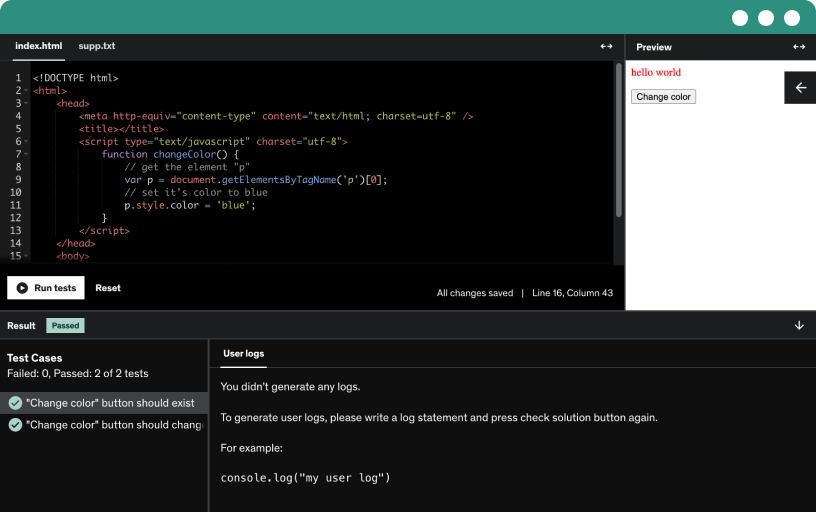
This course includes our updated coding exercises so you can practice your skills as you learn.
See a demo
Master ssh basics and advanced tunneling to secure communications, from key generation to encrypted connections, while learning to troubleshoot issues, set up passwordless logins, and forward ports securely.
Explore the difference between SSH and OpenSSH, and how SSH encrypts client–server communication for secure remote login with tools like SSH, scp, and sftp.
Install OpenSSH on Ubuntu by installing openssh-server (desktop edition may not include it by default). Verify sshd runs on port 22 and confirm with ps, lsof, or netstat.
Test your ssh setup by connecting from one machine to another with the ssh client, accept the host key, and log in to a remote shell.
Learn how to install and use bash on Windows 10 via the Windows Subsystem for Linux, enabling the SSH client to connect to remote Unix hosts and verify server fingerprints.
Install PuTTY on Windows to use SSH. Download the full installer or portable version, install, and connect to a server on port 22 after verifying the fingerprint.
Master installing MobaXterm on Windows, using its portable edition or installer to access a built-in bash shell and a versatile SSH client with multiple protocols, while managing credentials securely.
Configure the open ssh server and client, edit sshd_config, and restart sshd; understand why changing the default port is not a strong security measure against reconnaissance using nmap and telnet.
Configure sshd to listen on a specific address and protocol by setting the address family to inet or inet6 and restarting sshd to apply changes.
Examine SSH host keys and public-private encryption, then configure a login banner and a message of the day to inform users before and after login.
control ssh access by listing deny and allow users and groups, showing how deny overrides allow and enabling service accounts like Oracle to be restricted from remote login.
Disable direct root login in ssh by setting permit root login to no and prefer public key authentication; administrators should use their own accounts and sudo to gain root privileges.
Learn to use the native SSH command across macOS, Linux, Unix, and Windows to connect to remote hosts, with or without a user name, and with the -l option.
Create a dot ssh directory with restrictive permissions, add a per-user config to override global ssh settings, and set port 2222 using the command line option -p.
Save ssh client settings per user by using host blocks, wildcards, and a default user in the config file to manage connections to multiple machines.
Master PuTTY tips for SSH connections, including saving default and per-session settings, using custom ports like 2222, enabling keepalive to prevent idle disconnects, and migrating settings between Windows machines.
Demonstrate how FTP credentials are sent in clear text and exposed by a packet sniffer like Wireshark, using Vsftpd on CentOS and an FTP client on Ubuntu.
Master the scp command for secure file transfers between local and remote hosts, replacing rcp with encrypted copies and optional directory transfers via -r.
Learn to use the WinSCP client for Windows to transfer files via scp and sftp, by installing, configuring a site, and dragging files between Windows host and CentOS remote.
Master mobaxterm's ssh and sftp capabilities on windows to connect to a remote ubuntu host. Use the built-in ftp browser to upload and download files, choosing destinations like your desktop.
Master sftp, a drop-in replacement for ftp, for encrypted transfers over ssh, and learn to upload, download, delete or rename files with get, put, lcd, and dash r.
Learn how scp and sftp differ from ssh command options, and how to change default ports using ssh_config, with per-user host entries and Windows session tips for seamless file transfers.
Learn how hosting providers chroot sftp users to their home directories, using internal-sftp, restricted groups, and sshd rules to prevent ssh access.
Explore how key-based authentication replaces passwords with public and private keys to securely authenticate SSH users and prevent brute force attacks.
Generate an ssh key pair with ssh-keygen, and protect the private key with a passphrase. Store the public key on remote hosts and enforce strict key permissions.
Use a public key placed in the server's authorized_keys to enable passwordless login with your private key, unlock it via a passphrase, and let the ssh agent manage it.
Use the ssh-copy-id command to upload your public key to the remote host and enable passwordless login via the remote account's authorized_keys; if unavailable, manually copy the key into authorized_keys.
learn how to generate a public private key pair with puttygen on Windows, copy the public key to the host's authorized_keys, and connect using a private key with a passphrase.
Enable pageant to start at Windows boot and auto-load your keys by placing a Pageant shortcut in the startup folder and using command line arguments for key files.
On a text-only terminal, start ssh-agent with your shell (bash via /bin/bash) and run ssh-add to load your private key passphrase, enabling password-free access to the Ubuntu host.
Enforce key-based ssh logins by setting ChallengeResponseAuthentication to no and PasswordAuthentication to no, ensure PubkeyAuthentication is enabled, then restart sshd and verify non-key users are blocked.
Grant temporary password access to a new users group in sshd_config using a match block, then copy public keys with ssh-copy-id and later disable password login to enforce key-based authentication.
Enable agent forwarding to hop from one server to another using a running ssh agent, outlining steps for the remote host, the client, and the first hop authentication.
Discover how multi-factor authentication strengthens SSH security by adding a second verification factor beyond keys, with Google Authenticator, YubiKey, RSA SecurID, and practical setup steps for Ubuntu and CentOS.
Enable MFA on Ubuntu and CentOS using Google Authenticator, configure PAM and sshd with keyboard-interactive, scan QR codes, and require tokens alongside passwords or private keys.
Mount a remote Linux file system locally with sshfs to access and edit remote files as if they were on your Linux machine, securely via ssh.
Mount a remote Linux filesystem on Windows using the VS Code remote ssh extension or sshfs with WinSshfs to develop on Windows while code runs on Linux.
Discover how X11 forwarding over SSH forwards the remote server's graphical user interface to your client, enabling GUI programs and installers to run without physical data center access.
Configure ssh X11 forwarding on the server (ubuntu) and the client (centos) to run graphical apps like firefox from the remote host on the local client, with optional trusted forwarding and compression.
Enable X11 forwarding on Windows by installing an X server (Xming) and configuring PuTTY, then run graphical apps like Firefox from an Ubuntu server securely over SSH.
Discover how to use ssh for X11 forwarding: run a single remote command with -f, enable one-time X11 forwarding with -X, and disable global X11 forwarding for secure, temporary access.
Explore SSH tunnels, including local, remote, reverse, and dynamic port forwarding, to encrypt TCP/IP traffic between a client and host and secure http connections without server-side https.
Learn to set up a local ssh tunnel with -L to forward a local port (8080) to a remote service, securing http traffic through an encrypted connection.
Use SSH local port forwarding to tunnel telnet traffic from the local port 2323 to the remote telnet port 23, encrypting insecure telnet inside SSH.
Create a local ssh tunnel with putty on windows to access a remote web server on port 80 via local port 8080. Open localhost:8080 to view server1.aharoni.com with encrypted traffic.
Demonstrate reverse ssh port forwarding to bypass firewalls and access a local machine behind NAT via a remote host such as an EC2 instance.
Learn dynamic port forwarding with SSH to create a SOCKS5 proxy that tunnels your traffic through a remote host, bypassing regional restrictions while keeping data encrypted.
Create a dynamic ssh tunnel (socks5 proxy) using PuTTY, configure Firefox to use the proxy at localhost, and verify the remote IP to confirm the proxy is active.
Learn to start ssh tunnels in the background with -N and -f, enabling local and remote port forwarding without an interactive shell.
Examine local and remote ssh port forwarding and how binding to localhost enhances security. Understand binding to all interfaces with 0.0.0.0 and explore reverse port forwarding.
Master controlling public access to a reverse SSH tunnel, binding to localhost by default and using 0.0.0.0 to expose the tunnel on all interfaces, with security considerations.
Establish a local SSH tunnel through a gateway to reach a remote host behind a firewall, using local port forwarding to bind localhost:8080 to remote:80 via a jump server.
Explore how your local machine can act as a gateway between two firewalled hosts using reverse port forwarding, enabling server one to reach server two on port 8080.
SSH is rarely mentioned in the technical requirements of any IT job
If you read any Linux administrator/DevOps Engineer/Site Reliability Engineer (SRE) job posting anywhere, you'll NEVER find SSH as part of the candidate's technical requirements. Can you guess why? Exactly! Because it's assumed to be in your skillset ALREADY!
Today, IT professional (regardless of the platform) needs to learn how to use SSH. It'd be like hiring a call center representative who doesn't know how to talk!
But if the average IT professional knows a thing or two about SSH, an actual Linux administrator must know how to use SSH to its max. That's a fact. And here's why:
SSH allows you to securely log in to your Linux/UNIX/macOS box without revealing your credentials and data over the network. The chances of your server getting hacked are meager now.
SSH offers key-based authentication, so you don't need to memorize your password. Guess what? It's even more secure than password-based authentication. Now, you can forget about spending hours developing a robust and unique password for each server!
Over SSH, you can upload or download files and directories securely. You no longer need to deploy HTTP or FTP services and waste time configuring and securing them. Instead, you can spend that time learning your following skillset.
Need to run Firefox on your remote machine that's miles away? With X11 forwarding, you can run any graphical program from your remote machine over the same secure SSH connection. Trust me that'll dazzle your colleagues.
With "message of the day" (motd), you can use SSH to display a phrase to anyone who logs in over SSH (including you). How about "use your hand sanitizer now and then"? Or even "This is the production server. Please be careful with your commands". Make that extra mile and do your team members a valuable favor.
This course will teach you all of the above. But there's more!
If you already know the basic skills of SSH, this course will take those skills to the next level. You can just read on to learn more.
SSH and OpenSSH are not the same! Learn the difference and where each of them is used. Impress your boss or your potential employer with your knowledge.
Ubuntu does not come with SSH preinstalled for security reasons. Learn how to install it in a few seconds. Your friend's got a new Ubuntu laptop and cannot find SSH? Be there to help.
Is Windows your platform of choice? No problem! This class will make you work as professionals with Windows SSH clients like PuTTY and MobaXterm. You'll be amazed by what a tiny tool like PuTTY can do. Do you need to upload or download a file and hate using the command line? WinSCP is there for you.
Are you security paranoid? And who isn't today?! In this class, you will learn how to tighten your grip over your machine and network to achieve even better security:
Is your machine connected to multiple networks (the corporate network and the public Internet)? Limit SSH connections to the corporate network only and slam the door in the hackers' faces.
Want to limit SSH connections to system administrators only for that critical production server? SSH allows you to do that. Even if outside users have the correct credentials, they'll be denied login.
Wait! There's even more!
Once you have the basics and the advanced SSH skills, you can move to the pro level. In this part, you will learn how to use SSH in the most untraditional ways. If you thought SSH was just for secure login to servers and some fast file transfer, this part would change your mind.
Use a jump server (bastion server) as the only entry point for many SSH servers. This host is your entry point to the servers behind it. Save time by applying the maximum security practices to only one server. Gain even more security by exposing only one server to the public network. Enjoy the peace of mind you'll get after this step!
Now comes the favorite! You can turn any server to which you have SSH access to a proxy server (SOCKS proxy). Do you want to access a website that requires the connection to be coming from a specific region? or do you want to test connections to a web service while simulating different clients from different countries? If you have an SSH server in that region (in the cloud, for example), you can set up an SSH SOCKS proxy on that server and use it from anywhere in the world! It's often cheaper than using a VPN.
Gain the required SSH skills, save time, control and secure your servers, master SSH tunnels, and much more in less than 4 hours.
You can go ahead and watch the free preview lectures to get to know my teaching style. Waste no more time and hit the Enroll button now!