
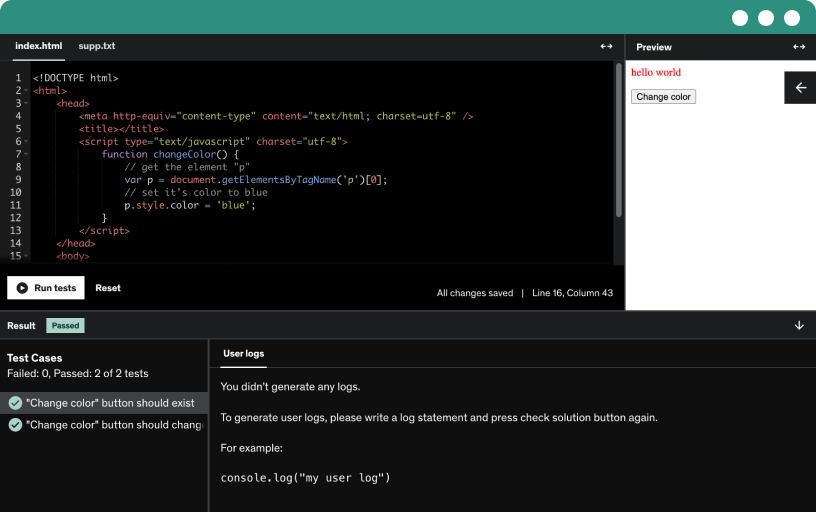
This course includes our updated coding exercises so you can practice your skills as you learn.
See a demo
Join the iOS development bootcamp to build apps from scratch using UIKit and SwiftUI, cover five solid principles, structured classes, protocols, dynamic UI, third-party integrations, and App Store deployment.
Learn to use Xcode playgrounds to test logic, study arrays and dictionaries, and prototype code without creating a full project.
Learn to run your first playground, print hello world in Swift, and use the console for debugging logs, then compare print and debug print for future projects.
Explain constants and variables in Swift by contrasting let and var, using a classroom analogy to show fixed names versus mutable subjects.
Explore strings as a core data type in Swift, learn how to denote strings with quotation marks, and identify valid examples and non-examples.
Understand how conditional statements decide code execution using true or false. Explore if-else logic and comparison operators like double equals and triple equals with maths and age debug.print.
Explore how loops in Swift control repeated execution, using for, while, and do-while constructs to print a line multiple times, with index from zero and practical examples up to 1000.
Learn how Swift functions are defined with the func keyword, covering four types: no-arg no-return, arg with no return, no-arg with return, and arg with return, via print examples.
Explore how arrays group values of the same data type in Swift, using string and integer examples, and learn to count elements and access values by index.
Explore arrays in Swift, counting elements with count and retrieving items by index, including the second item in zero-based indexing, and see how arrays drive UIs and table views.
Explore dictionaries as a key value data type with string keys and corresponding values, illustrated by a phone book example, and see how dictionaries appear in API responses and JSON.
Create a fresh Xcode project for a coin toss app, learn iOS UI fundamentals, define constraints, and start building the user interface with core UI elements and constants.
Explore the files Xcode creates—app delegate, scene delegate, view controller, and storyboard—along with assets, info.plist, launch screen, and resources, then learn folder structuring and basic UI constraints.
Learn to apply x, y, width, and height constraints to UI views using auto layout, ensuring consistent positioning across different iPhone sizes.
Add a UIImageView to the screen and set constraints: top 100, leading 20, width 200, height 200. Then center it horizontally and run on the iPhone simulator.
Add head and tail images to the asset catalog, display them in an image view, and use a button to flip the coin and show the winner in a label.
Add a UIButton to the app, connect outlets and actions for the image view, label, and button, set constraints, and prepare to implement coin toss logic and result display.
Add logic to toss the coin by animating a 360-degree rotation, removing animation after five seconds, and updating the result label with heads or tails based on a random boolean.
Update the image view on each coin toss by assigning a UI image named 'head' or 'tail' from assets, reflecting heads or tails in the app.
Learn to create a fresh Xcode project and set up transitions from one screen to another by configuring view controllers, naming the project, and saving it to your desktop.
Add multiple view controllers in a storyboard, create order cake and deliver cake screens, connect them with a transition via a button, set storyboard IDs, and test the flow.
Add a read-only label and a pink button to the first screen, apply constraints, center the label, and set font and text. Tap to push the next view controller.
Add UI elements on screen: a cake image from assets, a circular image view, and a rounded order cake button. Wire outlets and actions, initialize UI in viewDidLoad, prepare transition.
Learn how to navigate between screens with a UI navigation controller, set it as the initial view controller, and organize the view controllers to form a navigation stack for transitions.
Push from one view controller to another by wiring a navigation controller, creating a storyboard reference, instantiating the destination view controller with its identifier, and performing a push transition.
Learn to push to third view controller by wiring a navigation stack from first to second, then to final view controller using storyboard and Cocoa Touch class.
Create a contacts app using a table view to list names and show details, while setting up a fresh Xcode project and MVVM structure for future features.
Add a UI table view to the storyboard, set up its constraints, and connect it to the contacts VC to display a list with a consistent cell layout.
Explore delegates and data sources in iOS, connect them in storyboard, pass data to table view cells, and implement essential methods like number of rows and cell for row.
Create a custom table view cell for the contacts app using a xib and a Swift class. Set up constraints, assign a reuse identifier, and connect a label outlet.
Learn how to register a table view cell using a nib file, configure reuse identifiers, and implement cellForRowAt with guard let to display custom cells in a Swift iOS app.
Populate a table view with a string array; set rows to the array size and display names with indexPath.row. Tap a cell to see the name on a detail page.
Create a detail view controller in storyboard and use a navigation controller to push and display the selected table view cell's data on the detail screen.
Design the details screen by configuring a yellow background, centering a label with font size 27, wiring an outlet, and displaying a detail name with a detailName string in viewWillAppear.
Learn how to pass data from a table view cell to a detail screen in a Swift iOS app using didSelectRowAtIndexPath, storyboard instantiation, and push navigation.
Optionals in Swift represent values that may be nil, using ? and force unwraps !, with default values and nil checks explained for strings, integers, booleans, and more.
Explore Swift's class and struct differences, comparing reference types and value types with designated initializers. See how mutating keyword enables struct changes, while classes share references.
Explore the three initializer types in Swift: default init, convenience init, and failable init, with hands-on examples of a development course class and memory allocation under ARC.
Explore how if let and guard let unwrap optionals in Swift, handling nil values and non-nil bindings. Learn their control flow, else requirements, and the early return behavior.
Explore closures in Swift, including types and how to implement a callback between two view controllers to update the first screen's UI when actions occur, such as playing music.
Compare closures and protocols in Swift, implement protocol-based theming across multiple screens via a base view controller, and use optional protocols and extensions to organize code.
Create a calculator app by building a demo UI with a results display and four basic operations, using stack views and styled, rounded buttons.
Implement the calculator’s functionality by wiring all button actions, managing two input numbers, performing addition, subtraction, multiplication, and division, updating the result label, and adding clear and debugging breakpoints.
Build a tic tac toe game UI in Xcode using storyboard and stack views, with nine buttons and lines forming the grid, and player vs computer moves using random choices.
Build tic tac toe game in a Swift app. Refine the UI with corner radius, set up a 1–9 move array, implement taps with disabled buttons, and add computer turn.
Create a new Xcode project for an Instagram clone and organize folders. Structure includes app delegate, scene delegate, view controllers, tab bar views, resources; implement table views and collection views.
Create a multi-tab instagram-like app by implementing a ui tab bar controller with five tabs (home, search, plus, reels, profile), set the initial view controller, and explore auto layout.
Configure UI table view constraints with leading and trailing, align top to super view, set clear background, and add a UI view with Instagram, heart, and message icons.
Embed heart and message icons in the home screen table view at the top, using image views or buttons with vertical centering and precise constraints and tint colors.
Connect the table view to its delegate and data source, set the tab bar tint to white, and create a table view cell with a collection view in a xib.
Register the home header TVC with the table view by wiring the outlet, registering its nib named home header TVC with the reuse identifier, and dequeueing the cell at 100.
Embed a collection view in a table view cell, wire its delegate and data source, and create a home header collection view cell with image and label.
Set up the Instagram stories UI by embedding a collection view in a table view, registering cells, and using the flow layout to size items for four stories.
Add images to Instagram stories by creating an array of names and mapping each name to its corresponding image asset, then display them with aspect fill.
Design a dynamic height home feed by building a reusable table view cell with an image, caption, and a three-button toolbar, using stack views and auto layout.
Round image corners in the home feed using outlets and corner radius with masks to bounds, then populate the feed with a data array for an Instagram-like UI.
Design the Instagram clone search screen with a black background and a programmatic collection view. Create a search view controller, wire its delegate and data source, and plan clear naming.
Use pragma marks and comments to organize outlets, life cycle methods, and delegates in a Swift iOS app, and implement table view data display with static or API data.
Explore using extensions to segregate code, implement table view and collection view delegates and data sources in separate blocks, improving code organization and readability.
Implement the search screen collection view by adding the delegate and data source, design a search collection view cell with an image view, and specify item size for the layout.
Connect a collection view cell to a search collection view in a Swift iOS project, register and configure cells, adjust UI spacing, and discuss third-party library integration for dynamic sizes.
Open the gallery from the plus button by creating a gallery view controller, wiring an image view and image picker, and using Stack Overflow code to launch it.
Master AVKit basics to play videos in the reels and profile sections, implement a gallery view with selectable photos, and explore two screens for integrating video playback.
WELCOME TO THE BEST HIGHEST-RATED IOS DEVELOPMENT COURSE (BEGINNER + ADVANCED)
This Course is about creating an iOS Application, for landing your Dream Job in Company or Starting your own Business, This course mainly focuses on Swift & SwiftUI. One thing I can assure you regarding this course is that after you finish this course you will gain the confidence to complete any Application.
Your Beginner to Mastering iOS Development Journey begins with this course.
Frameworks like CoreData, CoreML, UIKit, SwiftUI, ARKit, Combine, and XCTest will be explained in this course.
You will learn how to create Apple Certificates for Push Notifications, and Certifications to distribute your App In to your team or the world.
During this course, you will create 10+ iOS Applications and learn how to manage your code using Git.
You will also learn Git Commands
You will learn how to write Test Cases for your Application and do the Unit testing, which will free your Application bug.
You will also create creative UI that will impress your users to use your Application.
I will also teach you how to clear iOS Development Interviews.
This is a complete course for beginners that will help you to grow in the Programming industry.
There is no prerequisite to Learning this Course.