
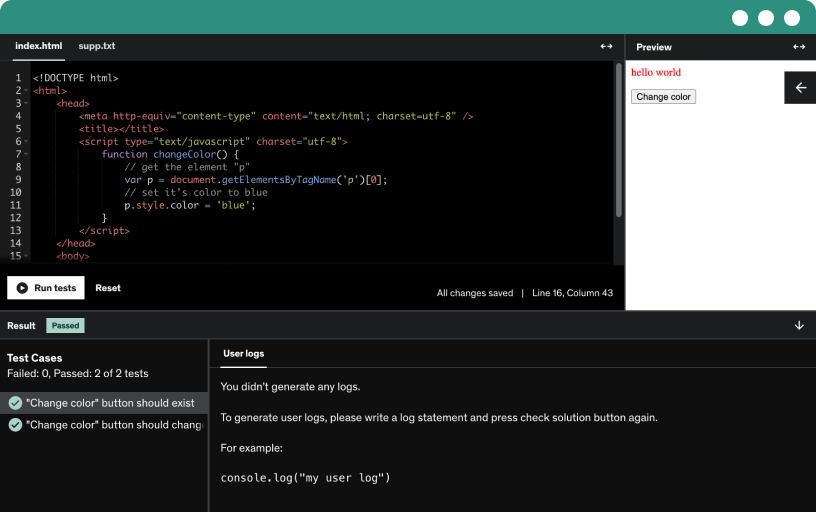
This course includes our updated coding exercises so you can practice your skills as you learn.
See a demo
In this lecture, we will provide an overview of the Data Analyst Skillpath: Zero to Hero in Excel, SQL & Python course. We will discuss the importance of data analysis in today's business world and how Excel, SQL, and Python are essential tools for data analysts. Throughout the course, we will cover the fundamentals of each tool and help you develop the skills needed to excel in data analysis.
We will also introduce the structure of the course, including the different sections and lectures that will be covered. By the end of the course, you will have a solid foundation in Excel, SQL, and Python, as well as the ability to use these tools to perform data analysis tasks. Join us as we embark on this journey to becoming a proficient data analyst.
In Lecture 4 of Section 2: Excel Basics, we will be covering the fundamental concepts of Excel. Topics include navigating the Excel interface, entering data into cells, formatting cells, and basic functions such as SUM, AVERAGE, and MAX. We will also explore how to create simple formulas and use autofill to fill in a series of data.
Additionally, we will delve into more advanced features of Excel, such as conditional formatting, data validation, and creating charts. By the end of this lecture, you will have a solid understanding of the basic tools and functions in Excel that are essential for data analysis and visualization. This knowledge will set a strong foundation for further learning in the Data Analyst Skillpath: Zero to Hero in Excel, SQL & Python course.
Celebrate reaching this milestone in the data analyst skillpath and stay motivated to master excel, sql, and python as the course adds resources, Q&A support, and a certificate on completion.
Learn about managing worksheets in Excel, including adding, deleting, renaming, and rearranging sheets. Discover how to add, delete, and resize rows and columns. Organize data effectively by using separate sheets for different subjects or categories. Easily rename sheets by double-clicking on their names. Insert or delete sheets as needed. Rearrange sheets by dragging and dropping them. Manipulate rows and columns by inserting or deleting them, and adjusting their sizes. Additionally, explore zooming in and out for better visibility of data.
Learn how to manipulate data in Excel cells and understand different data types. Edit text by double-clicking a cell or using the formula bar. Clear cell content by pressing backspace or delete. Explore formatting options like numbers, currency, and dates. Excel treats dates and times as numeric values. Auto-recommendation feature suggests values based on column contents. Adjust decimal places for numerical values.
This video provides a beginner's guide to handling data tables and functions in Excel. It explains how to navigate through tables using mouse clicks or keyboard shortcuts. The video also demonstrates the use of cut, copy, and paste functions, both through menu options and keyboard shortcuts. It shows how to cut and paste data to transfer it to another location, as well as how to copy and paste data to create duplicates. Additionally, the video covers selecting and moving entire tables or specific ranges of cells using shortcuts. Finally, it highlights the importance of undoing mistakes using the Ctrl+Z shortcut.
This video provides a comprehensive overview of the options available in the file tab of Excel. It covers opening new and previously saved workbooks, saving and password protection features, as well as printing options and previewing the printed page. The tutorial emphasizes the importance of saving work frequently and highlights various methods to accomplish these tasks. Overall, it offers a practical guide to efficiently manage files in Excel.
In this video, learn how Excel simplifies repetitive mathematical operations. Discover how to add, multiply, and find averages using formulas. Excel's dynamic cell referencing saves time and ensures accuracy. By dragging formulas, you can extend calculations across multiple cells. Locking specific references with dollar symbols prevents unwanted changes. Excel empowers you to perform complex calculations effortlessly, making data manipulation a breeze. Say goodbye to manual calculations and embrace the efficiency of Excel.
In this lecture, you will learn about basic mathematical functions in Excel. You'll explore the difference between formulas and functions, where functions are predefined formulas with devideoive names. Using examples, the lecturer demonstrates how to use the SUM, MIN, MAX, and AVERAGE functions to calculate total marks, find minimum and maximum scores, and calculate the average marks for students. Additionally, you'll discover how to use the RANK function to assign ranks to students based on their average scores. The lecture also covers how to lock reference ranges using dollar symbols to avoid errors while dragging formulas.
In this tutorial, we learn about a product formula in Excel that calculates the sum of products of two series of numbers. We apply this formula to find the total marks for a student based on weighted scores in different subjects. Additionally, we explore the rand function to generate random numbers, which can be useful for simulating chance events or selecting a representative. We also discuss the rand between functions for generating random values within a specified range. The tutorial concludes by mentioning the availability of various mathematical formulas in Excel and encourages further exploration of these functions.
In this lecture, we will be covering the differences between the RANK, RANK.AVG, and RANK.EQ functions in Excel. These functions are commonly used in data analysis to rank values in a dataset based on their magnitude. We will discuss how each function works, their respective syntax, and when to use one over the other depending on the specific requirements of your analysis.
We will also explore examples and scenarios where each function is most appropriate to use. Understanding the nuances and distinctions between RANK, RANK.AVG, and RANK.EQ will be essential for data analysts looking to efficiently rank and compare values in their Excel spreadsheets. By the end of this lecture, you will have a solid understanding of how to utilize these functions effectively in your data analysis projects.
In Lecture 13 of Section 3: Essential Formulas in the Data Analyst Skillpath course, we will be diving into Exercise 1 focusing on Mathematical Functions. This lecture will cover various mathematical functions such as SUM, AVERAGE, MAX, MIN, and COUNT in Excel, SQL, and Python. We will walk through practical examples and exercises to demonstrate how to use these functions effectively in data analysis.
By the end of this lecture, you will have a firm understanding of how to apply mathematical functions to manipulate and analyze data sets in Excel, SQL, and Python. You will also be equipped with the skills to perform complex calculations, generate insights, and clean data efficiently using these essential formulas. This exercise will help solidify your knowledge and enhance your proficiency as a data analyst, bringing you one step closer to mastering Excel, SQL, and Python.
This lecture introduces important textual functions for performing operations on text data. It covers the use of the trim function to remove extra spaces from text strings. Additionally, the concatenate function is explained, demonstrating how to combine strings to create full names or sentences. The ampersand symbol can also be used for concatenation. Practical examples and step-by-step instructions are provided for a clear understanding of these functions.
This tutorial introduces several Excel functions for manipulating text. It starts with the "substitute" function, which replaces a specific string with another in the selected text. Examples include rectifying spelling errors and updating scores. The tutorial also covers the "upper" and "lower" functions for converting text to uppercase and lowercase, the "length" function for counting characters, and the "left," "right," and "mid" functions for extracting specific portions of a string. These functions are demonstrated with practical examples using a table. The tutorial concludes by encouraging further exploration of Excel's textual functions.
In Lecture 16 of Section 3, we will be discussing Exercise 2 which focuses on Textual Functions in Excel. Textual Functions are essential in manipulating and organizing text data within spreadsheets. We will cover functions such as CONCATENATE, LEFT, RIGHT, MID, LEN, FIND, SEARCH, SUBSTITUTE, and more. These functions can be powerful tools in cleaning and analyzing text data for better insights and visualization.
During this lecture, we will walk through real-world examples and exercises to demonstrate how to use Textual Functions effectively in Excel. By the end of this session, you will have a strong understanding of how to apply these functions to solve various text manipulation tasks and enhance your data analysis skills. Whether you are a beginner or expert in Excel, learning Textual Functions will be crucial in becoming a proficient data analyst.
This lecture covers important logical functions in Excel. It begins with discussing single argument tests and moves on to multiple arguments using 'and' and 'or' statements. The 'if' formula assigns grades based on conditions, while 'nested if' allows for sequential checks. Countif counts cells that meet specific criteria, and Countifs handles multiple checks. Sumif adds cells that satisfy the criteria, and Sumifs is similar. Students are encouraged to explore these functions further.
In this lecture, we will be diving into Essential Formulas in Excel, SQL & Python, specifically focusing on logical functions. We will be covering the basics of logical functions such as IF, AND, OR, and NOT, and how they can be used to automate decision-making processes in data analysis. We will also be discussing how to nest logical functions within each other to create more complex conditions and improve the efficiency of our formulas.
Furthermore, we will be going through a hands-on exercise where we will be applying logical functions to real-world data sets to solve common data analysis challenges. By the end of this lecture, you will have a solid understanding of how to utilize logical functions in Excel, SQL, and Python to streamline your data analysis processes and make more informed business decisions. Be prepared to get your hands dirty and practice what you've learned in this interactive session.
In this lecture, we explore date and time functions in Excel. We learn about different date formats, how Excel automatically identifies dates, and the use of functions like "TODAY" and "NOW" to retrieve the current date and time. We also discover how Excel stores dates and times as numbers, allowing for calculations and formatting options. The lecture covers common date and time formats, custom formats, and formulas to extract specific information from dates. Additionally, we learn methods to calculate the number of days, hours, and minutes between two dates using various functions.
In Lecture 20 of Section 3: Essential Formulas, we will delve into an exercise focusing on Date-Time Functions. This practical session will reinforce your understanding and application of key functions in Excel, SQL, and Python related to date and time data. You will learn how to manipulate date-time elements effectively, such as calculating the difference between dates, extracting month or year from a date, converting dates into specific formats, and performing advanced date calculations.
By completing Exercise 4 in this section, you will gain hands-on experience in using various date-time functions to analyze and manipulate date and time data in Excel, SQL, and Python. This exercise will challenge you to apply your knowledge of date-time functions to solve real-world problems and enhance your data analysis skills. Additionally, you will learn how to automate repetitive tasks related to date and time calculations, ultimately improving your efficiency as a data analyst.
In this lecture, you will learn about lookup functions in Excel, including VLOOKUP, HLOOKUP, INDEX, MATCH, and their combinations. The VLOOKUP function allows you to search for a specific value vertically in a table and retrieve a corresponding value. The HLOOKUP function works similarly but searches horizontally. The INDEX function helps you access a specific value in a table using row and column numbers. The MATCH function returns the position of a value in an array. By combining INDEX and MATCH, you can achieve similar results as VLOOKUP and HLOOKUP but with better performance. The lecture also mentions data sorting, filtering, and other data tools that will be covered in the next session.
In Lecture 22 of Section 3 of the Data Analyst Skillpath course, we will be diving into Exercise 5 which focuses on Lookup Functions in Excel. We will explore essential formulas such as VLOOKUP, HLOOKUP, INDEX and MATCH functions that are used to search for information in a dataset and retrieve specific values. By the end of this exercise, you will have a solid understanding of how to use these functions to efficiently analyze and manipulate data in Excel.
Additionally, we will discuss practical examples and real-world scenarios to demonstrate how Lookup Functions can be applied in a professional setting. This lecture will provide hands-on practice and step-by-step guidance to help you master these essential formulas and enhance your data analysis skills in Excel. By the end of this lecture, you will be well-equipped to confidently use Lookup Functions in Excel to streamline your data analysis process and make informed business decisions.
In this video, the Instructor introduces the viewers to the powerful new addition to Excel called XLOOKUP. They explain that it offers more features than VLOOKUP or HLOOKUP but is only available in Excel 2021 or later versions. Despite this limitation, the Instructor emphasizes the importance of learning about XLOOKUP due to frequent updates in corporate MS Office. The video demonstrates how to use XLOOKUP as a replacement for VLOOKUP and showcases its ability to retrieve multiple values. Additionally, it highlights the advantage of XLOOKUP in being able to look up values to the left of the array.
The XLOOKUP function in Excel allows users to handle errors and replace #NA values easily. It provides a fourth parameter that can be used to display a custom message when a lookup value is not found in the lookup array. Additionally, XLOOKUP can replace both VLOOKUP and HLOOKUP functions, as it can work with both vertical and horizontal arrays. The fifth parameter of XLOOKUP controls the matching mode, with options for an exact match, exact match or next smaller item, exact match or next larger item, and wildcard character match. By default, XLOOKUP performs an exact match, making it more suitable for business scenarios. It also offers refined approximate matching options, allowing users to find the closest value that is less than or equal to the lookup value.
This Lecture explains the concept of wildcards in matching and demonstrates their usage in the context of xlookup. Wildcards are special characters that represent the presence of any number of characters or a single character. By using wildcards, you can find specific information without specifying the entire string. The Lecture shows how to use a wildcard in xlookup to search for employee IDs and retrieve corresponding CTC values. Wildcards, such as the star (*) and question mark (?), allow for flexible matching based on specific patterns. To learn more about these wildcards, a link to Microsoft's documentation is provided.
The lecture introduces the concept of search modes in the xlookup formula, which allows users to control the direction of searching in the lookup array. By default, xlookup searches from top to bottom to find the matching value. However, the lecture explains that users can change this behavior to search from the bottom to the top by using the "minus one" parameter. Additionally, it mentions the binary search options, which are applicable when the data has unique values and is sorted in ascending or descending order. The binary search algorithm can significantly speed up searching for large datasets. Overall, xlookup offers numerous features, including wildcard matching, handling of #NA errors, and replacing VLOOKUP and HLOOKUP functions, making it a powerful tool that may eventually replace traditional lookup functions in Excel.
In this lecture, we explore essential data tools that enhance the value and insights derived from data. Data sorting allows arranging information in a specific order, such as alphabetically or numerically. Filtering options enable focusing on specific data subsets, and data validation prevents incorrect inputs during data entry. These tools optimize data analysis and facilitate efficient data management.
In this lecture, we cover the Text to Columns feature in Excel, which allows us to split data separated by commas or other delimiters into separate columns. We also explore removing duplicates from data. The process involves selecting the data, going to the Remove Duplicates option, and choosing to remove exact duplicates or specifying criteria for duplicate removal. These tools help organize and clean data for more effective analysis and manipulation in Excel.
In Lecture 29 of Section 5: Data Tools, we will be diving into the advanced filter option in Excel. This tool allows data analysts to filter and extract specific data based on complex criteria, providing more flexibility and customization compared to the basic filter option. We will cover how to use advanced filters to analyze large datasets, create custom filters, and streamline data manipulation tasks in Excel.
Furthermore, we will explore how the advanced filter option can be used in conjunction with SQL and Python to enhance data analysis capabilities. By integrating Excel with these powerful programming languages, data analysts will be able to perform more sophisticated data manipulations, automate repetitive tasks, and gain deeper insights from their data. Join us in this lecture as we unlock the full potential of the advanced filter option in Excel, SQL, and Python for data analysts on their journey from zero to hero.
In Lecture 30 of Section 5 of the Data Analyst Skillpath, we will be diving into Exercise 6: Data Tools. This exercise will provide practical applications for the various data tools available to analysts, including Excel, SQL, and Python. We will explore how these tools can be used to manipulate, analyze, and visualize data effectively to derive meaningful insights.
During this lecture, we will learn how to leverage Excel functions, SQL queries, and Python libraries to address common data analysis challenges. We will cover topics such as data cleaning, data transformation, and data visualization using these tools. By the end of this exercise, you will have a better understanding of how to use these data tools efficiently to become a proficient data analyst.
In this lecture, we explore the various formatting options available to enhance the appearance of data. We start with a sample table lacking formatting, emphasizing the importance of presenting visually appealing data. We learn to highlight headers, make text bold and italicize student names. Formatting is applied to the average row using the format painter tool. Borders are added for clarity and the font and size are adjusted. We align text and demonstrate how to increase column width and row height. Additionally, we add a title, apply conditional formatting to highlight low scores and explore different formatting styles. Lastly, we briefly mention freeze panes and hint at the upcoming topic of pivot tables.
In Lecture 32 of Section 5: Data Tools, we will be covering Exercise 7 on formatting data in Excel. This exercise will focus on various formatting techniques such as conditional formatting, custom number formats, and filtering data to make it more visually appealing and easier to interpret. We will also discuss how to use cell styles and themes to quickly apply consistent formatting across a large dataset.
Additionally, we will explore some advanced formatting options, such as creating data bars, color scales, and icon sets to visually represent data trends and patterns. This lecture will provide practical examples and hands-on exercises to help you master the art of formatting data in Excel, and demonstrate how proper formatting can enhance the overall readability and effectiveness of your analysis.
This video introduces the importance of creating charts with a clear message and relevant data. It emphasizes the need to categorize the message to choose the appropriate chart type. It also highlights common categories such as comparing items, data over time, relative comparisons, data relationships, frequency comparisons, and identifying outliers. By understanding these categories, one can create impactful and meaningful graphs.
This video provides an overview of the different elements that make up a chart. It explains the components such as data series, data points, category axis, horizontal axis labels, primary and secondary vertical axis, primary and secondary axis labels, legends, data labels, chart title, grid lines, chart area, and plot area. Understanding the nomenclature of these elements is crucial for formatting and customizing charts effectively.
This lecture introduces the process of creating charts with a single click in Excel. While it's easy to generate a basic chart, the difficulty lies in crafting a chart that effectively conveys the intended message. The lecture covers selecting data and clicking on the recommended chart options. Excel automatically identifies chart elements like titles and labels. Although default design and layout options are available, the course will teach learners to create custom charts from scratch, exploring different chart types, formats, colors, and styles to achieve impactful visualizations.
This video tutorial provides step-by-step guidance on creating column charts in Excel. Column charts are popular for visualizing data points as vertical columns, with each column's height representing its corresponding value. The video demonstrates selecting data series, customizing axis labels, and choose from various chart types available, such as clustered, stacked, and 100% stacked column charts. It also explores the option to create 3D graphs and mentions the benefits of using bar charts for improved readability of category labels. The tutorial emphasizes adding chart elements like titles and legends for better comprehension.
Learn how to format a simple column chart in this video. The formatting concepts discussed are universal for all charts, making them applicable to pie charts, histograms, etc. You can select and format individual chart elements, such as the chart title, horizontal and vertical axes. Options include changing backgrounds, adding borders, adjusting sizes, and modifying fonts. Additionally, you can customize grid lines, series colors, and axis labels. Discover how to control plot area, legend position, and more. Explore these formatting techniques to enhance your chart presentations.
In this video, we will learn about line charts, which are commonly used to plot continuous data and identify trends. By creating a line chart of daily sales, you can easily observe fluctuations over time. The horizontal axis represents equally spaced intervals, such as two-year increments. The chart displays multiple data series as different lines, each represented by a distinct color and labeled in the legend. Excel's recommended charts option simplifies the process of creating a line chart. Additionally, you can customize titles, axis labels, and the positioning of the legend box. Although there are different types of line charts available, it is advisable to avoid 3D line charts as they can obscure data and create optical illusions.
In this video, we will explore area charts, which are similar to line charts but with the area below the line colored. By comparing a line chart and an area chart example, you can observe the difference in visual representation. When using multiple data series in an area chart, it can become challenging to interpret overlapping colors. A solution is the stacked area chart, where data series are stacked on top of each other, allowing better visibility and understanding of individual contributions. However, 3D area charts are not recommended for business use as they can obscure data and hinder analysis.
In this video, we will explore pie charts, a visual representation useful for showing relative proportions or contributions to a whole. Pie charts are most effective with a small number of data points, typically not more than 5 or 6 slices. However, an overloaded pie chart can be challenging to interpret. The video covers how to create pie charts, add data labels, and explore different types of pie charts, including pie of pie, bar of pie, and doughnut charts. The video concludes with a recommendation to use pie charts sparingly.
This video tutorial demonstrates how to create scatter plots and bubble charts. Scatter plots, also known as XY charts, display values on both axes and are used to show the relationship between two variables. The video uses an example of monthly marketing emails and corresponding sales to illustrate this relationship. Trend lines can be added to the scatter plot to visually identify and forecast the relationship between the variables. Bubble charts, on the other hand, incorporate a third variable by representing it as the radius of the bubbles. This allows for the analysis of the effect of two variables on a third variable. The video provides step-by-step instructions on creating and formatting scatter plots and bubble charts.
Learn how to create and interpret waterfall charts in this video. Waterfall charts are a visual representation of sequential positive or negative changes from a base value, commonly used in financial analysis. In Excel 2016, creating a waterfall chart is easy with the included charting option. However, for earlier versions, you'll need to manually create it using other chart types, like stacked column charts. This video demonstrates both methods, providing step-by-step instructions and examples. Discover how to highlight changes in revenue, expenses, and net profit, making data more visually appealing and easier to understand.
In this video, you will learn about sparklines, which are mini charts that reside in Excel cells. Sparklines can represent trends or variations in a dataset and are often used to show trends over time. They come in three types: line, column, and positive/negative. Sparklines are great for creating easily-readable reports and dashboards with limited functionality due to their small size. You can easily create sparklines in Excel and even format them by changing colors and markers.
In Lecture 45 of Section 6 of our Data Analyst Skillpath: Zero to Hero in Excel, SQL & Python course, we will be covering Exercise 8: Charts in Excel. This lecture will focus on how to create different types of charts in Excel, such as bar graphs, line graphs, pie charts, and more. We will walk through step-by-step instructions on how to input data into Excel and create visually appealing charts to effectively display and analyze data.
Furthermore, we will also discuss how to customize and format charts in Excel to make them more visually appealing and informative. By the end of this lecture, you will have a solid understanding of how to use Excel to create professional-looking charts that can help you effectively communicate your data analysis findings to others. Stay tuned for some hands-on practice exercises to help reinforce your learning and mastery of Excel charts.
In this lecture on pivot tables in Excel, we learn about the powerful tool for summarizing large data sets. By automatically grouping similar variables, pivot tables provide meaningful summaries. Using a furniture sales dataset as an example, we explore the process of analyzing sales by each salesperson. Instead of manually filtering and summing the data, pivot tables offer a more efficient solution. We demonstrate how to create a pivot table, customize it by dragging and dropping columns, and apply filters. We also cover sorting data, counting sales, grouping values, and using slicers for convenient filtering. This lecture sets the stage for the next topic on charts.
In Lecture 47 of our Data Analyst Skillpath, we will be diving into Exercise 9, focusing on Pivot tables. We will explore how Pivot tables can help us analyze and summarize large data sets by organizing and presenting the information in a more digestible format. By the end of this lecture, you will have a deep understanding of how to create Pivot tables, customize them to fit specific needs, and utilize them to draw valuable insights from data.
Additionally, we will cover Pivot charts in this lecture, which are graphical representations of Pivot table data. Pivot charts allow us to visually represent and analyze our data, making it easier to identify trends, patterns, and relationships. Throughout this lecture, we will provide step-by-step instructions on how to create, modify, and enhance Pivot charts to effectively communicate your data analysis findings. By mastering Pivot tables and Pivot charts, you will gain the skills needed to excel as a Data Analyst and drive informed decision-making within your organization.
In this video, you will learn how to create a Pivot chart, which is a graphical representation of a Pivot table in Excel. Pivot tables summarize data by rows and columns, providing counts and sums of different categories. By creating a Pivot chart, you can visualize and compare data more efficiently using filters and different chart types. The Pivot chart is linked to the Pivot table, reflecting any changes made in either component. It's a powerful tool for presenting complex data scenarios and enhancing data analysis.
In Lecture 49 of the Data Analyst Skillpath course, we will be diving into the topic of the new "Analyze Data" option in Excel, specifically designed for Microsoft 365 users. This feature allows users to easily generate insights from their data sets through various data analysis tools such as charts, pivot tables, and statistical functions. We will explore how to use this tool effectively to uncover trends, patterns, and correlations in your data, ultimately helping you make informed business decisions.
Throughout this lecture, we will cover the step-by-step process of accessing and utilizing the "Analyze Data" option in Excel. We will discuss the different analysis tools available, demonstrate how to apply them to your data, and provide practical examples to illustrate their use in real-world scenarios. By the end of this lecture, you will have a solid understanding of how to leverage this powerful feature in Excel to enhance your data analysis skills and drive business success.
In this video, you will learn about the Excel map chart, a new feature available in Excel 2019, and later versions. Map charts allow you to visually represent geographical data, such as country names, states, cities, and postal codes. By selecting the data and creating a map chart, you can highlight regions and display corresponding values. The chart can be customized, including formatting options for the chart area, title, legend, and plot area. However, there are limitations, such as the need for an active internet connection, the inability to plot lat-long coordinates or street addresses, and the requirement for disambiguation in case of duplicate place names. Overall, map charts are a valuable tool for presenting geographical data in Excel.
In this lecture, we explore the power of macros in Excel. A macro is a set of programming instructions stored as a procedure, allowing you to automate repetitive tasks. By creating and running macros, you can quickly perform actions like formatting cells, applying styles, and modifying data. Learn how to record macros, assign shortcuts, and even insert buttons for easy execution. With macros, you can eliminate manual labor and streamline your Excel workflow, saving valuable time and effort. Discover the potential of macros to enhance your Excel experience in this comprehensive course
In Lecture 54 of Section 11 of the Data Analyst Skillpath course, we will be covering Exercise 10 on Macros. In this lecture, we will delve into the world of automating tasks in Excel using macros. We will learn how to record a macro, edit a recorded macro, and assign a keyboard shortcut to a macro for easy access. By the end of this lecture, students will have a solid understanding of how macros can streamline their workflow and save time when working with large datasets in Excel.
Furthermore, we will explore advanced macro techniques, such as writing VBA code to create more complex and customized macros. We will discuss the importance of error handling in macros and how to debug issues that may arise when running a macro. By the end of this lecture, students will have the skills and knowledge necessary to create efficient and effective macros in Excel, allowing them to become more proficient data analysts.
[April 2026 update]
Added a section on the "Copilot in Excel" which demonstrates the capabilities and limitations of Copilot - Microsoft's GenAI powered assistant in Excel
Added a section on "Power Query, Power Pivot and DAX in Excel" for building powerful and automated reports in Excel
Added a new section on how to practice SQL using fun case studies.
You're looking for a complete course on how to become a data analyst, right?
You've found the right Data Analyst Masterclass with Excel, SQL & Python course! This course will teach you data-driven decision-making, data visualization, data analytics in SQL, and the use of predictive analytics like linear regression in business settings.
After completing this course you will be able to:
Master Excel's most popular lookup functions such as Vlookup, Hlookup, Index, and Match
Become proficient in Excel data tools like Sorting, Filtering, Data validations, and Data importing
Make great presentations using Bar charts, Scatter Plots, Histograms, etc.
Become proficient in SQL tools like GROUP BY, JOINS, and Subqueries
Become competent in using sorting and filtering commands in SQL
Learn how to solve real-life business problems using the Linear Regression technique
Understand how to interpret the result of the Linear Regression model and translate them into actionable insight
How this course will help you?
A Verifiable Certificate of Completion is presented to all students who undertake this course on Data Analyst Skillpath in Excel, SQL, and Python.
If you are a student, business manager, or business analyst, or an executive who wants to learn Data Analytics concepts and apply data analytics techniques to real-world problems of the business function, this course will give you a solid base for Data Analytics by teaching you the most popular data analysis models and tools
Why should you choose this course?
We believe in teaching by example. This course is no exception. Every Section’s primary focus is to teach you the concepts through how-to examples. Each section has the following components:
Concepts and use cases of different Statistical tools required for evaluating data analytics models
Step-by-step instructions on implementing data analytics models
Downloadable files containing data and solutions used in the course
Class notes and assignments to revise and practice the concepts
The practical classes where we create the model for each of these strategies are something that differentiates this course from any other course available online.
What makes us qualified to teach you?
The course is taught by Abhishek (MBA - FMS Delhi, B. Tech - IIT Roorkee) and Pukhraj (MBA - IIM Ahmedabad, B. Tech - IIT Roorkee). As managers in the Global Analytics Consulting firm, we have helped businesses solve their business problems using Analytics and we have used our experience to include the practical aspects of business analytics in this course. We have in-hand experience in Business Analysis.
We are also the creators of some of the most popular online courses - with over 1,200,000 enrollments and thousands of 5-star reviews like these ones:
This is very good, i love the fact the all explanation given can be understood by a layman - Joshua
Thank you Author for this wonderful course. You are the best and this course is worth any price. - Daisy
Our Promise
Teaching our students is our job and we are committed to it. If you have any questions about the course content, practice sheet, or anything related to any topic, you can always post a question in the course or send us a direct message.
Download Practice files, take Quizzes, and complete Assignments
With each lecture, there are class notes attached for you to follow along. You can also take quizzes to check your understanding of concepts like Data Analytics in MS Excel, SQL, and Python. Each section contains a practice assignment for you to practically implement your learning on Data Analytics.
What is covered in this course?
The analysis of data is not the main crux of analytics. It is the interpretation that helps provide insights after the application of analytical techniques that makes analytics such an important discipline. We have used the most popular analytics software tools which are MS Excel, SQL, and Python. This will aid the students who have no prior coding background to learn and implement Analytics and Machine Learning concepts to actually solve real-world problems of Data Analysis.
Let me give you a brief overview of the course
Part 1 - Excel for data analytics
In the first section, i.e. Excel for data analytics, we will learn how to use excel for data-related operations such as calculating, transforming, matching, filtering, sorting, and aggregating data.
We will also cover how to use different types of charts to visualize the data and discover hidden data patterns.
Part 2 - SQL for data analytics
IN the second section, i.e. SQL for data analytics, we will be teaching you everything in SQL that you will need for Data analysis in businesses. We will start with basic data operations like creating a table, retrieving data from a table etc. Later on, we will learn advanced topics like subqueries, Joins, data aggregation, and pattern matching.
Part 3 - Preprocessing Data for ML models
In this section, you will learn what actions you need to take step by step to get the data and then prepare it for analysis, these steps are very important. We start with understanding the importance of business knowledge then we will see how to do data exploration. We learn how to do univariate analysis and bivariate analysis then we cover topics like outlier treatment, missing value imputation, variable transformation, and correlation.
Part 4 - Linear regression model for predicting metrics
This section starts with simple linear regression and then covers multiple linear regression.
We have covered the basic theory behind each concept without getting too mathematical about it so that you understand where the concept is coming from and how it is important. But even if you don't understand it, it will be okay as long as you learn how to run and interpret the result as taught in the practical lectures.
I am pretty confident that the course will give you the necessary knowledge on Data Analysis, and the skillsets of a Data Analyst to immediately see practical benefits in your workplace.
Go ahead and click the enroll button, and I'll see you in lesson 1 of this Data Analyst Skillpath course!
Cheers
Start-Tech Academy