Your cart is empty.
Keep shopping

Teach on Udemy
Turn what you know into an opportunity and reach millions around the world.
Learn MoreData Analytics Masterclass: Excel, Python, PowerBI & ChatGPT
Rating: 4.3 out of 54.3(135 ratings)
1,762 students
Data Analytics Masterclass: Excel, Python, PowerBI & ChatGPT
Kickstart Your Data Analyst Career. Get A-Z Foundation and Hands-on Experiences with All Data Analytics Tools + ChatGPT.
Created byAnalytix AI
Last updated 2/2025
English
English [Auto],
What you'll learn
- Gain proficiency in Excel, Python, Power BI, and ChatGPT to prepare for a data analyst career.
- Utilize ChatGPT for advanced data manipulation, pivot tables, and conditional logic.
- Apply ChatGPT for predictive analytics, including random forest regressor and other machine learning models.
- Learn essential facts and theories in data analysis, statistical analysis, hypothesis testing, and machine learning.
- Explore advanced Excel techniques like PivotTables, Data Analysis ToolPak, and interactive dashboards.
- Grasp Python basics, including variables, data types, lists, dictionaries, dataframes, and functions.
- Master Python for data cleaning, manipulation, analysis, transformation, and preprocessing.
- Use Python for data visualization, exploratory data analysis, statistical analysis, and machine learning.
- Learn Power BI for data manipulation, analysis, and creating insightful dashboards.
- Create professional, informative, and visually appealing dashboards in Power BI.
Explore related topics
Coding Exercises
This course includes our updated coding exercises so you can practice your skills as you learn.
See a demo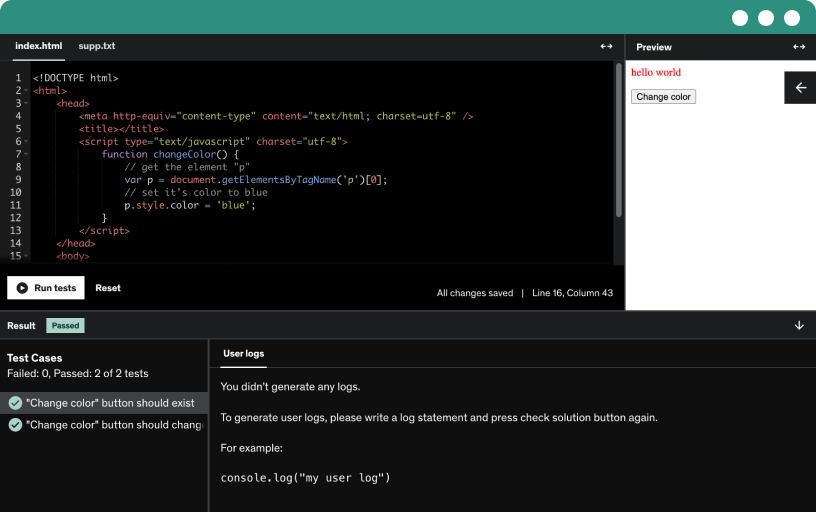
Course content
7 sections • 230 lectures • 24h 58m total length
- Data analysis definition, types and examples7:11
Explore the data analysis process from inspecting, cleaning, and transforming data to modeling and decision making. Learn descriptive, diagnostic, predictive, prescriptive, and exploratory analysis.
- Key components of data analysis10:18
Master the key components of data analysis from data collection and cleaning to exploratory data analysis, transformation, statistical analysis, data modeling, data visualization, and interpretation for informed decisions.
- Understanding data analysis
- Things make you super data analyst!0:56
- Various sources of collecting data5:27
Explore primary, secondary, and tertiary data sources and compare their advantages and challenges for effective data collection. Understand when each source best supports research objectives.
- Population v/s sample and its methods11:05
Explore sampling methods and distinguish population versus sample, highlighting simple random, stratified, systematic, cluster, convenience, and snowball techniques, with their biases and applications.
- Understanding data collection
- Why you cannot ignore cleaning your data4:04
Clean data enhances accuracy, consistency, completeness, reliability, and integrity by identifying and correcting errors, standardizing formats, and addressing missing values and outliers, enabling trustworthy, actionable analytics.
- Various aspects of data cleaning14:12
Learn practical data cleaning techniques, including handling missing values with imputation or deletion, correcting incorrect data, managing data types, identifying outliers, and removing duplicates for reliable analysis.
- Techniques of Data Cleaning
- Various aspects of Joining datasets8:50
Join data across tables to create unified datasets using inner, left, right, and full joins, aligning on key columns and handling nulls for unmatched rows.
- Adding extra data with concatenation4:05
Learn to concatenate data by appending datasets vertically or horizontally, creating a larger data set for analysis, visualization, and merging sources.
- Understanding joining and concatenation
- EDA for generating significant insights5:37
Explore exploratory data analysis (eda) to uncover patterns, identify anomalies, and generate hypotheses that guide data-driven decisions. Emphasize data quality, detect outliers, and select features to improve insights.
- Methods of exploratory data analysis Part 112:15
Explore exploratory data analysis by learning mean, median, and mode as central tendency measures, and variance and standard deviation as dispersion indicators.
- Methods of exploratory data analysis Part 211:17
Explore symmetric and asymmetric (normal and skewed) distributions, and learn how mean, median, and mode align, along with skewness, kurtosis, and key percentiles (Q1, Q2, Q3) plus min and max.
- Methods of exploratory data analysis Part 315:36
Explore core exploratory data analysis techniques, including frequency and percentage analysis, group by and cross tabulation, and correlation analysis with scatter plots.
- Exploratory Data Analysis
- The application of statistical test8:31
Explore the basics of statistical data analysis, its purpose, and how to apply methods using R, Python, and SPSS to uncover patterns, test hypotheses, and inform decision making.
- Types of statistical data analysis4:58
Explore descriptive analysis and inferential analysis, and learn to summarize data with mean, median, mode, and standard deviation, plus charts like histograms and bar charts.
- Inferential statistics Part 1 – T-tests and ANOVA6:54
Explore inferential statistics through t tests and one-way ANOVA, including one-sample, independent (two-sample), and paired t tests, and learn how they compare means to assess significance with real-world examples.
- Inferential statistics Part 2 – Relationships measures3:16
Explore chi square tests for independence to evaluate relationships between categorical variables using observed versus expected frequencies, and apply Pearson correlation to quantify the linear relationship between continuous variables.
- Inferential statistics Part 3 – Linear regression11:53
Learn how linear regression models the relationship between dependent and independent variables, using simple and multiple regression, and interpret R square and beta values with practical examples.
- Statistical data analysis
- Hypothesis testing for inferential statistics6:03
Explore hypothesis testing as a structured inferential statistics method to decide about population parameters from sample data, using null and alternative hypotheses, test statistics, p-values, and a step-by-step decision process.
- Selecting statistical test and assumption testing10:26
Learn to select the right statistical test for scenarios from t tests to ANOVA and regression, and perform assumption checks like normality, linearity, and homoscedasticity.
- Confidence level, significance level, p-value3:37
Explore confidence level, significance level, and p value in hypothesis testing to guide evidence-based decisions, with alpha thresholds and error probabilities shaping conclusions.
- Making decision and conclusion on findings2:55
Learn how to decide and conclude in hypothesis testing by comparing the p-value to a 5% significance level, choosing between null and alternative hypotheses, and drawing a conclusion.
- Complete statistical analysis and hypothesis testing7:01
Compare two classes to test a new teaching method against the traditional method using an independent t-test, Shapiro-Wilk normality, and p-values at alpha 0.05 to decide if scores differ.
- Hypothesis Testing in Statistical Analysis
- Transforming data for improved analysis5:14
Transform raw data into a model-ready form by normalizing scales, correcting skewness with log or box-cox transforms, handling outliers, creating new variables, and encoding categoricals for analysis.
- Techniques for data transformation Part 16:11
Explore data transformation techniques to preprocess data for analysis and model performance, including logarithmic and Box-Cox transformations, binning, one-hot encoding, and dummy variable creation.
- Techniques for data transformation Part 24:07
Learn how to create new features from revenue and cost, extract day, month, and year from dates, and apply standardization, normalization, and PCA for dimensionality reduction.
- Understanding Data Transformation
- ML for data analysis and decision-making6:07
Machine learning, a data-driven subset of AI, learns from large data sets to make decisions and predict outcomes, enabling automated analysis, real-time insights, and personalized, efficient operations across industries.
- Widely used ML methods in the data analytics11:11
Explore supervised and unsupervised machine learning for data analysis, covering classification and regression models like logistic regression, decision trees, and random forest, plus k-means clustering for audience segmentation.
- Steps in developing machine learning model7:43
Identify the problem and model inputs and outputs; gather and clean data, engineer features, and select a model for classification, regression, or clustering; train-test split, train, evaluate, deploy, and monitor.
- Machine learning in Data analysis
- Visualizing data for the best insight delivery4:33
Explore how data visualization turns numbers into charts, graphs, and maps to reveal trends and patterns for smarter, data-driven decisions.
- Several methods of data visualization Part 14:04
Explore data visualization methods, including bar charts, stacked bar charts, and line graphs, to compare category values, show totals, and reveal trends over time.
- Several methods of data visualization Part 25:38
Visualize data distributions with pie charts to show category proportions, such as 8.4% and 15.5%. Compare bar charts, histograms, scatter plots, and heatmaps to understand distribution, correlation, and color-encoded relationships.
- Several methods of data visualization Part 37:17
Explore area charts for changes over time with colored areas, compare to line charts, and use bubble charts where bubble size conveys frequency.
- Data visualization and methods
- Extra note on python data analysis0:08
- Resources used in the course0:12
- Installing Python and Jupyter Notebook – Mac0:10
- Installing Python and Jupyter Notebook – Windows0:10
- More alternative methods – Check the article0:03
- Getting started with first python code4:36
Open the first analysis environment in Jupyter notebook. Write your first Python code using the print function to display hello world, and learn how to run the cell with shift+enter.
- Printing function
- Assigning variable names correctly9:05
Master Python variables, assign values with the assignment operator, and follow naming conventions using letters, numbers, and underscores, noting that names cannot start with a number.
- Creating variables
- Various data types and data structures7:22
Master Python data types, including integers, floats, strings (or objects), and booleans, through practical examples that show type checks, whole versus decimal numbers, and text versus numeric values.
- Converting and casting data types9:49
Learn how to convert data types in Python using int and float, handle strings, and ensure correct numeric operations with type conversion for data analysis.
- Converting data types
- Starting with Variables to Data Types0:03
- Arithmetic operators (+, -, *, /, %, **)6:44
Explore Python arithmetic operators, including plus, minus, multiplication, division, modulus and exponential, with practical examples of calculating sums, differences, remainders, and powers.
- Arithmetic operation
- Comparison operators (>, <, >=, <=, ==, !=)7:35
Explore Python comparison operators such as greater than, less than, greater than or equal to, less than or equal to, equal to, and not equal, and learn how they return boolean results.
- Comparison operation
- Logical operators (and, or, not)7:06
Explore how and, or, and not create boolean outcomes by combining conditions in Python. Learn to test comparisons, evaluate true or false results, and apply not to invert logic.
- Operators in Python Programming0:03
- Lists: creation, indexing, slicing, modifying15:59
Create Python lists, indexing and slicing items, and modify lists using append, insert, remove, and replace to manage strings, numbers, booleans, and mixed data.
- Creating list
- Indexing list
- Slicing list
- Adding element
- Removing element
- Replacing element
- Sets: unique elements, operations7:51
Discover how to create and manipulate sets in Python, perform union, intersection, and difference, and add, remove, and transform set elements with loops.
- Union sets
- Reducing sets
- Dictionaries: key-value pairs, methods9:23
Explore dictionaries in Python by understanding key-value pairs and items, differentiate from sets, and modify dictionaries with methods like keys, values, and items, including how to add and access data.
- Create dictionary
- Adding keys and values
- Several data structures0:03
- Conditional statements (if, elif, else)7:04
Explore conditional statements in Python using if, elif, and else to control output based on comparisons such as greater than or less than, with practical data analysis examples.
- Conditional statement
- Nested logical expressions in conditions9:57
Explore how to use nested logical expressions within Python conditional statements to classify ages and temperatures, employing and, or, and not operators for real-world automation.
- Logical expression
- Looping structures (for loops, while loops)9:12
Master Python looping structures with for loops and while loops to iterate lists. Build and filter lists to identify even numbers using modulus, and stop iterations with break.
- For loop
- While loop
- Defining, creating, and calling functions5:11
Define, create, and call a custom Python function to calculate the percentage from total respondents and category counts, demonstrated with male and female examples.
- Dealing with function
- Conditionals Looping and Functions0:03
- Preparing notebook and loading data13:14
Learn to prepare a Jupyter notebook, install and import pandas and numpy, and load data with read_csv or read_excel to perform data cleaning and analysis.
- Loading csv data
- Identifying missing or null values5:02
Identify missing values in each dataset column using Python in a Jupyter notebook. Use isnull and sum to count per-column missing values and reveal income and city gaps.
- missing values
- Method of missing value imputation13:23
Impute missing values for income and city using simple imputer from sklearn.impute, applying mean or median for numeric data and most_frequent for categorical data; fit and transform.
- imputing missing values
- Exploring data types in a dataframe5:37
Learn to inspect and assign correct data types for each dataframe column using Python, fixing inconsistent data and converting object, int, float, and date time types for accurate insights.
- Checking data types
- Dealing with inconsistent values8:33
Identify and remove inconsistent data by extracting unique values for a column, filtering out the culprit with the not operator, and restoring clean numeric columns like customer lifespan months.
- Finding the unique values
- Removing inconsistent value
- Assigning correct data types4:33
Learn to assign correct data types to data columns using the astype method, converting values like customer lifespan to integers and date of purchase to date time, with dtype checks.
- Assigning data type
- Dealing with duplicated values5:20
Identify duplicated customer records in the data to ensure unique information and unbiased insights. Apply the duplicated method to locate duplicates and drop them with inplace=True on the original data.
- Identify duplicates
- Removing duplicates
- Sequential data cleaning and modifying0:02
- Sorting data by column and order5:51
Sort data by a given column and order using Python's sort_values, and control ascending or descending with the by and ascending attributes.
- dataset sorting
- Filtering data with boolean indexing8:47
Filter data with boolean indexing by applying conditional operators to derive column values. Use examples like ages higher than 25 and male gender, and purchases above five.
- Boolean filtering #1
- Boolean filtering #2
- Query method for precise filtering5:59
Apply the dot query Python method to filter data by column, operator, and value, enabling precise selections such as churned male customers with frequency greater than five.
- Query method
- Filtering data with isin method5:37
Use the pandas isin method to filter a data table by column values, such as cities like New York and Los Angeles, by deriving the column and applying the filter.
- IsIn filtering method
- Slicing dataframe with loc and iloc10:21
Learn to slice a dataframe with the dot loc and dot iloc methods, filtering rows and columns by index values or column names to extract the first five customers.
- Slicing with loc
- Slicing with iloc
- Filtering data for many conditions7:19
Filter data with two or more conditions using or and and combinators, exploring age thresholds and life span ranges like between 20 and 50 years old and 2 to 5 months.
- Multiple conditions
- Various methods of data manipulation0:02
- Joining dataframes horizontally7:26
Learn to join dataframes horizontally with pandas pd.merge, using the common column customer ID, and apply inner, left, right, or outer joins to merge demographic and performance data.
- Inner joining
- Concatenate dataframes vertically8:33
Concatenate dataframes vertically with pandas by using pd.concat to stack additional rows, load extra data with read_excel, and clean indexes and duplicate columns using reset_index and drop.
- Vertical concatenation
- Merging and joining dataframes0:02
- Frequency and percentage analysis6:56
Learn to perform frequency analysis in Python using value_counts on categorical data, compute counts and percentages for channels and gender, and compare category distributions.
- Value counts method
- Descriptive statistics and analysis9:03
Apply Python to compute descriptive statistics for numeric variables using final_data.describe, round results, and interpret mean, standard deviation, min, max, and percentiles to identify inconsistencies and insights.
- Descriptive statistics
- Group by data analysis method5:41
Apply Python to perform group by analysis to summarize numeric values by a categorical column, like city, using mean or median; derive insights to target high-revenue cities.
- Group by method
- Pivot table analysis - all in one13:42
Master pivot table basics in Python to summarize data by mean, median, frequency, and percentages, compare with group by, and rename outputs for churn status insights (recency, frequency, monetary score).
- Pivot table
- Cross-tabulation analysis method4:42
Learn to generate cross tabulations with Python pandas, using two categorical variables to compute cross frequencies and reveal insights across region, purchase channel, and city.
- Cross-tabulation
- Correlation analysis for numeric data8:37
Explore correlation analysis for numeric data by building a correlation matrix, identifying positive or negative relationships, and judging strength from numeric variables like income, age, frequency, and monetary score.
- Correlation analysis
- Applied exploratory data analysis0:02
- Understanding visualisation tools6:46
Discover how to visualize the outputs of exploratory data analysis in Python by using matplotlib and seaborn to plot bar charts, pie plots, and labeled figures.
- Getting started with bar charts12:18
Learn to create bar charts in Python using matplotlib and seaborn, set figure size, perform frequency analysis, and visualize category frequencies such as online vs in-store channels.
- Bar chart
- Stacked and clustered bar charts9:40
Learn to create stacked and clustered bar charts in Python with Matplotlib and Seaborn, using cross-tabulation and hue to compare churn status by city.
- Clustered bar plot
- Pie chart for percentage analysis6:23
Learn to create a pie chart in Python using matplotlib, display percentages with two decimals, and customize titles and axes for clear interpretation.
- Pie chart
- Line chart for grouping data analysis7:53
Create line charts to visualize grouped numeric data by category using group by analysis with matplotlib or seaborn. Plot city purchase amounts and customize markers and axes.
- Line chart
- Exploring distribution with histogram10:30
Plot histograms in Python using matplotlib or seaborn to explore the distribution of average purchase amounts, customize bins, and reveal spending ranges.
- Histogram
- Correlation analysis via scatterplot9:03
Learn to plot a scatter plot in python using matplotlib and seaborn to reveal a strong positive relationship between frequency of purchases and average purchase amount, via a rake plot.
- Scatter plot
- Matrix visualisation with heatmap8:01
Explore visualizing a correlation matrix with a Seaborn heat map in Python, including plotting the matrix, configuring the figure, and optionally displaying correlation coefficients.
- Heatmap
- Boxplot statistical visualisation method8:40
Create box plots to visualize numeric data distributions, showing median, quartiles, min and max, and outliers, using Seaborn's boxplot with a numeric x and optional categorical y.
- Box plot
- Exploring data visualisations methods0:02
- Investigating distribution of numeric data21:31
Learn to visualize the distribution of numeric variables with CD plots in Python, assess normal distribution for hypothesis testing across multiple variables, and apply transformations when needed.
- Kdeplot for distribution
- Shapiro Wilk test of normality10:57
Calculate Shapiro-Wilk test statistics in Python to assess normality of numeric variables, compute p-values from SciPy's scipy.stats, and decide normal distribution for age and average purchase amount.
- Normality test
- Starting with square root transformation14:05
Apply the square root transformation in Python to correct skewness, using age as an example, then recalculate the Shapiro-Wilk test and visualize a cdf plot for the transformed data.
- SQRT transformation
- Logarithmic transformation method10:18
Apply log transformation to numeric data and compare it with square root, using a log_transformation function to create an age_log column, run the Shapiro-Wilk test, and display a CD plot.
- LOG transformation
- Box-cox power transformation method8:51
Apply the Box-cox power transformation to convert positive numeric data to a normal distribution using scipy.stats, create a transformed column, and verify with the Shapiro-Wilk test and a CD plot.
- BOXCOX transformation
- Yeo-Johnson power transformation method9:34
Apply the Yeo-Johnson power transformation to negative and positive data using SciPy, compare with Box-Cox and square root, and select the best transform via Shapiro-Wilk p-values for final preprocessing.
- YEO-JOHNSON transformation
- Practical data transformation methods0:02
- One sample t-test9:56
Apply the one sample t test to compare the current average purchase amount with the predefined mean of 68 using Python with SciPy at 0.05 significance.
- One sample t-test
- Independent sample t-test12:02
Perform an independent sample t test in Python to compare the average purchase amount between churn and existing customers at 0.05 significance level, and interpret the p value.
- Two sample t-test
- One way Analysis of Variance14:55
Apply one-way analysis of variance to compare the average frequency of purchases across cities, using Python and SciPy, with normality and Levene's test, concluding no significant difference at 0.05.
- Levene's test
- Analysis of variance
- Chi square test for independence7:18
Explore how to conduct a chi square test for independence between region and purchase channel, using cross tabulation, scipy's chi2_contingency, and p value to conclude no significant association.
- Cross-tabulation test
- Pearson correlation analysis10:28
Perform a Pearson correlation analysis to assess the relationship between purchase frequency and average purchase amount, including assumptions of normality and linearity, and interpreting the p-value.
- Pearson correlation
- Linear regression analysis14:57
Apply linear regression to link frequency of purchases to average purchase amount using Python and statsmodels, with hypothesis testing, normality checks, and interpretation of r-squared, coefficients, and p-values.
- Linear regression test
- Statistical tests and hypothesis testing0:02
- Generating new features8:18
Learn how to engineer new features from existing data, creating total purchase amount and customer lifetime value using purchase frequency, average purchase amount, and customer lifespan, with Python examples.
- Feature generation
- Extracting day, month and year7:34
Extract year, month, and day from a date time variable to create new features for predictive modeling, using the dt accessor and Python methods, then drop the original date column.
- Date element extraction
- Encoding features - LabelEncoder6:15
Encode ordinal categorical variables into numeric features with the level encoder from scikit-learn, preparing data for machine learning. Demonstrates encoding churn status yes/no to 1/0 via fit_transform for classification models.
- Feature encoding
- Categorizing numeric feature10:04
Convert numeric variables into categorical features using pandas cut to create an engagement level from customer lifespan in months, defining bins and labels for low, moderately engaged, and highly engaged.
- Feature binning
- Manual feature encoding6:26
Explore encoding ordinal engagement levels with level encoder and the Python dot map method, mapping categories from low to highly engaged into numeric values for modeling.
- Feature mapping
- Converting features into dummy5:54
Convert non-ordinal categorical features into numeric dummy variables using Pandas get_dummies and pd.concat, loading gender, city, region, and purchase channel into the preprocessed data.
- Generating dummies
- Feature engineering methods0:02
- Selecting features and target9:02
Learn how to separate features and the target in processed data, drop redundant columns, and prepare data for both regression and classification models using x and y variables.
- Feature selection
- Scaling features - StandardScaler5:30
Scale your features with the standard scaler from sklearn.preprocessing in Python and apply fit_transform to prepare data for regression and classification models.
- Standard scaling
- Scaling features - MinMaxScaler4:45
Learn how to apply the min max scaler to scale features not normally distributed for a classification machine learning model, transforming data to a 0–1 range using sklearn preprocessing.
- MinMax scaling
- Dimensionality reduction with PCA12:58
Apply principal component analysis to reduce feature dimensionality, compute explained variance ratio to select optimal components, and plot the results using scikit-learn and Python.
- Explained variance ratio
- Select n_component
- Principal component analysis
- Splitting into train and test set9:29
Split the data into training and test sets using train_test_split, with 80/20 proportions and random_state 42, producing x_train, y_train, x_test, and y_test for model evaluation, using scaled features.
- Train test split
- Preprocessing for machine learning0:02
- Linear regression ML model10:32
Learn to build a linear regression machine learning model in Python using scikit-learn to predict a numeric target like customer lifetime value, and evaluate it with mean squared error.
- Build Linear Regression ML
- Make prediction with LR model
- Evaluate the LR model
- Decision tree regressor ML model7:16
Explore how to build a scikit-learn decision tree regressor model to predict customer lifetime value, including fitting, predicting, and evaluating with mean squared error.
- Decision tree regressor
- Random forest regressor ML model7:58
Explore the random forest regressor as an ensemble of decision trees, train and evaluate it with mean squared error, and compare its performance to linear regression on customer lifetime value.
- Random forest regressor
- Supervised regression ML models0:02
- Logistic regression ML model13:46
Leverage logistic regression to predict churn status from features, train on data, test predictions, and assess accuracy with a confusion matrix and heatmap visualization.
- Build Logistic Regression ML
- Evaluate the LGR model
- Decision tree classification ML model8:15
Import the decision tree classifier from sklearn, train on x_train and y_train, and predict on x_test; evaluate with accuracy_score and the confusion matrix, then view a heat map.
- Decision tree classification
- Random forest classification ML model5:55
Apply the random forest classification model to predict customer churn, importing from sklearn.ensemble, fitting on train data, and evaluating with accuracy score and a confusion matrix heat map.
- Random forest classification
- Supervised classification ML models0:02
- Calculating within cluster sum of squares11:50
Learn to perform cluster data analytics with K-means in Python, compute within-cluster sum of squares, and use the elbow method to choose the optimal number of clusters for customer segmentation.
- Calculating WCSS
- Selecting optimal number of clusters3:32
Apply the elbow method to determine the optimal number of clusters for k-means, using a line plot of wcs scores across a range of k to identify elbow break point.
- Plotting Elbow chart
- Application of KMeans machine learning7:51
Develop and evaluate a two-cluster k-means model to segment customers using recency, frequency, and monetary scores, then label loyal and regular groups.
- Building KMeans cluster
- Data segmentation with KMeans clustering0:02
- Extra note on functions and shortcuts0:09
- Download practice datasets0:07
- Identifying and removing duplicates4:52
Identify and remove duplicate values in a data set using Excel, focusing on the employee ID as a unique identifier, and apply conditional formatting to highlight duplicates before removing them.
- Dealing with missing values14:55
Identify and count missing values in the employee age column, then replace blanks with 41, and impute missing department values with the mode using Excel tools.
- Defining and dealing with outliers9:50
Identify and replace outliers in the variable cost using the g score method. Calculate mean and standard deviation to determine and substitute extreme values with the average cost.
- Finding and imputing inconsistent values7:12
Learn to detect and impute inconsistent values in numeric and categorical data with Excel, replacing anomalies by the average cost value and by the most frequent category using pivot tables.
- Text-to-columns for data separation3:28
Convert text data in Excel into a tabular format using text to columns. In column a, select delimited and comma to create columns for name, age, gender, occupation, and city.
- Applying sorts & filters to narrow down data7:26
Learn to filter a data set in Excel using the home tab, applying city, gender, name, and age conditions to narrow results.
- Advanced filtering with custom criteria5:59
Explore advanced filtering in Microsoft Excel using a criteria range to filter for multiple conditions (gender, occupation, city Los Angeles, and age) and copy results to another location.
- Highlighting cells based on criteria8:24
Master conditional formatting in Excel to highlight costs, sales, using greater than 300, less than 300, and between 300 and 500, with color scales, bars, and sorting by cell color.
- Findings top and bottom insights4:44
Use Excel's conditional formatting top/bottom rules to identify top ten and bottom ten sales by category. Filter by color to reveal above-average and below-average revenue insights for customers.
- Creating color scales and color bars6:52
Apply conditional formatting to identify electronics customers by spending, using color scales and data bars to visualize profit, categorize costs into high, medium, and low, and highlight above-average spenders.
- SUM, AVERAGE, MIN, and MAX functions9:42
Apply sum, average, min, and max to revenue, cost, and refunds in excel; format usd currency and compute final profit from business data.
- SUMIF, and AVERAGEIF functions8:32
Learn to apply sumif and averageif in Excel to calculate total revenue and average refund by each business area, identifying unique areas like North America, Europe, South America, and Asia.
- COUNT, COUNTA, and COUNTIF functions8:04
Master count, counta, and countif to tally numeric values, ignore blanks, and count by condition, then compute category frequencies and percentages.
- IF STATEMENTs for conditional operation10:42
Apply excel conditional logic using if statements, including basic and nested forms, the ifs function, and and/or logic to produce outputs based on true–false tests.
- VLOOKUP for column-wise insight search6:56
Learn how to use Vlookup, a vertical lookup in Excel, to retrieve an employee name and designation by selecting an employee ID from a dropdown and matching exactly.
- HLOOKUP for row-wise insight search6:59
Learn how to use hlookup, the horizontal lookup, for row-wise insights in Excel, selecting an employee from a data validation dropdown to retrieve monthly sales across January to December.
- XLOOKUP for robust & complex insight search7:05
Explore how xlookup overcomes vlookup limitations by enabling single and nested lookups to fetch employee names and designation, and sales data by employee ID and month.
- Stacked and cluster bar charts12:43
Learn to visualize data in Excel by creating bar charts, including stacked and clustered variants, to compare average delivery days by product category and sales by region.
- Pie chart and line chart8:32
Learn to visualize pie and line charts in Excel from a sales channel dataset, compute channel percentages, and plot the average discount rates by channel using AverageIF.
- Boxplot and Histogram5:14
Learn to plot a histogram and a box plot in Excel to analyze distribution of quantity sold, identify skewness and outliers, and read the median and 25th and 75th percentiles.
- Scatter plot and Combo chart4:57
Plot a scatter plot in Excel to explore the relationship between quantity sold and delivery days, add a trendline, then create a combo chart comparing sales and quantity by region.
- Decorating graphs and charts4:47
Learn to beautify Excel visualizations by applying an optimal layout, adding clear titles, and repositioning the legend for a professional, easy-to-read combo chart of total sales and quantity by region.
- PivotTables for GROUP data analysis9:16
Explore pivot table analysis in Excel to compute average discount rate and profit margin by product category, then analyze regional and product-category combinations for sales and quantity.
- PivotTables for CROSSTAB data analysis5:06
Explore pivot tables in Excel to perform cross tabulation for product category and customer segment, calculating counts and average revenue across segments.
- PivotCharts and Slicers for interactivity6:41
Learn to create interactive pivot charts and slicers from pivot tables, visualize average discount rate and profit margin by product category, and filter insights by city, region, and customer segment.
- Descriptive statistics and analysis6:12
Explore how to use Excel's data analysis Toolpak to compute descriptive statistics for sales and quantity sold, including mean, median, mode, standard deviation, skewness, and kurtosis.
- Independent sample t-test for two samples8:41
Use the data analysis toolpak to perform an independent sample t test for two groups, comparing average profit margin between male and female customers at a 0.05 significance level.
- Analysis of variance – One way ANOVA7:30
Learn to perform one way ANOVA in Excel with the data analysis toolpak to compare regional sales under a 0.05 significance level. Understand null hypotheses, normality testing, and p-value interpretation.
- Correlation analysis for relationship10:16
Learn to perform a correlation analysis in Excel using the Data Analysis Toolpak, test for normality and linearity, and determine a weak but significant positive relationship.
- Multiple linear regression analysis12:23
Use Excel data analysis toolpak to perform multiple linear regression, measuring how sales and quantity sold influence profit margin, and interpret r-squared, p-values, and coefficients to predict margin.
- Accumulating relevant information8:40
Accumulate pivot findings in a single Excel dashboard by organizing data across worksheets and creating pivot charts to compare discount rates, profit margins, regional sales, and revenue by category.
- Creating a canvas for dashboard5:32
Create a dashboard canvas by designating a title area, interactivity tools like slicers, and four graph regions to organize findings for an efficient, accurate visualization.
- Developing the complete dashboard7:36
Drag and drop charts to build a business insight dashboard, customize the title and layout, set a 100% stacked bar, and add slicers for payment method, customer segment, and city.
- Final touch up for dashboard decoration5:09
Apply professional formatting to your Excel dashboard by adding borders, outlines, fills, and US dollar currency formatting; adjust titles, axes, and slicers to reveal revenue, profit margin, and regional insights.
- Download practice datasets0:07
- Downloading Power BI desktop0:09
- Important setting to Power BI0:16
- Importing dataset into Power BI5:07
Import a CSV dataset into Power BI, adjust data types in the Power Query Editor, and transform data to build a business intelligence dashboard.
- Adjusting table and column names4:16
Learn to adjust table and column names in the Power Query editor of Power BI, view applied steps, and rename fields like customer ID, gender, and address—without writing M code.
- Setting correct data types3:25
Set the correct data types in Power BI with the Power Query Editor, adjusting the customer ID from whole numbers to decimals, applying steps, and undoing to the original type.
- Splitting and removing column4:35
Split the address column in Power Query to create city and state columns, then remove the original address, showcasing practical data manipulation in Power BI.
- Replacing values in a column2:51
Replace values in a column using Power BI and the Power Query Editor to correct a mistaken tax entry by substituting Texas in a data table.
- Text data manipulation6:10
Learn text data manipulation in Power BI by splitting an address column on the comma to create city and state, reformatting case, and merging columns back into a single address.
- Numeric data analysis9:48
Master numeric analysis in Power BI by applying its tools to transaction data, calculating sum, average, count distinct, min, max, median, standard deviation, and rounding with DAX and M code.
- Date and time manipulation5:20
Manipulate date and time columns to extract year, month, quarter, and day, create transaction month and year, and prepare data for monthly and yearly visualizations.
- Grouping and aggregating4:32
Apply Power BI to perform group by analysis, compute the average price by product category in Power Query, and visualize results by sorting descending to identify costly categories.
- Joining datasets8:40
Merge customer demographics with transaction history in Power BI on the common customer ID using an inner join, then expand to reveal transaction insights.
- Concatenating datasets3:12
Combine datasets in Power BI by appending two product catalogs to form a complete product data set, aligning columns like category, price, stock quantity, and inventory status.
- Understanding data modeling6:13
Master data modeling by creating and managing relationships between datasets in Power BI to build interactive dashboards. Connect product catalog with transaction history to reveal accurate insights.
- Creating data model in Power BI6:27
Create, manage, and automatically establish relationships in Power BI by linking datasets through a common column, using drag-and-drop, manage relationships, and auto detect.
- Managing & editing data models4:18
Manage and edit data model relationships in Power BI. Replace auto detected links with primary and foreign keys like product ID to build reliable, dynamic dashboards.
- Data column formats & categories6:31
Learn how to format columns in Power BI, set currency, data types, decimal points, and data categories to create accurate reports and map visualizations.
- Creating & managing hierarchies5:53
Create and manage state hierarchy to break down total transaction amount by states and cities, enabling deeper analysis of customer spending in Arizona, California, New York, and beyond.
- DAX for math and statistics10:40
learn how to use data analysis expressions (DAX) in Power BI to create measures, calculate total purchase amount, total quantity sold, and total sales across states for mathematics and statistics.
- DAX for counting categories4:59
Leverage DAX and M code to count categories and analyze customer demographics in Power BI, creating measures for the number of customers and percentage by gender.
- DAX for logical functions10:48
Apply DAX logical functions in Power BI to create new columns, using if and switch statements to derive order type and transaction quarter from month data.
- Getting started with dashboard7:20
Create dashboards in Power BI by selecting data, defining metrics, and visualizing KPIs such as total sales, orders, customers, and trends across categories, cities, and quarters.
- Installing KPI cards10:27
Build the first section of the business performance dashboard by creating KPI goal cards for sales and other metrics with 2024 data and 2023 targets.
- Plotting line chart6:42
Plot a line chart in Power BI to visualize the 2024 sales by date, adjust the x and y axes, explore date hierarchy, enable forecasting, and format visuals.
- Developing area chart3:53
Create area charts to display 2024 monthly trends for total quantity sold and total orders, then rename, format the title and color, and duplicate visuals.
- Installing gauge charts10:41
Build gauge charts to display speedometer-style progress for total sales, quantity sold, total orders, and customers, comparing 2024 progress to 2023 targets and per product category goals.
- Decorating dashboard4:45
Create a business dashboard for key performance indicators, showing actual sales, quantity sold, orders, and customers by product category against goals, with trend insights and polished visuals.
- Creating bar charts5:02
Create a comparative dashboard in Power BI by building a bar chart of total sales by product category, configure axes, formatting, and titles to compare KPIs.
- Installing donut chart3:23
Create a donut chart showing total orders by product category and its percentage of total orders, then apply a theme and place the legend.
- Table matrix visualization5:21
Create a table to compare spending, quantity sold, and total sales by customer, then filter to the top 100 and apply data bars and color scales for clarity.
- Map visualization3:25
Create a Power BI map showing sales by city, with bubble size representing sales, set the title to 'total sales by city', and enable zoom controls and borders for charts.
- SPEACIAL: Power BI tooltip8:11
Create a Power BI tooltip page to show KPI summaries and trends for dashboard segments. Configure a multi-row card and an area chart to reveal detailed hover insights.
- SPECIAL: Slicers for interactivity7:16
Add slicers to filter kpi and comparison dashboards by state and quarter to analyze sales by product category, city, and top customers.
- SPECIAL: Adding custom button3:27
Add custom navigation buttons on your dashboard: a next button to the comparison page and a back button to the KPI page, using right and left arrows with styling.
- IMPORTANT: Final touch6:24
Enhance a power BI dashboard by finalizing layouts, enabling KPI card titles for actual sales per product category and total orders, and refining charts to reveal trend insights.
- Download practice datasets0:07
- ChatGPT premium account2:20
Create a ChatGPT account, verify your email, and upgrade to the plus to enable GPT four for rapid data analysis and reporting.
- GPT-4 Data Analyst2:29
Master data analytics with ChatGPT-4 to analyze datasets without coding, perform data cleaning, identify missing values and inconsistencies, and create an appealing report with writing and visualizations.
- Identifying missing values4:58
Upload an Excel dataset, then let ChatGPT analyze it with Python and pandas to reveal missing values by variable, such as gender (3), income (3), and BMI (5).
- Imputing missing values6:01
Impute missing values for gender, income, and BMI using the simple imputer with ChatGPT-4 guidance, applying most frequent for categorical data and mean or median for numerical data, and verify.
- Exploring data types4:30
Explore how ChatGPT-4 uses df.dtypes to reveal assigned data types in a dataset, such as id as integer 64, age object, income float, and BMI float, highlighting inconsistencies.
- Finding inconsistent values3:18
Identify the inconsistent age value with a ChatGPT-assisted Python approach, convert to numeric via pd.to_numeric, filter nulls, and reveal the culprit at index 78 (id 79, value triple x).
- Dropping inconsistent values3:23
Use ChatGPT-4 to drop inconsistent values from the age variable, remove the offending index, and convert the cleaned data to a numeric age type in a pandas workflow.
- Dealing with duplicates7:03
Identify duplicated rows in a dataset with ChatGPT four, filter and remove them using Python's drop_duplicates, and verify that the cleaned data has no remaining duplicates.
- Sorting dataset4:17
Use the data analyst ChatGPT to sort a dataset by income in descending order, loading data into cleaned_df, producing cleaned_df_sorted, and viewing the first five rows.
- Filtering datasets4:21
Learn to filter datasets with ChatGPT by applying conditional criteria (age over 30, income above 50,000), view the top rows, and combine multiple conditions to refine results.
- Inner joining method5:59
Explore inner joining; it keeps only matching ids. See how two data sets are uploaded to chatgpt four, loaded with pd.read_excel, and merged on id with pd.merge.
- Other joining methods3:30
Learn to perform left, right, and outer joins using ChatGPT, merging two datasets while handling null values and illustrating how each join type affects result sets.
- Nominal data analysis4:43
Explore exploratory data analysis with GPT-4 to perform frequency and percentage analysis on education as a categorical variable, using value counts, descriptive statistics, and bar and pie visualizations.
- Descriptive analysis6:19
Apply descriptive analysis to age, income, and BMI using GPT-4, generating descriptive statistics and box plots to reveal means, medians, variability, and outliers.
- Group by data analysis3:46
Apply groupby analysis in Python to compute mean income by education levels, then sort and visualize results with a line chart.
- Crosstabulation analysis9:05
Learn to perform cross tabulation analysis between two categorical variables (such as gender and education) using pandas crosstab, and visualize results with a stacked bar chart, generating insights.
- One-way ANOVA analysis8:17
Explore performing a one-way ANOVA with ChatGPT data analyst to test if income differs by education level, interpreting f and p values to conclude no significant difference.
- Pearson correlation analysis5:04
Apply the Pearson correlation test to age and income, interpret a near-zero correlation and non-significant p-value, confirming no meaningful relationship as suggested by the exploratory data analysis.
- Regression analysis6:46
Perform regression analysis with Python and statsmodels to test if age influences income; results show a small coefficient but no statistical significance (p = 0.371, r² = 0.001).
- Box-cox transformation6:36
Identify the significance of outliers in a BMI variable, then apply the Box-Cox power transformation to normalize skewed data with the help of ChatGPT and plot the distribution.
- Feature binning4:16
Apply feature binding to convert a numeric income variable into categorical low, medium, and high using pandas qcut and quantiles, guided by Python and GPT-4.
- Feature encoding3:35
Apply the feature encoding method to convert categorical values to numbers using a gender mapping via the dot map python method, with ChatGPT generating the mapping and creating gender_numeric.
- Creating dummy variables3:16
Create dummy variables for marital_status using pandas get_dummies and concat with axis=1, then merge with the clean dataframe to yield columns like marital_status_divorce and marital_status_widowed.
- Feature preprocessing4:34
Derive and scale features for a machine learning model using standard scaler on X comprising age, BMI, education numeric, and gender and marital status dummies, with income as the target.
- Feature splitting3:12
Use scikit-learn's train_test_split to split scaled features (X) and target (y) into train and test sets, enabling training on the train data and evaluating performance on the test data.
- Machine learning5:34
Build and compare machine learning models, including random forest regressor and support vector regressor, train on x and y data, and evaluate with mean squared error and R-squared.
- Segmenting and Classifying the Best Strikers
- Churn Customer Analysis on Bank Data
- Build Dashboard with Website Metrices
- Resources for enhancing data analytics skills0:56
Requirements
- Access to computer and internet
- Basic computer literacy
- No coding experience required
- Dedication, patience and perseverance
Description
Kickstart your career as a Data Analyst with our comprehensive all-in-one course, designed to provide you with a solid foundation and hands-on experience using the top four data analytics tools: Excel, Python, Power BI, and ChatGPT. This course is tailored to equip you with the essential skills and knowledge to excel in the fast-paced world of data analysis.
Python will be your next tool, where you'll explore everything from the basics—like variables, data types, and functions—to more advanced concepts like data cleaning, transformation, visualization, and even building machine learning models.
Our course also introduces the revolutionary capabilities of ChatGPT, where you'll learn how to leverage artificial intelligence for advanced data manipulation tasks, predictive analytics, and generating valuable business insights. Discover how GPT and other AI tools can be integrated into your data workflows to enhance analysis and decision-making.
You'll master Excel, where you'll learn to clean, manipulate, and analyze data using advanced techniques such as PivotTables, the Data Analysis ToolPak, and interactive dashboards.
Finally, you'll harness the power of Power BI to transform raw data into insightful, visually appealing dashboards that tell a compelling story. By the end of the course, you will have completed three capstone projects, including bank churn analysis, sports data analytics, and website performance analysis, to showcase your new skills.
This course is perfect for aspiring data analysts, professionals looking to upskill, or anyone interested in leveraging the power of ChatGPT and other tools such as, Excel, Python and Power BI in data analysis to drive business success.
Who this course is for:
- Anyone interested to learn data analytics.