
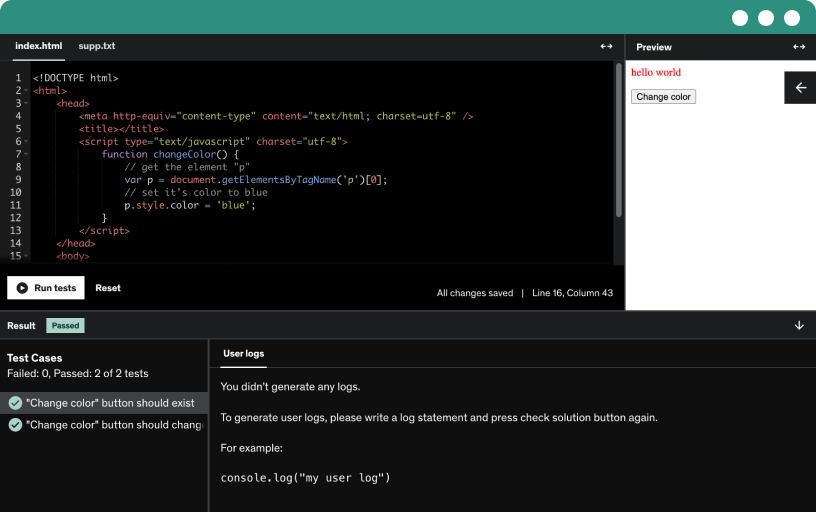
This course includes our updated coding exercises so you can practice your skills as you learn.
See a demo
Explore the data analysis course and learn to install MySQL Workbench, access datasets, and build Netflix and classic model sales dashboards with sql, Tableau, Power BI, and Excel.
Discover how to adjust the Udemy playback rate, leave honest reviews, and use the Q&A and resources to ask questions and download a dataset.
Explore the data engineer, data scientist, and data analyst roles and the data collection, cleaning, exploration, analysis, visualization, and reporting process, using SQL, Excel, Tableau, and Power BI.
Learn to navigate MySQL Workbench, manage connections and schemas, run and save queries, and import data, with shortcuts and schema selection tips.
This lecture will help you understand what SQL is and why we use it.
Insert data into the customers table, adjust data types from char to varchar, run selects, add multiple rows, and drop the table and schema, illustrating DDL and DML basics.
Paste the classic models schema into a new MySQL query, run the script, refresh schemas, and verify the tables are ready for querying.
Turn raw Netflix data into a relational database in Excel by creating tables with primary keys, defining one-to-many relationships, and applying normalization to reduce repetition and improve data integrity.
Explore an optional Netflix titles project at the end of the course to practice relational databases with normalization, multiple tables, and primary and foreign keys visualized in an air diagram.
Explore how to build SQL queries using select, from, and where clauses, apply conditions with equals, not equals, and or, and handle strings enclosed in quotes.
Practice writing select statements in SQL workbench to show customers from the USA with surname Brown and to list emails of employees whose job title is sales rep.
Learn how to perform case-insensitive searches in SQL using upper and lower in where clauses, ensuring Leslie or D Murphy match regardless of data case, with examples in MySQL Workbench.
Learn to use in and not in to filter queries, apply upper for case-insensitive matching, and simplify multi-value filters instead of multiple or conditions.
Learn to use distinct to obtain unique values, apply like with wildcards for pattern matching, and order by to sort results ascending or descending, including multi-column ordering.
Learn how to use distinct to list unique order dates, customers, and employees, and apply like with wildcards to find negotiate in comments, noting case sensitivity and lower/upper normalization.
Learn to join tables using a common key, covering inner, left, and right joins with practical examples and aliases like t1 and t2.
Explore left join and right join in SQL by joining employees and customers, highlight how nulls appear for nonmatching records, and compare outputs.
Learn how to combine customers and payments tables using inner and left joins, handle duplicates, and identify customers with no payments through is null filters.
Explore inner joins and left joins to retrieve customer names, order dates, and statuses from orders and customers tables, including customers with no orders.
Learn to combine results with union or union all, ensuring matching columns and order; union removes duplicates while union all preserves them, and add a type column to distinguish sources.
Apply aggregate functions to compute total payments by date from the payments table using sum, group by, and having; round results to one decimal place and order by date.
Master count, max, min, and avg to summarize sql data. Count distinct order numbers and group by product code, then compute daily max, min, and average payments.
Join the orders and customers tables to identify the top customer by order count, then compute each customer's first and last order dates using min and max order date.
Explore subqueries and common table expressions (CTEs) to compute aggregates from orders data, and learn how to create, name, and query subquery results with where clauses.
Learn how to write common table expressions (CTEs) as an alternative to subqueries, name CTE tables, use as, and chain multiple CTEs for clean, modular SQL queries.
Learn to use the case statement to categorize data into ranges and create flags in SQL, with examples of credit limit groups and end-to-end select syntax.
Create a flag with a case statement to mark orders of more than 40 motorcycles, joining orders, order details, and products, then sum the flag using a cte.
Learn how to use case statements to flag orders with negotiate or dispute in the comments, creating flags and strings for reporting and analysis in SQL queries.
Explore the row number window function, assigning a sequential number to rows by partition and order, with SQL examples, joins, and CTEs.
Explore lead and lag window functions to access next or previous payments within each customer's ordered payments, using over partition by and order by, and compute differences with a CTE.
Join the orders, customers, and employees tables to show each sales rep's second order by calculating a row number over order date, then filter with a cte.
Learn to extract year, month, and day from date fields, compute days between order and required dates with date diff, and use date add and date sub to adjust dates.
Learn how to use cast, substring, and concat to transform data types, extract string segments, and merge columns in MySQL queries for real world data analysis.
Master descriptive statistics and central tendency to summarize data using the mean, median, and mode. Identify outliers and data spread to guide deeper analysis and decision making.
Explore how the range measures data spread by subtracting the lowest from the highest value, using a SQL CTE with an order details table and noting outliers and business insights.
Explore variance and standard deviation as measures of data dispersion and risk, illustrated with stock prices, mean, squared deviations, and the interpretation of volatility.
Master frequency distributions to organize data by counting frequencies and choosing between ungrouped and grouped formats. Visualize patterns with bar charts using grade or age buckets.
Explore the distinction between quantitative and qualitative variables, including discrete and continuous, nominal and ordinal types, and see how these classifications guide data analysis.
Download Microsoft Excel, start a one-month free trial, and review home plan options. Download and unzip the Kaggle Netflix shows dataset, then begin cleaning data in the next video.
Master essential excel shortcuts for navigating and editing a Netflix spreadsheet, including ctrl+home, ctrl+end, shift+arrows, and page up/down sheet navigation.
Clean a Netflix dataset by moving the description to its own sheet and splitting the cast field into multiple columns with Excel's text to columns tool, using a comma delimiter.
Split text to columns to separate director, country, and listed in fields using comma as the delimiter. Rename and tidy the resulting columns, and next, explore the trim function.
Trim and separate data across sheets using the trim function, create show ID relationships, and paste values to prepare cast, directors, and countries for import.
Learn to sort and filter data by splitting the duration into minutes and seasons with text to columns, then filter to minutes and sort by duration from largest to smallest.
Learn to perform sum, average, max, and min calculations in Excel on Netflix movie durations, using filters and cell references to compute totals and hours.
Learn to use the Excel if function to test conditions, combine with and/or logic, and nest tests with examples like release year after 2010 and duration over 120 minutes.
Learn to use sumifs and countifs to sum or count a range with multiple criteria, such as movie type and release year, including 2020 and 2021.
Explore using unique, left, and right to surface distinct values and extract starting or ending characters, handle messy data, and preview durations and years before learning Vlookup.
Master Vlookup in Excel to retrieve a value from a table using a lookup value, table array, column index, and a false range lookup. See IDs map to titles.
Learn to use Xlookup in Excel to retrieve a description by show ID from another table, replacing Vlookup, and apply the formula across rows.
Create pivot tables in Excel to summarize data by year and type; drag fields into rows and columns, adjust values to count or sum duration, and apply filters and sorts.
Master practical excel techniques with pivot tables, sumifs, and unique lists to analyze movie durations, release years, and monthly counts, then prep data for MySQL Workbench.
Split each sheet into its own workbook and save as csv files for import into MySQL Workbench. Replace all blank cells with the word null to ensure clean data imports.
He demonstrates importing six spreadsheets into MySQL Workbench by creating a Netflix data schema, using the table data import wizard, addressing encoding issues with notepad, and refreshing tables after import.
Set up relational tables for Power BI by transforming Netflix data in MySQL Workbench, pivoting tables, renaming columns to category, and preparing the dataset for Power BI.
Download Power BI and connect to data, loading Netflix data from MySQL. Build a titles table with seven columns and learn the data connection workflow.
Learn to build a Netflix dashboard in Power BI by managing relationships, using model and data views, and creating bar and line visuals from titles, descriptions, and countries.
Create an area chart from Netflix data by counting show IDs from the date added field, convert it to year, and format colors, legend, and borders.
Create and align three more charts, configure the top right as shows by rating with rating on the x-axis, and apply a top N filter to bottom left ten genres.
Create a map of countries available by setting country as location and using show id as bubble size; apply a dark theme, color bubbles red, and import the Netflix logo.
Build a single title view by converting visuals to rating and release year cards, resizing elements, and adding a single-select year slicer to filter the movie dataset.
Create a single title view page by building multi-row cards for cast, directors, and categories, and format the visuals with color, headers, spacing, and description.
Analyze 2004 sales by product using SQL joins across orders, order details, customers, and products, showing sales value, cost of sales, and net profit by city and country.
Create a country sales overview in Excel by building a pivot table, showing sales and net profit per country and the net profit percentage on a secondary axis.
Explore which products are bought together and rarely together by building a MySQL query with a CTE and self-join on order numbers and product lines, then analyze results in Excel.
Learn to analyze customer sales by credit limit using MySQL, joining orders, order details, and customers to compute sales value and group by credit limit for pivot table insights.
Analyze customer purchases by joining orders, order details, and customers to compute sales value per order, then apply lag to measure previous sales value and calculate the purchase value change.
Explore office sales by customer country through SQL joins of orders, customers, employees, and offices, then aggregate by product line and visualize with Excel pivot tables and charts.
Identify orders affected by late shipping by adding three days to ship dates, create a late flag with a case statement, and filter results to show only delayed shipments.
Build a sql workflow that calculates each customer's daily sales and running total against their credit limit using orders, order details, customers, payments, and cte steps.
Compute running totals of payments by customer using CTEs and lead to derive next order dates, then join with sales totals to calculate money owed and identify over limit cases.
Assign ChatGPT a data analyst role to write SQL queries and extract insights. Provide context with customer fields and use few-shot prompting.
Use ChatGPT to extract insights by product, country, city, detailing sales value, cost of sales, and net profit for 2004. Learn prompt design, table schemas, and SQL-based validation of results.
Demonstrate building intermediate and advanced SQL queries with ChatGPT in MySQL, including lag over partition by to show customer sales, previous sale value, differences, and money owed with payments.
Leverage ChatGPT to generate MySQL case statements that group order comments into comment types like shipping or disputes. The video demonstrates prompts, syntax fixes, and mapping to an orders table.
Create a view in MySQL Workbench by joining orders, order details, customers, products, employees, and offices; compute sales value and cost of sales; connect view to Power BI for dashboard.
Connect Power BI to a MySQL data source, load the Salesdata view, and prepare the report canvas with a dark theme, two-page layout, and styled shapes.
Create three Power BI dashboard cards showing total sales, a two-segment line chart by rest of world vs USA, and count of unique orders, with an average order value measure.
Create overview line charts showing monthly sales by office (USA vs rest of world), with three panels for total sales, count of unique orders, and average order value.
Create a net profit measure (sum of sales minus cost of sales), and build toggle pills to switch charts between sales and net profit using a switch-based selected metric.
Learn to build interactive Power BI dashboards by linking buttons to bookmarks, adding slicers, and displaying a selected metric in a clustered bar chart with currency data labels.
Create and compare charts by duplicating visuals and switching to scatter, column, and donut types to analyze cost of sale, net profit, and country-level performance across orders.
Learn to conditionally format chart titles to show sales or net profit via a control. Set subtitles, axis titles, and styling to build a clear, interactive dashboard.
Create a decomposition tree to analyze net profit by country, product line, and customer name, format the visual to match the dashboard, and place it on the sales overview sheet.
Add a Power BI sales overview table showing year, month, sales value, month-over-month change, and year-to-date total, with quick measures, formatting, and data cleaning steps.
Add navigation buttons between pages and implement date and product slicers on page one to filter by order date and product name.
Explore cloud computing and Snowflake, a cloud-based data warehouse for analytics. Set up a Snowflake account, run SQL queries in the browser, and compare cloud databases with local MySQL Workbench.
Create a Snowflake account and start a 30-day free trial, following sign-up steps, choosing Azure, region, and SQL language, then prepare to load data and create tables.
Get a quick Snowflake overview: navigate the home page, manage free trial credits, explore databases, schemas, tables, load data, and review data products, monitoring, and admin tools.
Plan data ingestion into Snowflake by choosing batch or streaming based on frequency and size. Stage data internally or externally and load with bulk loading or Snowpipe for real-time access.
Learn to create a database and a schema in Snowflake, explore the database explorer, and prepare a staging area to load data via a SQL worksheet.
Create a Snowflake stage for the customer details schema, enable client-side encryption, upload json, parquet, and csv files, and load the csv into a table named customer csv.
Learn how to load json and parquet data into Snowflake from stages, create and modify tables, cast date fields, and ensure correct column mapping with case-insensitive matching.
Set up an Azure blob storage account, create a storage account and a data container, upload CSV files, and prepare a geo-redundant external storage connection to Snowflake.
Connect an Azure blob container to Snowflake as an external stage, generate a sas token and url, then load csv files into a table using copy into from stage.
Explore data manipulation in Snowflake by inserting, updating, deleting, and truncating records in a customers CSV table, and verify changes with sorting and targeted updates.
Explore enriching datasets from the Snowflake marketplace, including weather, geospatial, and demographics data, and practice joining public datasets to reveal date, weekday, holidays, and seasonal insights for analytics.
Analyze a Disneyland review dataset across California, Hong Kong, and Paris to extract sentiment and summarize themes. Load the data into Snowflake and apply Cortex to derive actionable insights.
Explore Snowflake Cortex, a native AI suite that runs inside your data warehouse, enabling sentiment, translate, summarize, classify, extract, and custom LLM tasks in SQL without moving data.
Load the Disneyland Reviews dataset into a new Snowflake schema as Guest_Reviews, via the database explorer, drag-and-drop the file, set data types, and verify the data preview.
Create your first Snowflake notebook to run SQL live against the Disneyland guest reviews data, using database Disneyland and schema reviews, with cell-based execution and direct data warehouse integration.
Translate multilingual reviews to English with Snowflake Cortex translate, auto-detect input language, and store results in a new review English column in an enriched guest reviews table for sentiment scoring.
Summarize a text column into a concise English summary using Snowflake Cortex's summarize function, always English regardless of the original language, delivering one clean sentence for dashboards.
Understand the Snowflake Cortex sentiment function, which outputs a float between -1 and 1 by analyzing a text column to reveal review sentiment and enable threshold-based filtering.
Discover how ai_agg aggregates a text column to extract insights, returning the six most common categories from review text using a simple prompt, with options to filter by sentiment.
Explore text classification in Snowflake cortex by defining categories, classifying reviews into single or multiple labels, and extracting labeled outputs from JSON results.
Explore Snowflake's ai_sentiment function to obtain both overall and per-category sentiment for reviews, returning positive, negative, neutral, mixed, or unknown, with up to 10 aspects.
Learn to unpack a JSON categories array in Snowflake with lateral flatten, producing one row per category and sentiment per review for easy grouping and counting.
Generate a Streamlit app inside Snowflake using Cortex code to visualize analysis outputs, turning natural language into Python and SQL with governance-aware context.
Build a Streamlit app from a Python script, run it to visualize sentiment insights with adjustable charts, and use Cortex AI to fix code and tune visuals.
If you're interested in becoming a data analyst you're in the right place!
Please ensure you can install MySQL Workbench on your computer - I have enabled the installation videos for free preview so you can try.
In this course, you will learn how to master the key techniques and concepts required to extract, manipulate, visualize, and analyze data effectively. Whether you're a beginner or have some experience with data analysis, this course will cater to your needs and help you gain a competitive edge in the rapidly growing field of data analytics.
Here's what you can expect to learn:
SQL Fundamentals: Dive into the world of structured query language (SQL) and learn how to write powerful queries to extract and manipulate data from databases. From basic SELECT statements to advanced JOINs, subqueries and aggregate functions, you'll gain a comprehensive understanding of SQL. This section is available for Mac and Windows laptops and computers.
Tableau Fundamentals: Unleash the potential of Tableau, a leading data visualization and exploration tool. Learn how to connect to data sources, create stunning visualizations using drag-and-drop techniques, and build interactive dashboards to uncover valuable insights. This section is available for Mac and Windows laptops and computers.
Power BI Essentials: Explore the capabilities of Power BI, Microsoft's powerful business intelligence tool. Discover how to import, transform, and model data from various sources, create interactive visualizations, and design compelling reports and dashboards. This section is only available for Windows users.
Excel for Data Analysis: Excel remains a fundamental tool for data analysis, and in this course, you'll harness its power. Explore common features used by data analysts such as formulas, pivot tables, data cleaning, and conditional formatting to efficiently analyze and present data. This section is available for Mac and Windows laptops and computers.
Using ChatGPT as a Data Analyst: Learn how to use ChatGPT to enhance your productivity as a data analyst. Discover practical techniques for utilizing ChatGPT to assist in writing SQL queries, generating code snippets, and automating repetitive tasks.
Statistics for Data Analysis: Develop a strong foundation in statistical concepts essential for data analysis. Learn about key measures such as standard deviation, mean, median, and mode. Understand how to interpret these statistics and apply them to real-world data analysis scenarios.
Why Enroll in this Course?
Comprehensive Approach: Gain proficiency in four essential tools used by data analysts, allowing you to tackle a wide range of data analysis tasks.
Hands-On Learning: Through practical exercises and real-world examples, you'll apply your knowledge to solve realistic data analysis challenges.
Practical Projects: Work on exciting projects that simulate real-world scenarios, enabling you to build a portfolio of practical data analysis skills.
Expert Instruction: Learn from an experienced instructor who has extensive industry knowledge and a passion for teaching data analysis.
Career Advancement: Equip yourself with the skills demanded by the job market and unlock lucrative career opportunities as a data analyst or business intelligence professional.