

Your cart is empty.
Keep shoppingCreate HTML5 Games Using Adobe Animate
811 students
Create HTML5 Games Using Adobe Animate
Make resolution independent HTML5 games using Adobe Animate CC
Created byNicholas Lever
Last updated 12/2024
English
What you'll learn
- Create great looking games that do not lose any crispness if taken from mobile phone size to large screen TV.
- Learn how to draw with Adobe Animate.
- Learn how to animate with Adobe Animate.
- Learn how to add interactivity to the output of a Adobe Animate animation.
- Learn how to easily add physics to your games using Matterjs.
- Pep up your Javascript skills with the latest ES6 syntax. It's easier to use.
Explore related topics
Coding Exercises
This course includes our updated coding exercises so you can practice your skills as you learn.
See a demo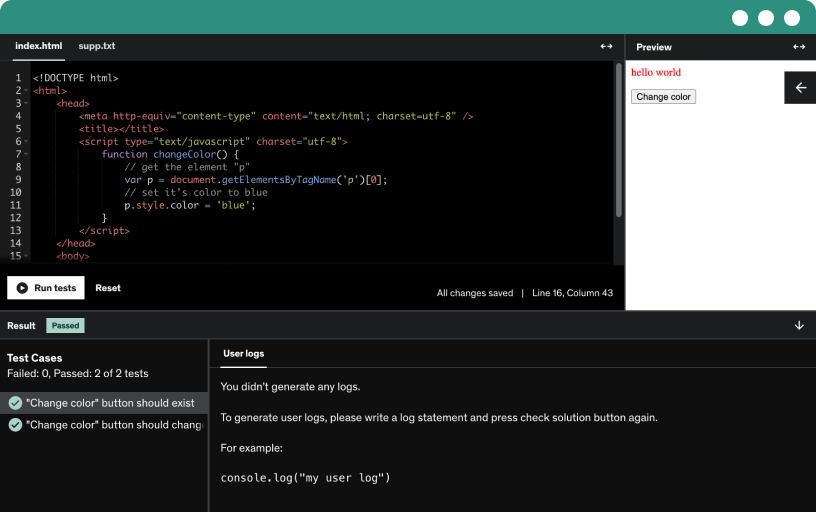
Course content
8 sections • 38 lectures • 3h 32m total length
Requirements
- You'll need Adobe Animate CC
- Knowledge of basic Javascript
Description
Just a few years ago nearly all browser based games used Adobe Flash. This all changed when Steve Jobs refused to allow the Flash player in the iOS Safari browser and at the same time HTML5 introduced the Canvas with an api to allow fast sprite animations. Most developers have moved away from Adobe Flash, but Adobe Flash in its latest incarnation Adobe Animate can output content that is completely HTML5 compliant. What is more it is resolution independent, so when the output is resized it still looks great. Adobe Animate is targeted mainly at non interactive content. But there is nothing to stop the developer from using the output and some Javascript to create great looking HTML5 games.
The author has created Flash games for clients including the Mars Corporation, BBC, Johnson & Johnson and Deloittes. He is also the author of two books about using Flash for game development. In this course he shows how users familiar with Flash can use their existing skills to create great HTML5 games and takes developers unfamiliar with Adobe Animate through the details of using the drawing tools and animation tools to create the assets that will be used in a game. We also look at how it is possible to get free vector based graphics that can then be animated and used in a game.
Then the course takes the student through all the steps to create a simple game before moving onto a more complex example with a user interface and sound effects.
Having completed the course you will be able to control animations created in Adobe Animate using Javascript. Allowing you to create just about any game and you will even be shown how to add a physics engine to create games that use complex physics calculations to control the movement.
So what are you waiting for? Sign up now and start using this terrific tool to create some fantastic games. With a 30 day money back guarantee you have nothing to lose.
Who this course is for:
- Developers wanting to understand how to use Adobe Animate CC.
- Developers who want to create resolution independent HTML5 games.
- Developers wanting to use a highly sophisticated development tool to create great content.
- Developers wanting to add animation to their HTML5 games.
- Developers wanting to learn tricks of game development from someone who has created hundreds of games.
- Ex-Flash developers wanting to use their skills to create HTML5 games