
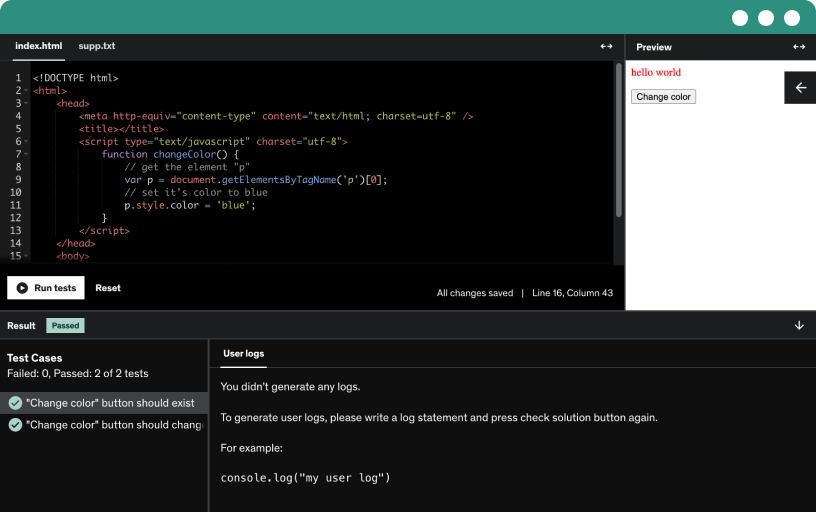
This course includes our updated coding exercises so you can practice your skills as you learn.
See a demo
This course focuses on building a versatile real-time tracking system using GPS modules and a web dashboard. It covers coding in C++, frontend development, and online deployment, enabling users to track objects across various scenarios using a personalized interface.
In this lecture, we have provided a thorough explanation of each necessary hardware module and the essential software needed to construct the project.
In this lecture, we have provided a comprehensive document outlining the hardware and software requirements. This detailed list facilitated an easier process for ordering the necessary hardware modules, ensuring everything was available for the project.
This lecture introduces GPS technology, explaining how it utilizes satellite signals to determine precise locations on Earth's surface. It highlights GPS's significance in navigation, showing how it works through signal transmission, reception and trilateration to provide accurate real-time positioning for diverse applications.
In this lecture, we explore the NEO-6M GPS module, valued for its compact build, accuracy, and seamless integration capabilities. Its efficiency, low power usage, and support for various devices make it a top choice for precise location tracking in applications like navigation systems, asset tracking and IoT devices across different industries.
This lecture guides through testing the NEO-6M GPS module by connecting it to a CP2102 USB to UART module in a Windows environment. The simple circuit setup involves linking corresponding pins like ground, voltage supply, RX and TX between the modules, ensuring proper communication for successful testing.
In this lecture, we are providing the circuit diagram for testing GPS module in windows environment.
This lecture guides through installing the CP2102 USB to UART driver for the GPS module by downloading it from Silicon Labs' official website. By following simple steps in the Device Manager, the driver is successfully installed, assigning a virtual COM port for communication, crucial for visualizing live GPS data in the upcoming lecture.
This lecture guides in installing VisualGPS software to see live GPS data, demonstrating how to connect the GPS module to a laptop and configure the software. By checking different data visualizations, it confirms the GPS module's functionality for the project's next steps. Additionally, it provides troubleshooting tips for any potential issues encountered along the project development.
In this lecture, we are introducing an ESP32 microcontroller board and demonstrating the process of connecting it to a computer using a micro USB cable. The importance of identifying the USB to UART chip embedded in the ESP32 is emphasized, as this determines the appropriate driver installation. This lecture guides the students on inspecting the chip visually and checking the device manager to confirm the type of chip and address any driver-related issues for successful communication between the ESP32 and the computer.
In this lecture, we are guiding the process of checking whether the CP2102 USB to UART driver comes bundled with the Arduino IDE. Learners are directed to the official Arduino website to download and install the IDE, with step-by-step instructions on the installation process. Despite installing Arduino, the lecture clarifies that the CP2102 driver is not included and learners are shown how to navigate the Arduino IDE interface, including adjusting font size for better visibility.
This lecture guides learners through the process of setting up the Arduino IDE for ESP32 development. It covers adding the ESP32 board's URL to the preferences, installing the ESP32 board library and choosing a specific version to avoid compatibility issues. This lecture also explains how to manually install the CP2102 driver for the ESP32 board and ensures successful communication between the computer and ESP32 by recognizing the connected port in the Arduino IDE.
In this lecture, we are introducing to a basic program for testing the functionality of the ESP32 board by blinking its built-in LED. The provided code initializes the serial communication, setting the baud rate to 115200 for reliable communication between the ESP32 and a connected device. The "pinMode" function configures the pin mode and in this case, it designates pin 2 as an output to control the inbuilt LED.
In this lecture, we are introducing to the code that tests the ESP32 board by blinking its inbuilt LED. The "void loop" function contains code for toggling the LED on and off with a specified time delay, creating a blinking pattern. This lecture guides the learners through saving, compiling and uploading the code to the ESP32 board, confirming its proper functionality through the observed blinking pattern.
In the lecture, we have provided the source code for blinking the inbuilt LED of the ESP32. You can download the code from the resources section and test your ESP32 board.
This lecture introduces the I2C OLED display, showcasing its OLED technology that offers vibrant visuals with low power usage. With its 128x64 resolution, quick refresh rates, and compatibility with various devices like ESP32 and Arduino, this display suits wearables, IoT gadgets, portable electronics, prototyping and industrial control panels.
This lecture illustrates connecting the OLED display to an ESP32 by linking essential pins like GND, VCC, SCK and SDA. This setup ensures power supply and communication between the OLED display and ESP32 for testing purposes.
In this lecture, you will find the circuit diagram for testing OLED display.
This lecture explains the source code for testing the OLED display on an ESP32, demonstrating how to initialize the display and position text using (x, y) coordinates. By creating an object, initializing the display and drawing strings at specific coordinates, it illustrates how to display text on the OLED screen.
In this lecture, we are providing the source code for testing OLED display module in the resources section. You can download and modify the code as per your need for the project development.
In this lecture, we install necessary library required to execute the code for the OLED display. And after successful execution of the program, we display some message on the OLED display.
In this lecture, we explore Firebase, Google's versatile platform used for web and mobile applications. Specifically, we focus on its Realtime Database, a JSON-based cloud-hosted database renowned for real-time synchronization, making it suitable for chat apps, e-commerce, gaming and live tracking services.
In this lecture, we set up Firebase for real-time data storage from the ESP32. We create a new project, add a web app, and configure Firebase's Realtime Database, preparing it for further project integration and data handling.
This lecture introduces Mapbox, a tool for making cool maps in apps. It helps developers create interactive maps with different styles and features, like tracking and route planning, perfect for navigation and urban planning projects. The focus here is on Mapbox GL JS, a JavaScript tool that makes building dynamic maps easy and customizable for websites.
This lecture explains how to create a Mapbox account and obtain an essential access token for our main project. It involves signing up on Mapbox's website, logging in and copying the access token for later use in our work.
This lecture guides on linking the GPS and OLED modules to the ESP32 using specific pins and USB for connecting to a computer. It highlights the importance of a power bank for a portable power source, especially for field demonstrations, once the project is finalized.
In this lecture, we are providing the circuit diagram for GPS and OLED connection with ESP32.
In this lecture, the part of the source code includes libraries that manage the OLED display, Firebase services, and GPS data processing. It sets up essential Wi-Fi and Firebase access details and creates storage for GPS information.
In this lecture, the code segment sets up the ESP32 board to connect to Wi-Fi, communicates with the OLED display and serial monitor for status updates, and prepares Firebase and GPS modules. It's essential setup work before collecting GPS data and sending it to Firebase.
In the main loop section of the code, the ESP32 board continually checks for available GPS data. If valid data is received, it's displayed on an OLED screen and sent to Firebase for further processing. Additionally, the code includes checks for initial GPS connection within the first 5 seconds and displays an error message if no GPS signal is detected.
In this lecture, the code segment processes GPS data, converts it to local time and formats it for display and storage. It checks for valid GPS signals, handles time zone differences and sends the organized data to Firebase for storage and further analysis. If the GPS signal is absent or weak, it displays a message on both the Serial Monitor and an OLED screen, waiting for a valid signal.
This lecture guides through installing necessary libraries by accessing the library manager, searching for each library by name and developer, and ensuring proper installation to prevent potential errors. Detailed library names and developers are provided in the resources section of this lecture.
In the lecture, we have provided the complete source code to send GPS data from ESP32 to Firebase. You can download the code from the resources section and use for your project development.
In this lecture, we're uploading code to the ESP32 via Arduino IDE, enabling GPS data collection and transmission to Firebase. By selecting the appropriate board, port and compiling the code error-free, we ensure proper connection to the Wi-Fi network and wait for GPS connectivity to fetch and transmit data to Firebase, completing the backend setup.
In this lecture, we execute the entire backend source code to send all the GPS data to the Firebase.
This lecture covers the web dashboard's front-end code built with HTML, CSS and JavaScript, along with the server-side Python script using Flask. Flask, a lightweight web framework, enables us to create a dynamic web app by defining routes and rendering HTML templates. The app.py file shows how Flask sets up the web app, handles routes and starts a development server for testing.
This lecture covers the HTML document structure and the purpose of various elements within the head section of an HTML file. It explains the importance of declarations like doctype, language, and metadata like character encoding and viewport settings. It also demonstrates how to include external resources like CSS, JavaScript and how Flask enables dynamic URL generation for assets in a web application. This crucial section sets up the foundation for a well-structured and functional webpage.
This lecture covers the HTML <body> section, detailing its role as the container for webpage content. It explores div elements, CSS classes and Bootstrap grid systems used for structuring, styling and responsiveness, ensuring a well-organized and adaptable layout for diverse screen sizes in a web application.
The code section of this lecture demonstrates the HTML table structure and styling using CSS, presenting GPS-related data. The table is styled with Bootstrap classes for responsiveness and each row represents a specific GPS attribute like longitude, latitude, speed and more, with placeholder values initially set as "NA". Additionally, a button triggers a Geolocation API function, enabling distance calculation between the user's current location and a fixed GPS coordinate.
The code snippet of this lecture structures a web-based GPS dashboard with a responsive map and a reset button. It sets up a responsive map container with a reset button positioned at the top-right corner, allowing users to reset data with a confirmation prompt before page reload. The webpage blends HTML, CSS and JavaScript to create an interactive mapping interface for GPS data presentation.
The code segment of this lecture adds functionality for a theme switcher and scroll-to-top and scroll-to-bottom buttons. The "change-theme" image, when clicked, cycles through predefined colors, updating the page's border and background. Additionally, the scroll buttons allow users to smoothly navigate to the top or bottom of the content, providing a user-friendly browsing experience on smaller screens.
The code section of this lecture integrates Mapbox for interactive maps, sets up Firebase for real-time data storage and initializes a map, storing GPS coordinates for tracking a user's path. It also adds a layer to the map that dynamically updates to display the tracked path with a customizable line style.
In this lecture, the code initializes variables and DOM elements for managing GPS data and the dashboard display. It also includes code that listens for changes in a Firebase database and updates the dashboard in real-time with GPS-related information, utilizing ternary operators to handle empty data and populate the dashboard elements appropriately.
In this lecture, the script manages direction data, converting abbreviations to full names using a function. It dynamically updates a map by plotting GPS coordinates, forming a line path and creates a new HTML element styled with the class 'start-point'.
In this lecture, the code handles markers on a Mapbox map, updates their positions based on GPS data, fetches location information using Mapbox Geocoding API, and calculates distances between coordinates, offering a comprehensive overview of real-time map interaction and data representation on a webpage. This code section effectively brings together map markers, API integration, and coordinate calculations for a dynamic map-based display.
In this lecture, we have provided the complete source code for frontend web dashboard webpage. In the resource section, you can download it for the project development.
In this lecture, you will learn how to take your project beyond your local computer using PythonAnywhere, a user-friendly platform for hosting Python projects online. It simplifies web hosting, lets you run Python code in your browser and offers both free and paid plans for deploying web apps or showcasing projects to a wider audience.
In this lecture, we'll explore PythonAnywhere, a platform for hosting Python projects. We'll sign up for a free account, create a unique username, verify email, and get familiar with the dashboard for managing web projects easily.
In this lecture, we will set up our Flask web application on PythonAnywhere. We will upload our project files, adjust the file structure and make necessary code changes to display the frontend. Additionally, we will ensure the security of our site by enabling HTTPS, making it accessible to anyone without concerns about security.
In this lecture, we explore an alternative to storing GPS data on Google Firebase due to cost constraints. We'll craft a Google Apps Script to automate data capture and storage in Google Sheets, ensuring cost-effectiveness and greater control over our GPS records.
In this lecture, we'll explore code snippets for integrating Google Apps Script with Firebase to manage GPS data. These functions handle tasks like setting column headers in Google Sheets, fetching data from Firebase and styling the spreadsheet for efficient storage and visualization of the data.
In this lecture, we demonstrate functions that efficiently append GPS data from Firebase to a Google Sheet. It checks for existing data, maps it to columns and appends new entries, ensuring seamless and accurate recording of GPS information in a structured sheet.
In this lecture, we proceed with setting up the Google Apps Script and creating a trigger for automated data processing. The process involves adding the necessary Firebase and Google Sheets libraries, executing code to append data successfully, and creating a time-driven trigger for periodic updates. The demonstration showcases the live interaction between Firebase, Google Sheets and the final project dashboard, illustrating successful data retrieval and storage.
In this lecture, we are providing the source code for saving the firebase data to the google sheets. You can download and modify it with your credentials for successful execution of the program.
In this lecture, you will see the live execution of the project and real-time updates on custom dashboard.
In this concluding lecture, we revisit the key highlights and insights gained throughout the course, spanning GPS tracking, hardware integration and web development. The journey encompassed crucial aspects such as understanding GPS principles, practical setup and testing, ESP32 integration, OLED display utilization, Firebase and Mapbox integration, backend and frontend development, project deployment and creation of App Script code that resolved one limitation. The course concludes with the live demonstration of the fully integrated project, emphasizing the holistic learning experience.
Imagine having the power to track the real-time location of your lost vehicle or even a person, right from your own custom-made web dashboard. Not only will you see the exact position on a live map, but you’ll also know the distance and direction from your current location — all with a beautiful interface that you built yourself.
This course teaches you exactly that.
What you will learn to build --> a smart, fully functional GPS tracking system.
What Makes This Course Truly Different?
Most IoT courses depend heavily on 3rd-party dashboards. You only write a few lines of code to extract GPS data, send it to the ready-made dashboard… and that’s it.
No real learning. No real development. No real ownership.
But this course is a complete full-stack experience.
You won’t just plug data into someone else’s platform — you will build everything yourself:
The backend using C++ and ESP32,
The real-time database setup,
AND a fully interactive frontend using HTML, CSS, JavaScript, Bootstrap, Python, and Flask.
By the end, you won’t just understand how GPS tracking works — you’ll have built your own professional tracking system from scratch.
Four Reasons Why You Should Take This Course
1. Build Your Own Custom Dashboard
No limitations. No templates.
You decide the layout, the features, and the user experience. Your dashboard will be 100% unique and customizable.
2. No Limits, No Restrictions
Forget trial accounts and feature-locked IoT dashboards.
Your system won’t depend on someone else’s platform — YOU control your data, your display, and your project.
3. Full-Stack Developer Experience
From hardware connectivity to real-time databases to web development, you’ll gain hands-on, job-ready skills that employers actually look for.
This is a perfect project to showcase in your resume.
4. Build Client-Ready Products
Want to offer tracking solutions to clients?
With this course, you’ll have everything you need to create customized dashboards and sell fully functional GPS-tracking applications.
How the Course is Structured
The entire course is divided into 9 beginner-friendly sections, guiding you from basic concepts to a complete deployed application.
Section 1 – Understanding the Project
You’ll learn:
What this project is about
All hardware & software requirements
Why each module is important
The science behind GPS and how it works
Section 2 – GPS Module Setup & Testing
You’ll assemble the GPS module, connect it as per the circuit diagram, and test it on Windows to ensure it’s working perfectly.
If it’s faulty, you’ll know immediately.
Section 3 – Testing the ESP32 Board
Here, we:
Install Arduino IDE
Add ESP32 board manager
Write and upload code to test ESP32 functionality
You’ll confirm that your ESP32 is ready for the project.
Section 4 – OLED Display Setup
You’ll learn how the OLED display works, connect it to the ESP32, and write code to display messages.
This ensures your display module is functioning correctly.
Section 5 – Firebase & Mapbox Setup
You’ll learn:
Why Firebase is crucial
How to create and configure your realtime database
How Mapbox works
How to create your Mapbox account and generate API keys
Section 6 – Building the Backend
This is where the magic begins.
You will:
Connect all hardware modules
Write C++ code to extract GPS data
Send data to Firebase in real time
Display selected information on the OLED module
Section 7 – Building the Frontend
You will develop a modern, interactive dashboard using:
Python (Flask)
HTML
CSS
JavaScript
Bootstrap
You’ll learn how to run a web server, render HTML templates, and manipulate elements to create a professional-looking interface.
Section 8 – Deploying the Project Online
You’ll make your dashboard accessible from anywhere by using a free Python-based hosting platform.
Then you will write a Google Apps Script to automatically store real-time Firebase data in Google Sheets, creating a permanent data log — absolutely free.
Section 9 – Live Demonstration
In the final section, you’ll see the entire system in action:
ESP32 sending real-time data
Firebase updating instantly
The dashboard displaying location, distance, and direction
Google Sheets receiving live entries every minute
Finally, we wrap up everything in a clean, easy-to-understand summary.
What You’ll Get
Complete source code
Real-world development experience
English subtitles for every lecture
Step-by-step explanations
A full-stack project you’ll be proud to showcase
A dashboard that YOU built, not copied
Whether you're a beginner or someone who has never built a web project before — you’re in the right place.
I’ll guide you through everything, step by step.
Technical Support
Never feel stuck.
If you have any doubts, simply post your question in the Q&A section, and our support team will respond within 24 hours, Monday to Saturday.
We’re here to help you complete this project successfully.
Refund Policy
Your satisfaction is guaranteed.
If you feel this course isn’t right for you, you are protected by a 30-day, no-questions-asked money-back guarantee.
Learn with complete confidence and zero risk.
Final Words
You have absolutely nothing to lose and an incredible skillset to gain.
This course will unlock new career opportunities, deepen your technical knowledge, and give you the power to build practical, real-world applications.
Take charge of your future.
Invest in yourself.
Enroll now and start building your own real-time GPS tracking dashboard today!