
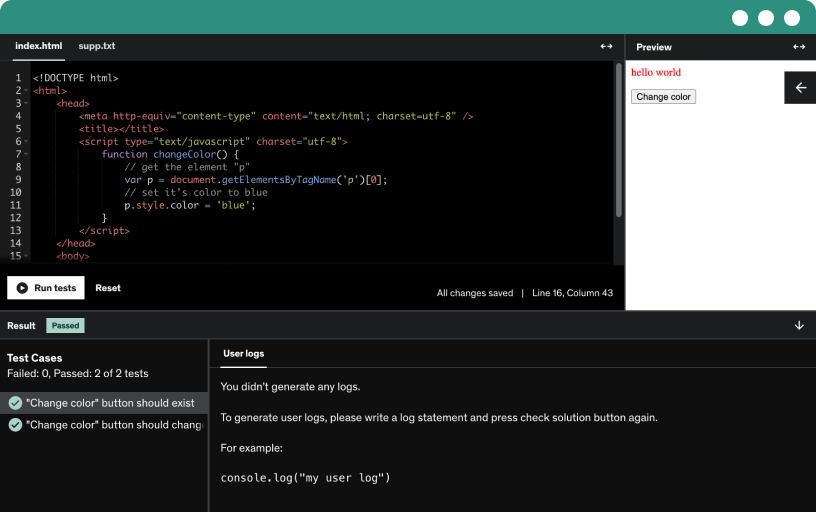
This course includes our updated coding exercises so you can practice your skills as you learn.
See a demo
Explore how WebDriver IO enables automated software testing with a hands-on, beginner-friendly next-gen selenium framework for browser and mobile automation in NodeJS, from basics to end-to-end testing, page objects.
Learn webdriverio, a node.js based selenium framework for fast cross-browser testing with async/await and puppeteer under the hood, with easy setup via a guided cli and cucumber support.
Begin your automated testing project by initializing npm, installing the necessary packages, and configuring WebdriverIO with a local backend, chosen framework, page objects, and Chrome driver.
Take a quick WDIO overview: inspect node modules, tests, and package.json scripts to run io tests; review the default configuration and how to structure and write tests from scratch.
Create a config dump json file named Jaz config dump json at the project root to enable commands autocomplete for the driver, showing available options in test files.
Install Prettier and save it as a dependency to enable optional formatting. Create a dot prettier rc file, enforce single quotes and no semicolons to align code style.
Demonstrates how to automate a login test with WebdriverIO, using describe and it blocks, filling credentials, clicking submit, and asserting a success message with async/await.
Load a website using the browser object in WebdriverIO, passing a URL directly or via a variable, then run the test to see a fast, passing result.
Discover how to pause test execution using pulse in WebdriverIO to inspect app during debugging, apply it in development stages only, and remove pauses before production to avoid slow tests.
The lecture demonstrates asserting page title and URL in WebdriverIO using old and modern approaches, showing how to load a site, extract title and URL, and perform contains-based assertions.
See how a test fails and learn why adding a weight ensures the expected functions work, while terminal errors guide fixing tests or reporting bugs.
Assert web elements with webdriverio by selecting an h1 on example.com, storing the selector in a variable, then use expect to exist, to be displayed, and have text containing example.
Learn how to target elements with selectors across automation frameworks by using the official selectors docs and guides, exploring attributes, deep selectors, and examples.
Learn to automate form interactions with WebdriverIO by locating elements via IDs, typing values with setValue, addValue, and clearValue, and validating login via an inventory container assertion.
Automate selecting options and toggling check boxes with WebdriverIO using select by visible text, index, or attribute, then assert the chosen option; also click check boxes and radio buttons.
Learn how to set the browser window size in automated testing with WebdriverIO using the set window size function, adjusting width and height for visible test results.
Explore dynamic waiting in WebdriverIO, using wait for exist, wait for display, wait for enabled, and wait for clickable to handle dynamic content and element states.
Use the browser size function to create device emulations for mobile, tablet, and desktop by defining viewport width and height arrays and applying set window size in webdriverio.
Learn to capture screenshots with webdriverio, including full-page and element-specific shots, using browser.saveScreenshot and element selectors, and handle common path errors.
Advance the fundamentals by exploring advanced topics, integrating selectors, element interactions, and testing flow to build real end-to-end tests against a live demo banking application.
Master file upload testing with WebdriverIO in a banking environment by loading the app, preparing file path and remote path, uploading the file, and submitting to confirm a successful upload.
Learn to use before, before each, after, and after each hooks in WebdriverIO to set up the site or app for tests and clean up afterward.
Learn how to use before and after hooks in webdriverio by defining custom async functions, calling them inside hooks, and validating that file upload tests continue to pass.
Learn how to create custom commands in WebdriverIO, leverage the before hook, and reduce code duplication by encapsulating file upload logic into reusable browser commands.
Extend the custom file upload command by adding arguments for upload box and submit selectors, turning hardcoded code into a generic, reusable function that handles multiple selectors across tests.
Create utility functions as custom commands to extract the browser's URL and title, returning them together for easy test assertions, and use them in a test flow with console logs.
Create a wait-and-click custom command in WebdriverIO to handle dynamic content and flaky tests by waiting for a selector to display before clicking, using an async function.
Learn how to override native commands in webdriver io with custom commands, a possible but not recommended technique for large projects.
Reload a session to clear application state in WebdriverIO, using the reload session function to spawn a new session and verify session IDs differ.
Learn to create and switch between browser windows in WebdriverIO using a new window function with a URL parameter, enabling testing across multiple tabs such as google.com and WebdriverIO site.
Use network throttling in automated testing with WebdriverIO to simulate 2g, 4g, and offline conditions. Apply throttle settings to observe loading times and offline behavior in real scenarios.
Execute native JavaScript in a browser under test using the driver.execute function to add two numbers and assert the result of 15.
Learn to execute JavaScript asynchronously in WebdriverIO, using execute async with a setTimeout and callback to compute A plus B after a 3-second delay, including proper assertions.
Explore end-to-end testing with WebdriverIO by setting up an e2e directory, configuring test paths, and preparing positive and negative login scenarios on a demo banking app.
Learn to implement end-to-end login flow tests with WebdriverIO, automating invalid credential login and error verification, plus a forgot password scenario.
Learn to create an end-to-end test for resetting a password with WebdriverIO, using partial text to locate elements, a reusable email variable, form submission, and assertion of the confirmation message.
Automated end-to-end testing using WebdriverIO demonstrates searching via a keyboard press and validating results with assertions. Learn to fill the search box, submit with Enter, and verify h2 results appear.
Automate end-to-end testing of the feedback form with WebdriverIO by filling name, email, subject, and message, submitting, and asserting redirection to the feedback page.
Automate the complete Source Demo product order flow end-to-end, from login with standard user and secret sauce password through cart, checkout, fill customer info, finish, and verify the order.
Review the end-to-end test flow in WebdriverIO, including before and after hooks, login and logo custom commands, four test steps, order confirmation, and the next section on page objects design.
Explore how the page objects model provides abstraction and reduces duplication by organizing selectors and actions into page classes for maintainable end-to-end tests with TypeScript and WebdriverIO.
Begin a WebdriverIO project setup with npm init, choose Mocha and TypeScript, enable page objects and test file generation, then configure the driver and optionally add Prettier for code formatting.
Create and use page objects to abstract app pages, starting with the home page. Define selectors, getters, and actions, export a page object instance, and integrate with tests.
Build a login page object in WebdriverIO, define selectors for the login form, username and password inputs, and the submit button, and implement an async login method with TypeScript typing.
Create a login test using page objects: navigate from the homepage, submit invalid credentials, and assert the login page error message.
Implement a feedback page with the page objects pattern in a WebdriverIO framework, using getters and a submit function to boost test readability and maintainability through reusable components.
Explore creating and reusing components in the page object architecture, including a components folder and a number component. Extend pages with a base page to reduce duplication and improve organization.
Adopt an abstract page and inheritance to share a reusable wait-for-seconds function across all pages, achieving consistent page object patterns in automated tests.
Learn how driver helpers in an abstract page expose reusable utility functions for all page objects, such as setting window size to full HD, throttling network speeds, and taking screenshots.
Create data helpers to generate random data, including numbers and strings, using native Node.js libraries like crypto, without external packages, and organize them in abstract page or utility files.
Set up a cucumber framework overview BDD project from scratch, write feature files and step definitions, and implement page objects with getters, functions, and classes for robust test automation.
Create a cucumber framework project for webdriverio, ensure Node.js 16+ is installed, initialize npm, select cucumber with native JavaScript, enable page objects, and configure reporters and Chrome driver.
Check and manage Node.js versions with nvm to ensure compatibility for WebdriverIO projects. Install and use the current stable Node.js version to avoid errors.
Explore cucumber's workflow with page objects, step definitions, and feature files described in plain English. Learn how data tables drive login tests using usernames, passwords, and messages via page objects.
Refactor and extend page objects for the login flow in automated testing with webdriverio, updating imports, adding selectors and an assert error message, and preparing for upcoming step definitions.
Explore how to craft cucumber-based feature tests in webdriverio, using scenario outlines and single scenarios with given, when, then and data tables to improve readability and reusability.
Define step definitions for a cucumber framework in a WebdriverIO project, using page objects, visit and login steps, regex placeholders for arguments, and data tables to drive tests.
Define step aliases to make steps reusable across given, when, and then, improving the framework and keeping tests passing; using the define step is optional.
Learn to build a BDD end-to-end test for a search feature using WebdriverIO, covering feature files, step definitions, and page objects on the Zero Obscurity website.
Automate a feedback form using bdd and gherkins with feature files and page objects, refactoring steps, and name, email, subject, and message inputs to verify results across multiple browsers.
Discover Webdriver IO integrations and use code app.js to create end to end tests, then set up a new project with npm init and prettier.
Install node packages: the driver, code js, and selenium-standalone to drive automation; run npm install, initialize the project, create code directories, start the selenium service, and begin the first test.
Run codecept init to auto-create project folders and files for Webdriver testing, selecting the Webdriver helper and generating an example test and config.
Start selenium server in a second terminal with npx selenium standalone install and start. The server runs on port 4444 for webdriver tests.
Create your first end-to-end test using WebdriverIO by loading example.com, waiting two seconds, and asserting that the H1 element is visible.
Launch tests headless by setting the headless variable to true for ci, enabling ci-friendly execution without a visible browser. Use headfull for debugging when needed.
Learn to use smart wait in WebdriverIO to automatically wait for an element to be visible or exist. Reduce manual waits and improve test robustness and maintainability.
Master practical assertions in code sub JS, enable screenshot on fail, and observe how failing tests generate screenshots and artifacts to streamline debugging.
Explore how to add multiple test files and multiple scenarios per feature, executed top to bottom, with pass/fail outcomes, automatic screenshots, and configurable test file patterns for scalable WebdriverIO testing.
Use CodeceptJS run command options, such as --steps to show each step and --reporter to generate xml reports like xunit.
Master the page objects pattern in CodeceptJS by generating page objects, defining selectors and methods, including them in the config, and using them in tests to maintain and simplify updates.
Set up your code project, write tests, and use page objects to start automation with webdriverio. Explore the documentation, commands, and guides, and seek help through Q&A or StackOverflow.
Discover Percy.io for visual regression testing, connect your framework with Puppeteer, Cypress, and Selenium, and use Percy syntax for snapshots while reviewing results in the Percy web app.
Explore continuous integration and continuous delivery, automating building, testing, and deploying code with each commit to enable smaller, frequent releases, and compare popular providers like Jenkins, Travis, and CircleCI.
Compare Jenkins, CircleCI, and Travis for continuous integration and delivery. Jenkins offers full control and plugins for large projects; CircleCI and Travis provide cloud-based, easy-start pipelines for open source testing.
Connect a Webdriver project to Jenkins, set up a free Jenkins server, and create a freestyle build that runs npm run test using an execute shell step.
Use a choice parameter to select scripts such as test or smoke test in Jenkins builds. Configure the shell command to reference the chosen script, enabling flexible, multi-script builds.
Explore the Jenkins UI, from the main dashboard to project details, build history, and console output, and learn how to create, modify, or delete builds and manage plugins.
Learn to run a Jenkins server from a Node script by adding a npm script 'start Jenkins server' to package.json, launching java -jar Jenkins.jar on port 8080.
Connect your WebdriverIO tests to BrowserStack by installing the browserstack service and configuring username, key, locale, and capabilities. Run tests on BrowserStack (or Source Labs) instead of local selenium.
Ready to master modern web automation and testing with one of the most powerful next-gen tools available? If you're looking to level up your skills and gain real-world experience using a cutting-edge Selenium-based framework, this hands-on course on WebdriverIO is exactly what you need.
Designed to be as practical and beginner-friendly as possible, this comprehensive course dives straight into coding exercises and projects right from the start. All you need is a basic understanding of programming—preferably in JavaScript—along with Node.js and a code editor. Whether you're a budding QA engineer, a developer wanting to add automation to your skillset, or simply curious about how modern testing works, you'll find immense value here.
Throughout the course, you’ll learn how to install, configure, and manage multiple testing projects using WebdriverIO. You'll explore how to interact with web elements through the WebdriverIO API and implement the Page Object design pattern—a widely adopted best practice in test automation. You’ll even build your own automation framework using TypeScript, gaining valuable experience with typed codebases.
But we don’t stop there. You’ll also be introduced to behavior-driven development (BDD) using two popular tools: CodeceptJS and Cucumber. Plus, you’ll perform visual regression testing using Percy, and integrate your automation setup with Jenkins for continuous integration and robust testing pipelines.
We’ll also take your skills to the cloud with cross-browser testing on BrowserStack, and share real-world tips, techniques, and insights from experienced automation professionals.
Throughout the course, you’ll enjoy a supportive, collaborative learning environment, where you're encouraged to ask questions, share insights, and get help when needed—from both the instructor and fellow students. Stuck on something? You can always post in the Q&A or send a private message to get personalized guidance.
Remember, the journey to becoming a skilled automation tester is a process—and this course is designed to support you every step of the way. So don’t wait—enroll now and take the first step toward becoming a confident WebdriverIO automation expert!