
Your cart is empty.
Keep shopping
Learn Automation of AutoCAD using python
633 students
Learn Automation of AutoCAD using python
Learn how to use python programming skill to create AutoCAD drawings in few seconds.
Created byHasan Ayaz
Last updated 12/2022
English
English
What you'll learn
- Learn Python Programming Basics
- Learn AutoCAD basics
- Learn to control AutoCAD using Python
- Learn how to automate real life AutoCAD tasks
- Learn to create GUI and Execution file for your code
Explore related topics
Coding Exercises
This course includes our updated coding exercises so you can practice your skills as you learn.
See a demo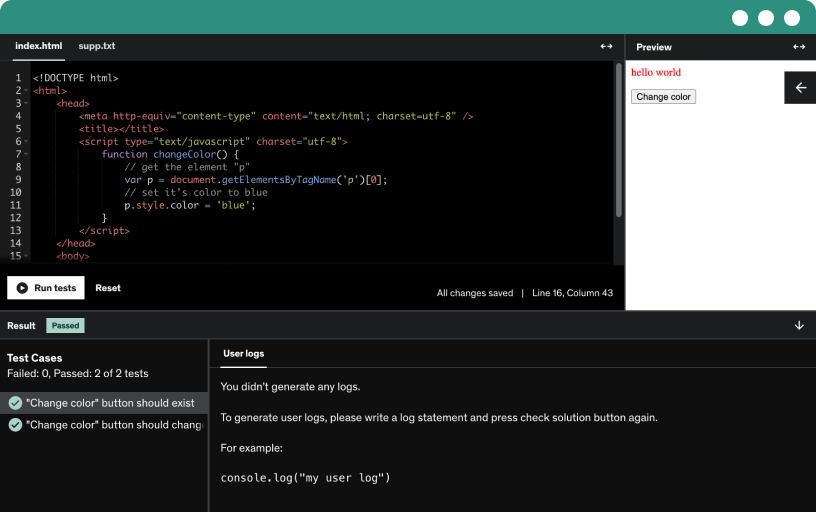
Course content
5 sections • 37 lectures • 1h 48m total length
Requirements
- Access to a computer with an internet connection.
Description
AutoCAD is one of the most versatile designing software frequently used by millions around the world. However, making complex drawings is time consuming and are subjective to errors which increases overall operating cost of business. You can save 90-95% of your time and prevent errors by implementing python programming language in AutoCAD through this course.
This is the complete and ONLY course of AutoCAD automation using python on Udemy. From setting up python programming language to converting your automation code .py (source) file to .exe (application) file, this course covers all. By going through this course you will be able to write code in Python Programming language for automating drawings.
This course contains lectures and projects of real life example where I automated the drawing of my colleague draftsmen and was able to reduce there time on drawing from hours to minutes. This course will teach you in a practical manner. With every lecture, comes a full coding screencast and a corresponding code (source file) notebook.
Following are the content of the course:
Python crash course:
Data types and Variables
List and Dictionaries
If statements
User inputs and Loops
Functions and Error Handling
AutoCAD automation:
Layers
Points
Line, circle, text
Polyline, rectangle
Arcs, Ellipse
Curves
Spline
Solid
Blocks
Dimension and its properties
Automation Project
GUI creation and code to application conversion
This course will also teach you how you can create GUI for your code and convert your .py file to .exe file. So, that you will be able to handover the execution file to someone you automated the drawing for.
So what are you waiting for? Learn to Automate AutoCAD using python and make your and other's life easy.
Who this course is for:
- Python programmers
- Draftsmen
- Engineers belonging to designing department
- Freelancers